
30 Best HD BMW iPhone Wallpapers: The Ultimate 4K M Performance Collection
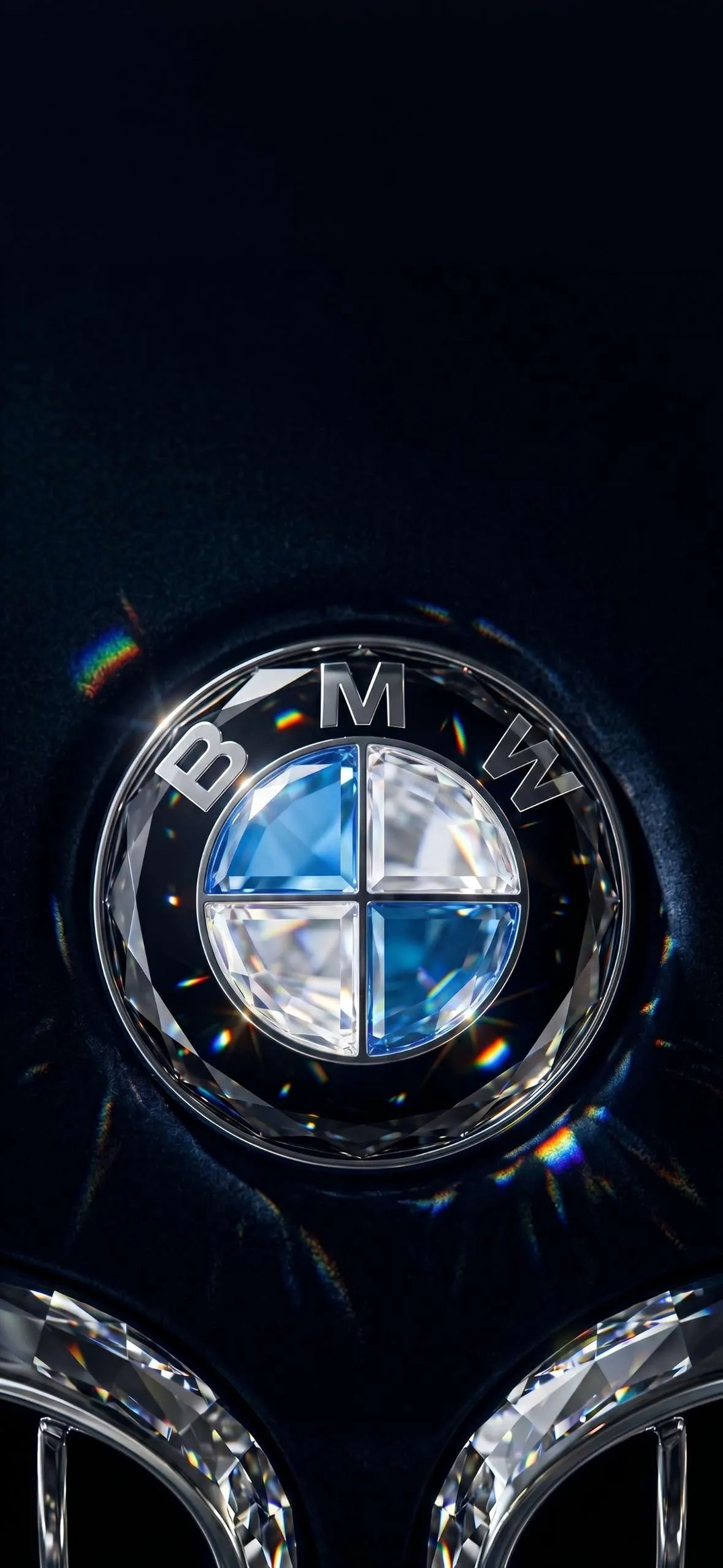
For automotive enthusiasts, a car isn’t just a machine—it’s a statement of engineering perfection, luxury, and raw power. And if you are a fan of Bavarian Motor Works, nothing beats seeing the iconic kidney grille or the legendary three-color M badge every time you wake up your phone.
Whether you are looking for a sleek, dark backdrop that saves your battery or an aggressive track-day shot of a modern sports car, this curated collection of BMW iPhone wallpapers has something for every fan. Below, we break down the ultimate gallery by style, followed by a step-by-step tutorial to get your background framed perfectly using the latest iOS personalization features.
The Ultimate BMW Wallpaper Gallery Styles
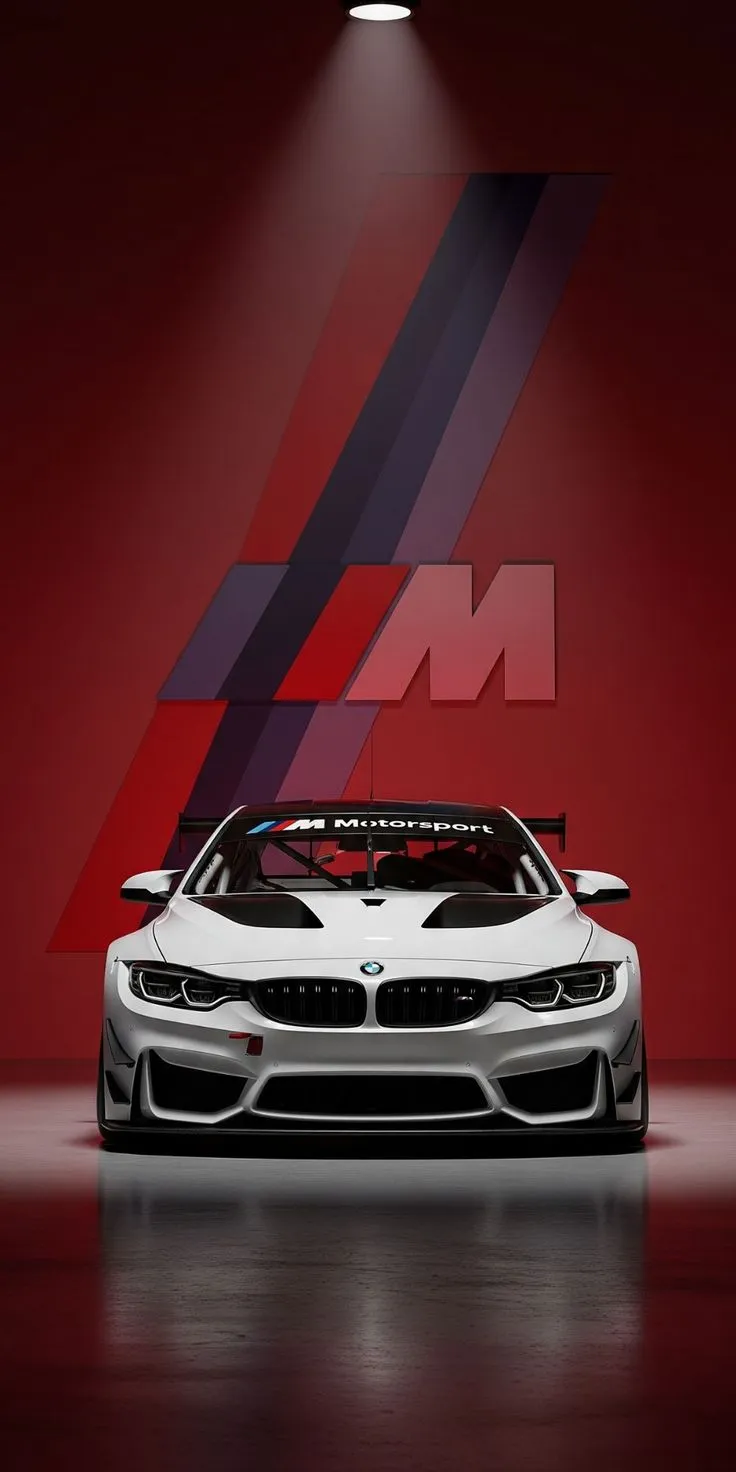
1. The M Performance & Motorsport Powerhouse
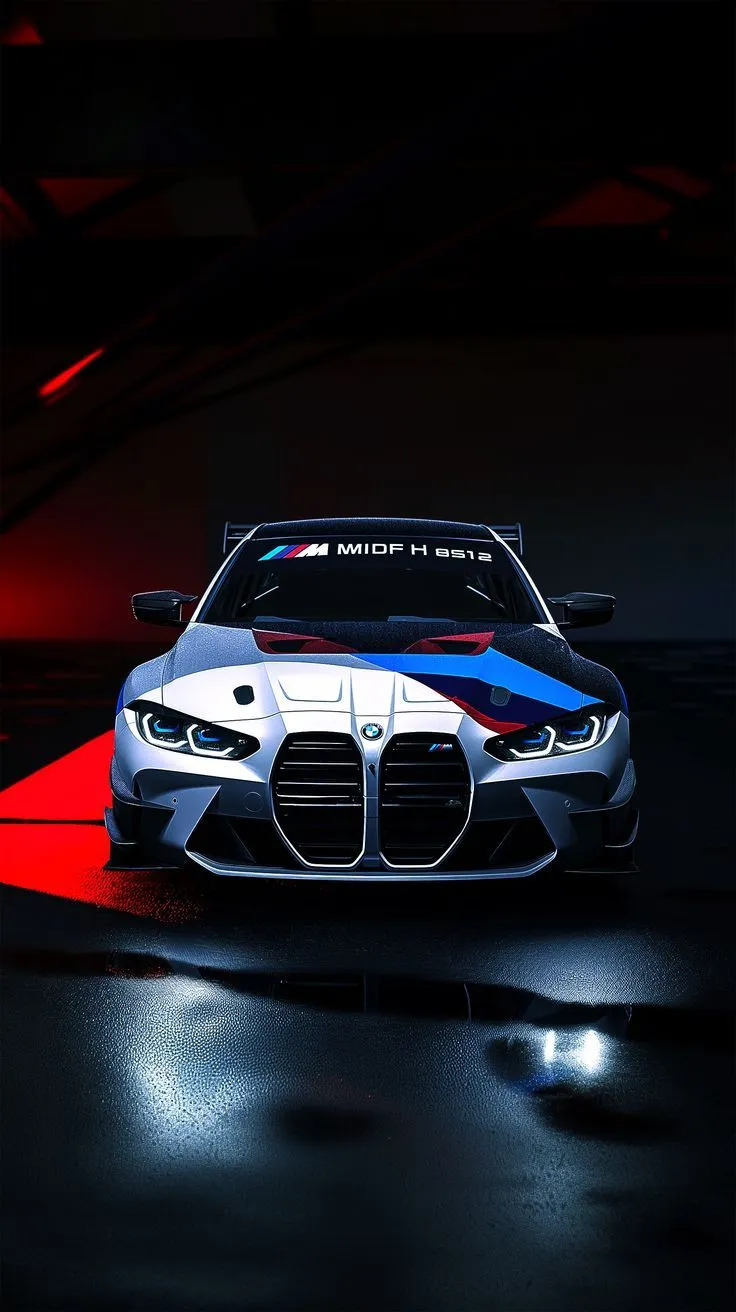
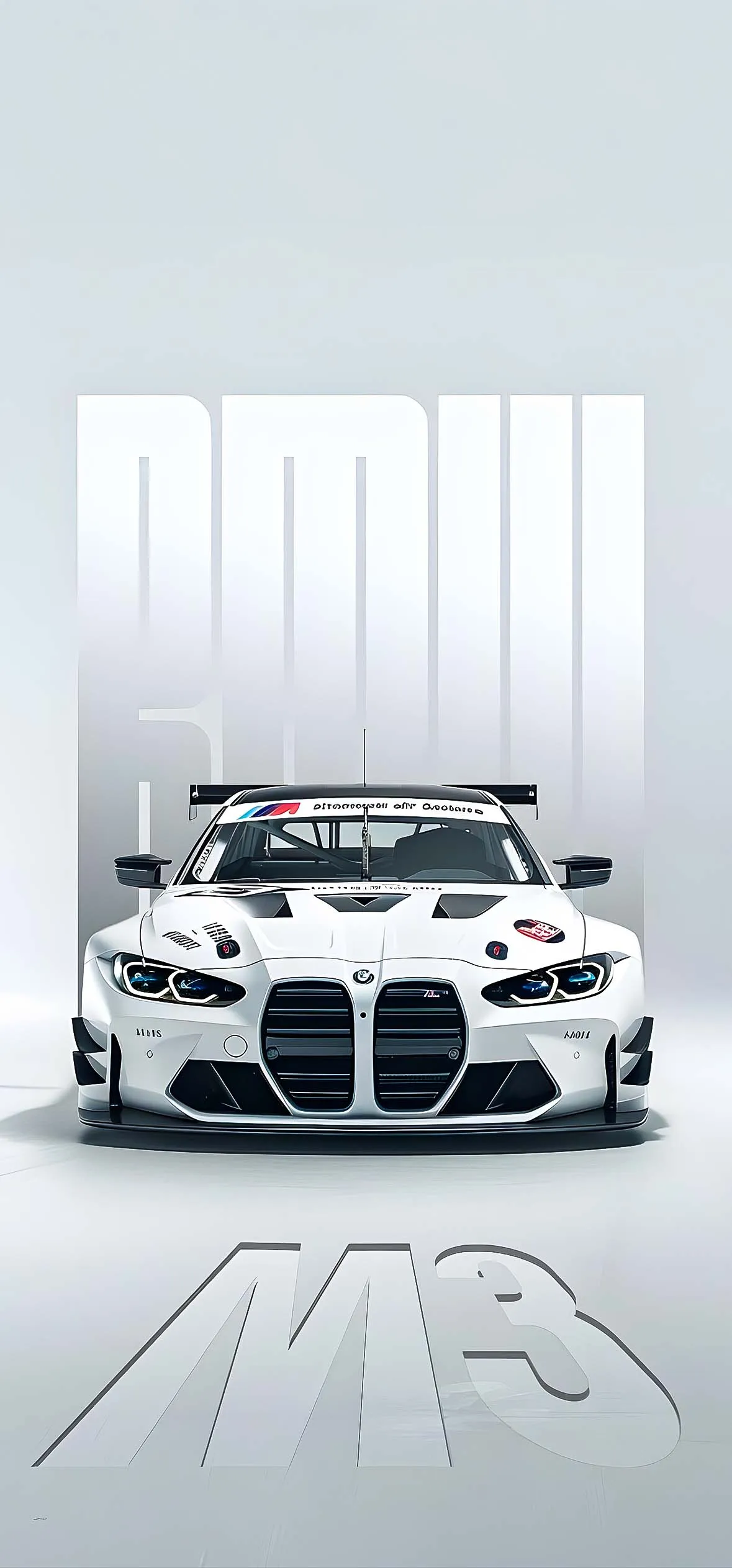
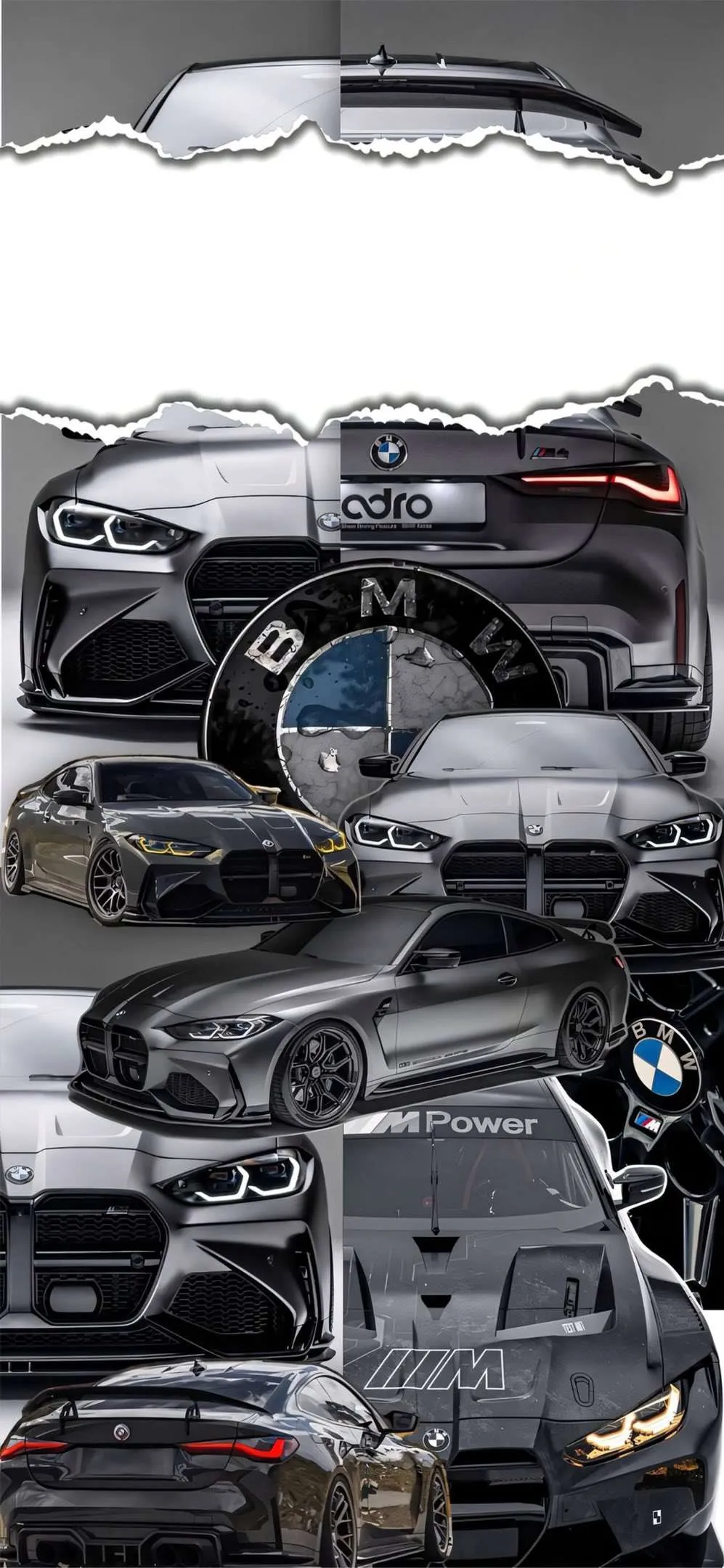
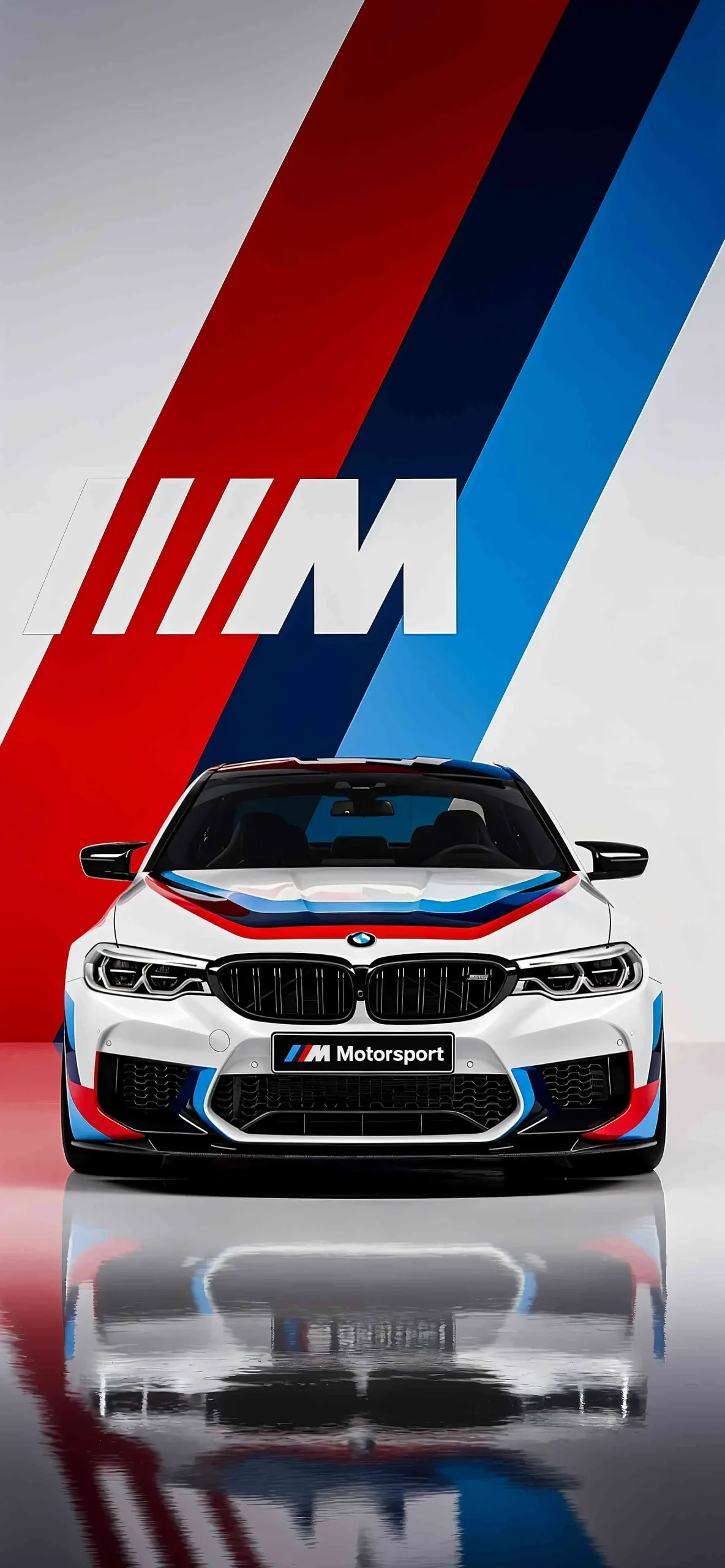
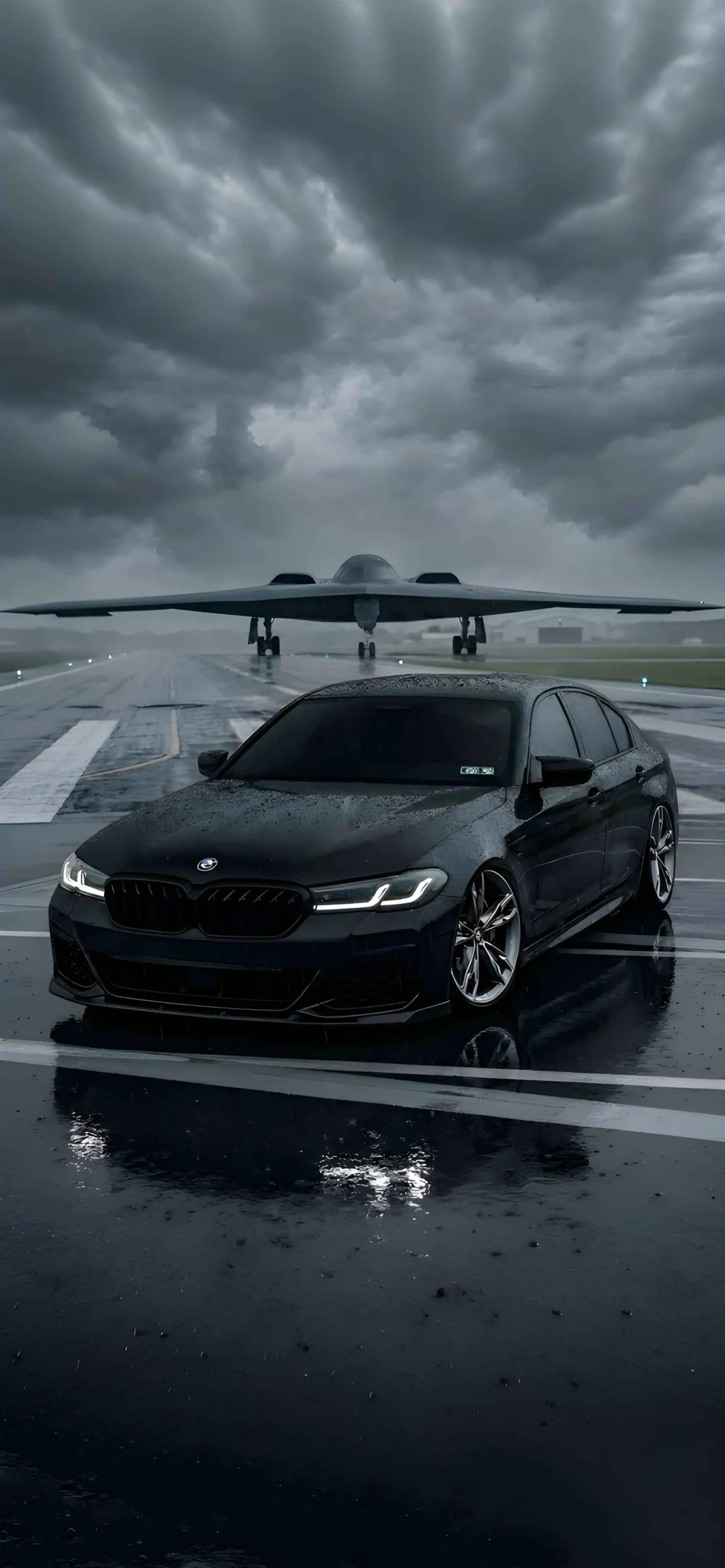
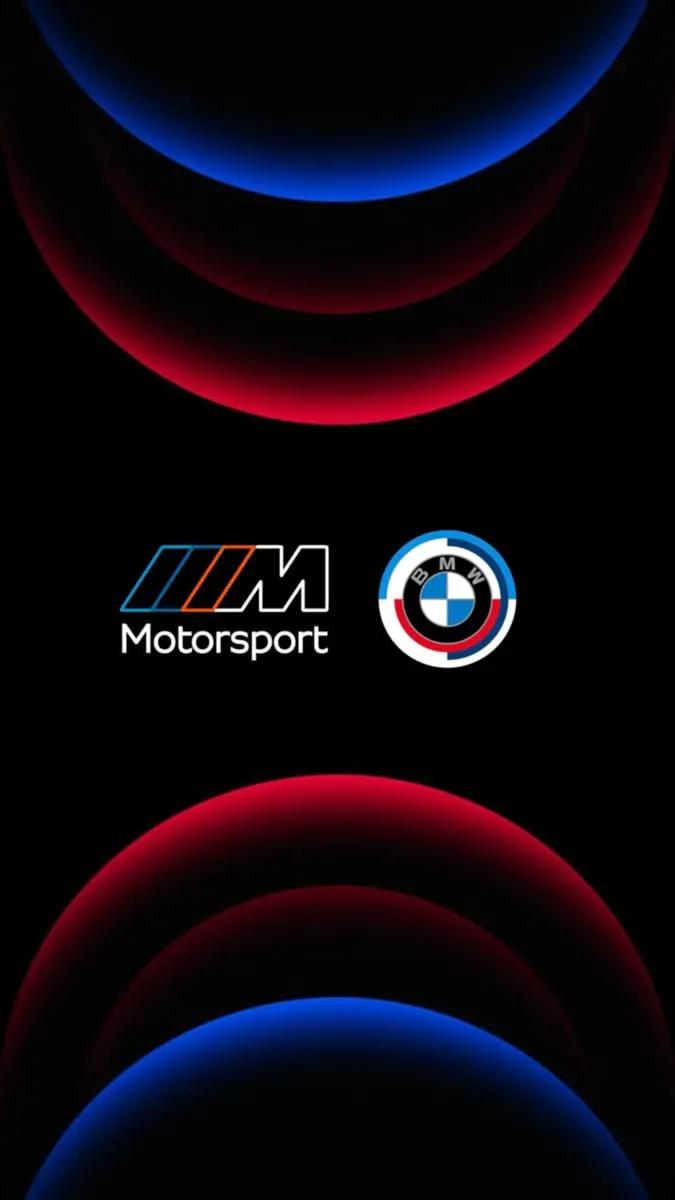
The M Series represents the absolute pinnacle of BMW performance. For an aggressive, high-energy look on your Lock Screen, choose backgrounds that focus on sharp angles and track-ready stances.
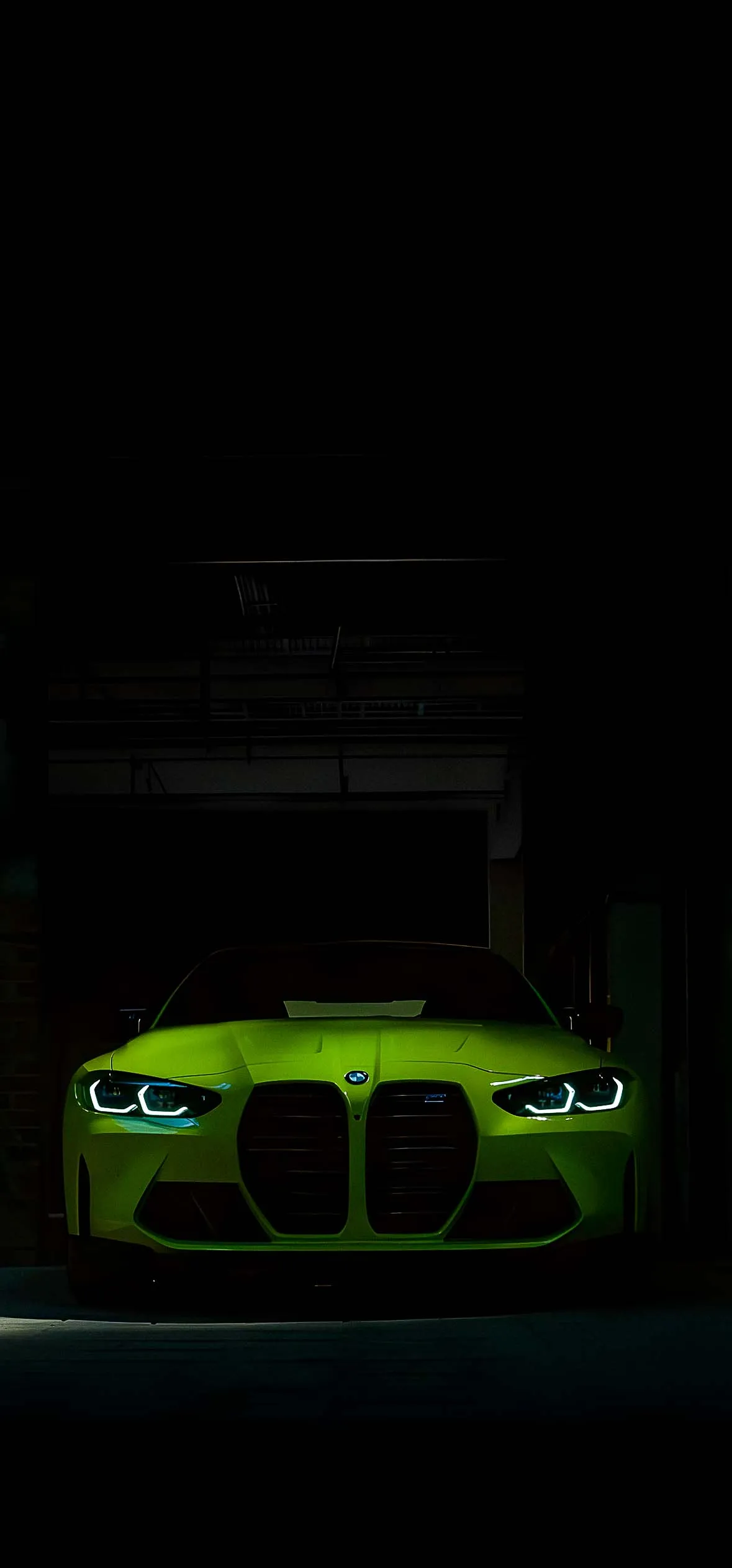
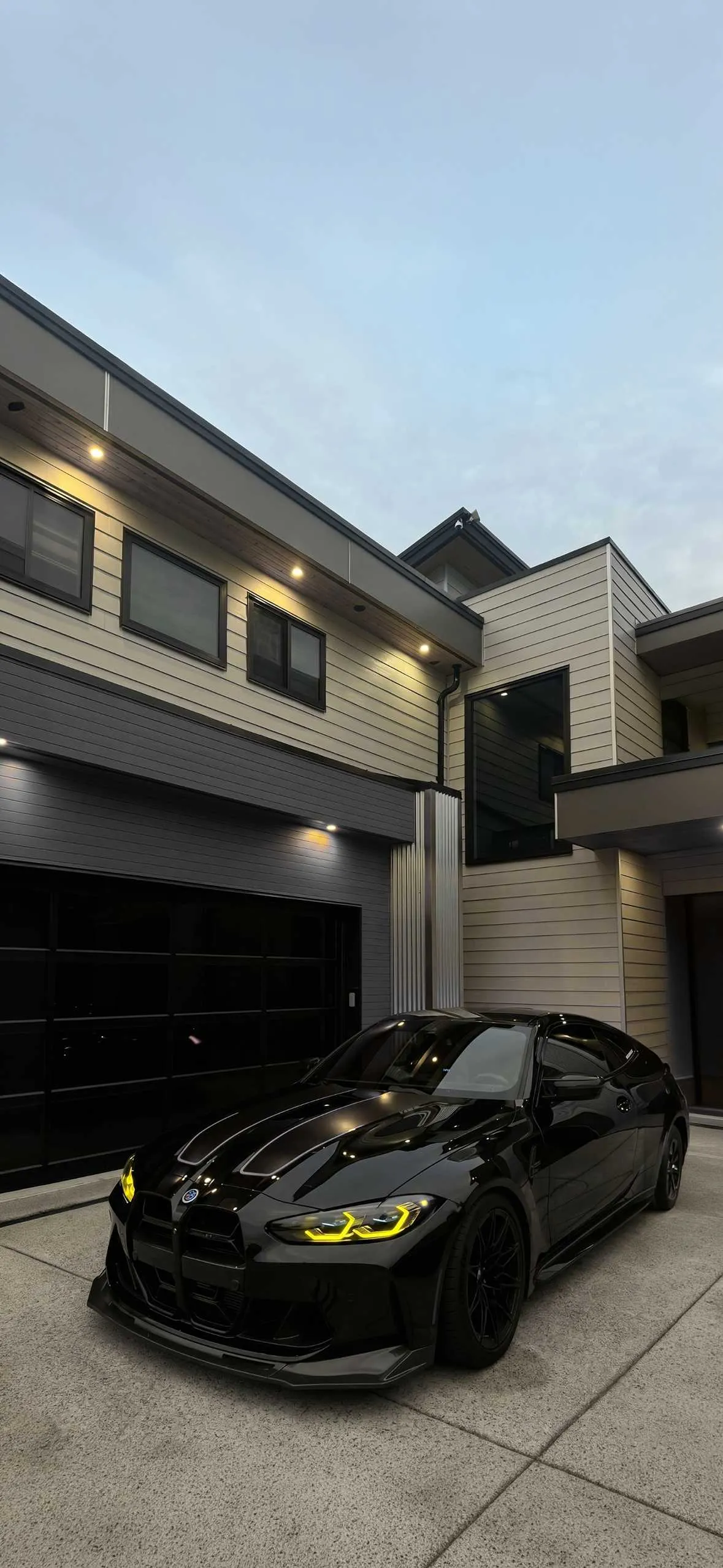
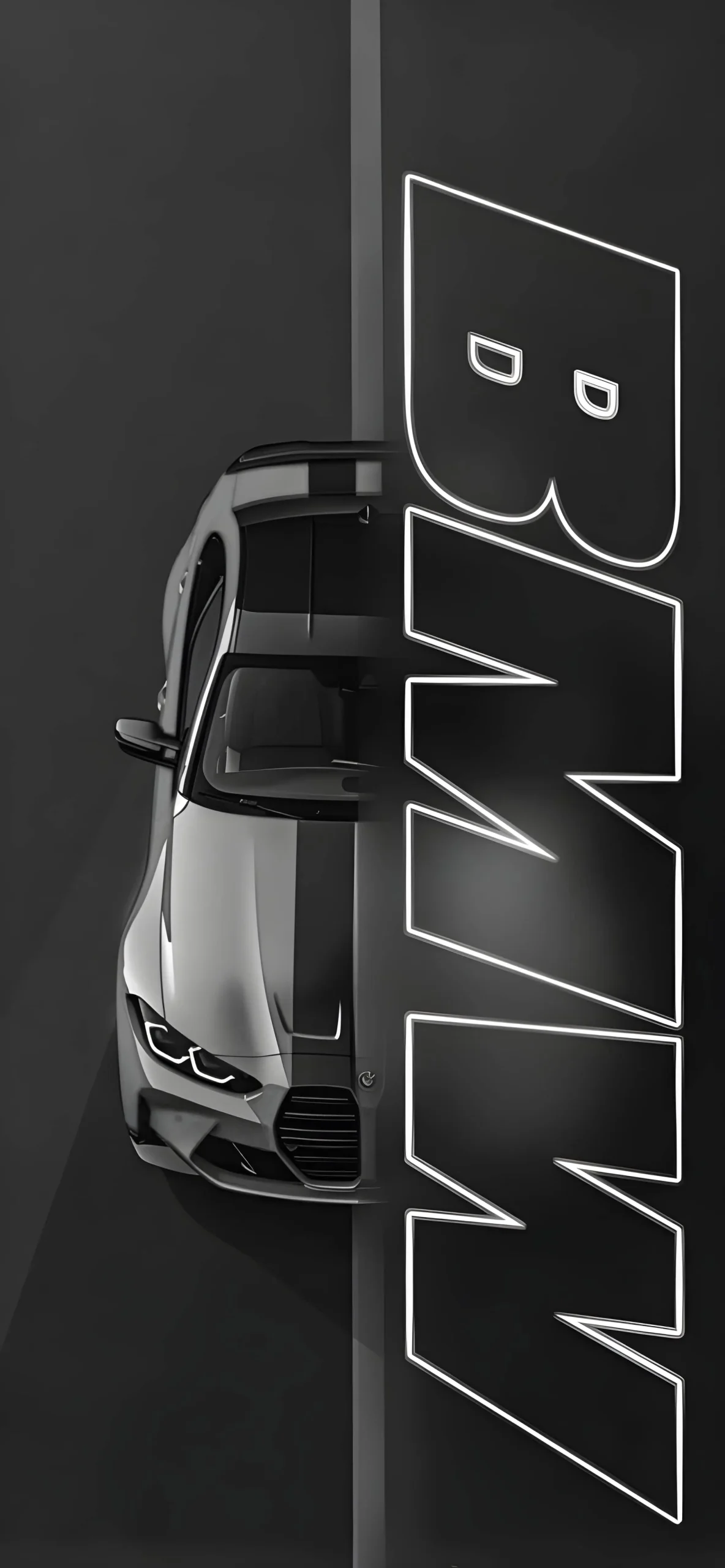
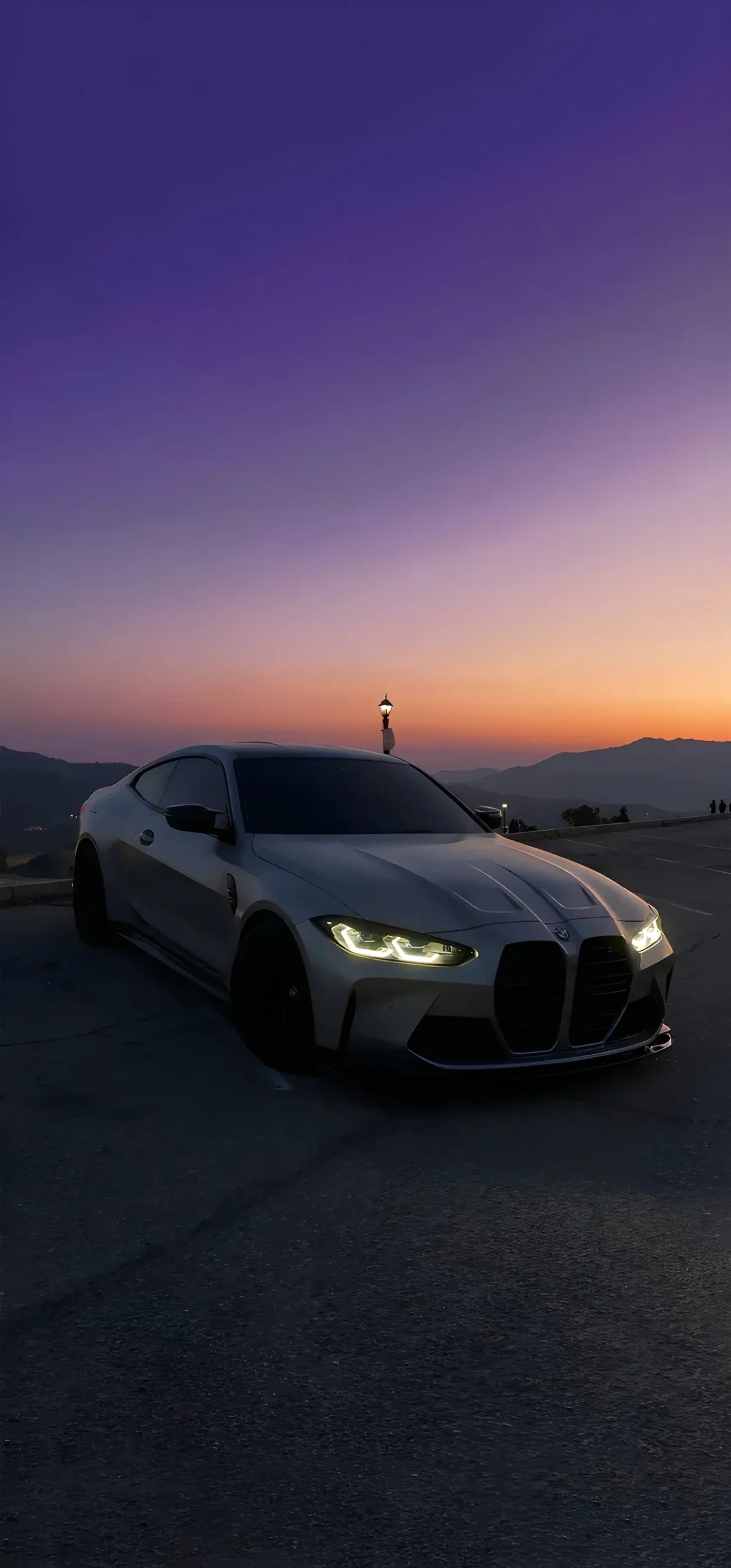
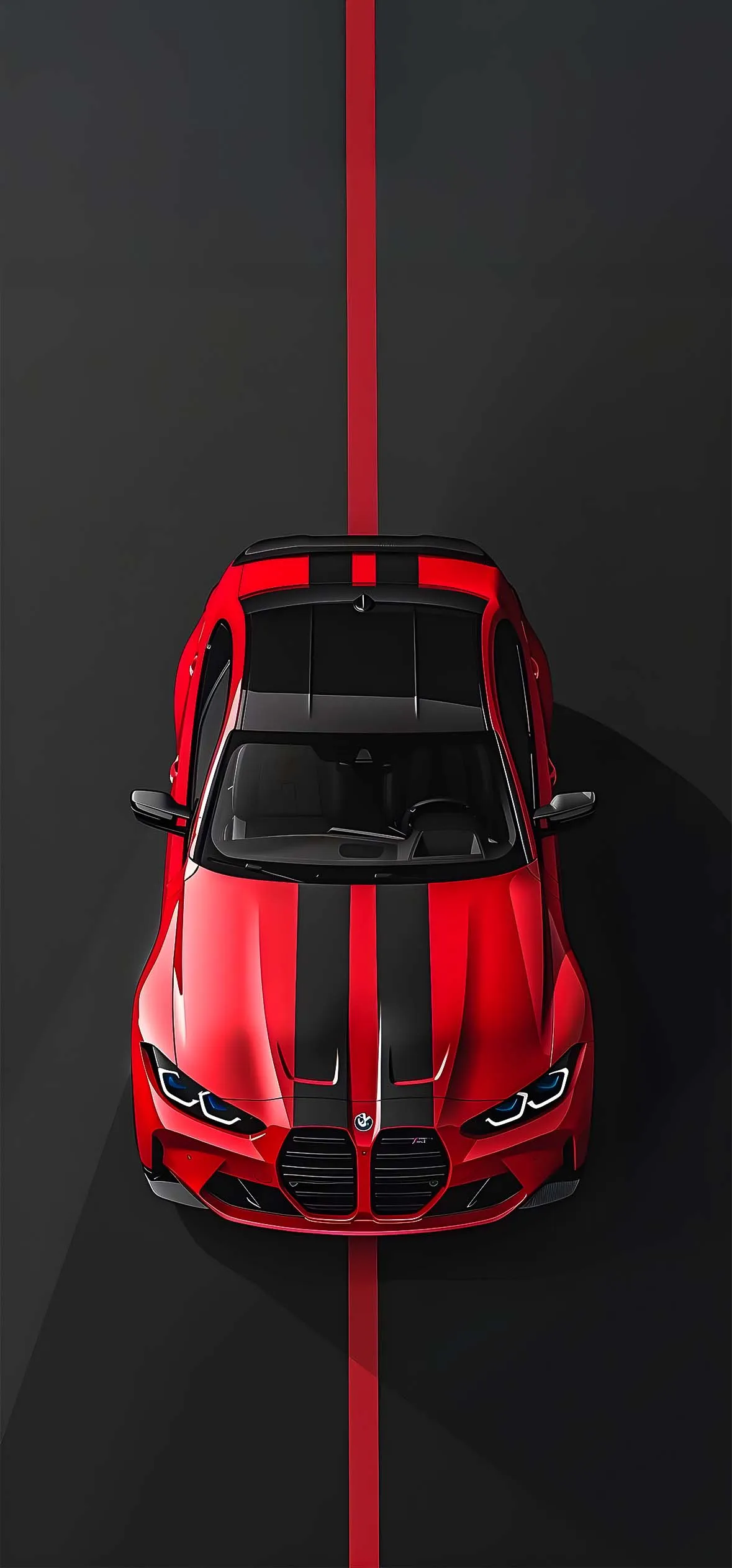
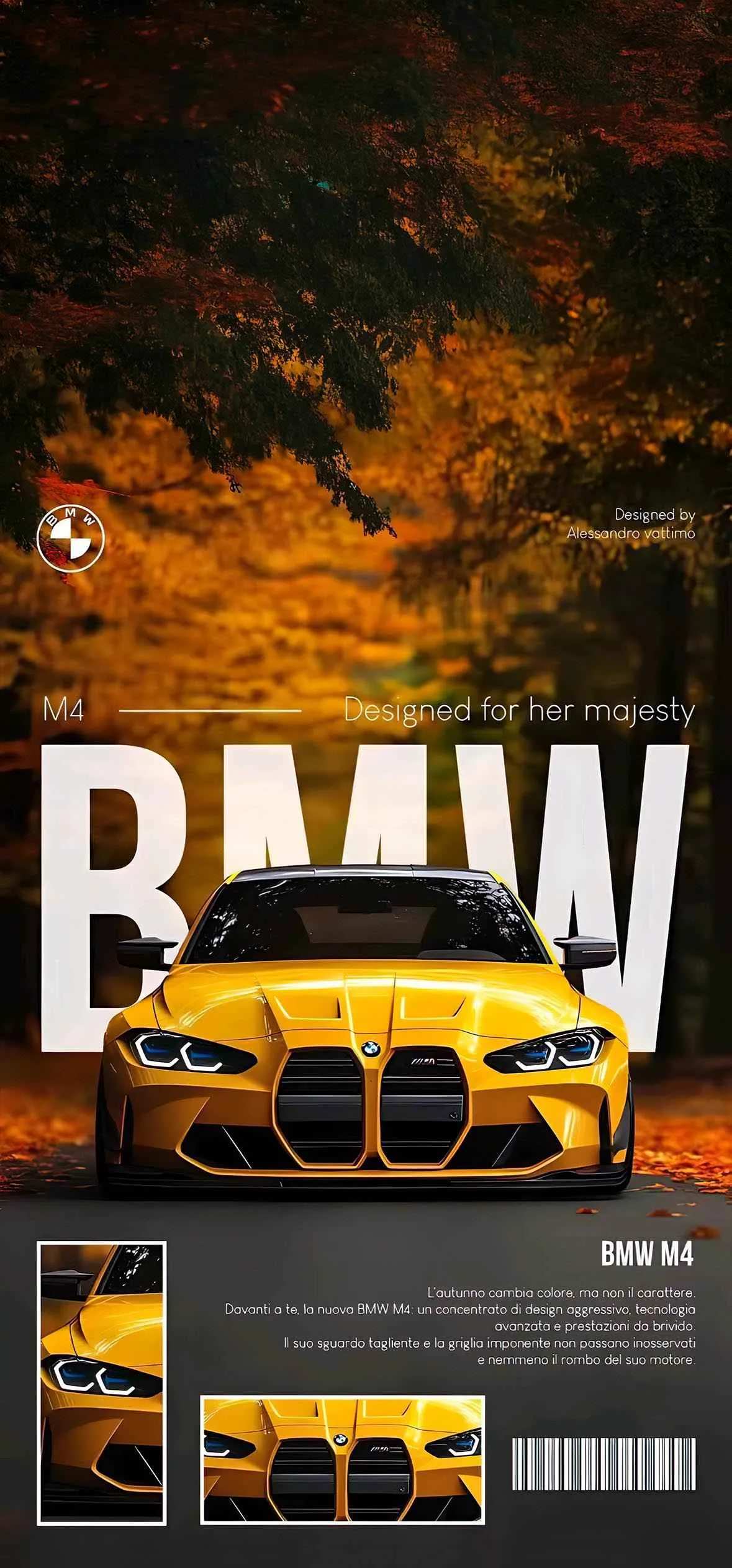
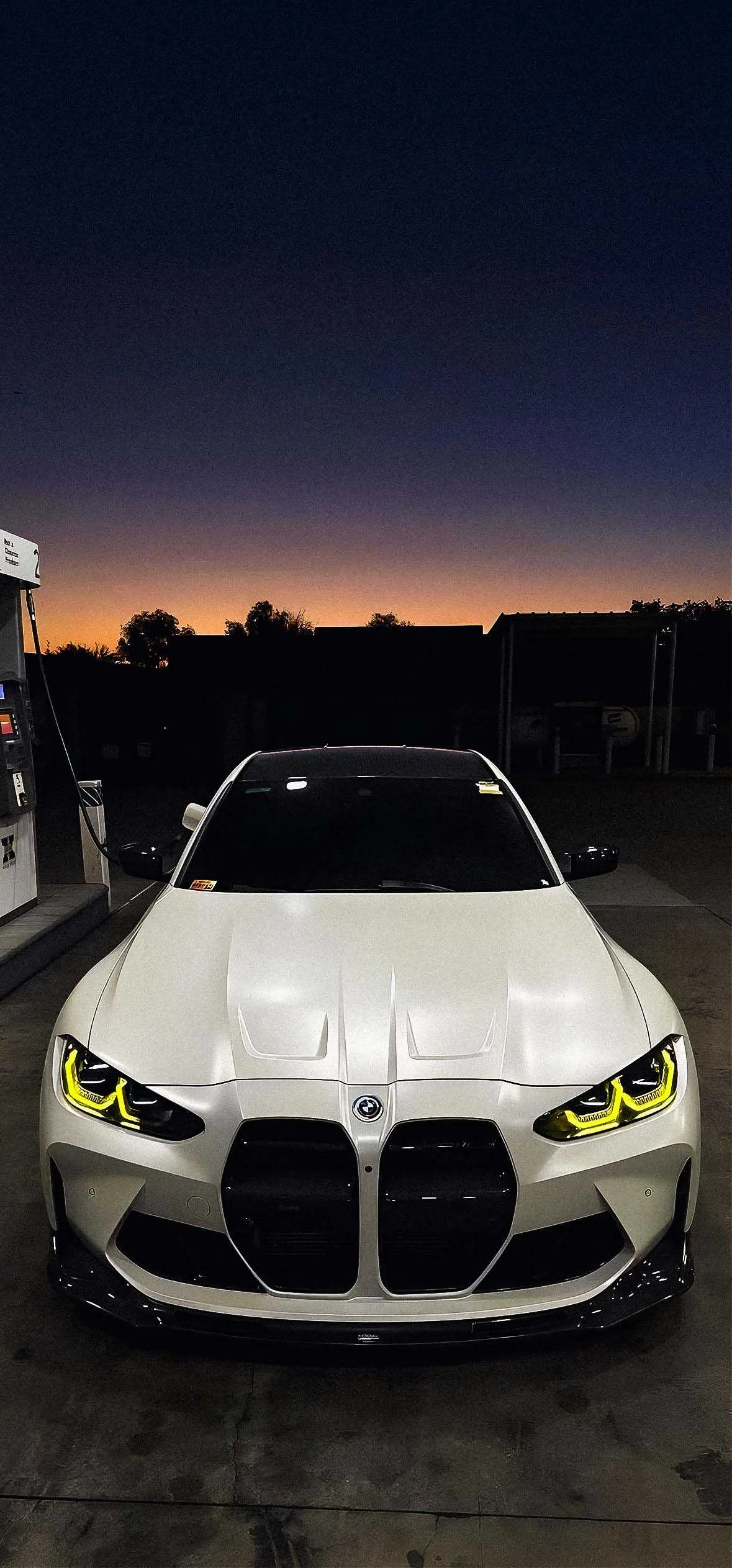
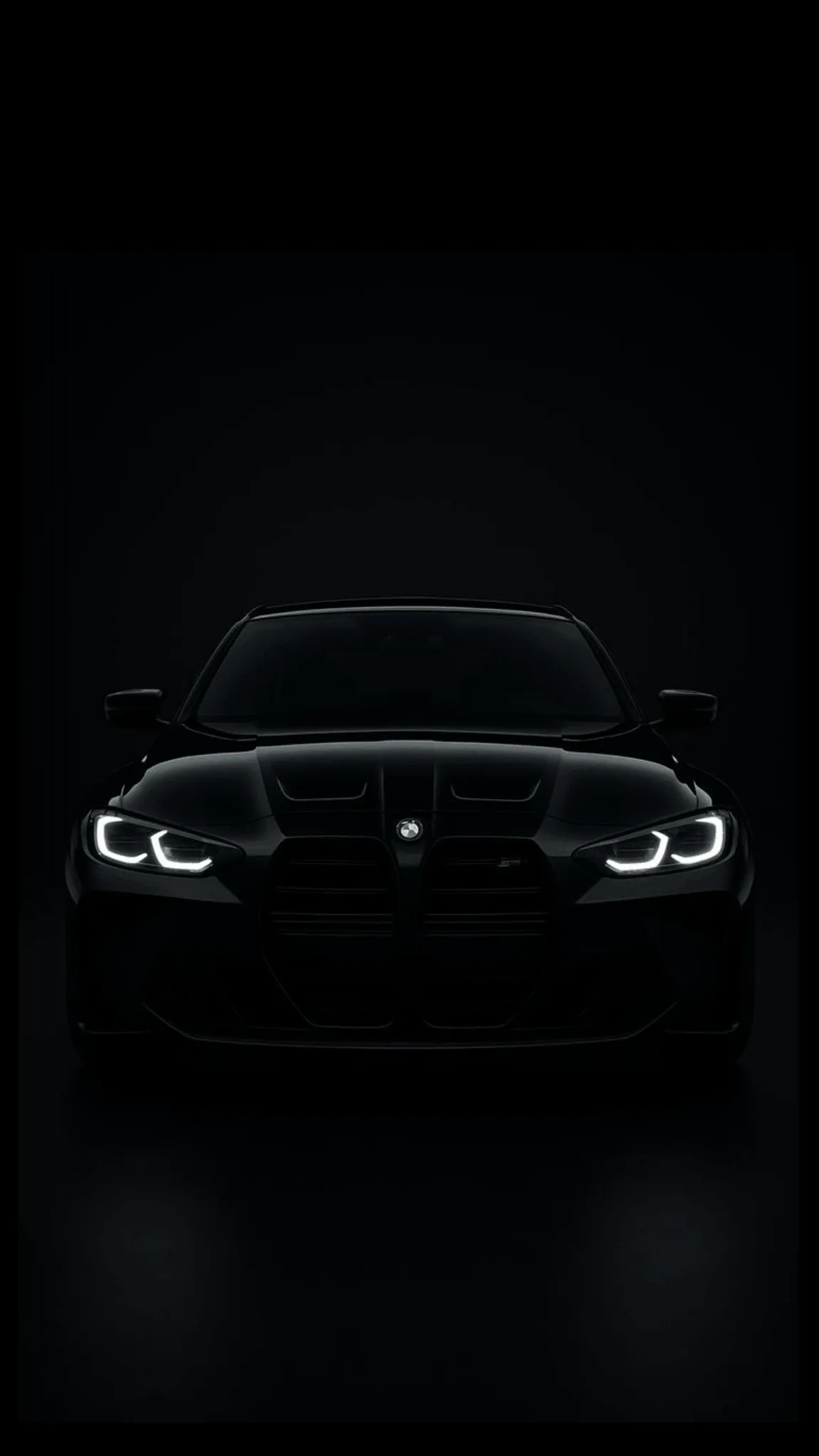
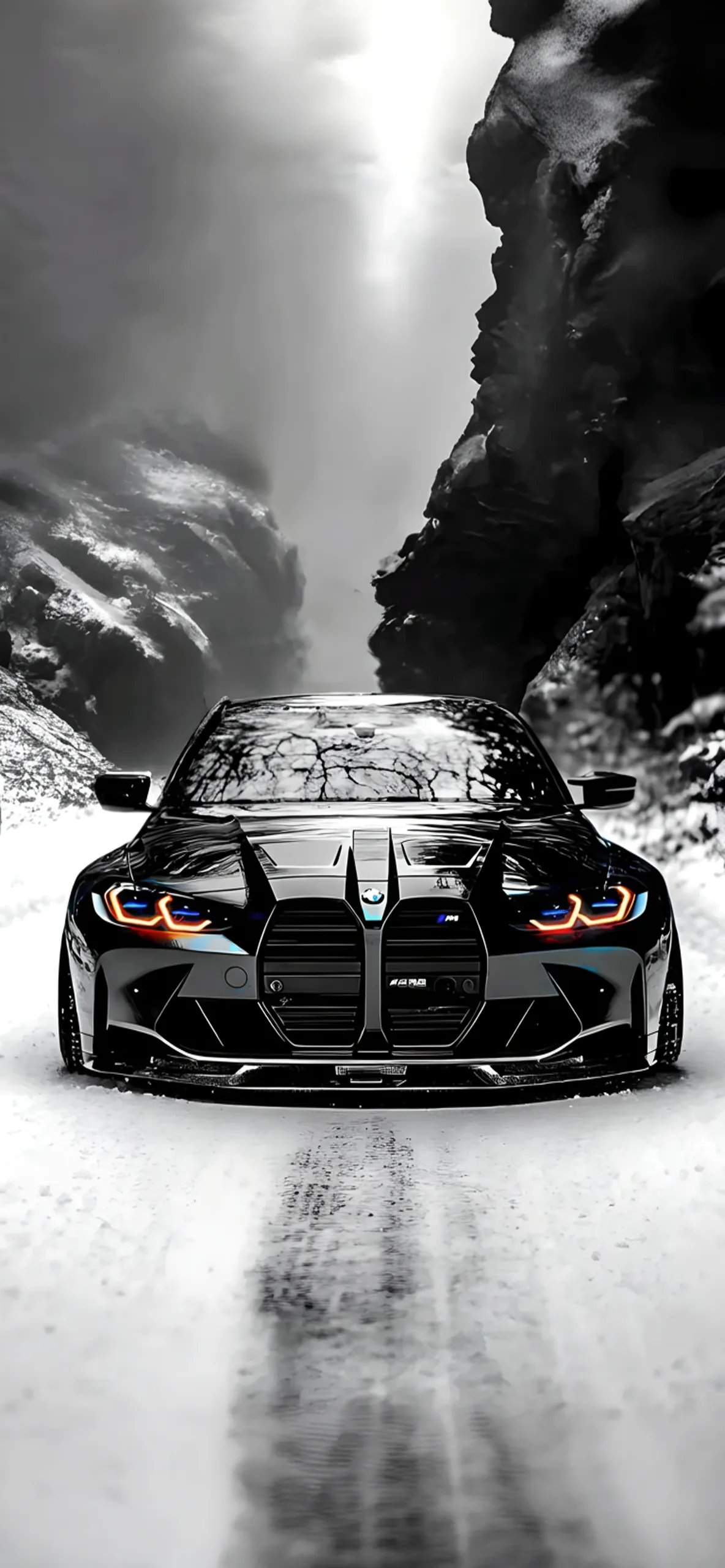
The Modern Classics: Look for high-resolution shots of the BMW M3 (G80) and M4 (G82) showcasing their bold, vertical front grilles and sleek carbon fiber roofs.
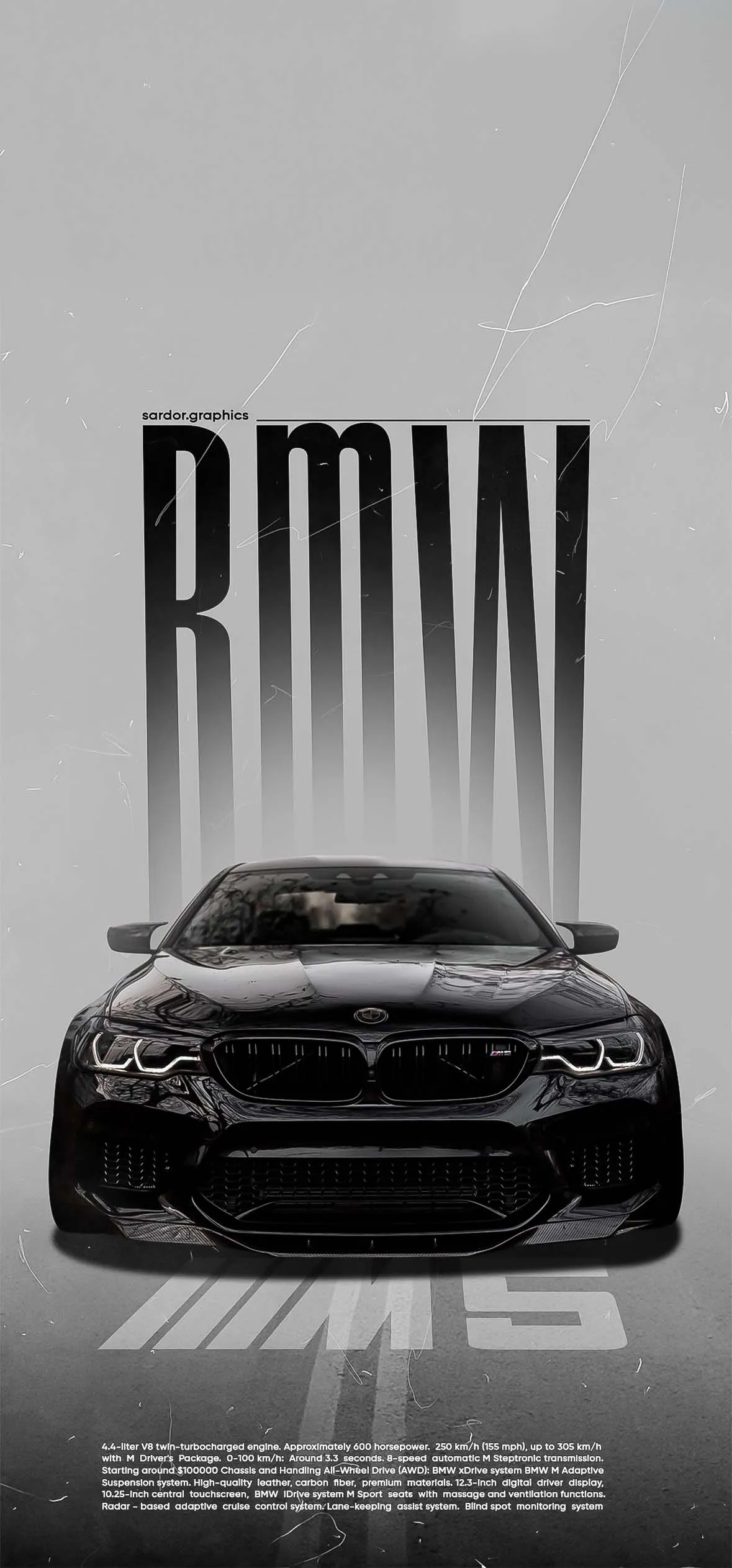
Super-Sedan Dominance: High-speed tracking shots of the BMW M5 Competition kicking up smoke on the tarmac look incredible on taller iPhone displays.
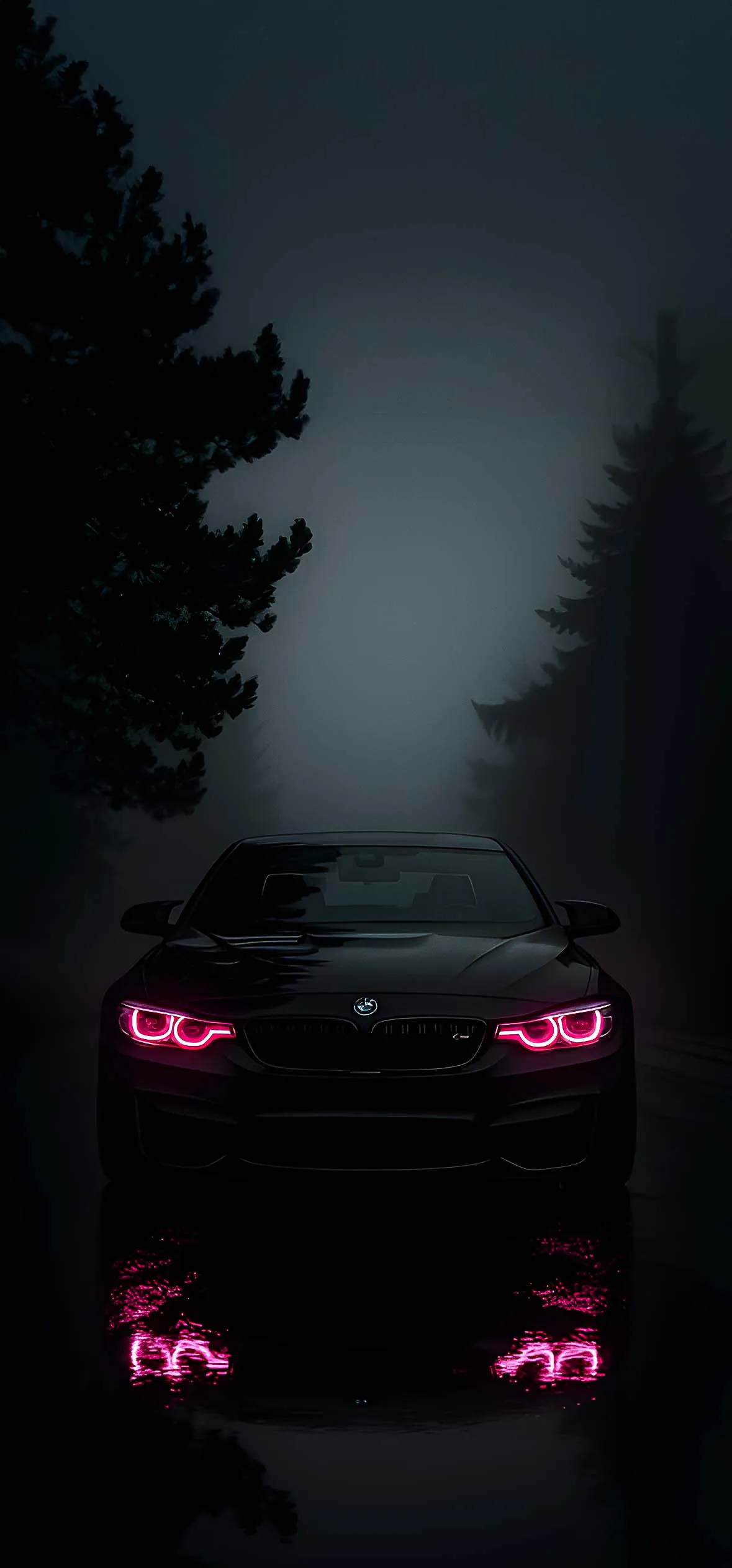
2. Sleek Dark & AMOLED Night Shots
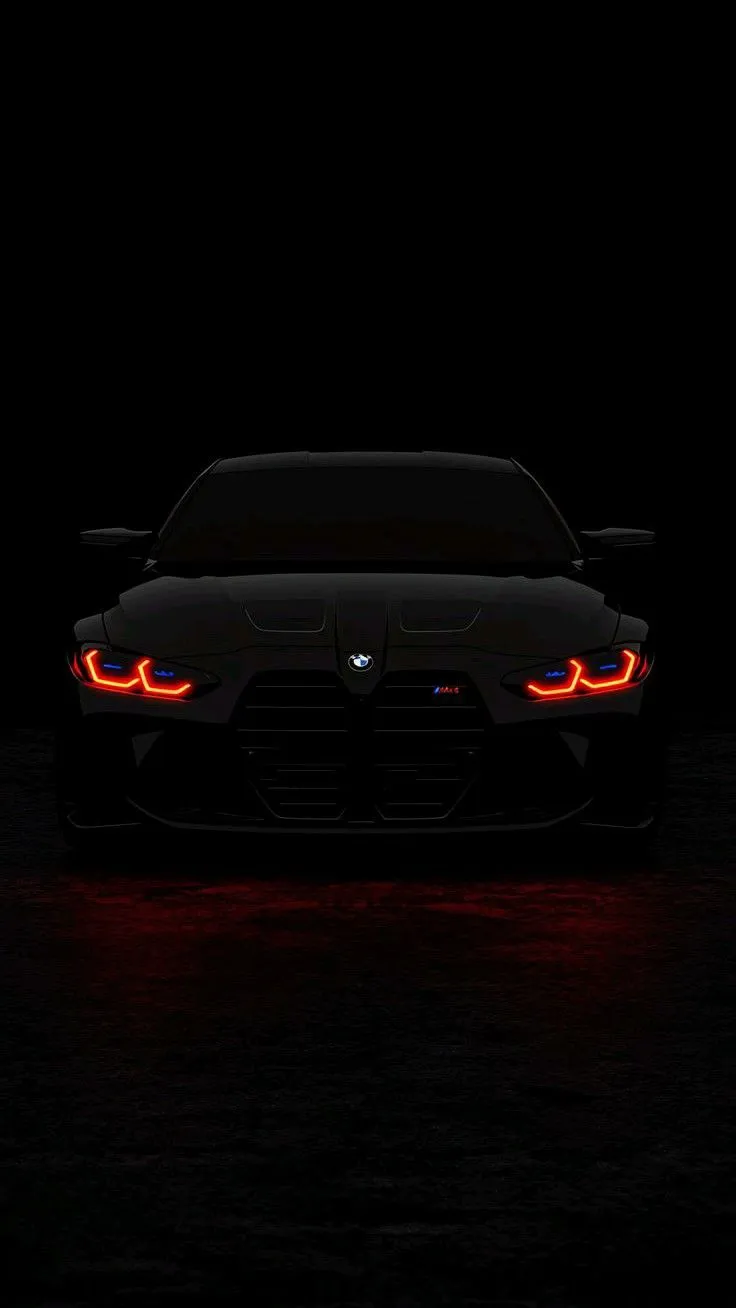
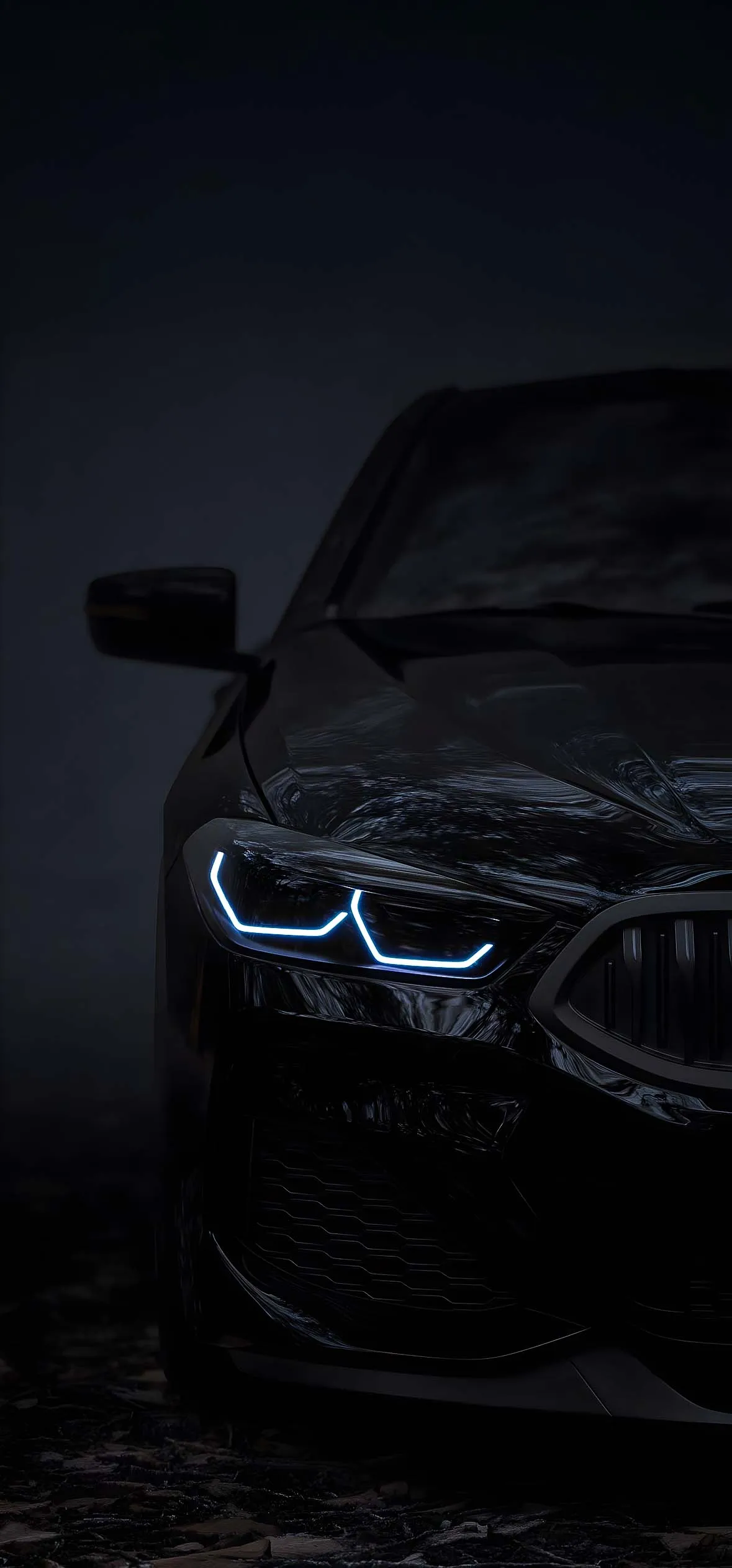
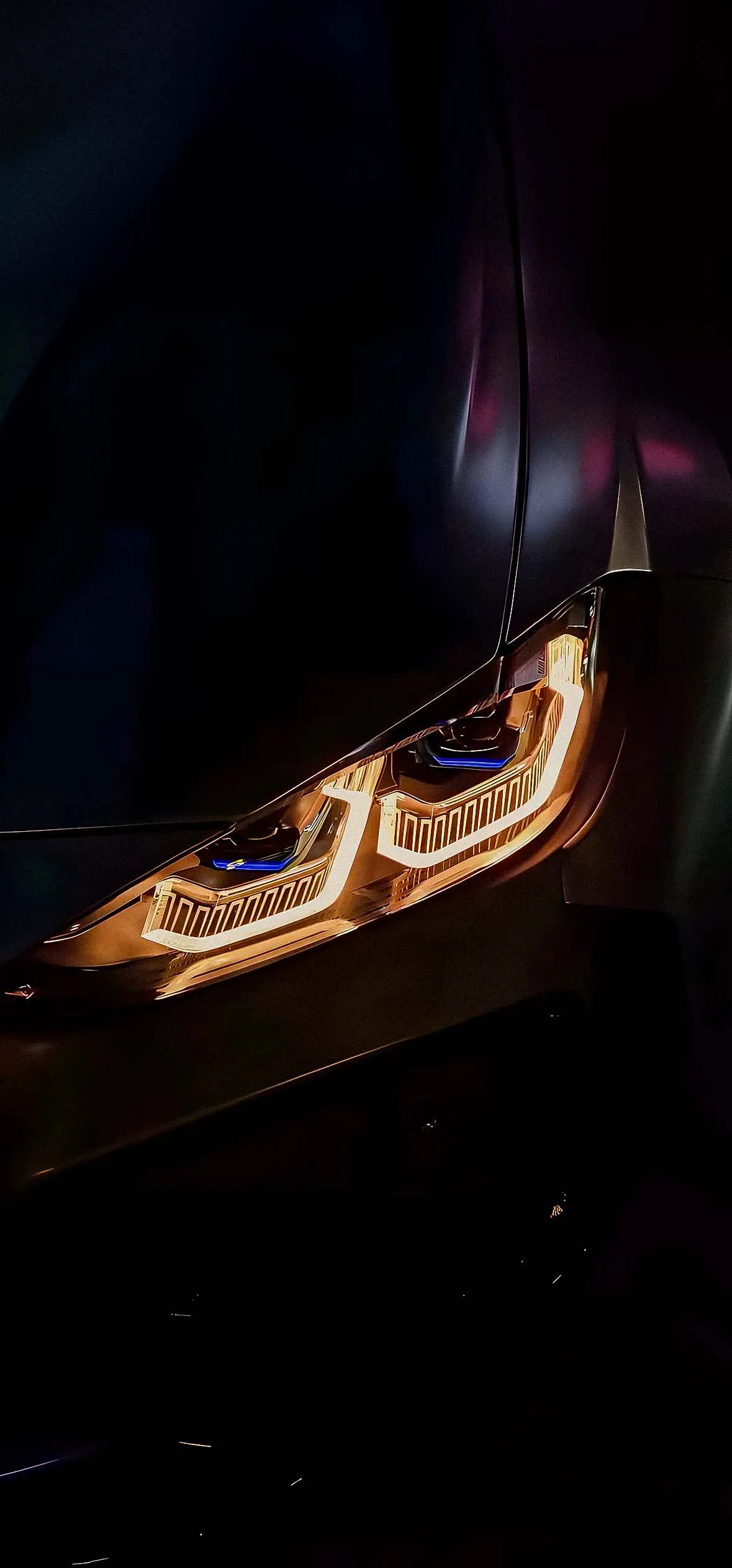
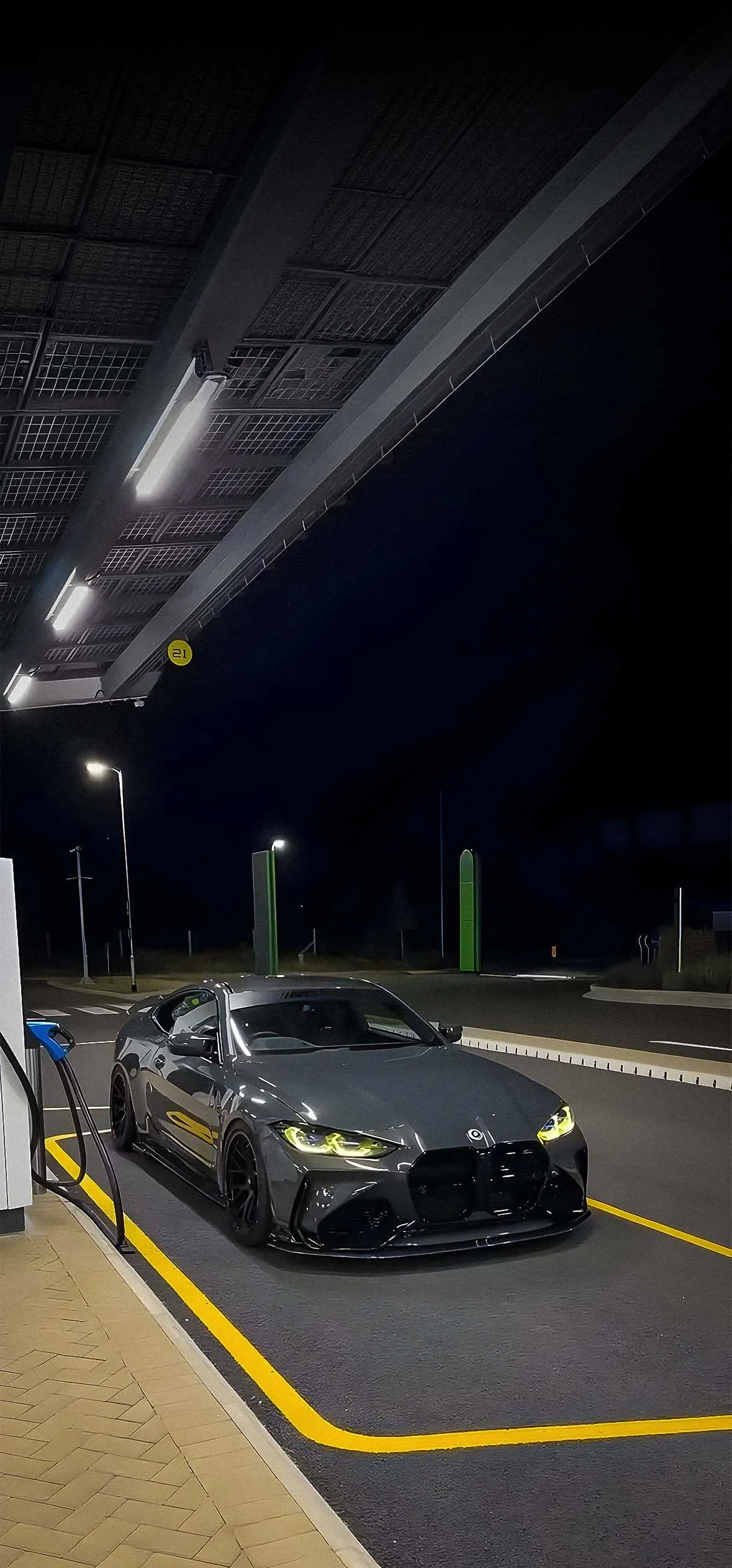
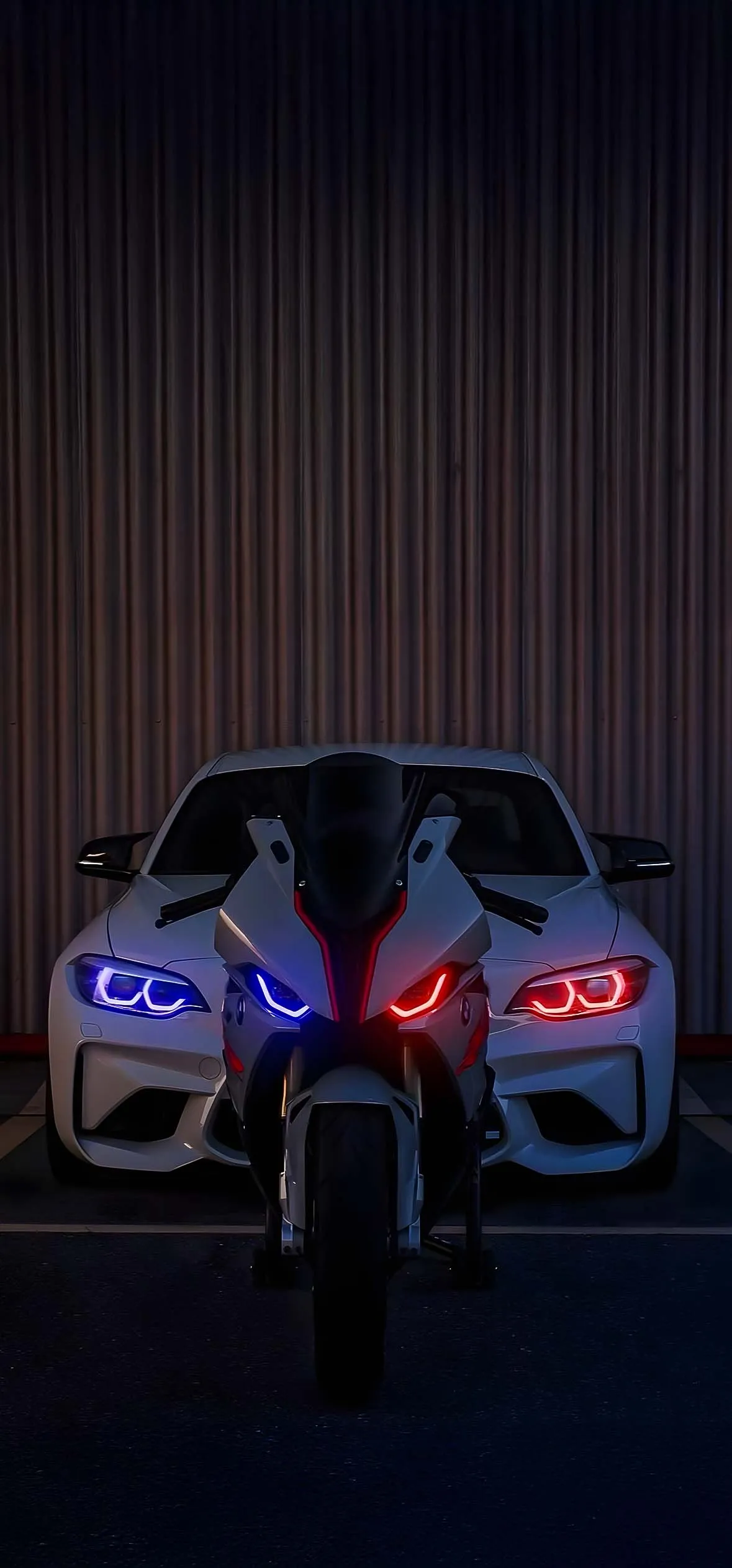
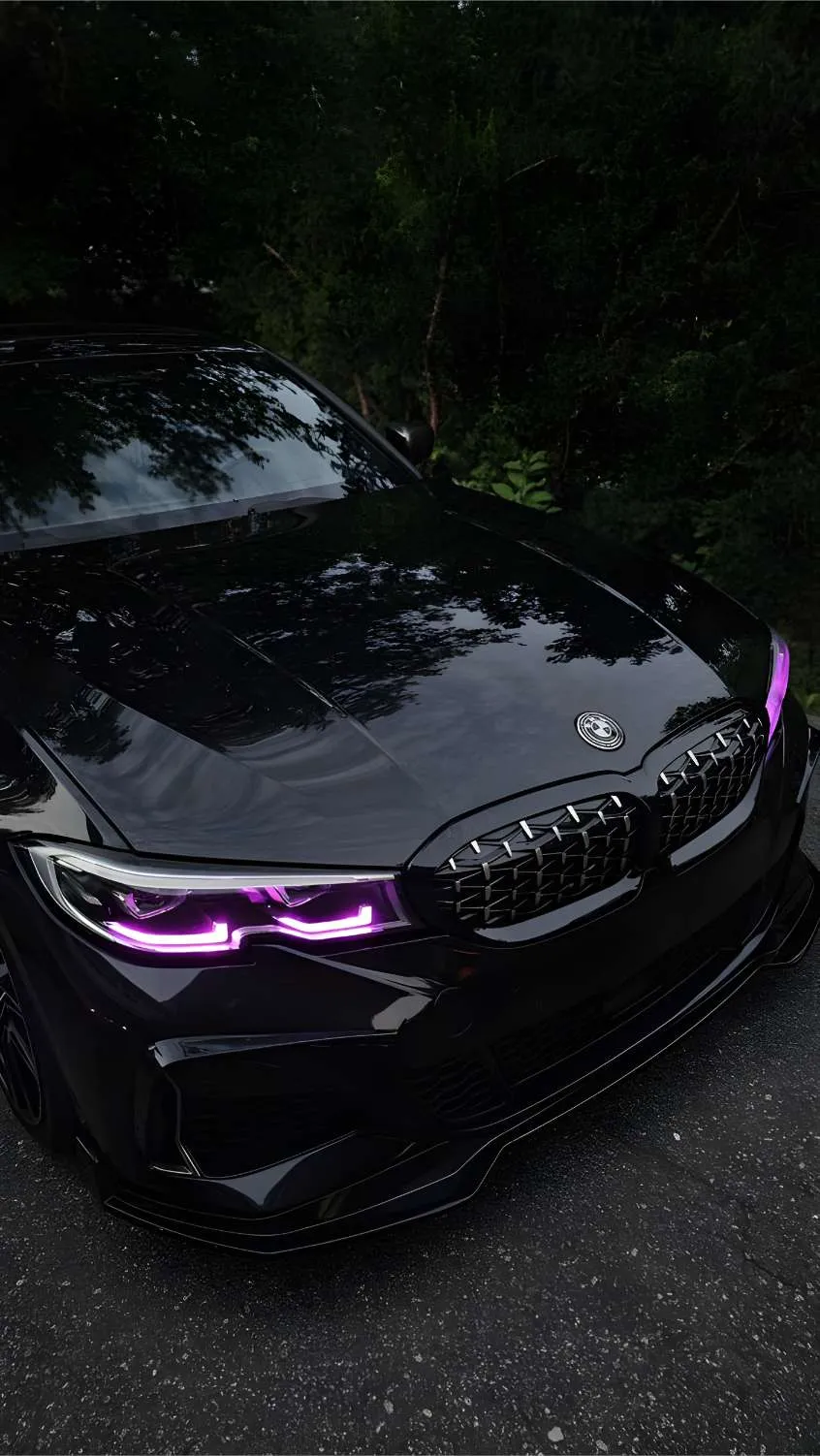
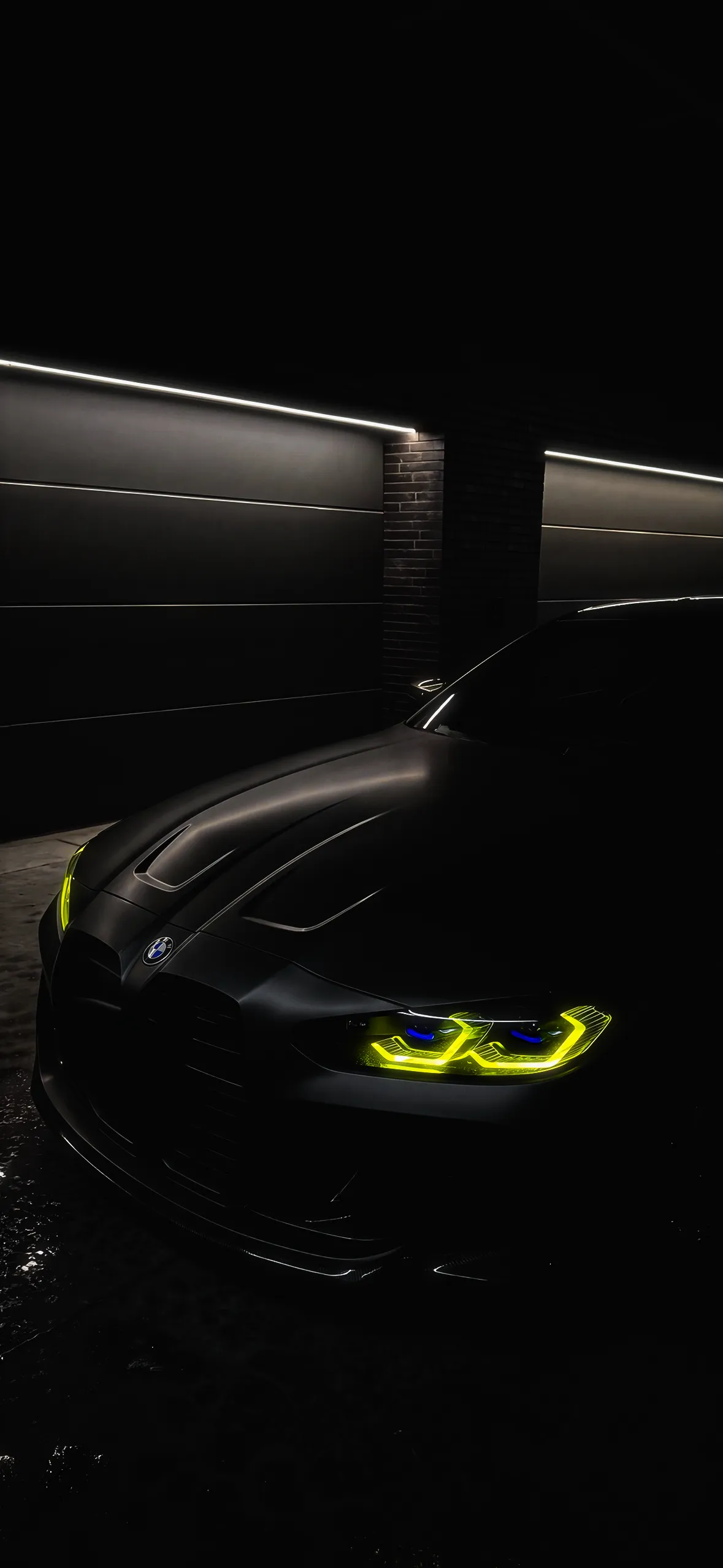
If you prefer a clean, minimalist setup that doesn’t compete with your app icons, dark aesthetic wallpapers are your best choice. Car photography taken during blue hour or deep in neon-lit parking garages provides a premium, moody feel.
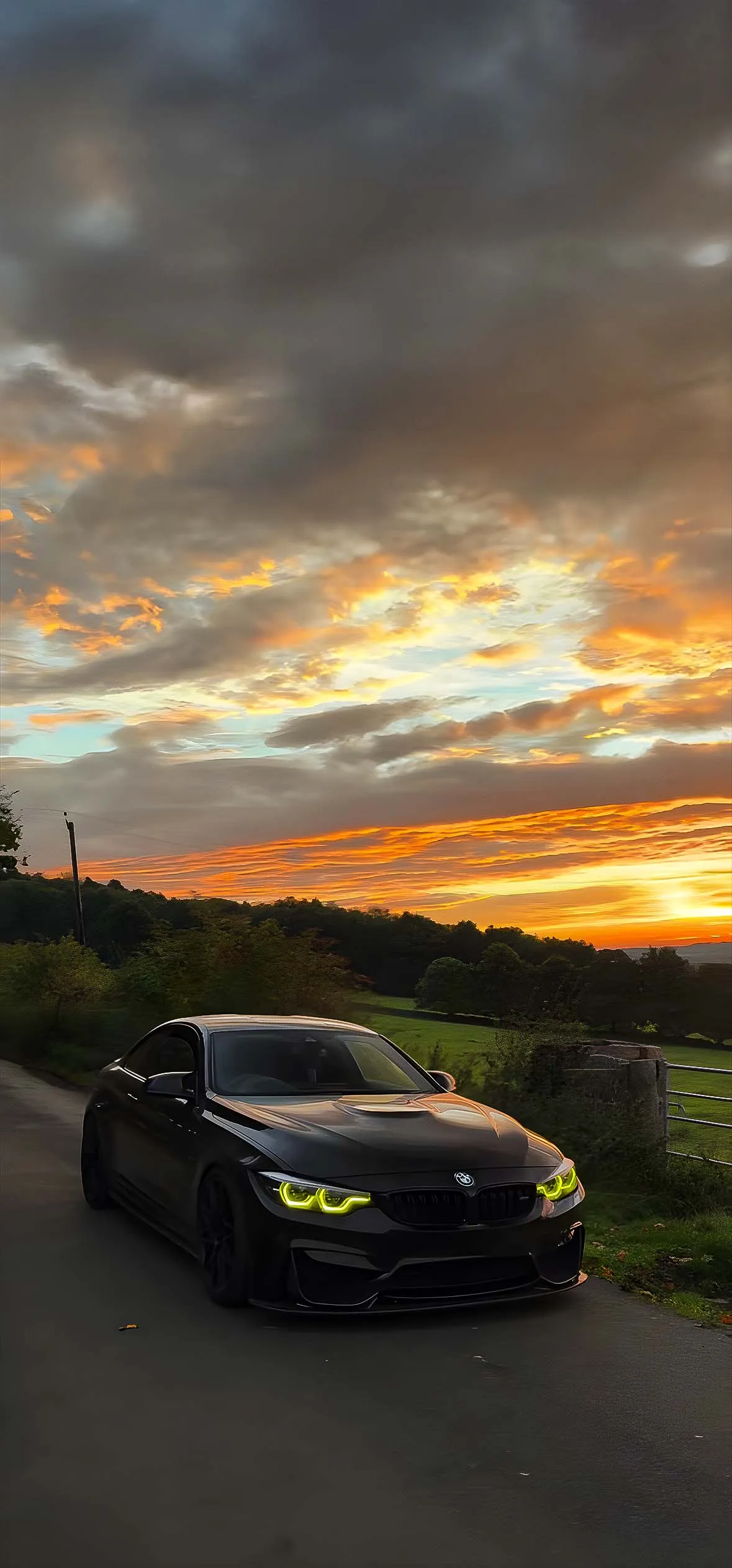
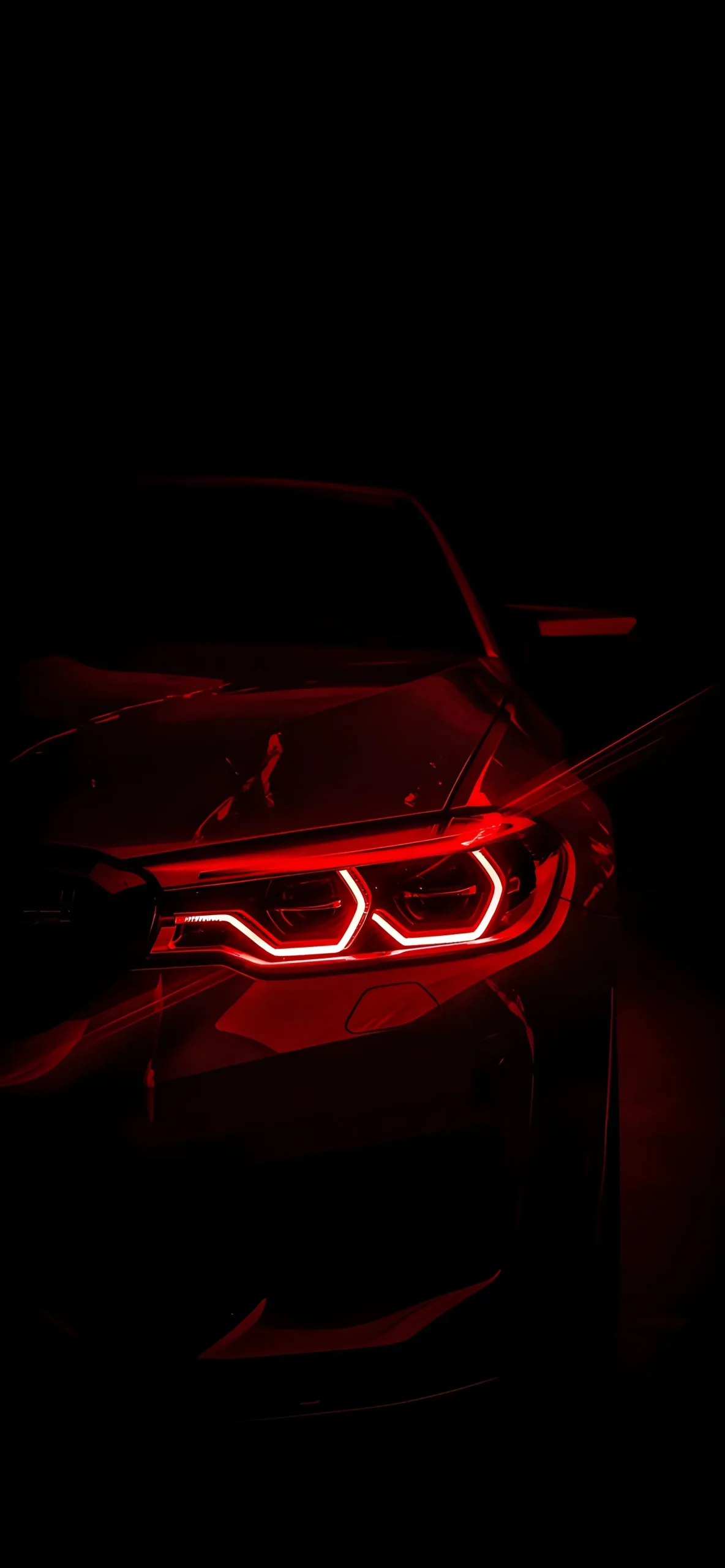
Angel Eyes: Minimalist black backgrounds featuring nothing but the glowing, razor-sharp LED headlights of a modern M8 Coupe.
Battery Savers: High-contrast AMOLED wallpapers where the car fades completely into true black, which looks jaw-dropping on OLED screens and preserves battery life.
3. Vintage Heritage & Classic Legends
For the purists, true beauty lies in the history. Retro car culture is a massive aesthetic trend right now, and vintage BMWs bring a nostalgic, sophisticated vibe to your device.
The Icons: Saturated, sun-drenched photography of the legendary E30 M3 or the timeless E9 3.0 CSL.
The Analog Feel: Wallpapers featuring film grain overlays, retro color grading, and clean, old-school European license plates.

Step-by-Step Tutorial: How to Set Up Your BMW iOS Theme
Once you have downloaded your favorite high-resolution backgrounds, use this guide to build a perfectly styled iOS experience.
Step 1: Save Your High-Res Wallpapers
Press and hold down on your chosen image from our gallery and select Save to Photos.
Pro-Tip: Create a dedicated folder in your Photos app named “BMW Wallpapers” so they are easy to find when setting up photo shuffles later.
Step 2: Create a New Lock Screen
Wake up your iPhone and long-press your current Lock Screen until the customization menu expands.
Tap the blue (+) Plus icon in the bottom-right corner.
Select Photos from the top row and navigate to your saved car wallpaper.
Step 3: Master the iOS Depth Effect
iOS allows elements of your wallpaper to slightly overlap the time display for a dramatic 3D effect. Car photography is perfect for this.
Use a two-finger pinch to crop and frame the image.
Position the roofline or spoiler of the car so it rests slightly over the lower half of the clock digits.
Tap the three dots in the bottom-right corner and ensure Depth Effect is checked. If it’s greyed out, slightly adjust or lower the image until the system detects the car’s edge.
Step 4: Color Match Your Clock Typography
Tap directly on the Digital Clock text to open the Font & Color menu.
Choose a font style that matches the car’s personality (the blocky, bold fonts work beautifully with modern M series cars).
Swipe all the way to the right of the color pre-sets and select the Color Dropper/Eyedropper tool.
Drag the loupe over your wallpaper to sample an exact color—like the iconic Estoril Blue, Isle of Man Green, or the bright red from the M badge—to paint your clock text for a highly intentional, uniform design.
Step 5: Configure the Home Screen Blur
High-contrast car details can sometimes make app names hard to read on the Home Screen.
Tap Done in the top-right corner, then select Customize Home Screen.
Tap the Blur icon on the bottom-right. This keeps your Lock Screen incredibly sharp while smoothing out the background behind your app grid to maximize legibility.

1 comment