Milky Way Night Sky iPhone Wallpapers: 4K Picks for Stargazers
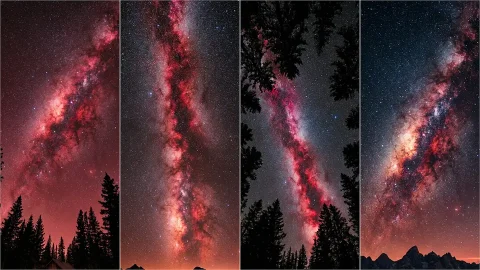
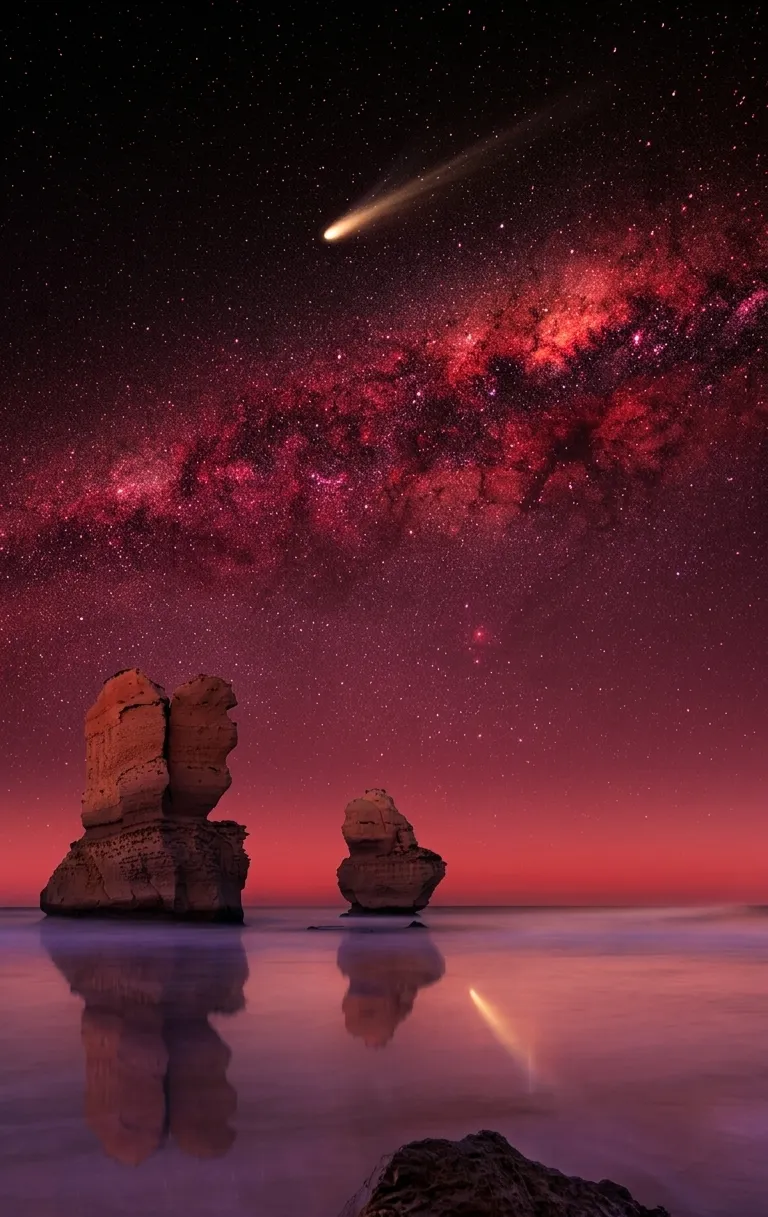
There’s something almost meditative about looking up at a sky full of stars, and that feeling is exactly why milky way night sky iPhone wallpapers have become such a popular choice for people who want their phone to feel calmer, deeper, and more atmospheric than a typical stock background. Whether it’s a glowing band of stars threading through silhouetted pine trees or a dramatic red nebula reflected across still water, these wallpapers turn your Lock Screen into a small window onto the cosmos. This guide walks through why this style works so well on iPhone, what to look for in a genuinely high-quality image, the range of visual styles available, and how to set everything up so it looks sharp on your specific device.
Why Milky Way Wallpapers Are So Popular
Night sky photography taps into something universal — most people rarely get to see the Milky Way with the naked eye anymore because of light pollution, so a wallpaper that recreates that view feels a little bit magical. It’s also an incredibly versatile aesthetic. Unlike character-based or meme wallpapers, a starry night sky pairs well with almost any Home Screen layout, icon theme, or widget setup, because the color palette is naturally dark and moody.
There’s also a technical advantage: OLED screens, which almost every modern iPhone uses, render true blacks by turning pixels off completely. A deep, dark night sky wallpaper takes full advantage of that contrast, making stars and nebula colors look genuinely vivid rather than washed out the way they might on an older LCD screen.
What Makes a Night Sky Wallpaper “4K Quality”
As with any wallpaper search, “4K” is shorthand for image sharpness rather than a literal display spec, since no iPhone screen uses true 3840×2160 resolution. iPhone displays range roughly from 1170×2532 up to 1290×2796 pixels depending on the model. What actually matters is starting with a high-resolution source image — ideally 3840 pixels or larger on the long edge — so that fine details like individual stars, faint nebula clouds, and tree silhouettes stay crisp instead of turning into blurry blobs when scaled down.
Astrophotography images are particularly demanding in this respect. Because so much of the image is subtle gradients of dark blue, deep red, or black, any compression artifacts or low resolution become very obvious, especially in the smoother areas of sky between stars. Look for images saved as high-quality JPEG or PNG, and avoid anything that’s been re-compressed multiple times across different websites, since each round of compression introduces more visible noise.
The Range of Styles Within This Aesthetic
Not all night sky wallpapers look the same, and part of the appeal is choosing a variation that matches your personal taste:
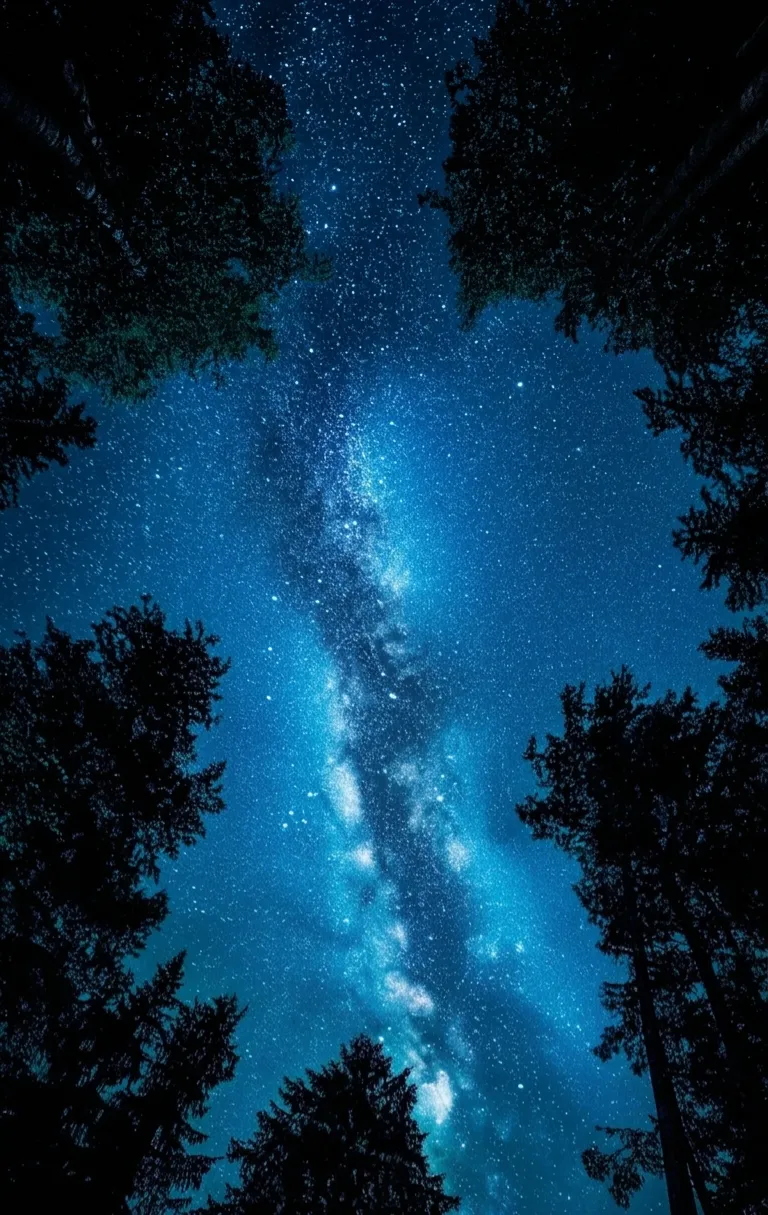
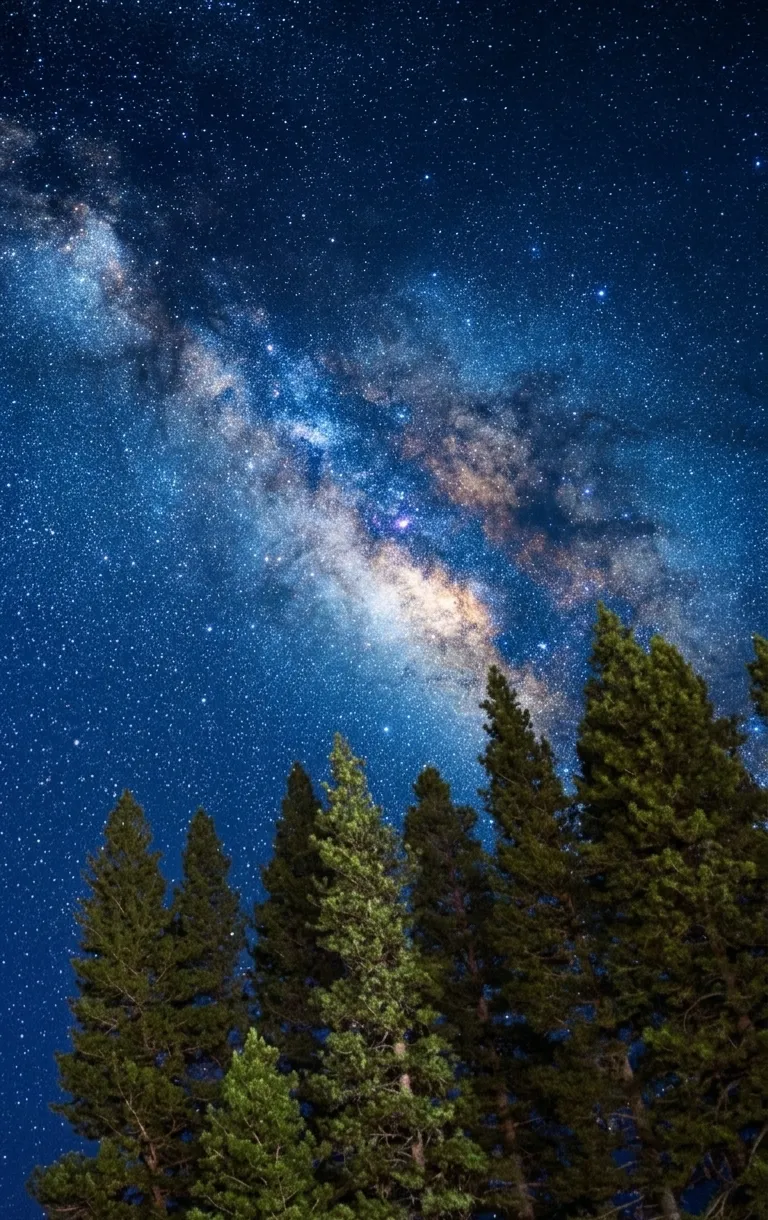
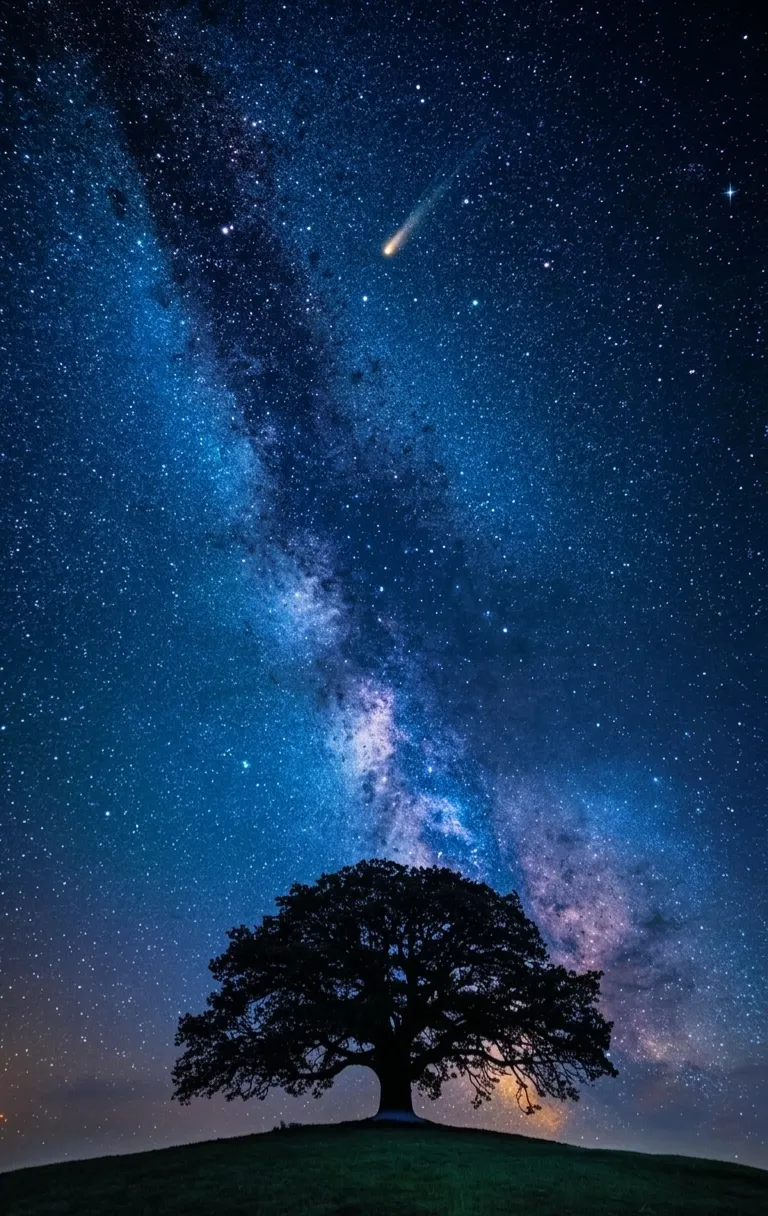
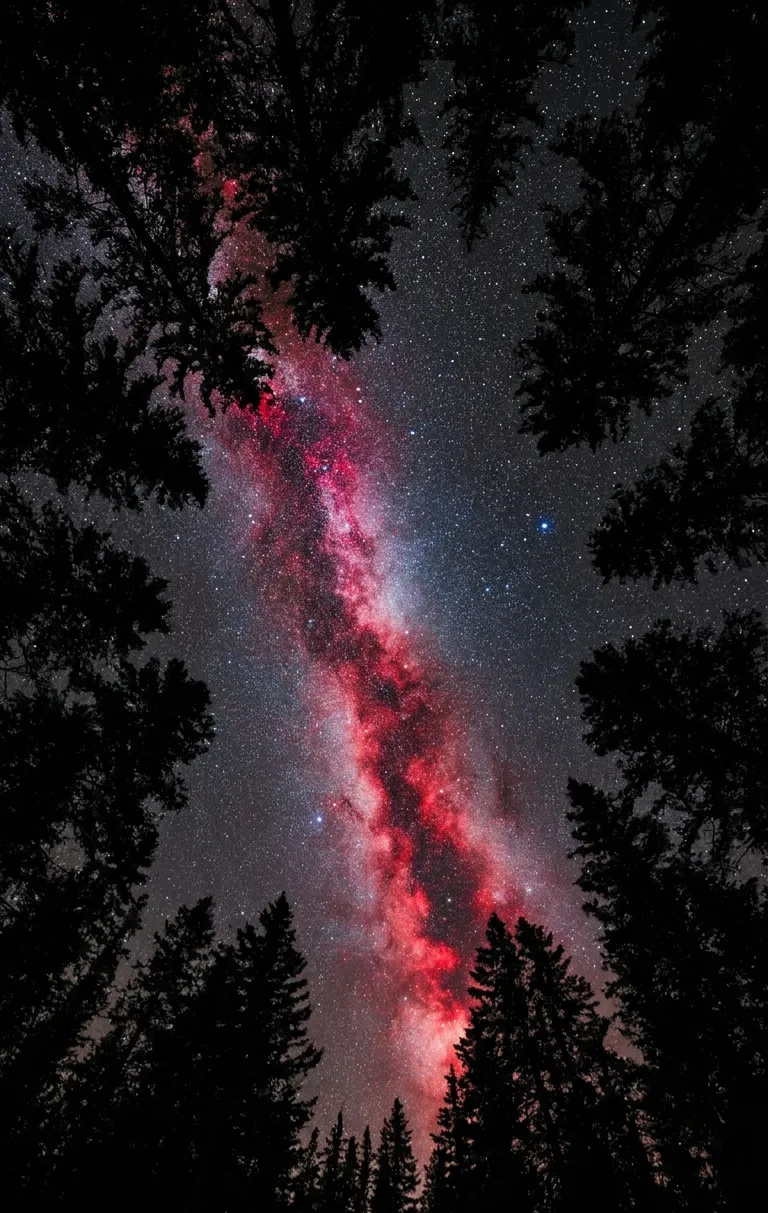
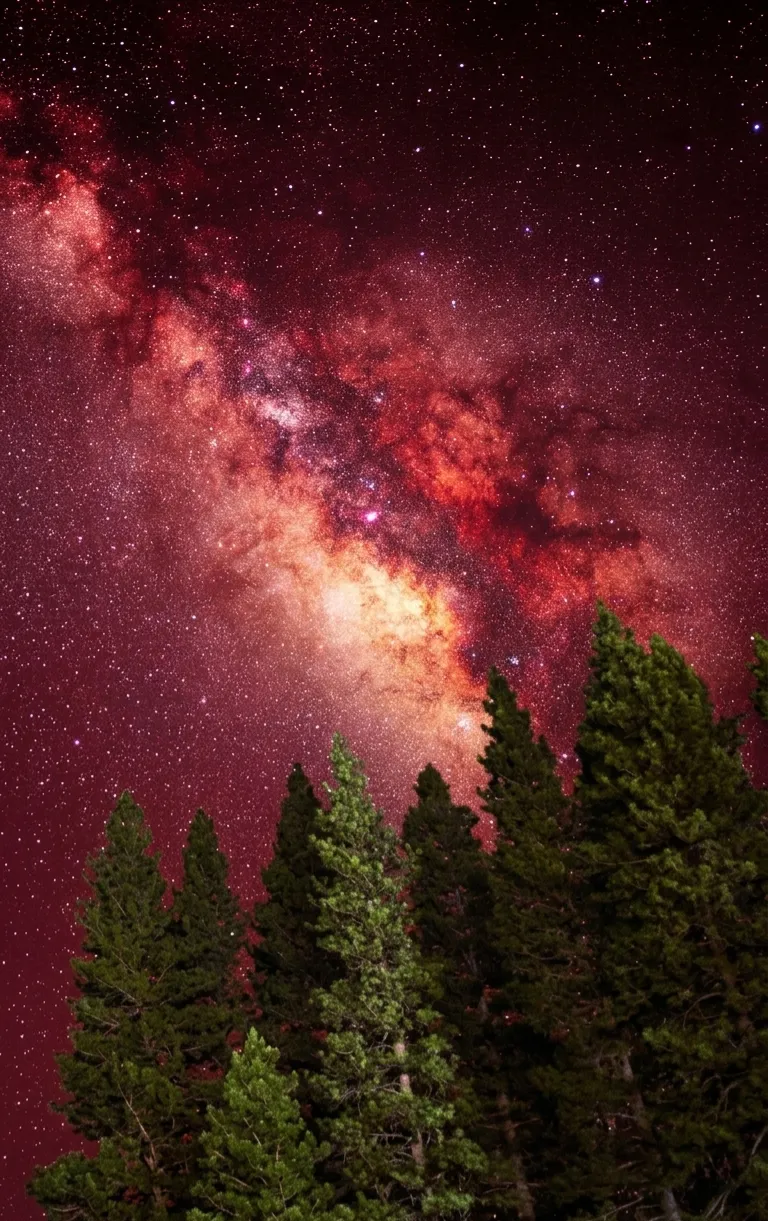
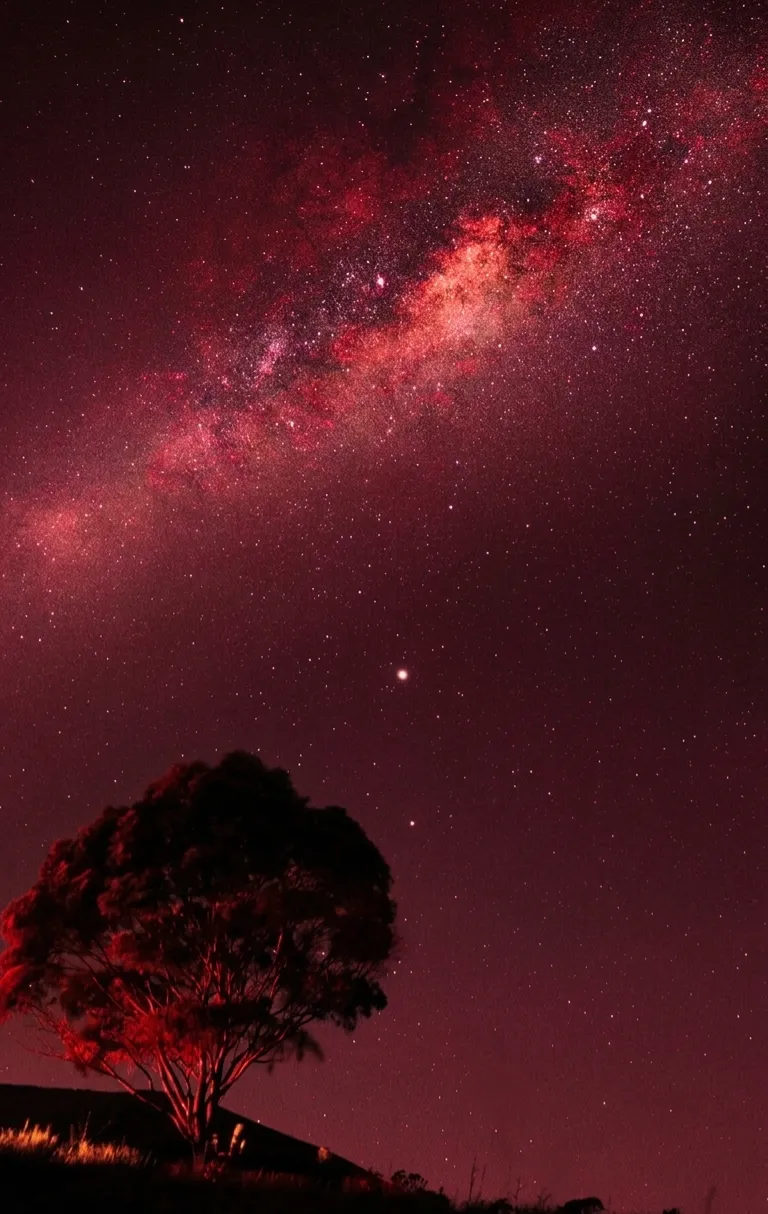
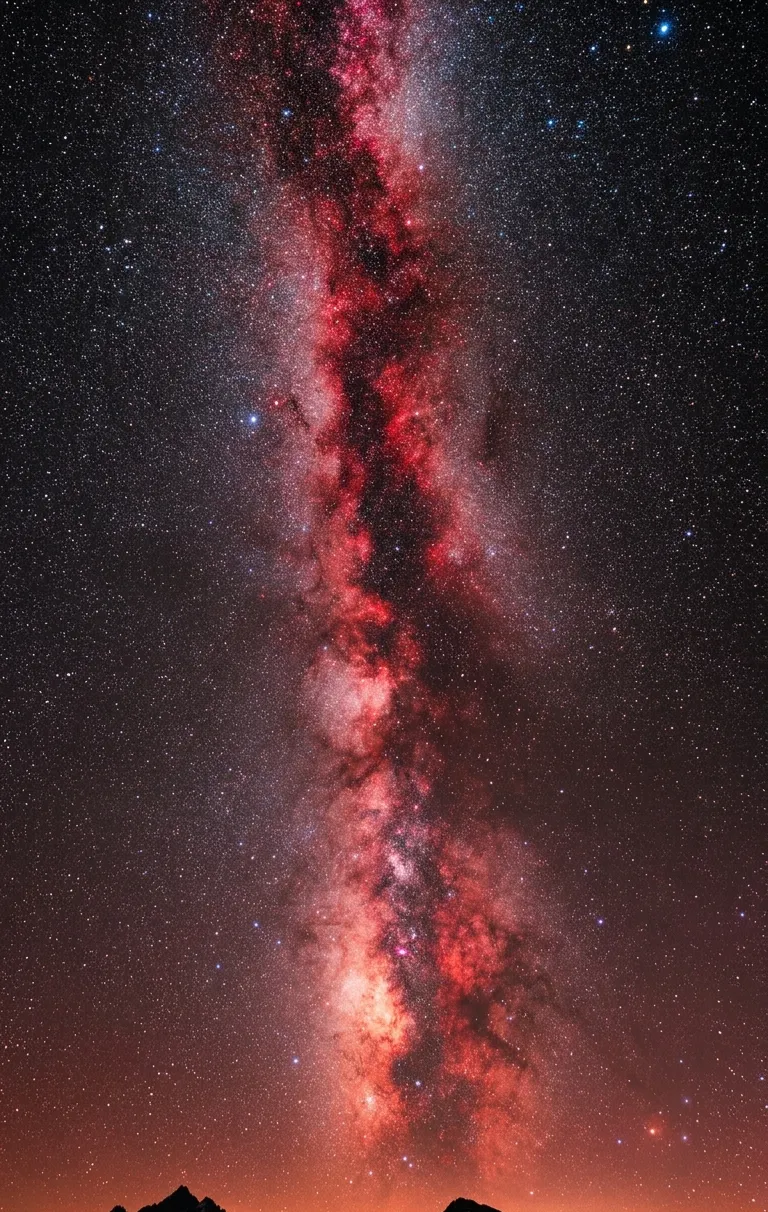
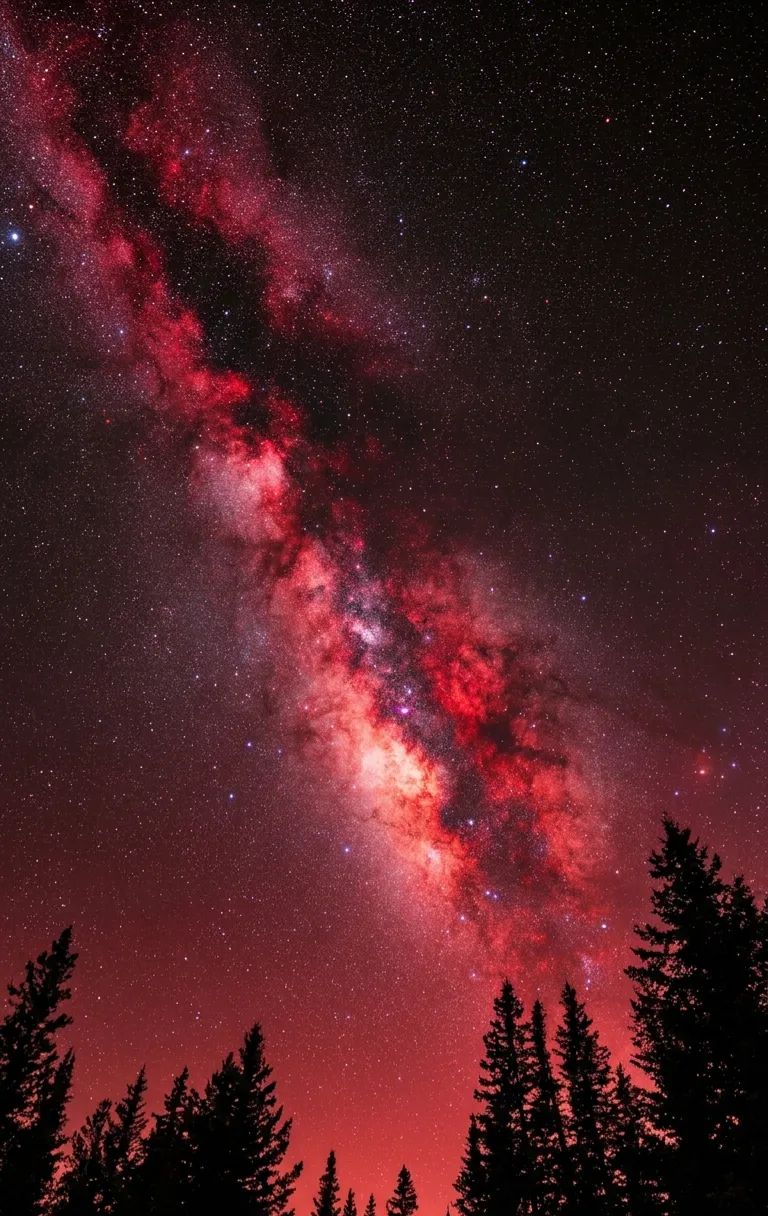
Cool blue Milky Way scenes. These feature the galaxy’s band rendered in natural blues and whites, often silhouetted against pine forests or a single dramatic tree. This is the most “classic” astrophotography look and tends to feel calm and clean.
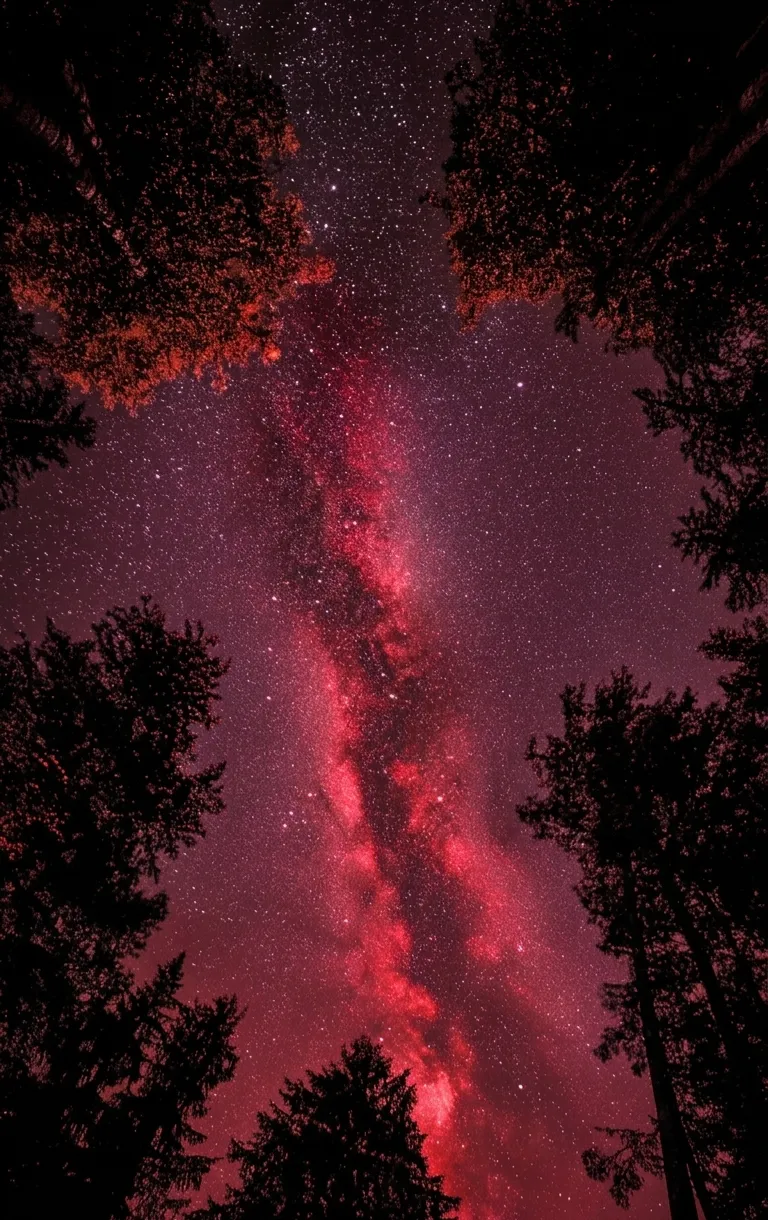
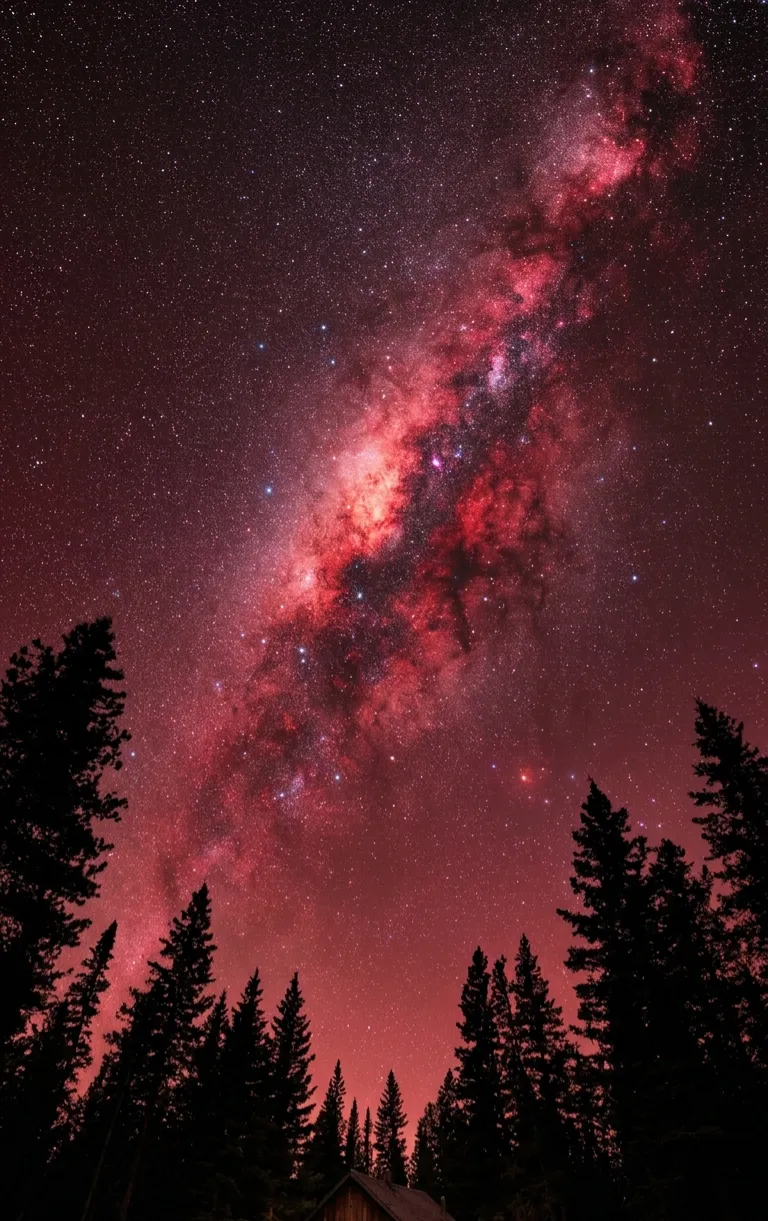
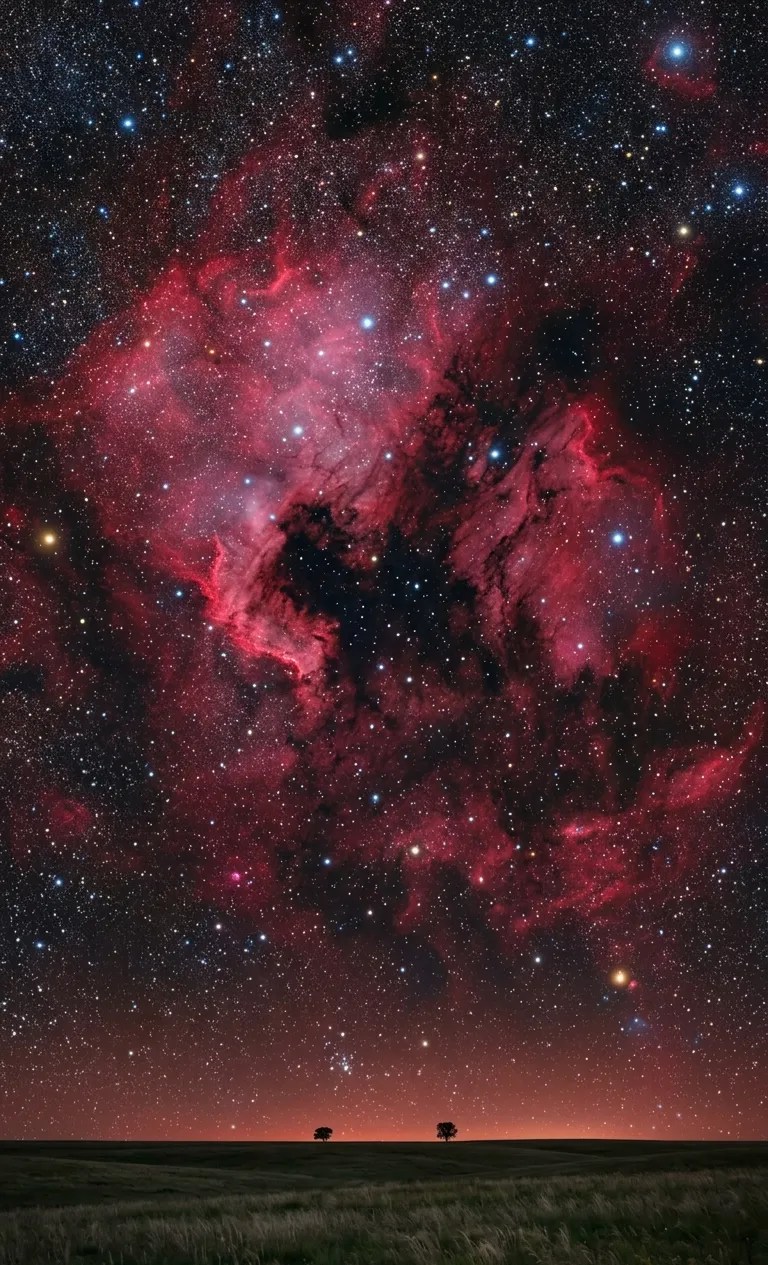
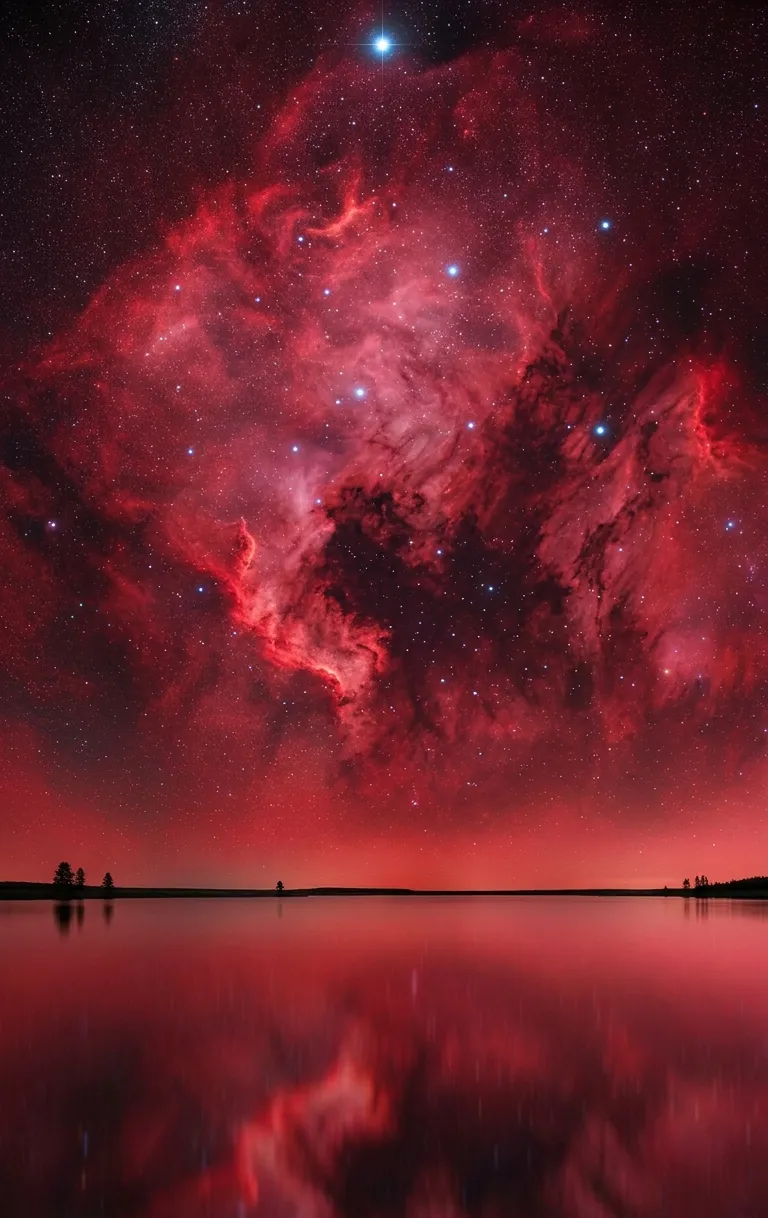
Warm red and pink nebula scenes. Long-exposure photography sometimes captures hydrogen-alpha emissions in deep reds and pinks, giving the sky an almost fiery, otherworldly quality. These tend to feel more dramatic and work beautifully as a Lock Screen statement piece.
Comet and shooting star compositions. Images that capture a comet’s tail streaking across the frame add a sense of motion and rarity to an otherwise static scene, making them popular choices for people who want something a little more unique.
Reflection compositions. Night sky scenes reflected across still lakes or ocean water double the visual impact, essentially giving you two skies in one frame — one real, one mirrored.
Silhouette-forward compositions. Some of the most striking wallpapers place trees, cabins, or rock formations prominently in the foreground, using them as a dark frame that draws the eye up toward the stars.
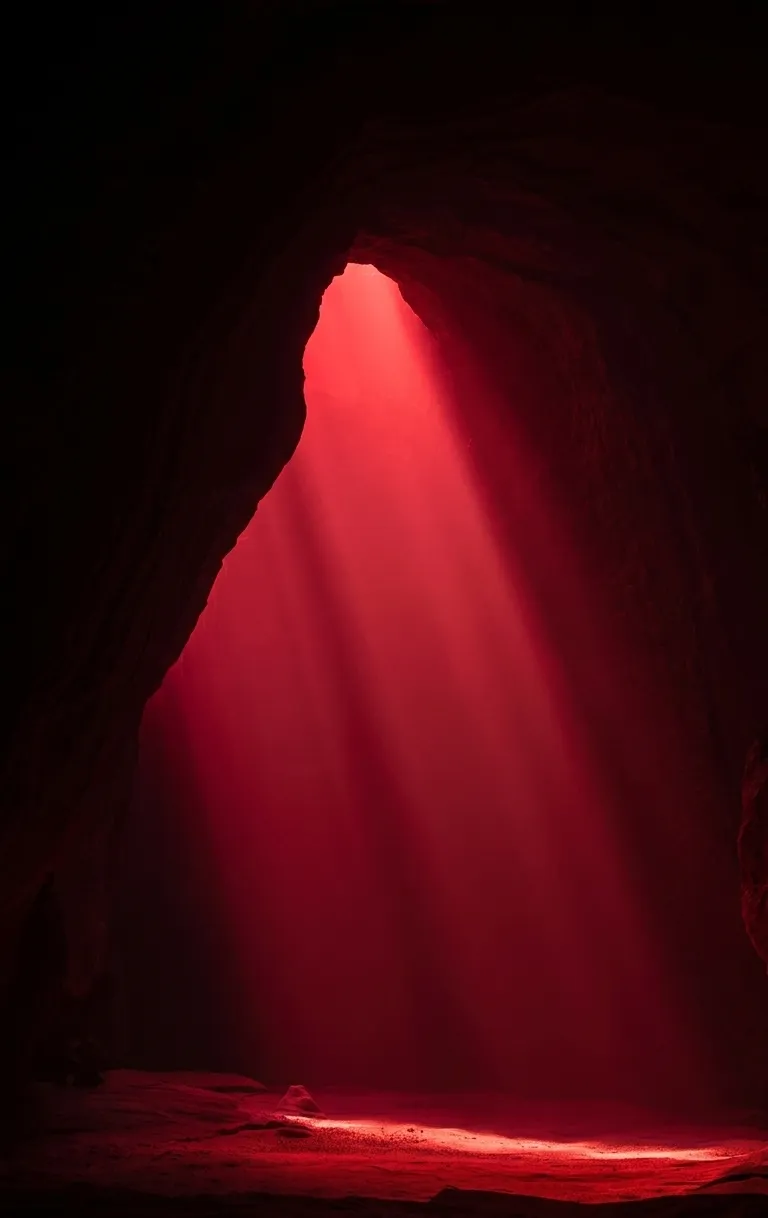
Cave and light-beam scenes. A more abstract take on the “space and light” aesthetic, these use a single shaft of colored light in a dark cave to create a similar sense of scale and mystery without literal stars.
How to Set These Wallpapers on iPhone
- Save your chosen image to the Photos app.
- Open Settings and tap Wallpaper.
- Tap Add New Wallpaper, then select Photos.
- Choose your image and adjust the zoom so the most detailed part of the sky (like the galactic core) is centered.
- Decide whether to apply it to your Lock Screen, Home Screen, or both, then tap Set.
- On iOS 16 and later, experiment with the Depth Effect if your image has a clear foreground subject like a tree, since it can create a subtle parallax effect behind the clock.
Tips for the Best Visual Result
- Pair darker, high-contrast wallpapers with light-colored widget text for better legibility.
- If you rotate between multiple night sky images, group them by color tone (all blue, or all red) so your Lock Screen and Home Screen feel cohesive rather than mismatched.
- Turn on Dark Mode in iOS to keep your entire interface — menus, keyboard, and app icons — visually consistent with a night sky theme.
- Because OLED displays save battery on darker pixels, these wallpapers are also a genuinely practical choice if battery life is a priority.
Final Thoughts
Milky way night sky iPhone wallpapers offer a rare combination of visual drama and everyday practicality — they look stunning, they’re versatile enough to pair with almost any Home Screen setup, and their dark tones are genuinely battery-friendly on OLED devices. Whether you gravitate toward a cool blue galaxy over a quiet forest or a fiery red nebula reflected in still water, choosing a high-resolution image and setting it up thoughtfully will make your phone feel like a small, personal piece of the night sky.