SpongeBob MacBook Wallpapers – Download 4K & Retina Desktop Backgrounds
Most cartoon desktop packs are just a character in the middle of a flat background. These eight are better. Half of them are shot from a character’s point of view, so your desktop feels like a scene you’re standing in, not a sticker.
Working the Krusty Krab
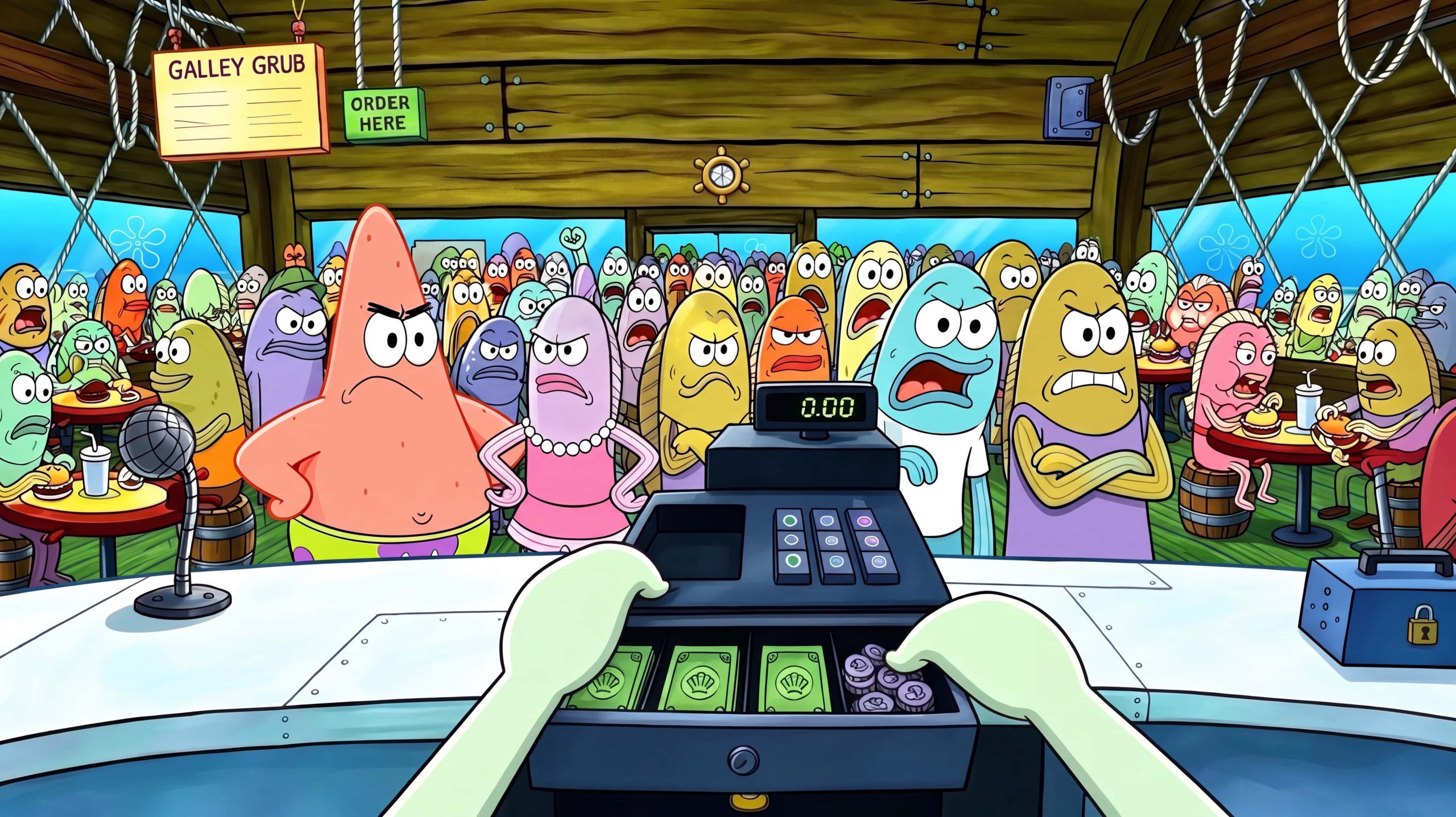
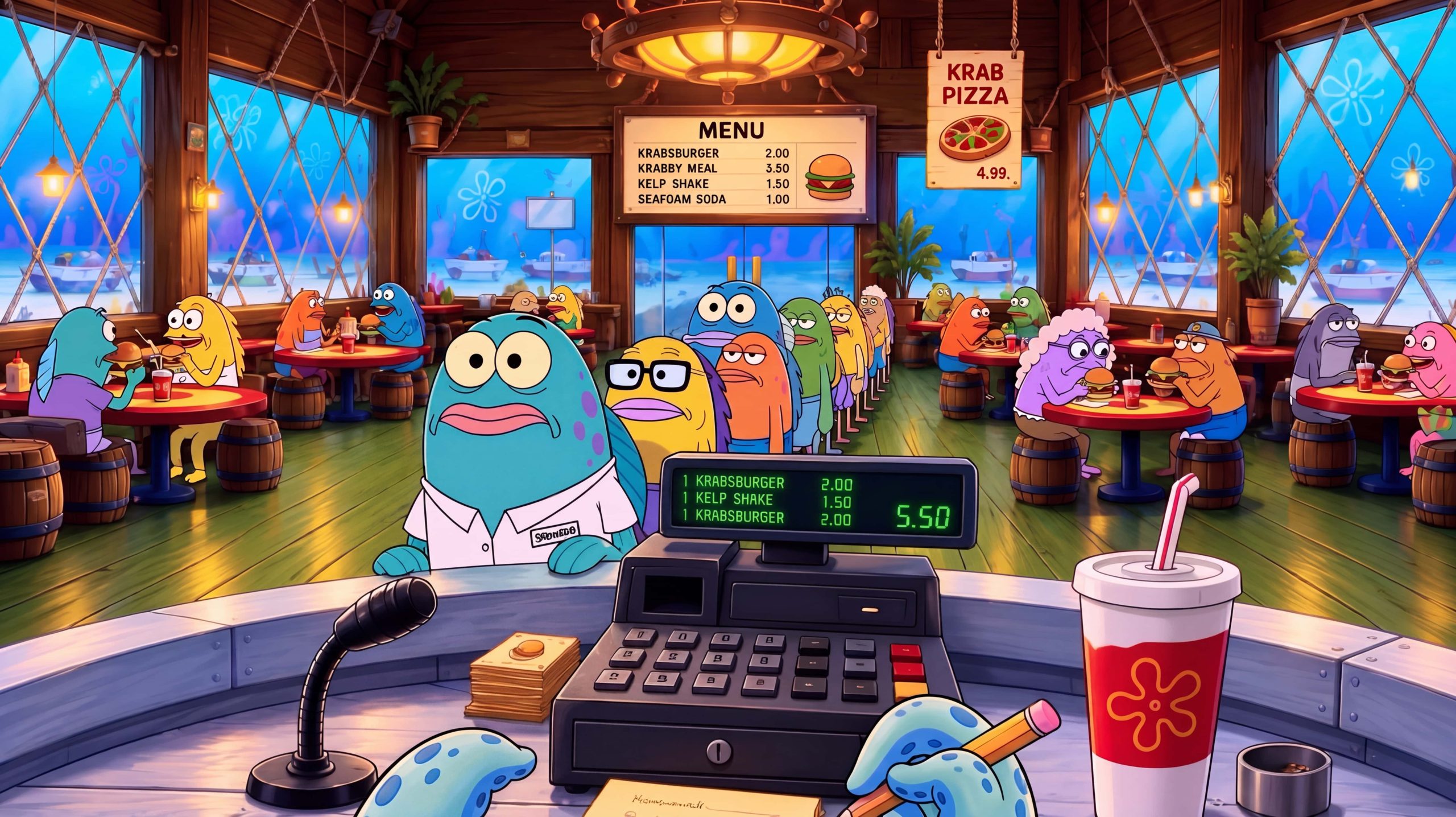
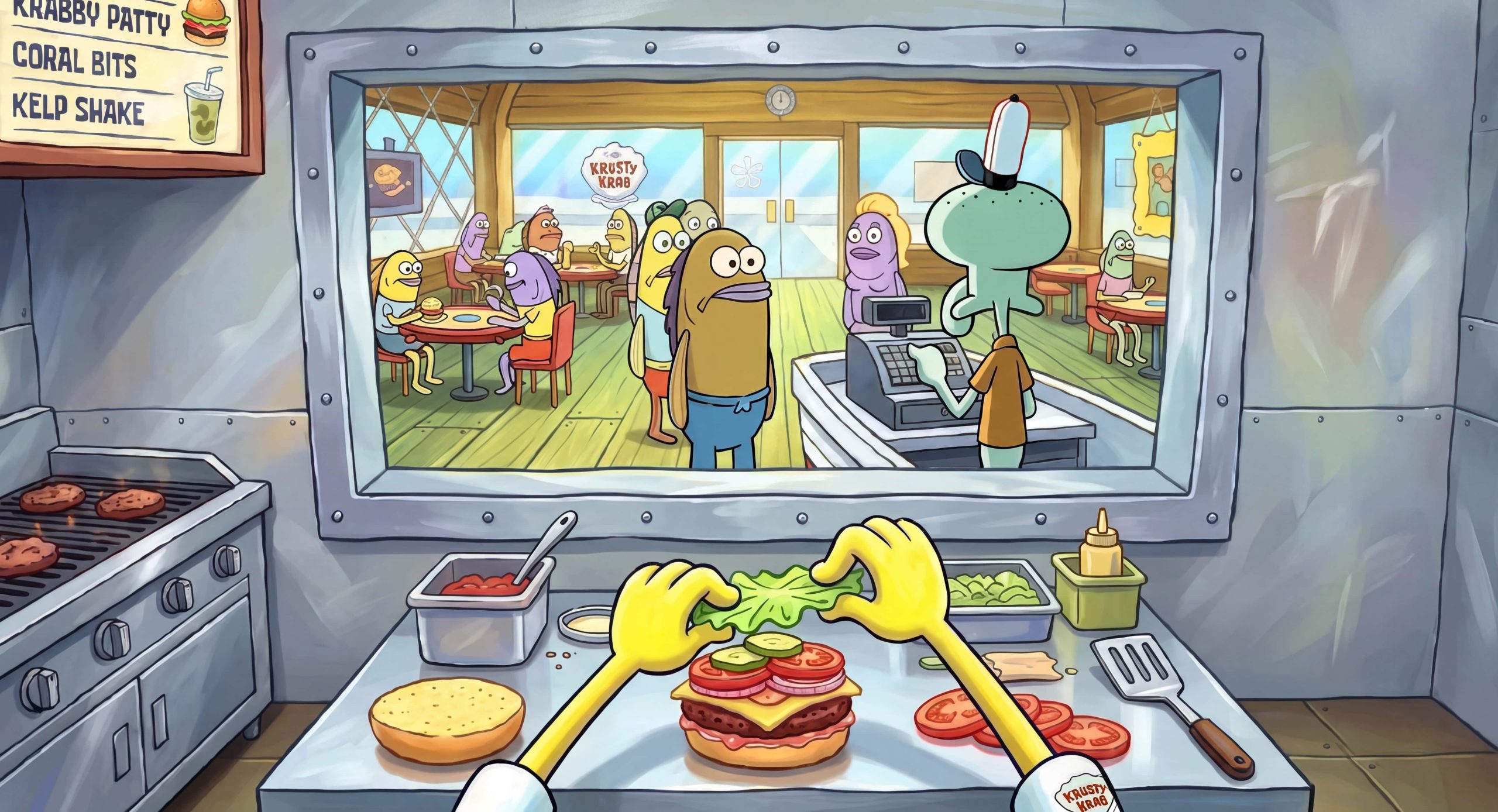
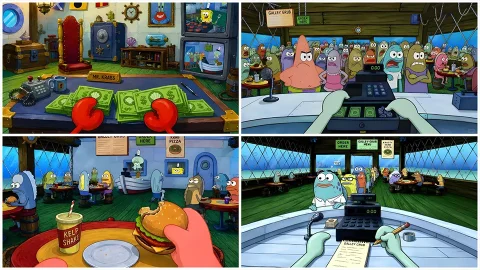
Three wallpapers put you behind the counter. In the first, you’re at the register, and the screen reads 0.00. An angry Patrick leads a packed, scowling crowd toward you, under a “Galley Grub” sign and an “Order Here” tag. The second is a calmer rush, with a cashier fish, a menu board listing a Krab Pizza, and a total of 5.50 on the register, plus a pencil and a cup in the foreground. The third is in the kitchen: SpongeBob’s yellow hands stack a Krabby Patty with lettuce, tomato and pickles, while Squidward works the register through the pass-through window.
Mr. Krabs’ money room

Two big red claws hover over a banded stack of bills in a wood-panelled office, with more cash piled high on both sides, a safe in the back, and a framed painting of a ship. It’s a busy image, so keep your desktop icons to the edges.
The Windows XP joke

SpongeBob, in his paper hat, leans over the green rolling hill from the old Windows XP default background with a sly grin. If you grew up with that hill, this one is for you. The clouds and blue sky give it the same bright feel as the original.
Home sweet pineapple

SpongeBob’s pineapple house sits on a grassy seabed, with jellyfish drifting past, soft rays of light from above, and bubbles and flower-shaped clouds overhead. Corals frame the bottom edge. It’s the brightest and friendliest of the set.
The Krusty Krab, twice
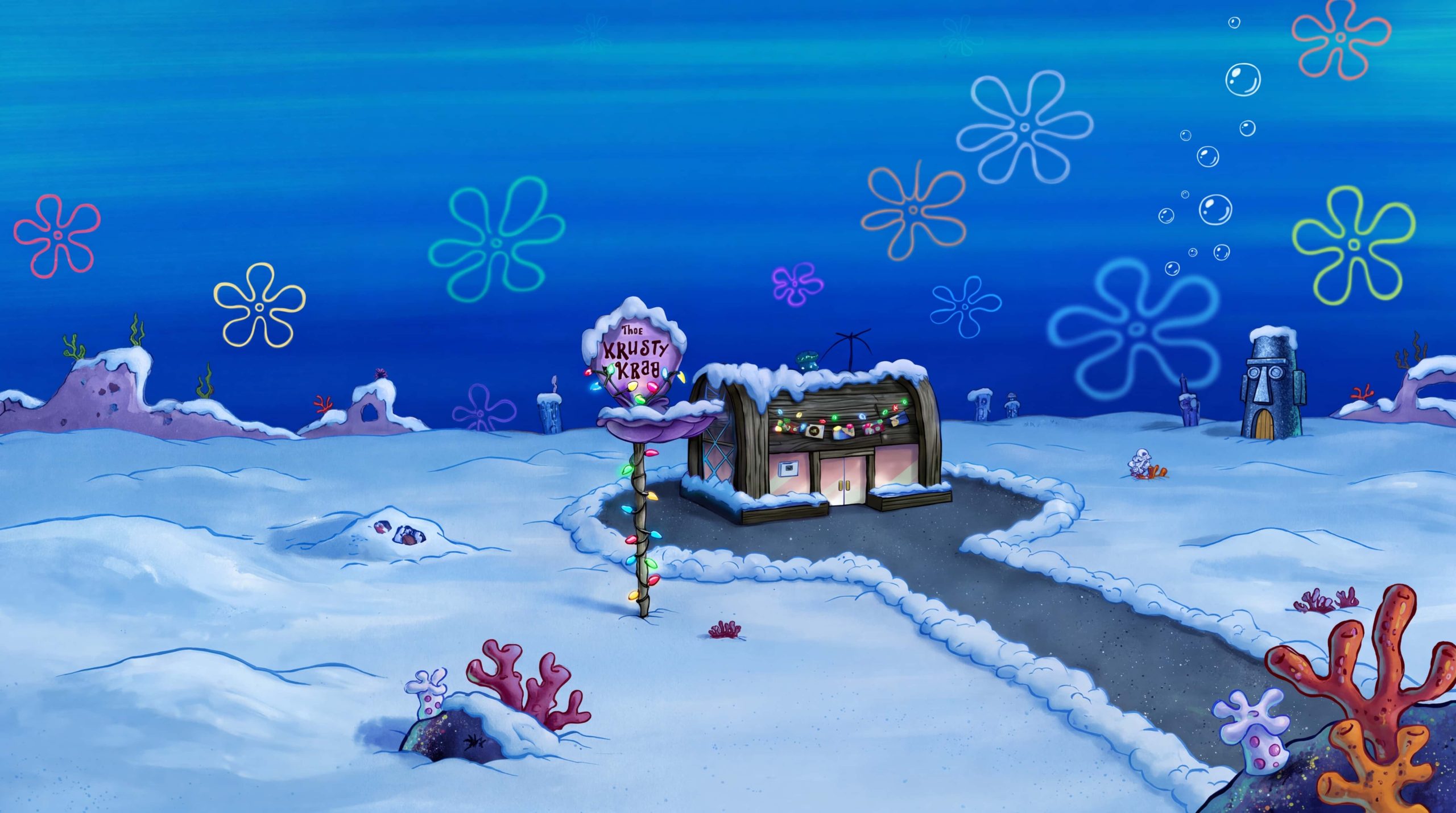
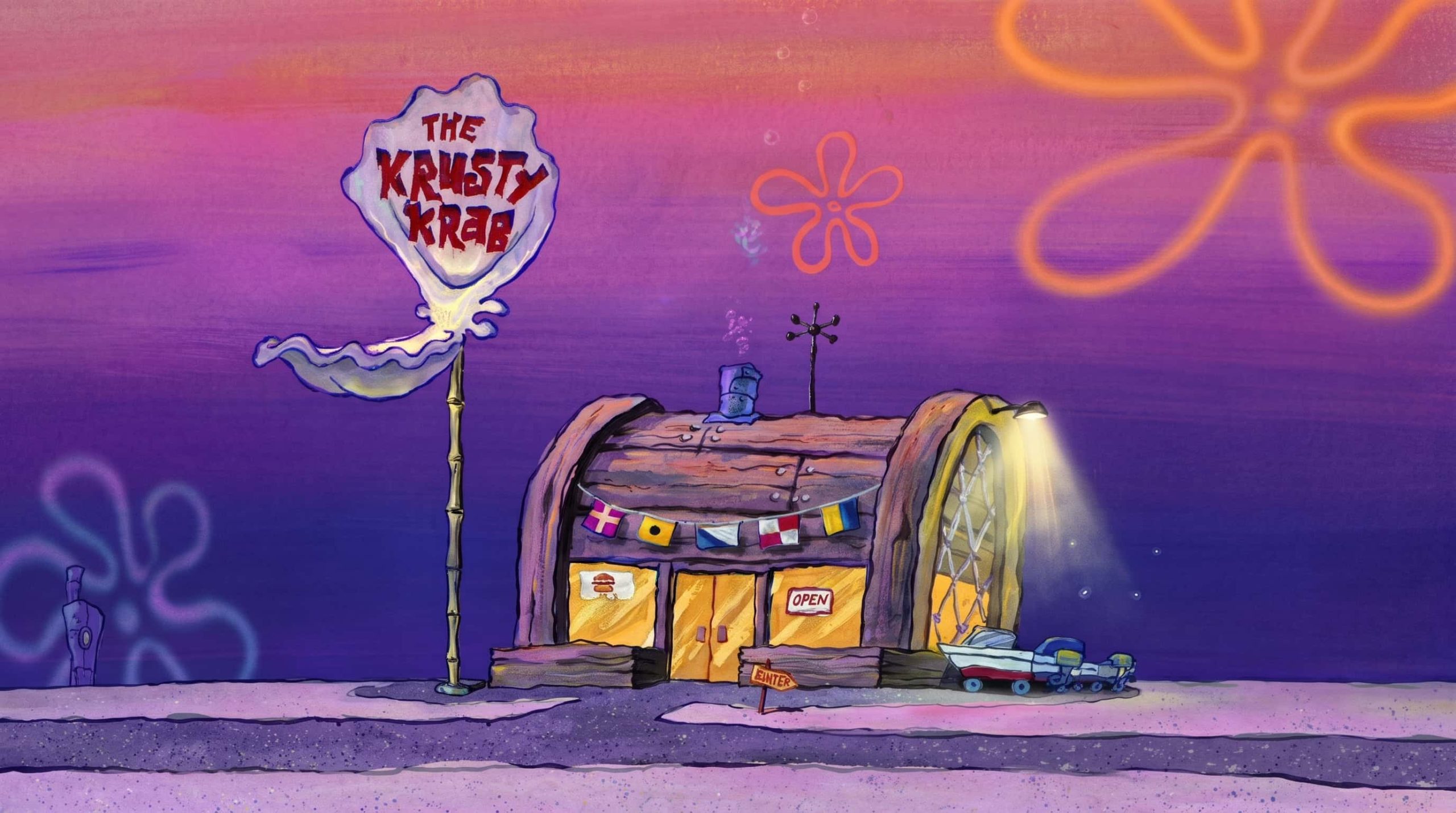
The restaurant gets two moody exterior shots. In one, it’s covered in snow, with Christmas lights on the shell sign and along the roof, and Squidward’s moai house in the distance. In the other, it’s dusk, with a purple-to-pink sky, an orange flower cloud in the corner, signal flags, an “Open” sign and a warm light spilling from the window.
Using them on your Mac
These are wide, so they fit a MacBook screen without cropping. On the register and kitchen POV images, the action is in the middle, so your Dock won’t hide anything important. Go to System Settings > Wallpaper > Add Photo, pick your image, and set it to Fill Screen.