30 SpongeBob iPhone 4K Wallpapers for Every Style
SpongeBob SquarePants has quietly become one of the most requested wallpaper themes on iPhone, and it’s not hard to see why. The character’s bright color palette, exaggerated expressions, and endlessly quotable moments make for a phone background that’s equal parts nostalgic and fun. If you’re searching for spongebob iphone 4k wallpapers, this guide breaks down the best styles to look for, the technical specs that actually matter on iPhone screens, and how to set everything up so your Lock Screen and Home Screen look sharp instead of pixelated.
Why SpongeBob Wallpapers Work So Well on iPhone
Unlike a desktop monitor, your iPhone screen is something you look at dozens of times a day — unlocking it, checking notifications, swiping between apps. That makes the wallpaper one of the most-viewed pieces of “design” you own. SpongeBob’s bold outlines and saturated colors translate especially well to the Super Retina XDR displays found on modern iPhones, which handle high contrast and vivid color extremely well. It’s also a low-commitment way to express personality on a device that otherwise looks identical to millions of others in someone’s pocket.
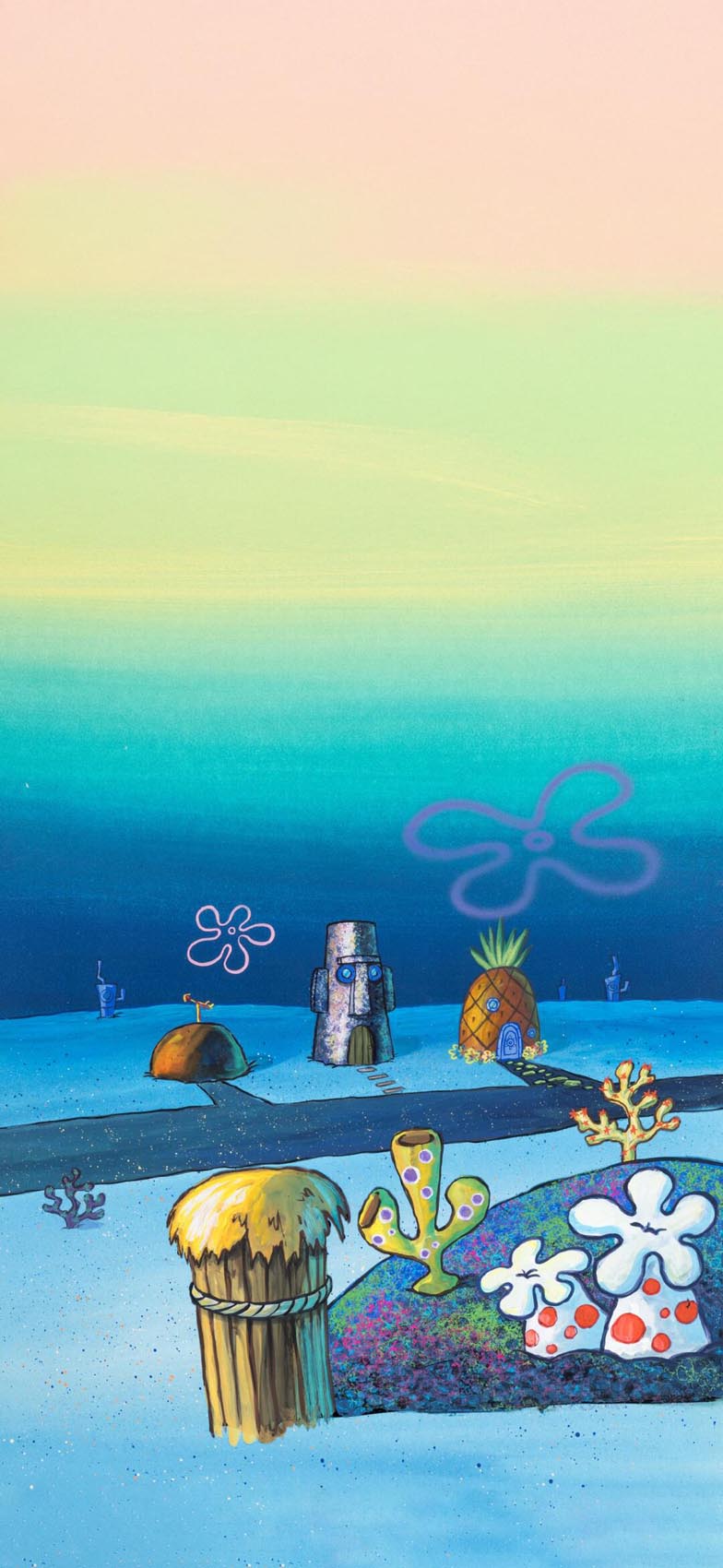
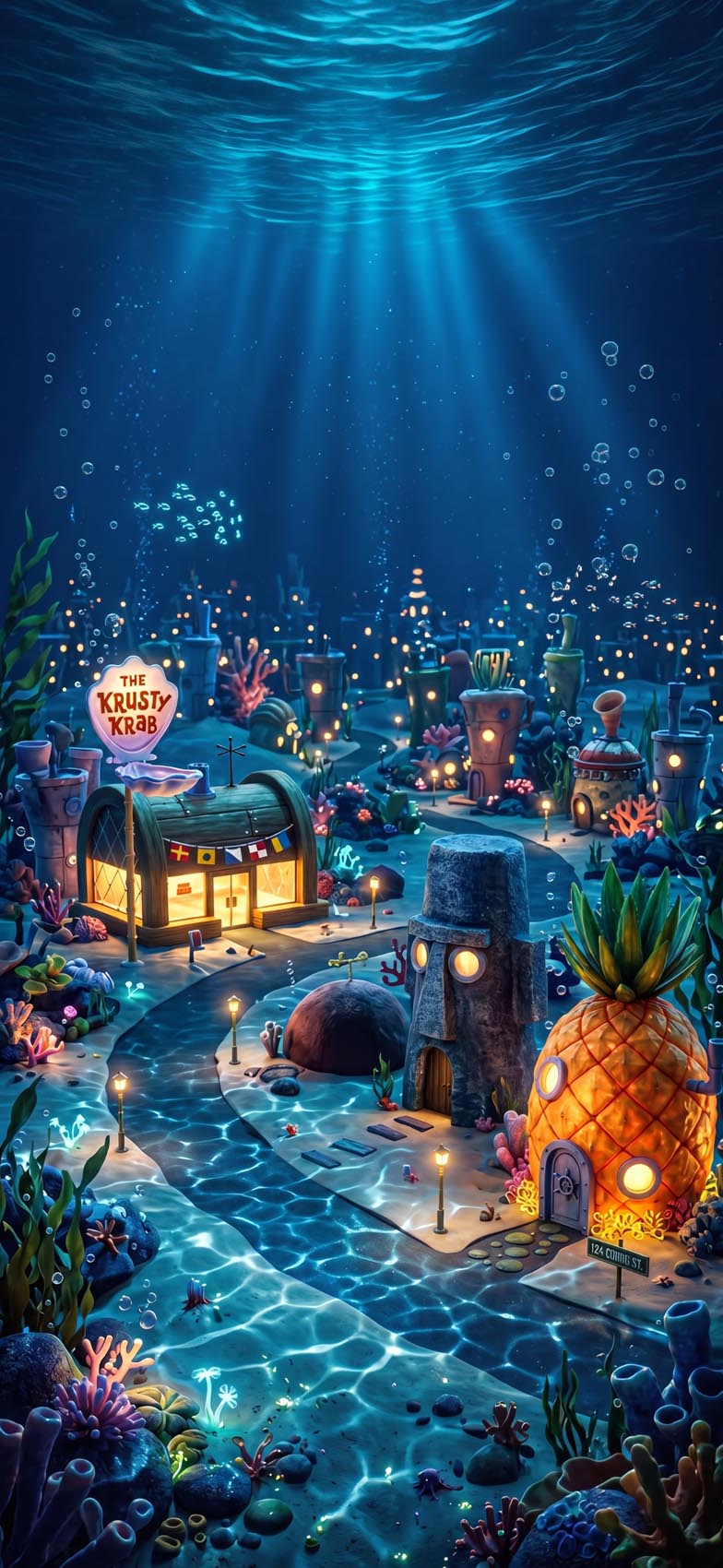
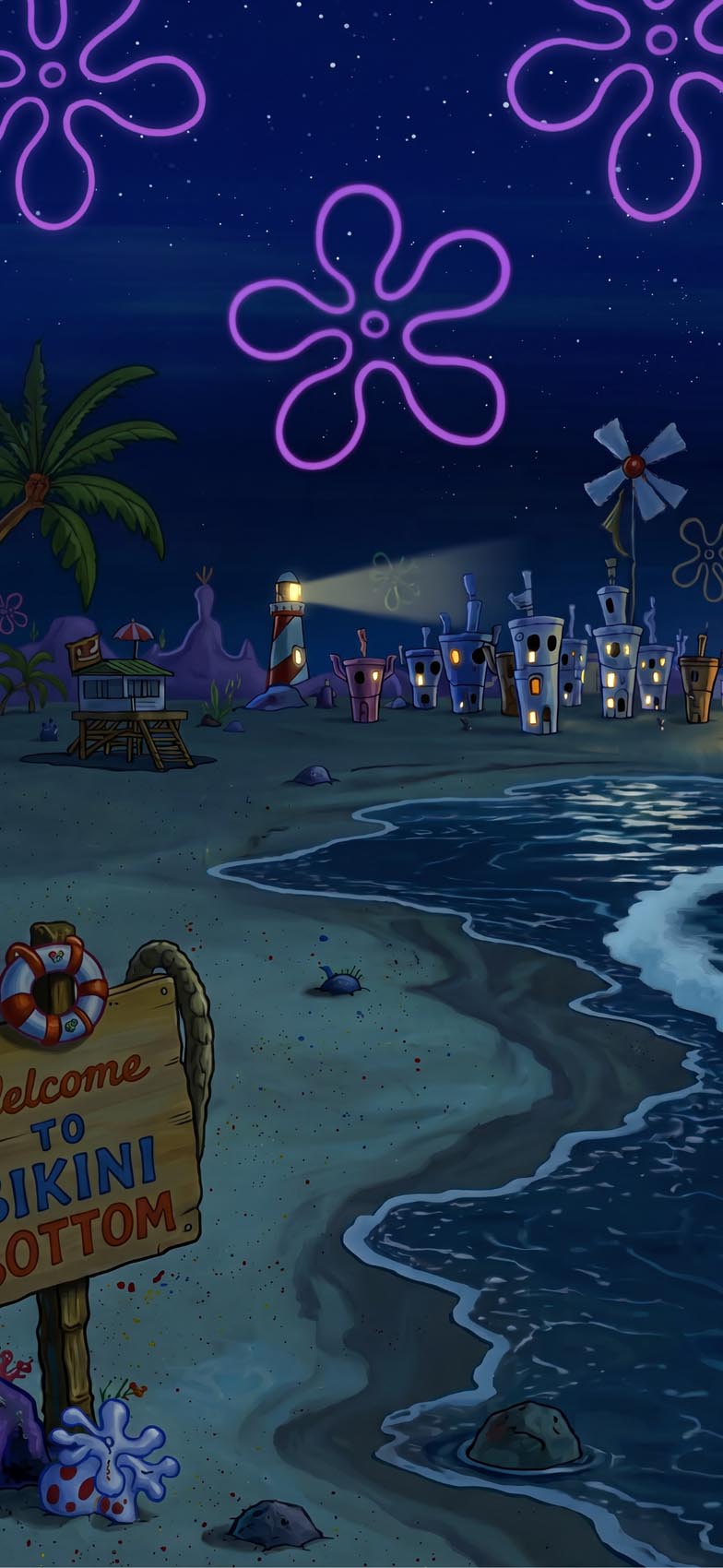
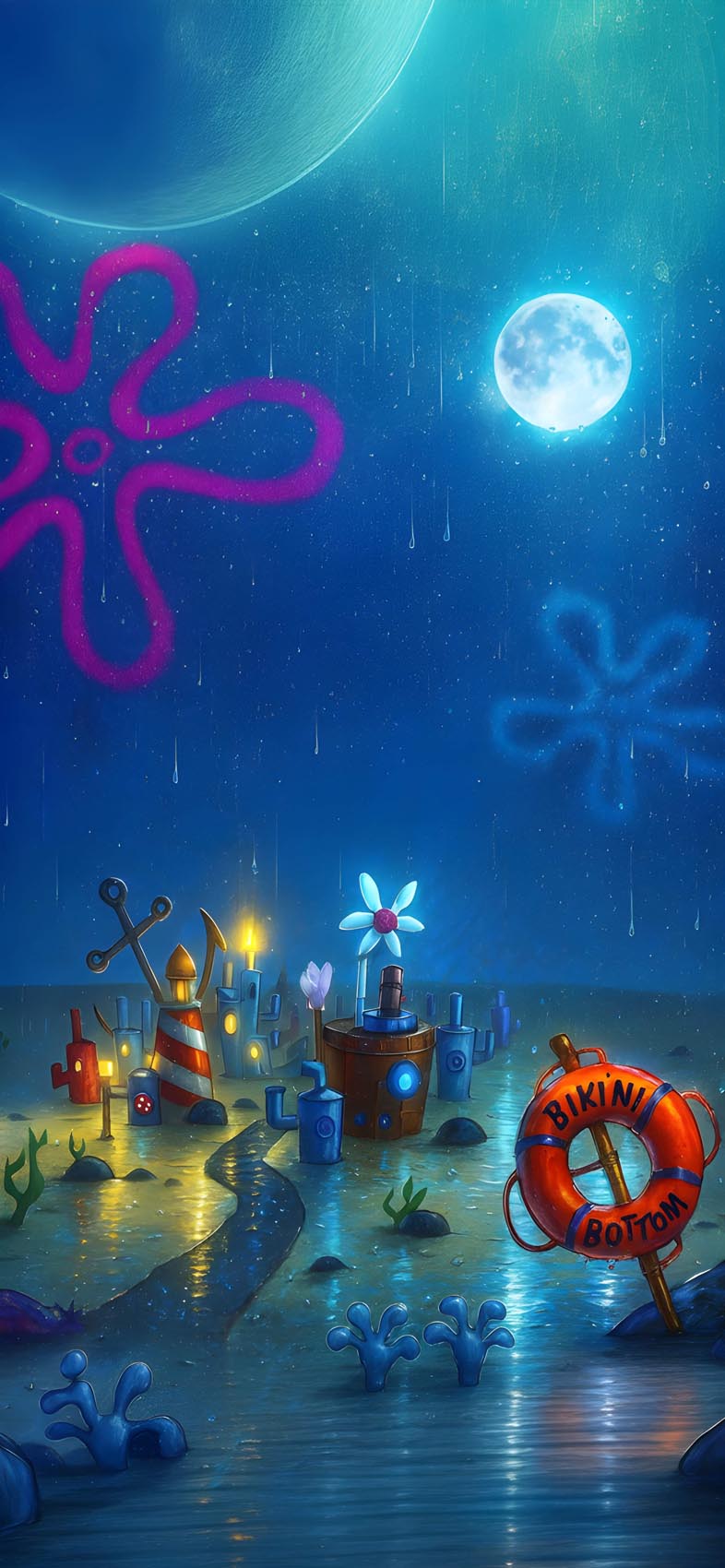
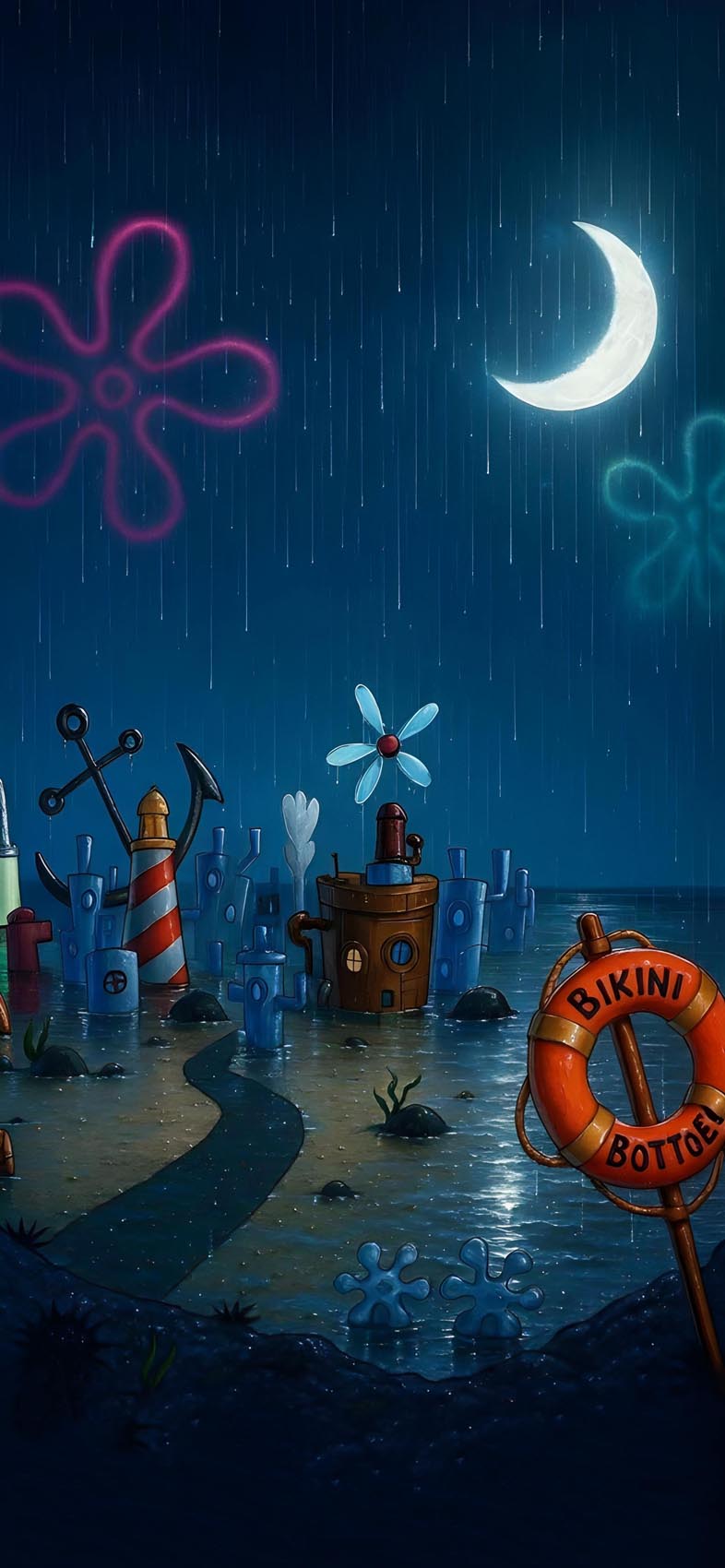
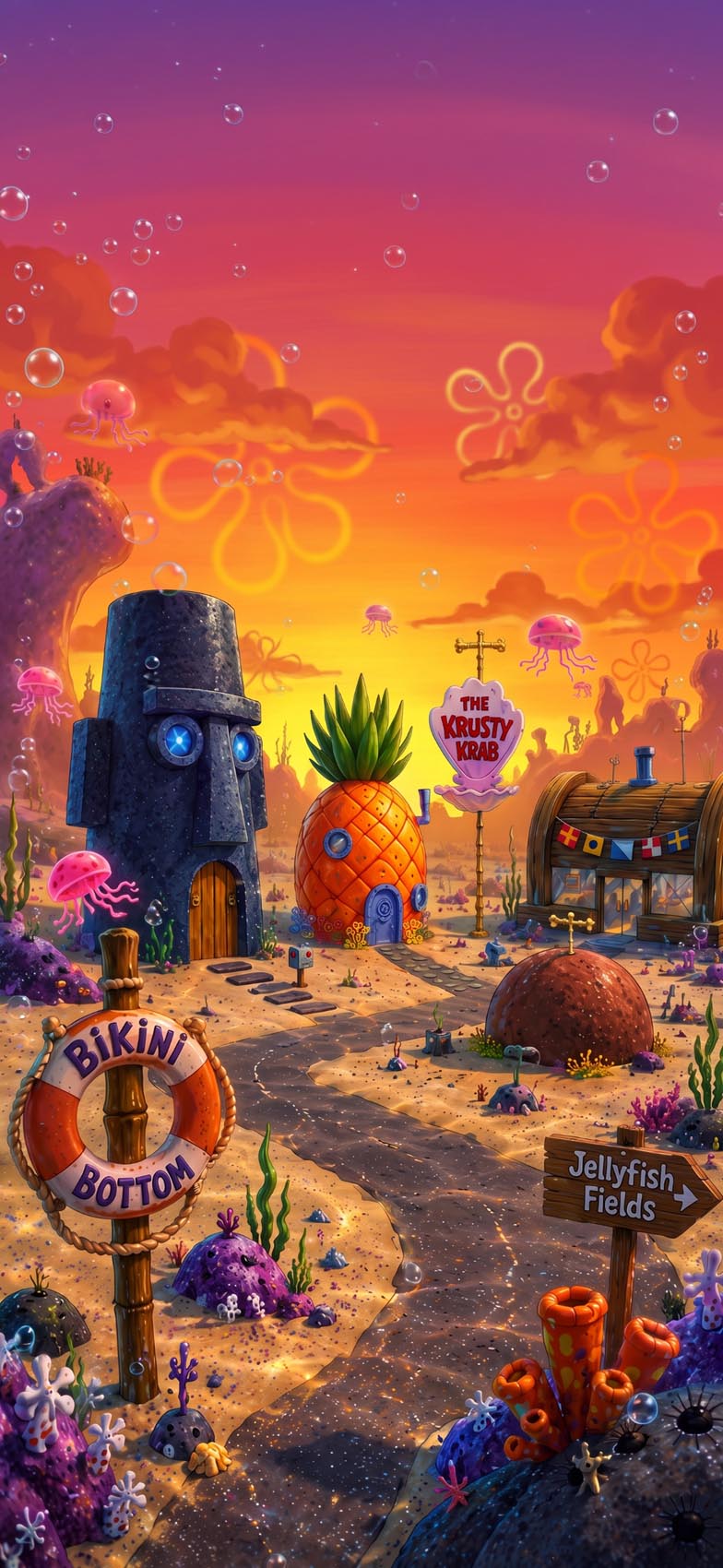
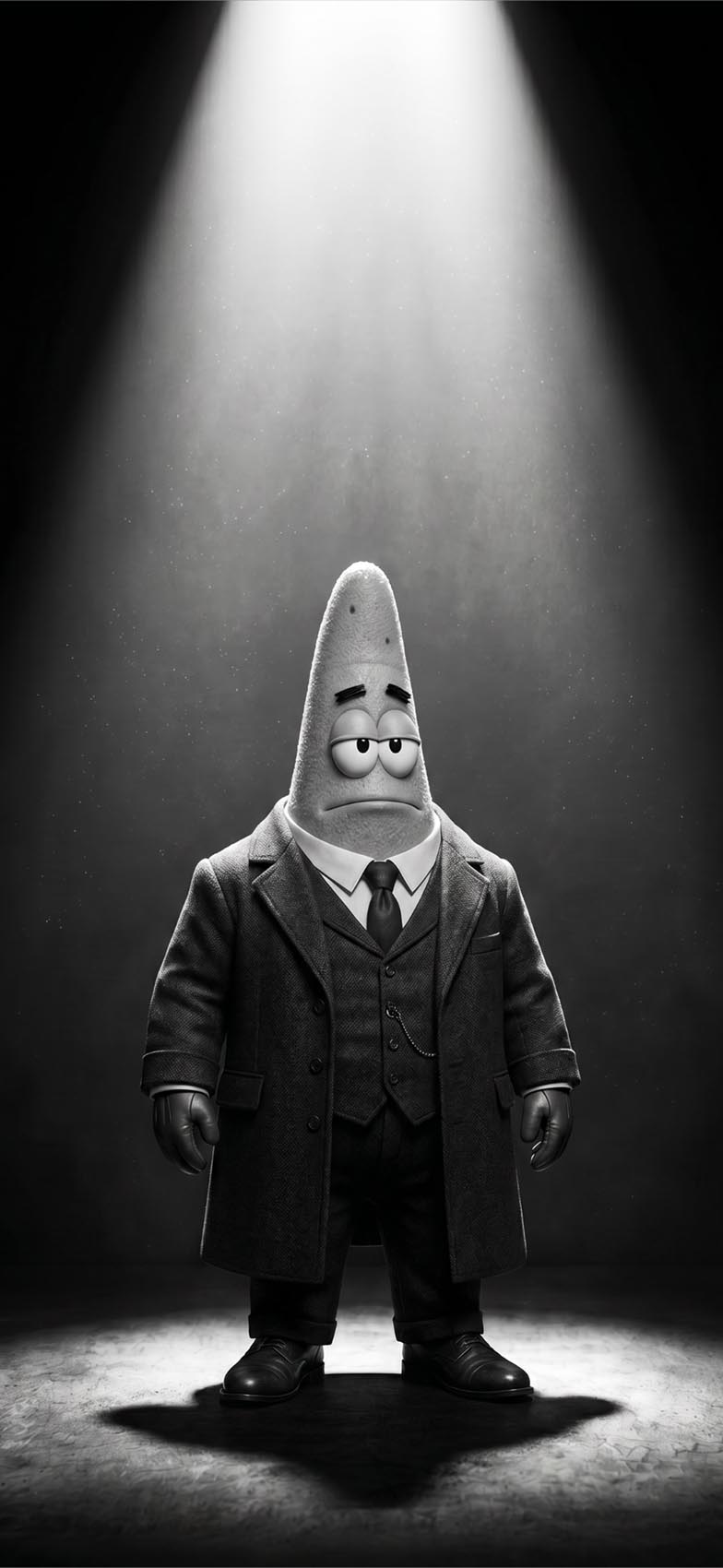
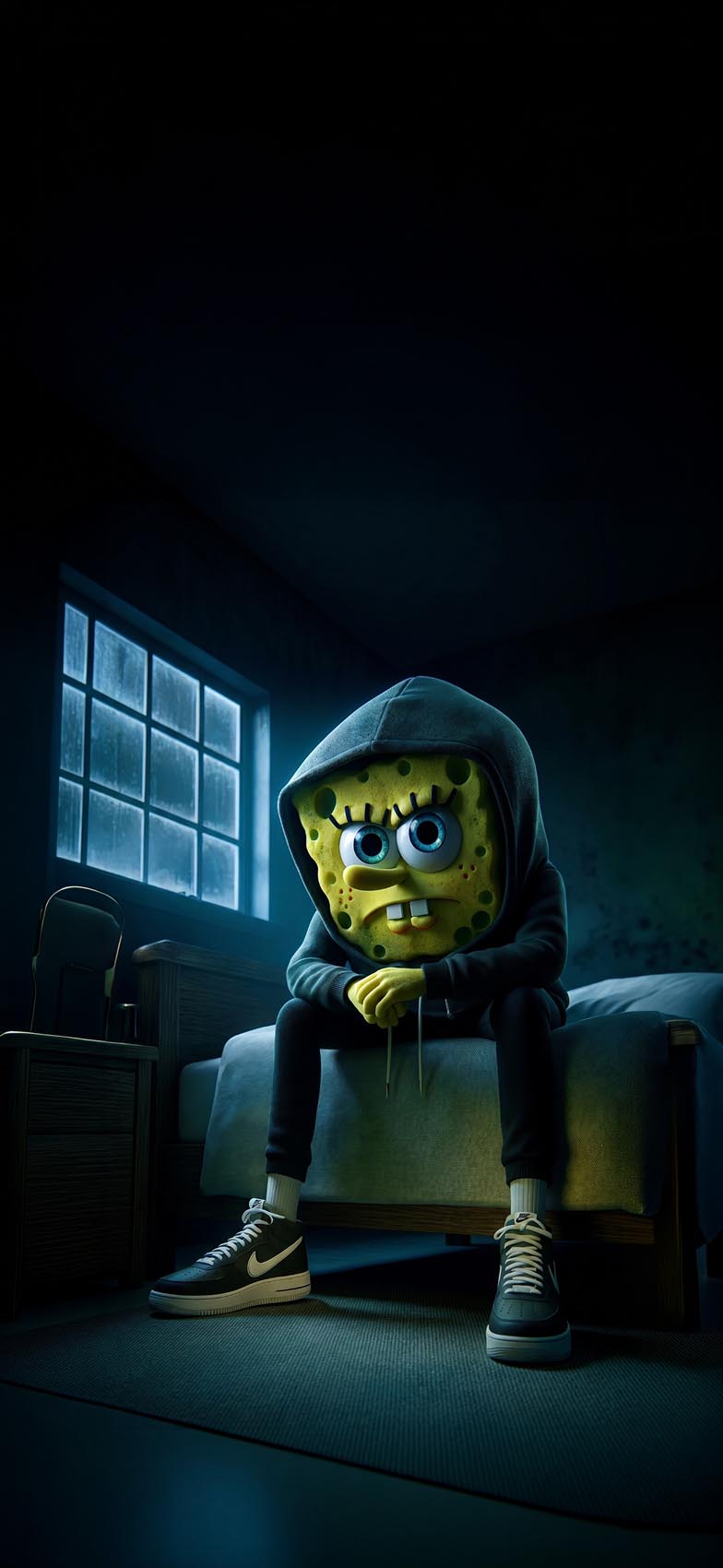
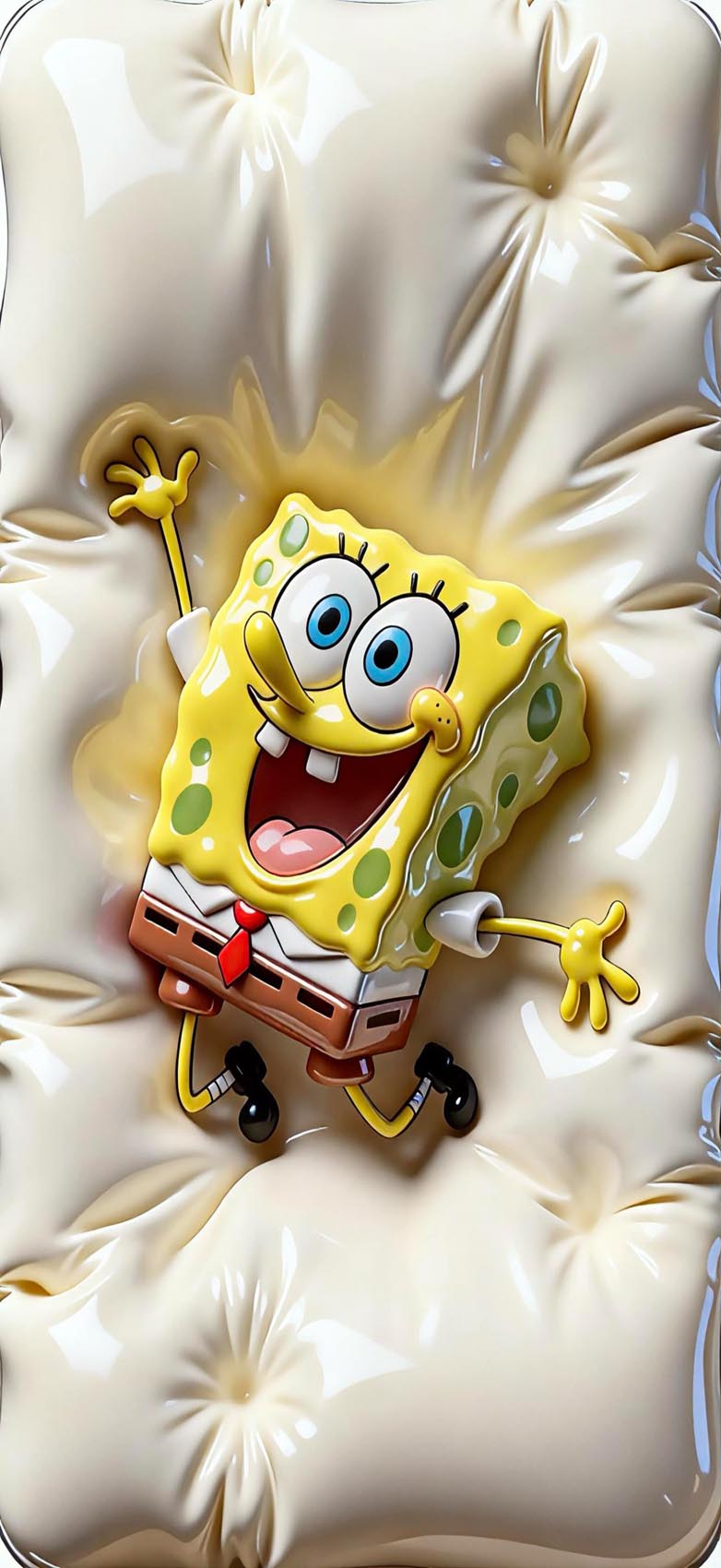
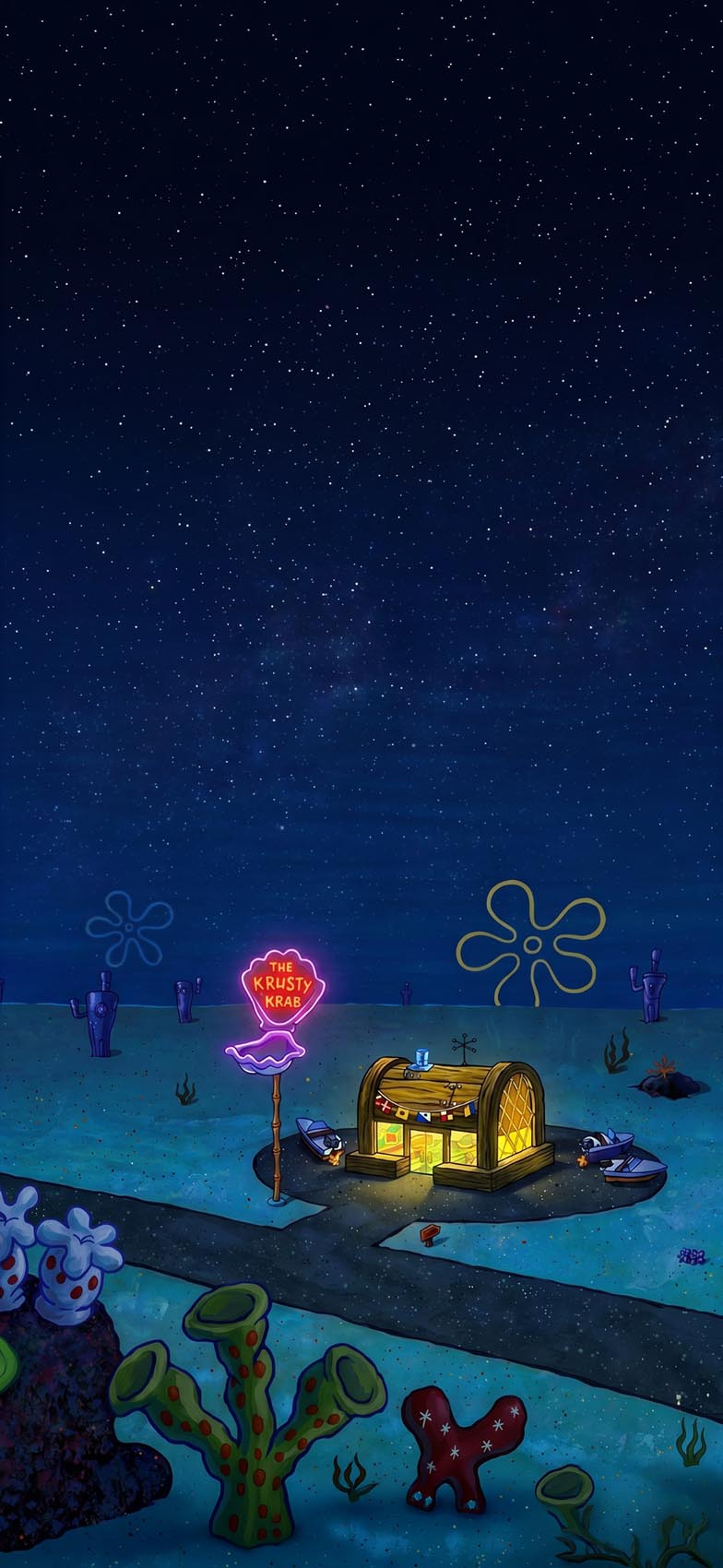
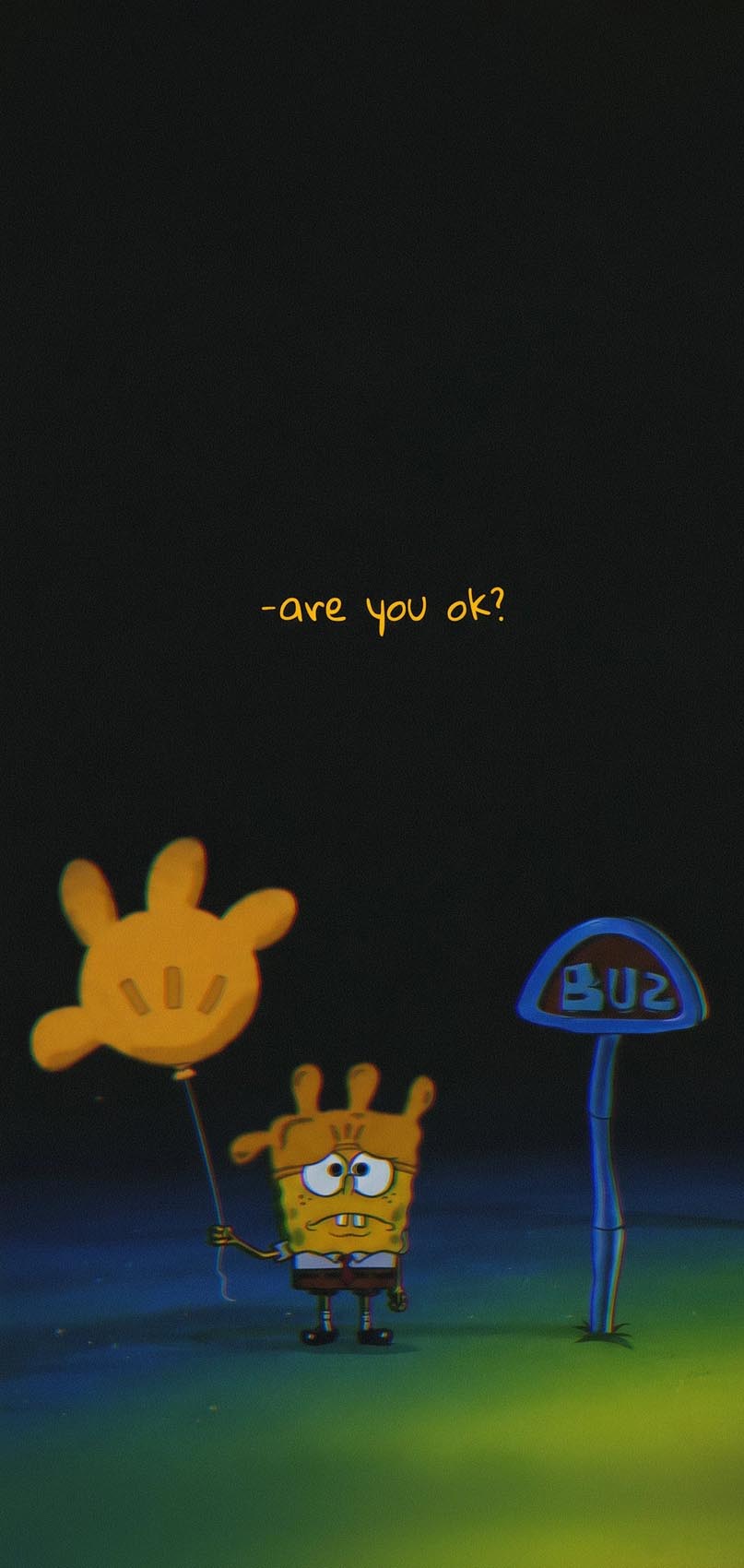
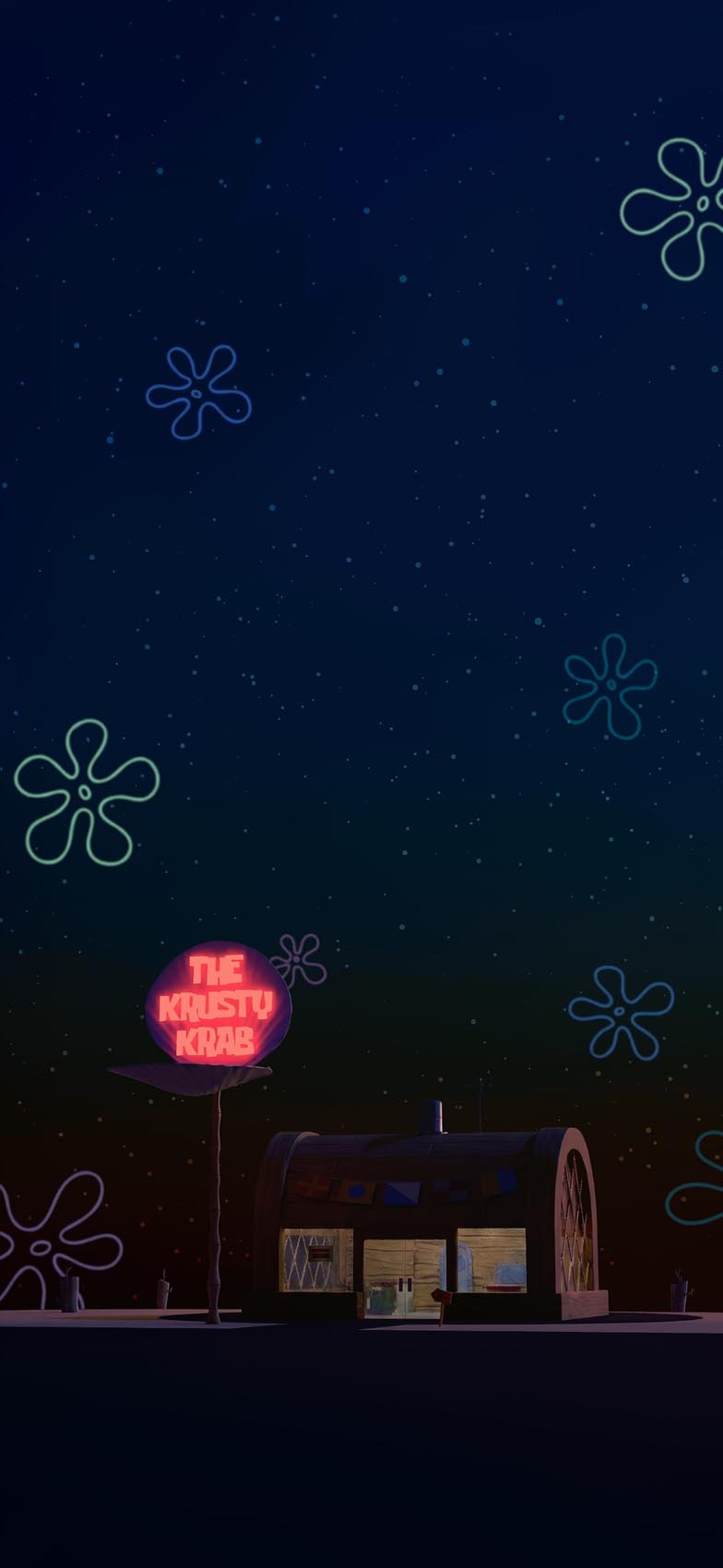
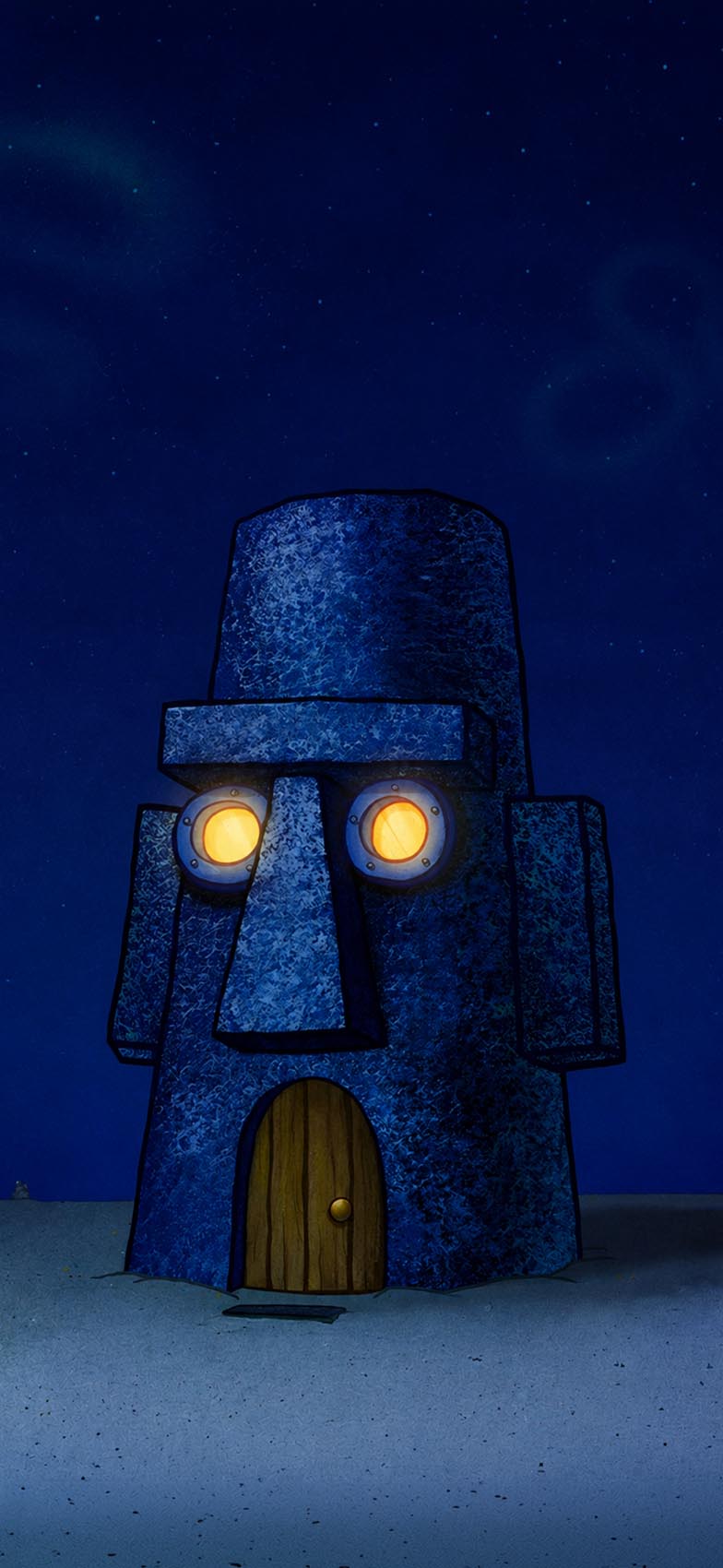
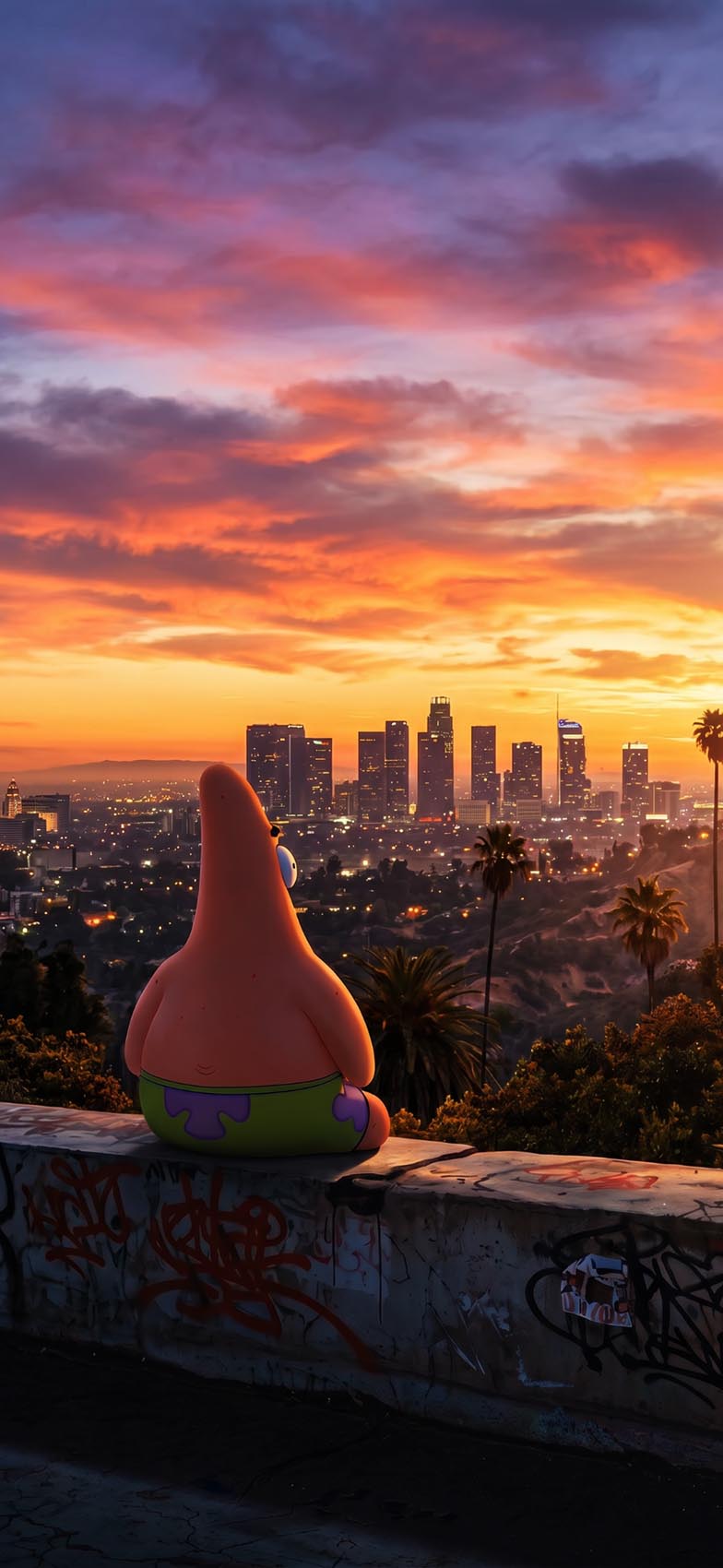
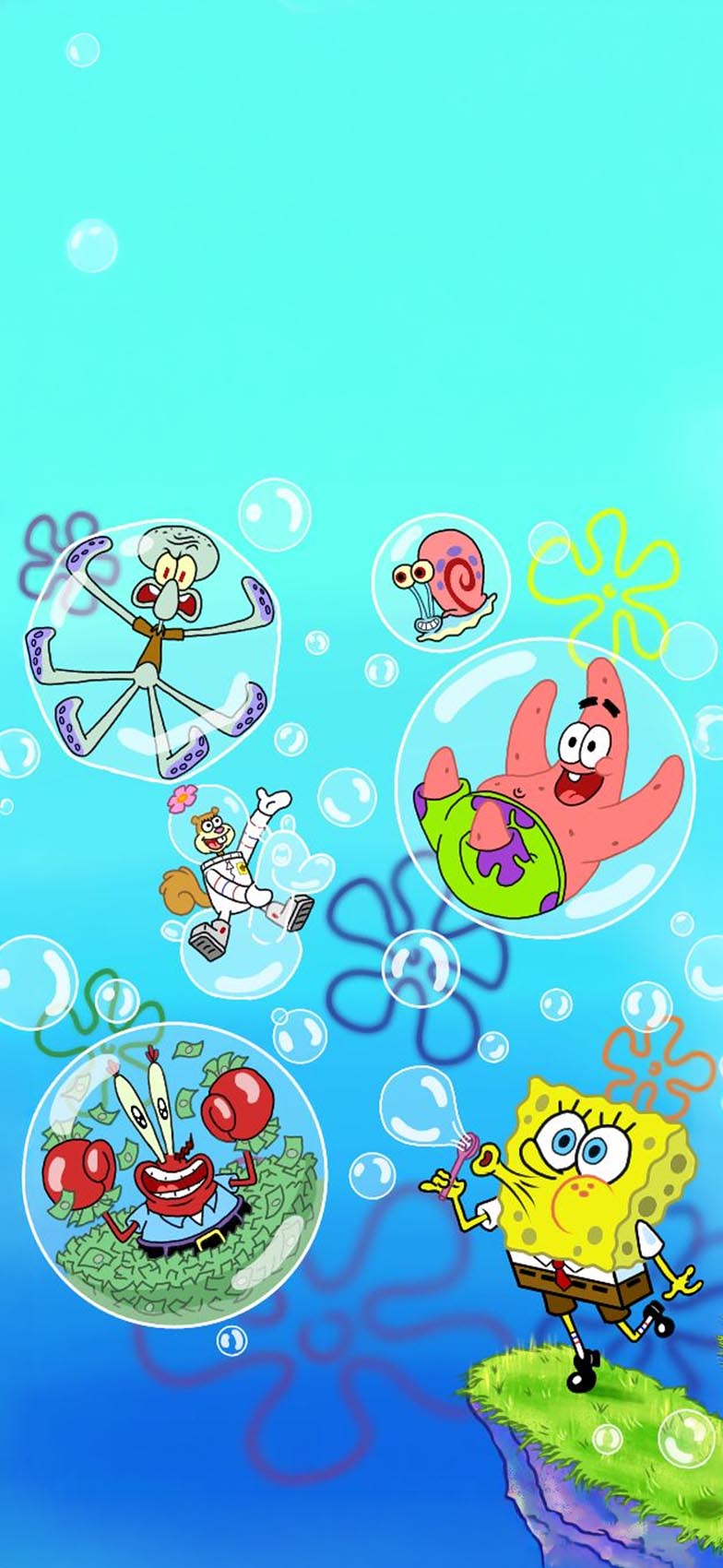
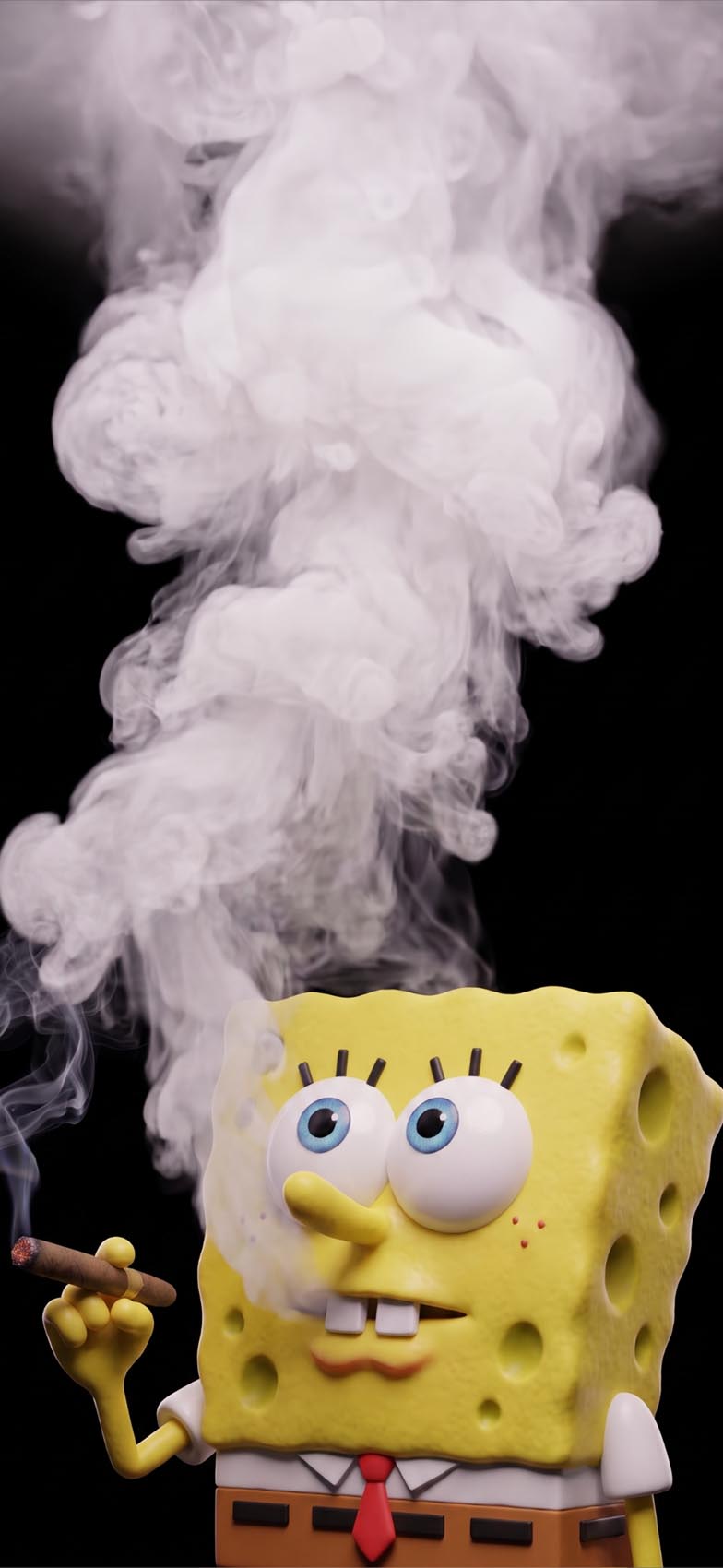
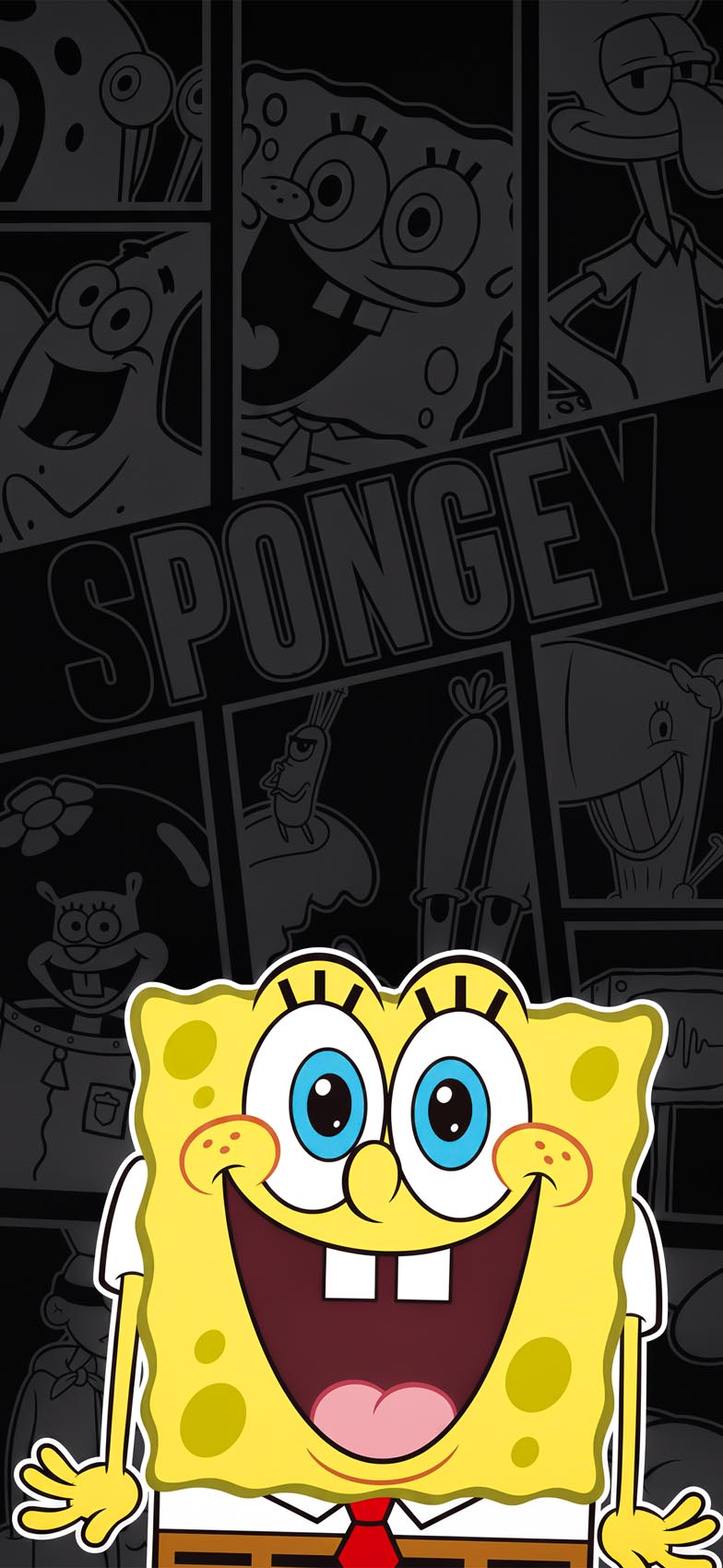
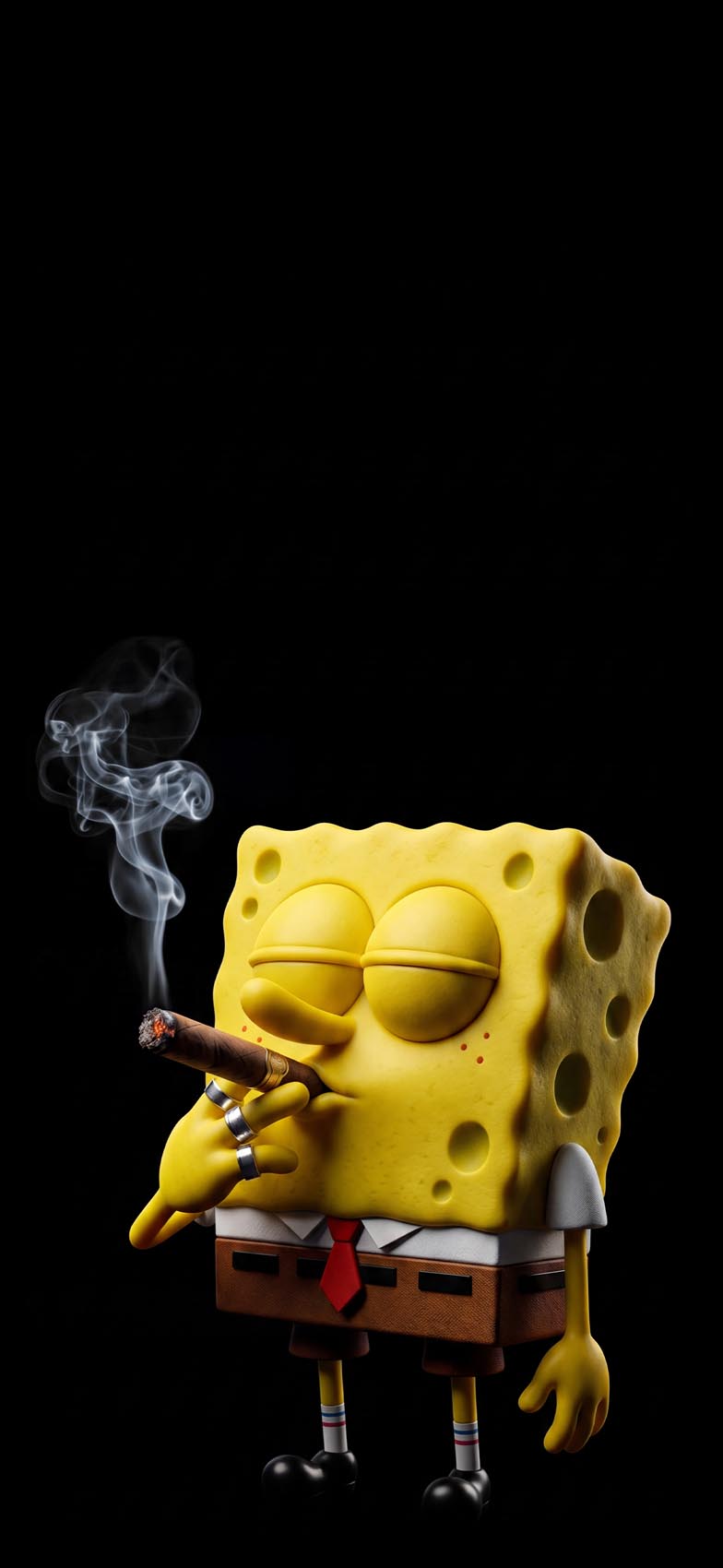
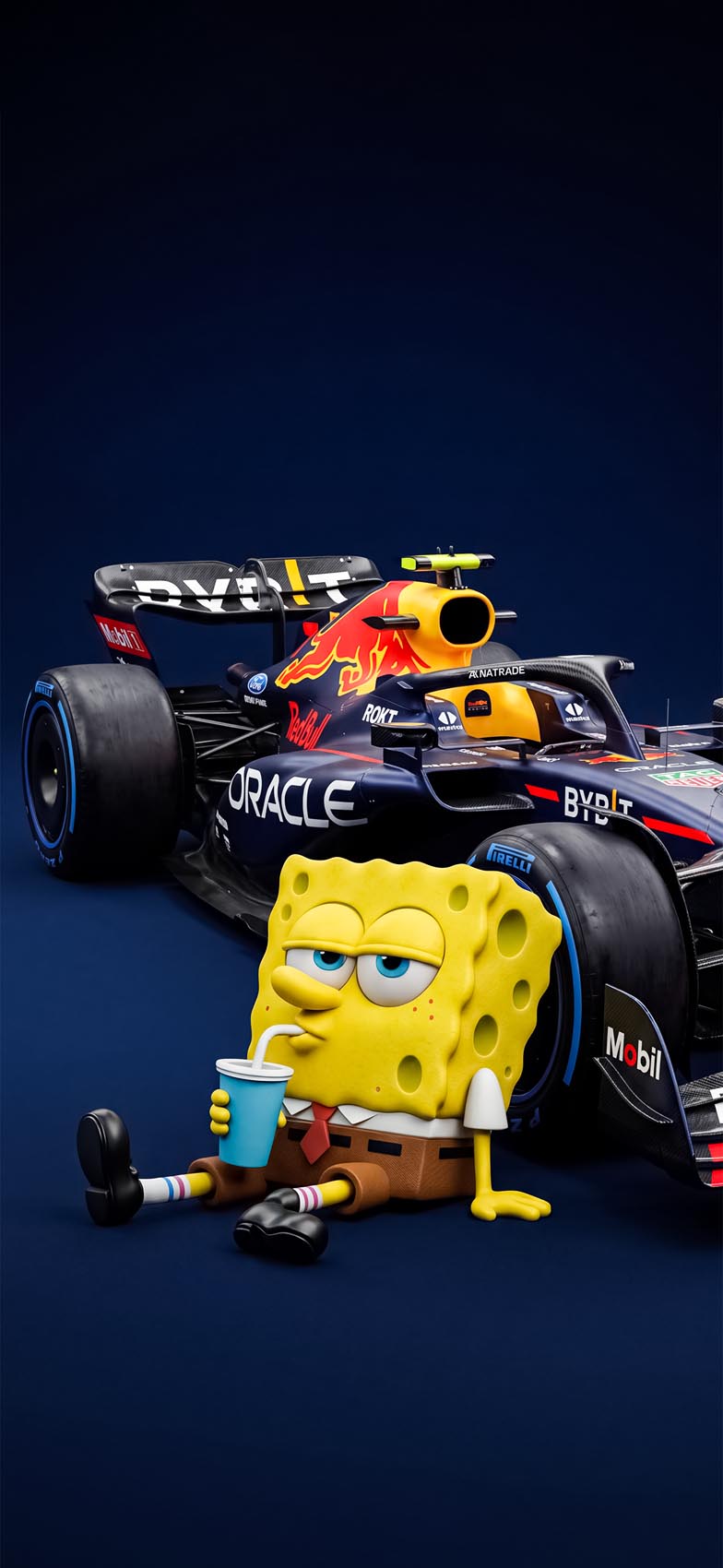
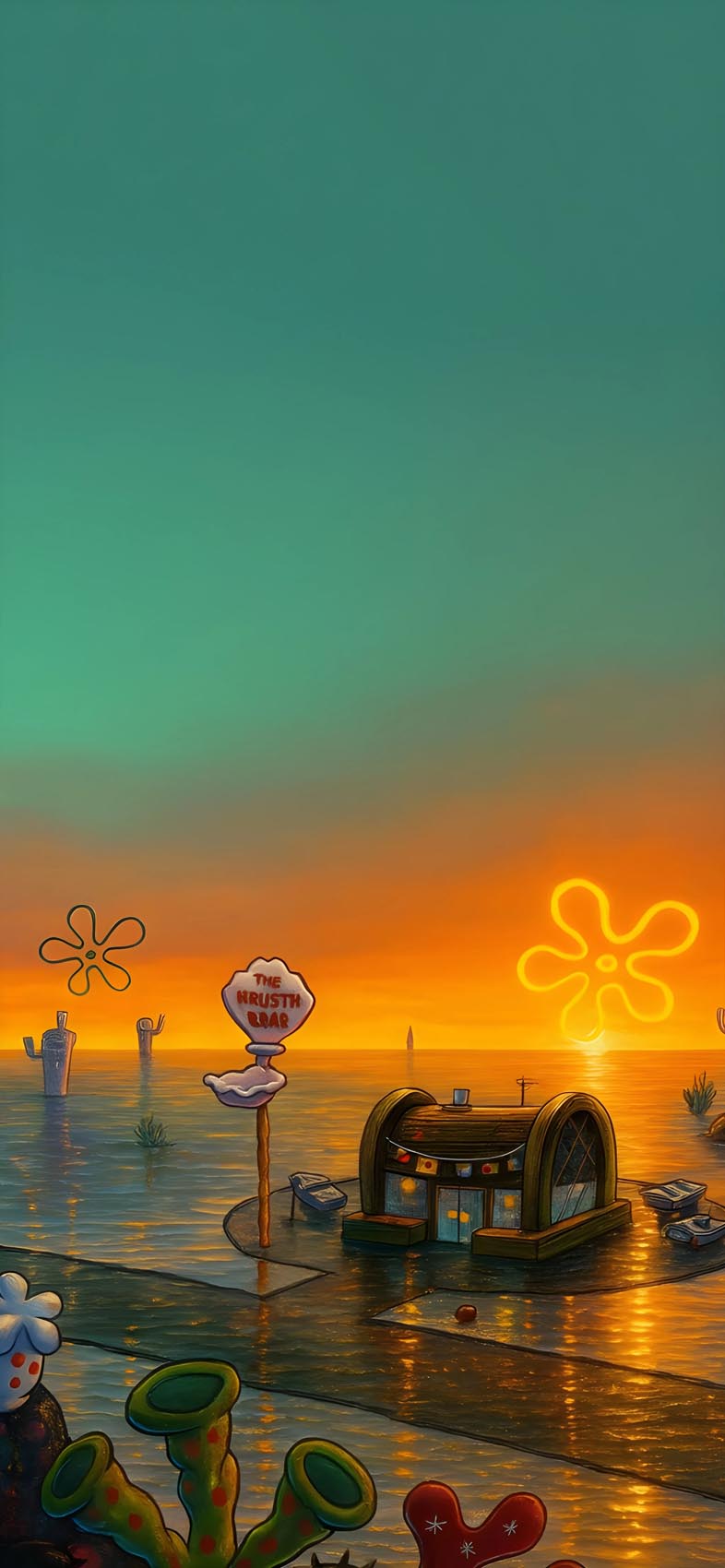
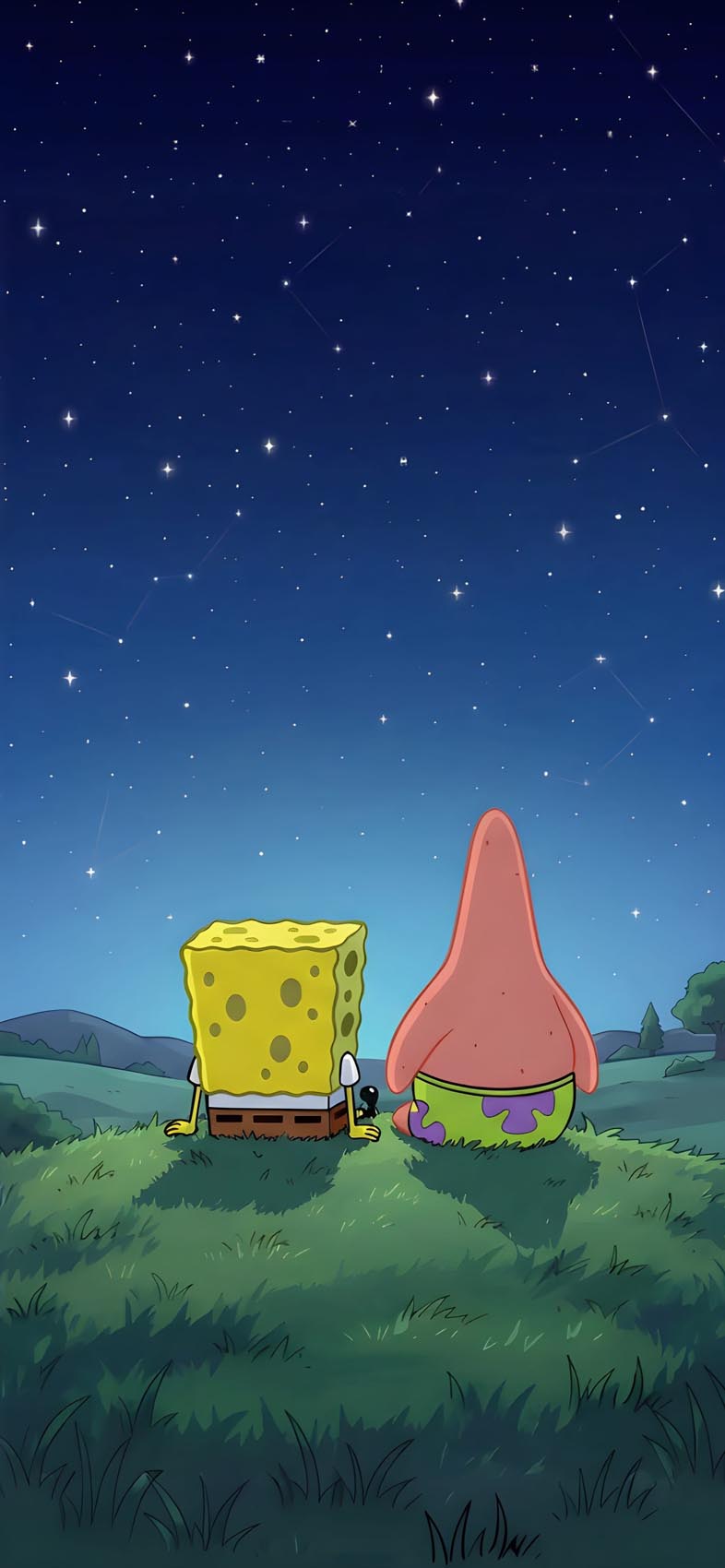
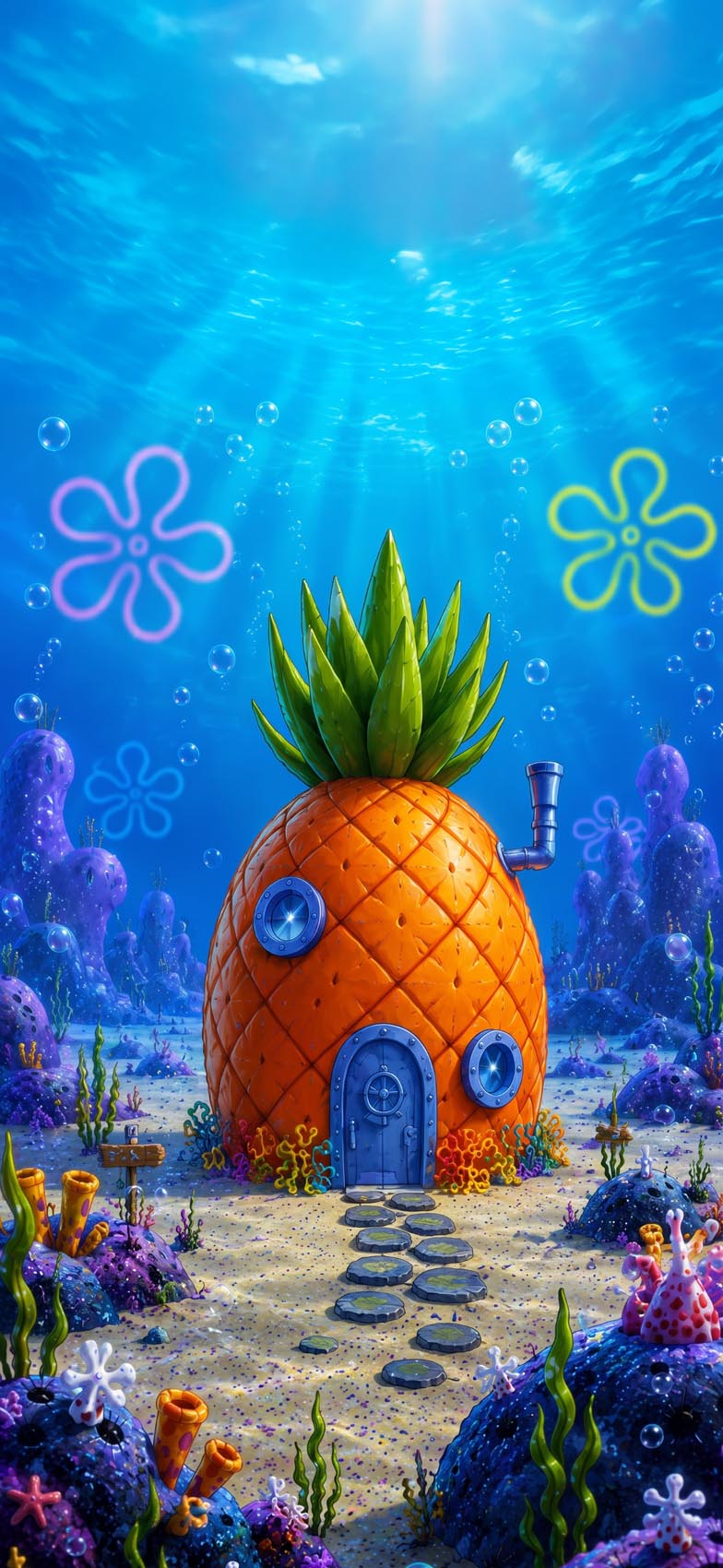
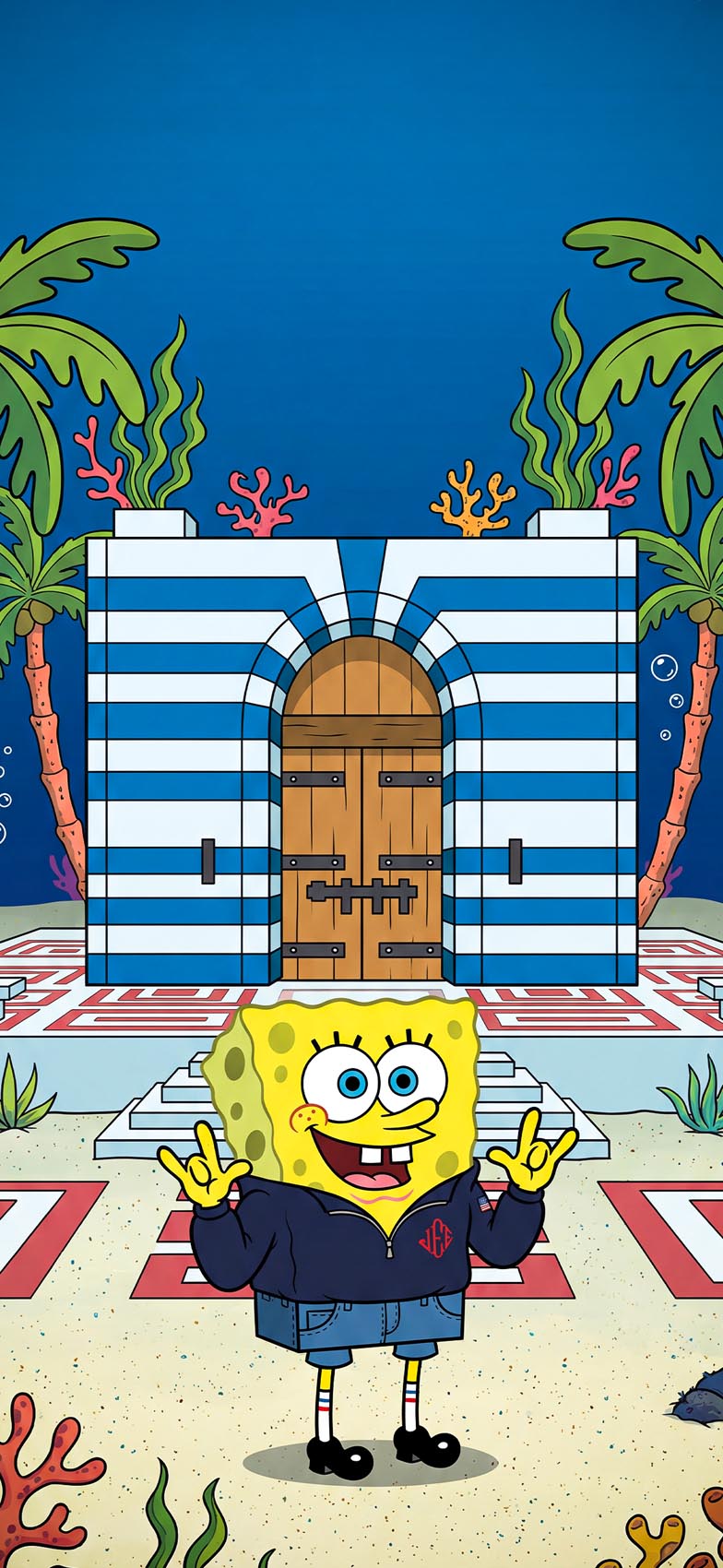
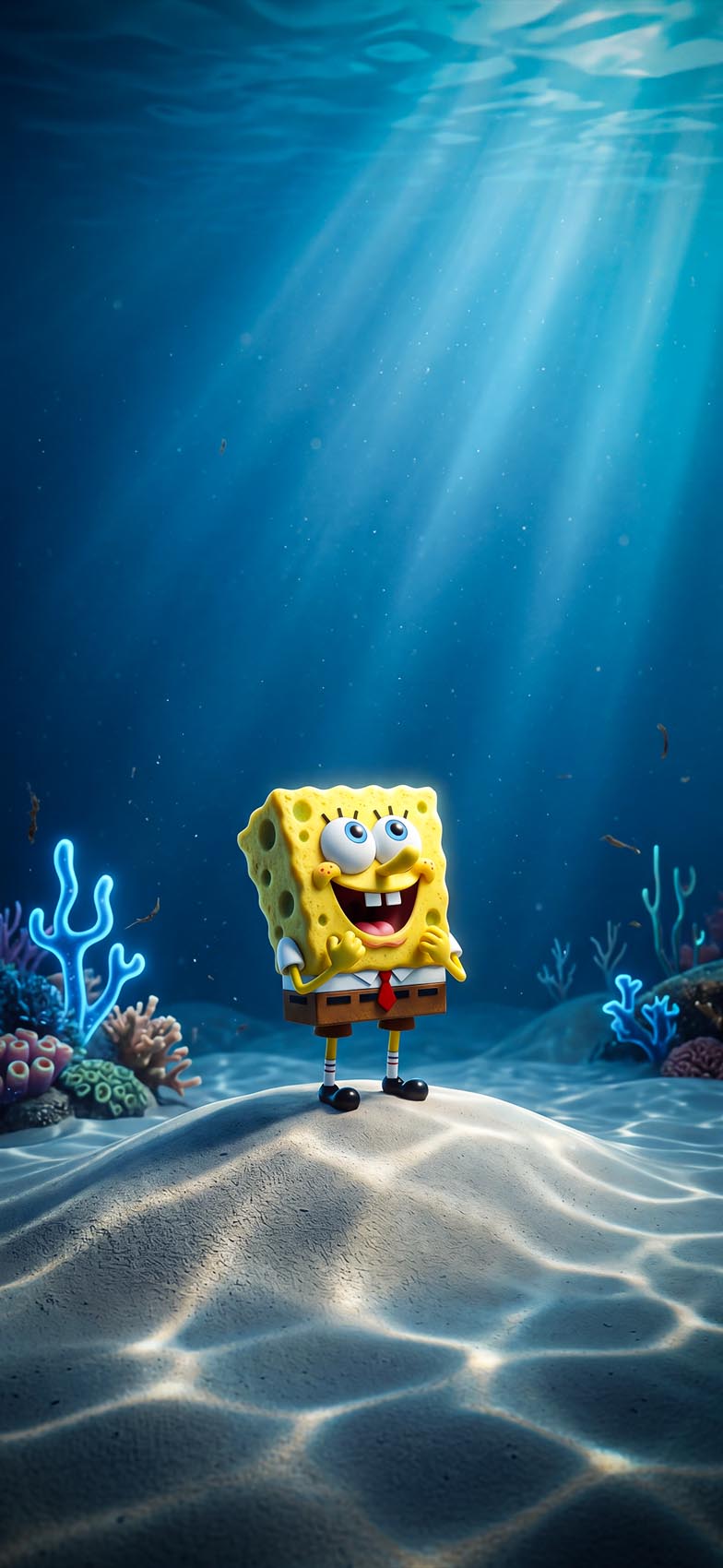
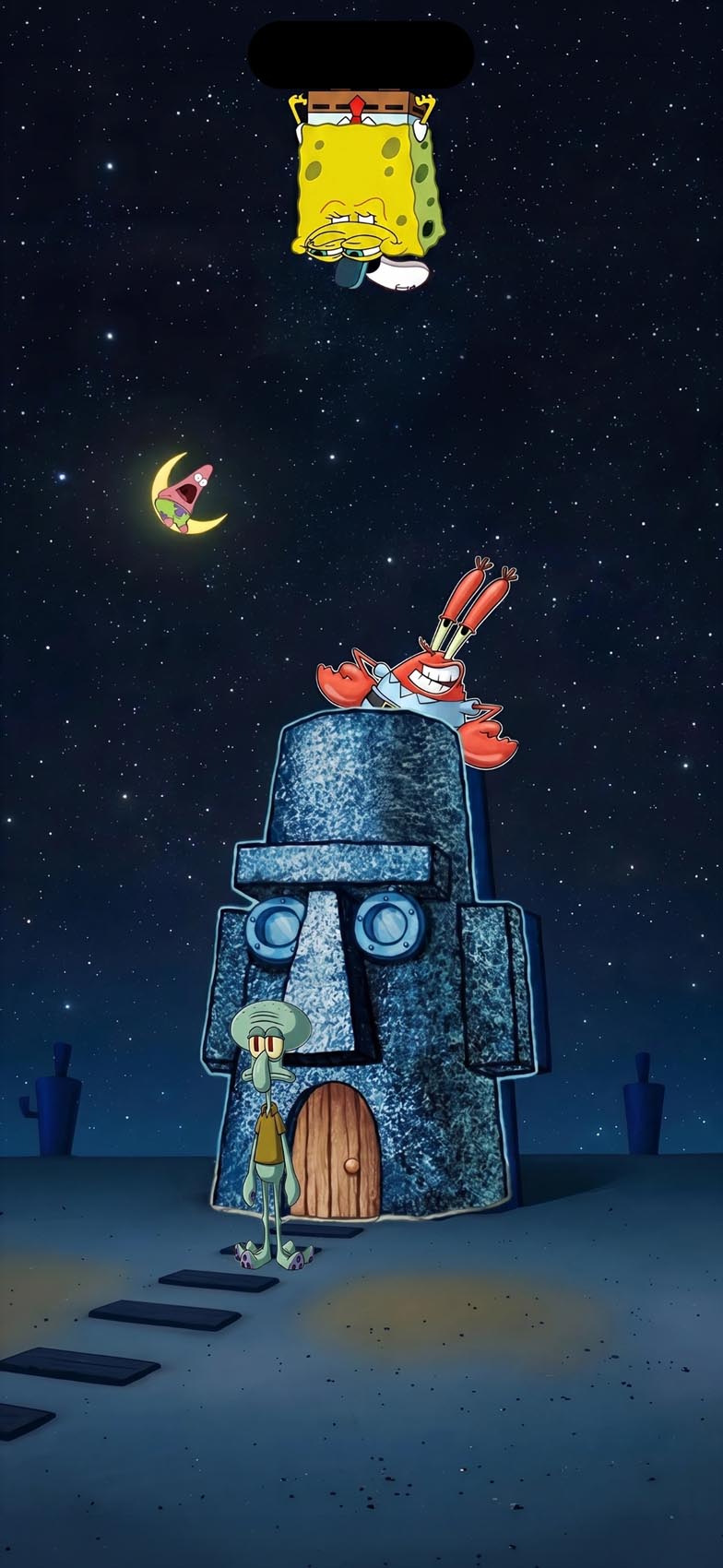
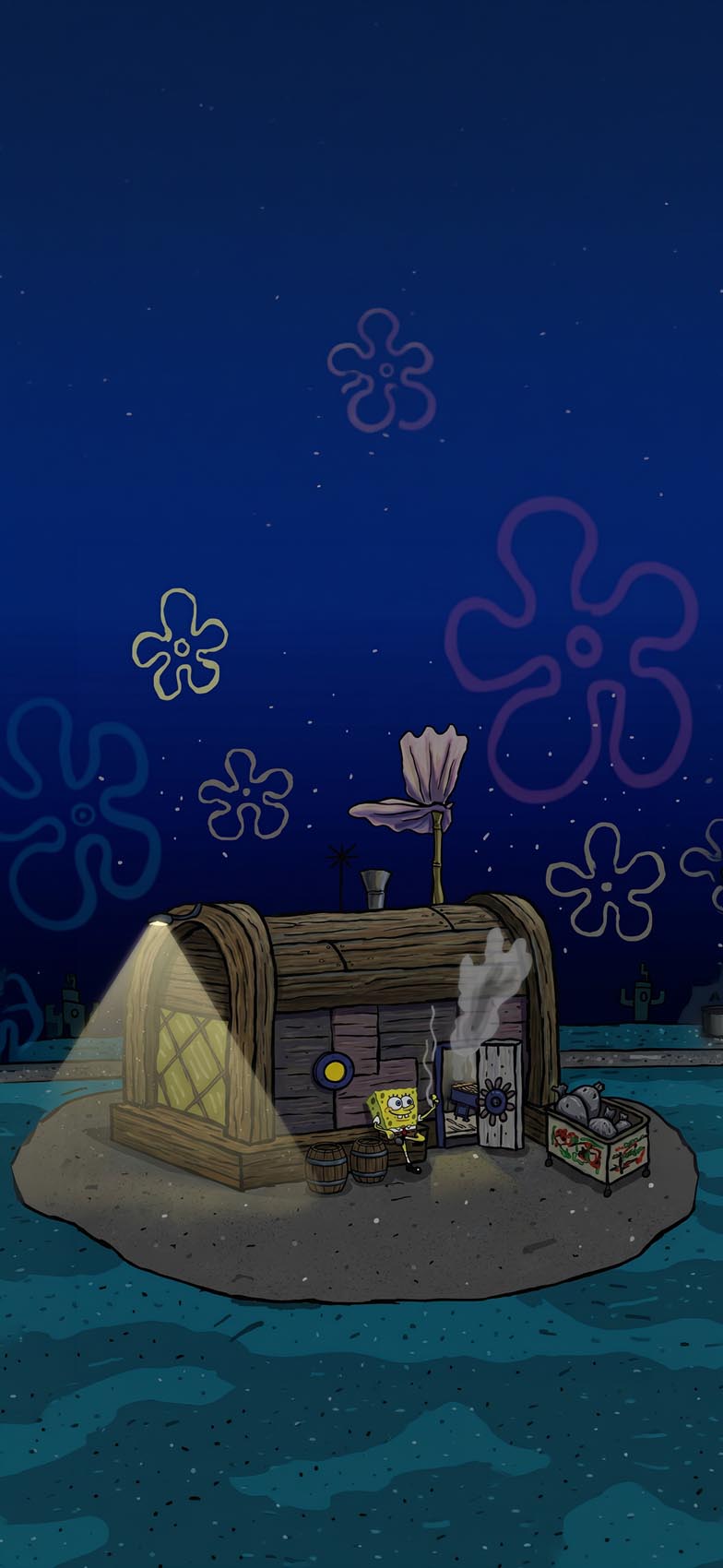
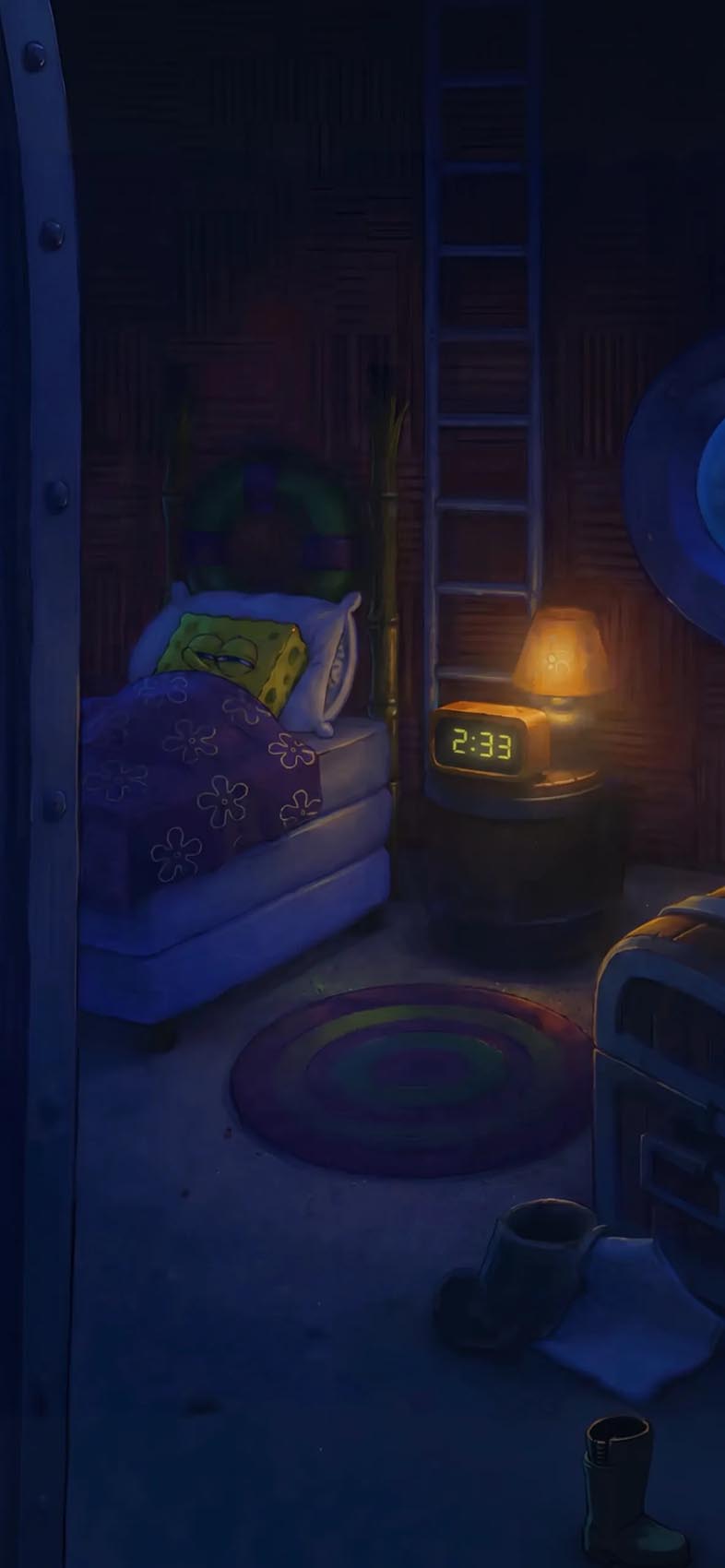
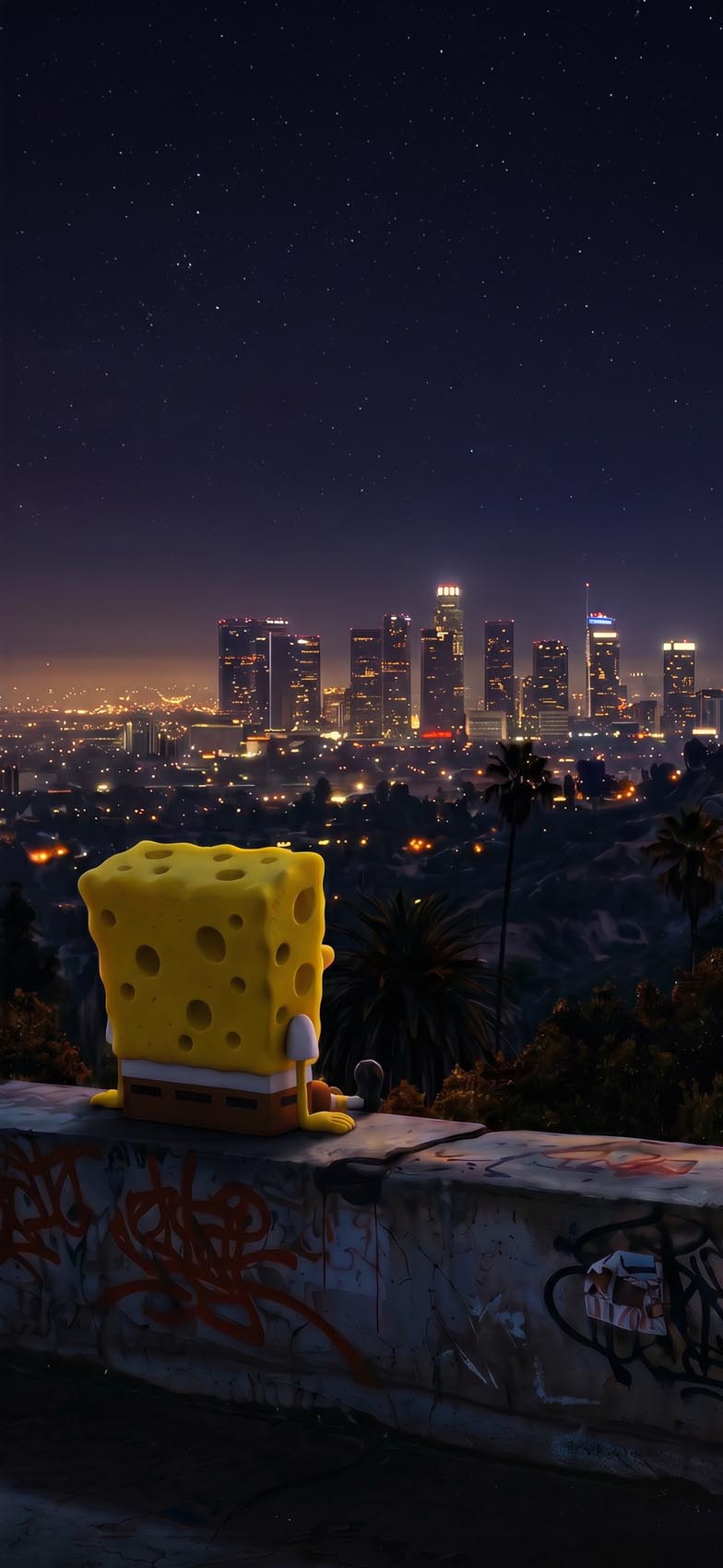
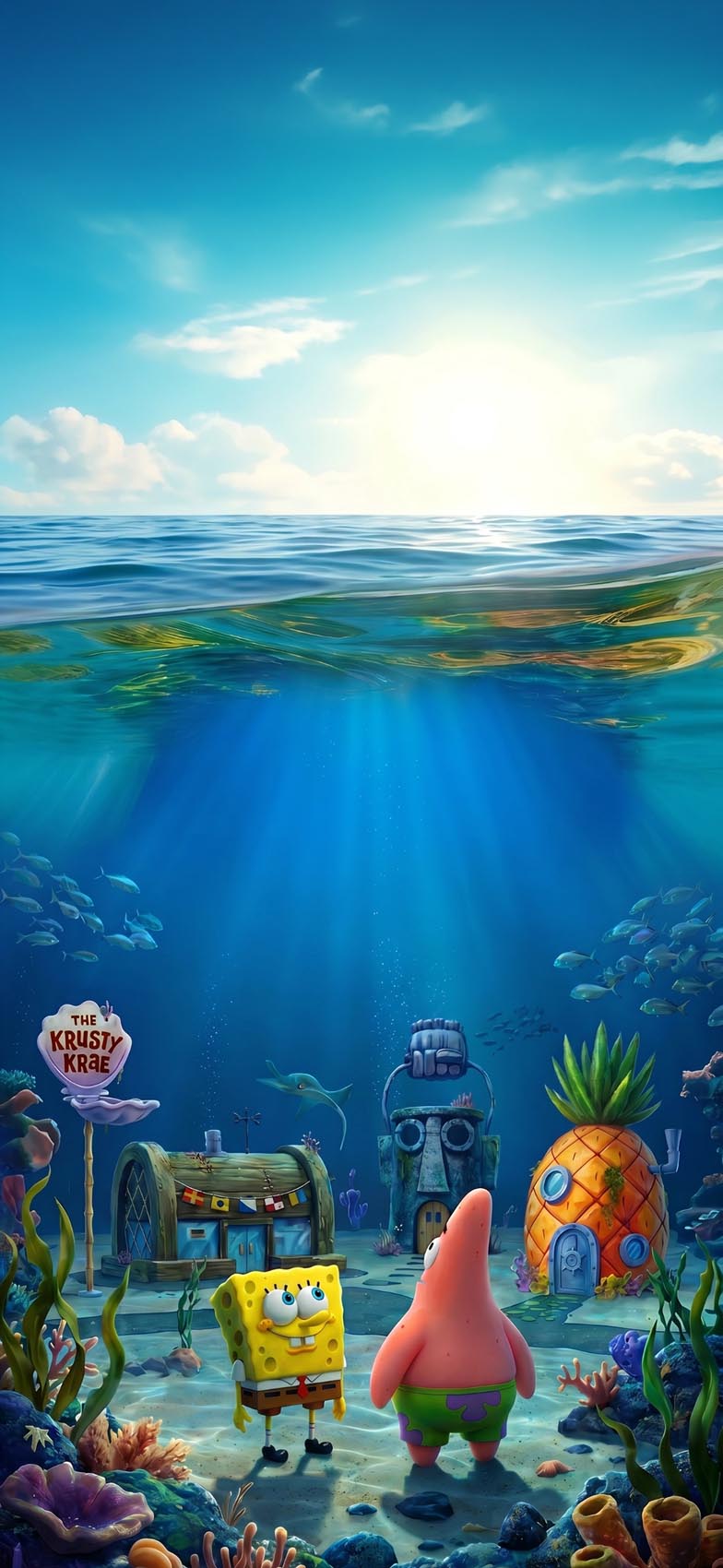
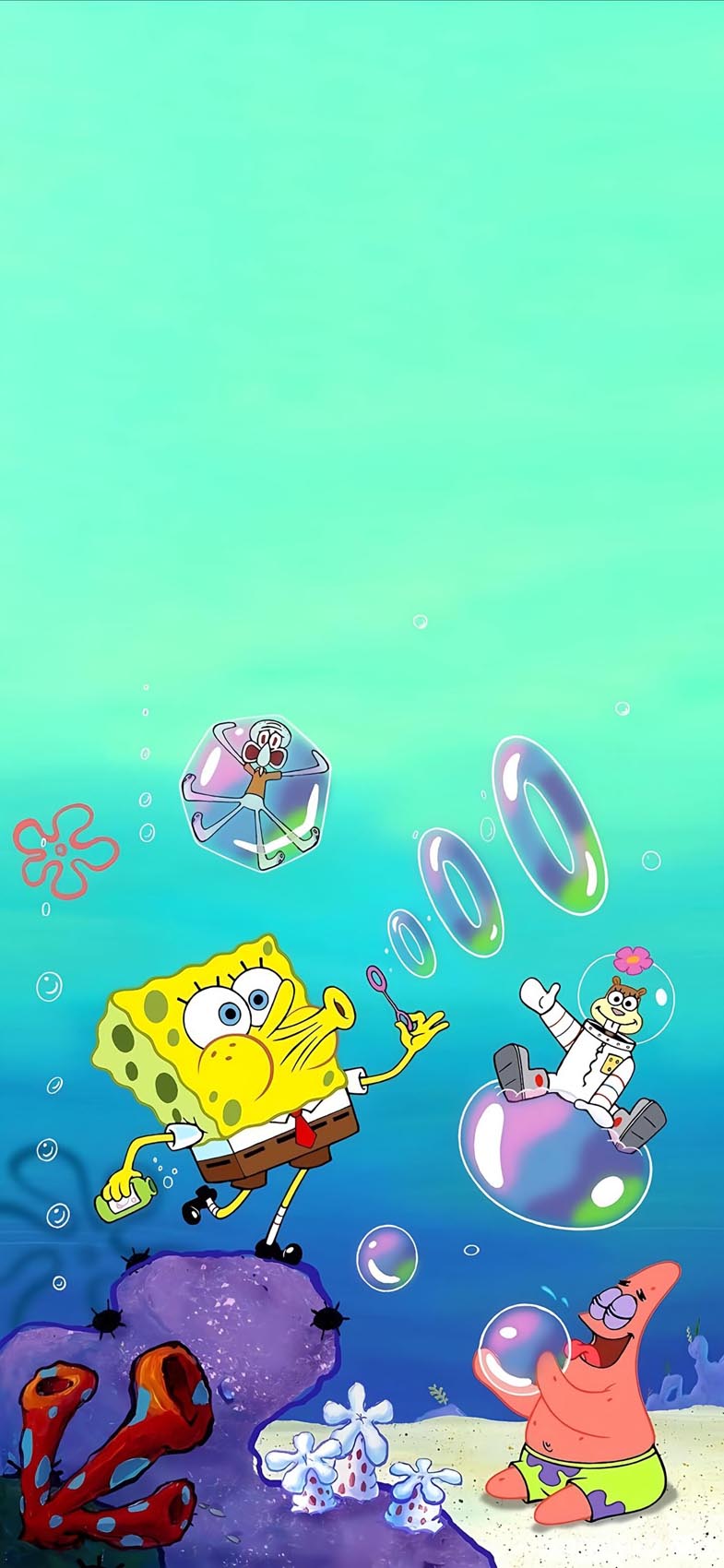
There’s a nostalgia factor too. SpongeBob premiered in 1999, and a huge share of the internet grew up watching it. Turning a favorite childhood cartoon into a phone background is a small, easy way to carry that nostalgia around daily.
What “4K” Actually Means for an iPhone Screen
Here’s something worth knowing before you download anything: no current iPhone display is technically “4K” (3840×2160). iPhone screens use much smaller native resolutions, ranging from around 1170×2532 up to 1290×2796 pixels depending on the model. So when people search for “4K” wallpapers, what they really want is an image with enough resolution and detail that it looks crisp and doesn’t pixelate when scaled to fit their specific screen.
Practical tip: downloading an image that’s 3840×2160 or larger guarantees you’ll have more than enough resolution for any iPhone, since you can crop it down without losing sharpness. Just make sure the important part of the artwork (like SpongeBob’s face) sits centered enough that it doesn’t get cut off awkwardly when the image is cropped to your phone’s taller, narrower aspect ratio.
Where to Source Wallpapers Responsibly
SpongeBob SquarePants is owned by Nickelodeon/Paramount, so official character artwork is copyrighted. To stay on the right side of that:
- Look for official Nickelodeon fan resources, when they’re made available for personal device use.
- Use wallpaper apps and sites with clear licensing, such as those explicitly marked “free for personal use.”
- Support independent digital artists who create original SpongeBob-inspired fan art and release it for free download — many artists on platforms like Pinterest, DeviantArt, and Instagram do this with proper attribution requested.
Avoid sketchy file-sharing sites promising “exclusive” 4K packs, since these often bundle malware or use pirated assets.
Building a Cohesive Lock Screen and Home Screen Look
Since iOS lets you set separate wallpapers for your Lock Screen and Home Screen, it’s worth thinking about how the two work together rather than picking two random images. A few approaches tend to look the most polished:
The matching-mood approach. Pick two wallpapers from the same overall vibe — for example, a soft pastel SpongeBob illustration for both screens — so unlocking your phone doesn’t feel like a jarring visual switch. This works especially well if you’re going for an aesthetic, cohesive feed-style look.
The contrast approach. Use a bold, colorful, character-focused image on your Lock Screen (since you see it briefly, glancing at notifications) and a calmer, simpler background on your Home Screen (since app icons and widgets sit directly on top of it). This is the more practical choice if you use a lot of widgets, since busy artwork can make text and icons harder to read at a glance.
The seasonal rotation approach. Keep a small folder of three or four SpongeBob wallpapers — maybe a summer beach scene, a winter Bikini Bottom edit, and a couple of everyday favorites — and swap between them every few weeks. iOS 16 and later even lets you set up a Wallpaper Pair or cycle through a Photo Shuffle so your phone updates automatically.
Whichever approach you choose, it helps to preview the wallpaper with your actual widgets and icon layout before committing. What looks great as a standalone image can sometimes clash once your Dock apps, widgets, and clock are layered on top of it.
How to Set a Wallpaper on iPhone
- Save your chosen image to your Photos app.
- Open Settings.
- Tap Wallpaper.
- Tap Add New Wallpaper.
- Select Photos and choose your downloaded image.
- Adjust zoom/positioning so the focal point (like SpongeBob’s face) is centered.
- Choose whether to apply it to your Lock Screen, Home Screen, or both, then tap Set.
If you’re on iOS 16 or later, you can also add widgets, the time, or Depth Effect layering on top of your wallpaper for a more customized Lock Screen.
Tips for a Clean, Battery-Friendly Look
- Choose darker wallpapers if you have an OLED iPhone (iPhone 11 Pro and later) — dark pixels use less power.
- Keep Home Screen wallpapers less busy if you use a lot of widgets, so text and icons stay legible.
- Match your Lock Screen font color to your wallpaper’s dominant tone for better contrast.
- Rotate wallpapers seasonally to keep the SpongeBob theme feeling fresh rather than repetitive.
Final Thoughts
Whether you’re going for nostalgic meme energy or a more polished aesthetic edit, spongebob iphone 4k wallpapers are an easy way to make your phone feel more like you. Focus on high-resolution source images, source them from creators and platforms that respect copyright, and take a couple of extra minutes setting zoom and positioning so the final result looks sharp on your specific iPhone model.