Best Lionel Messi Wallpapers for iPhone: Download Free HD Backgrounds
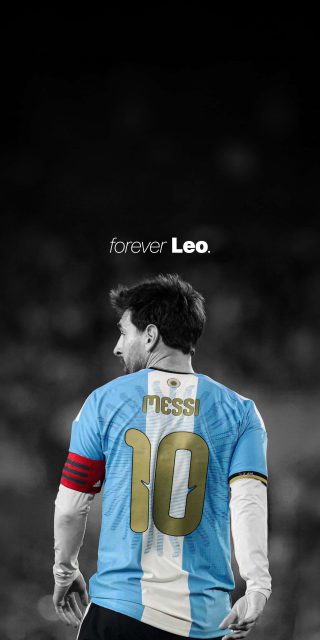
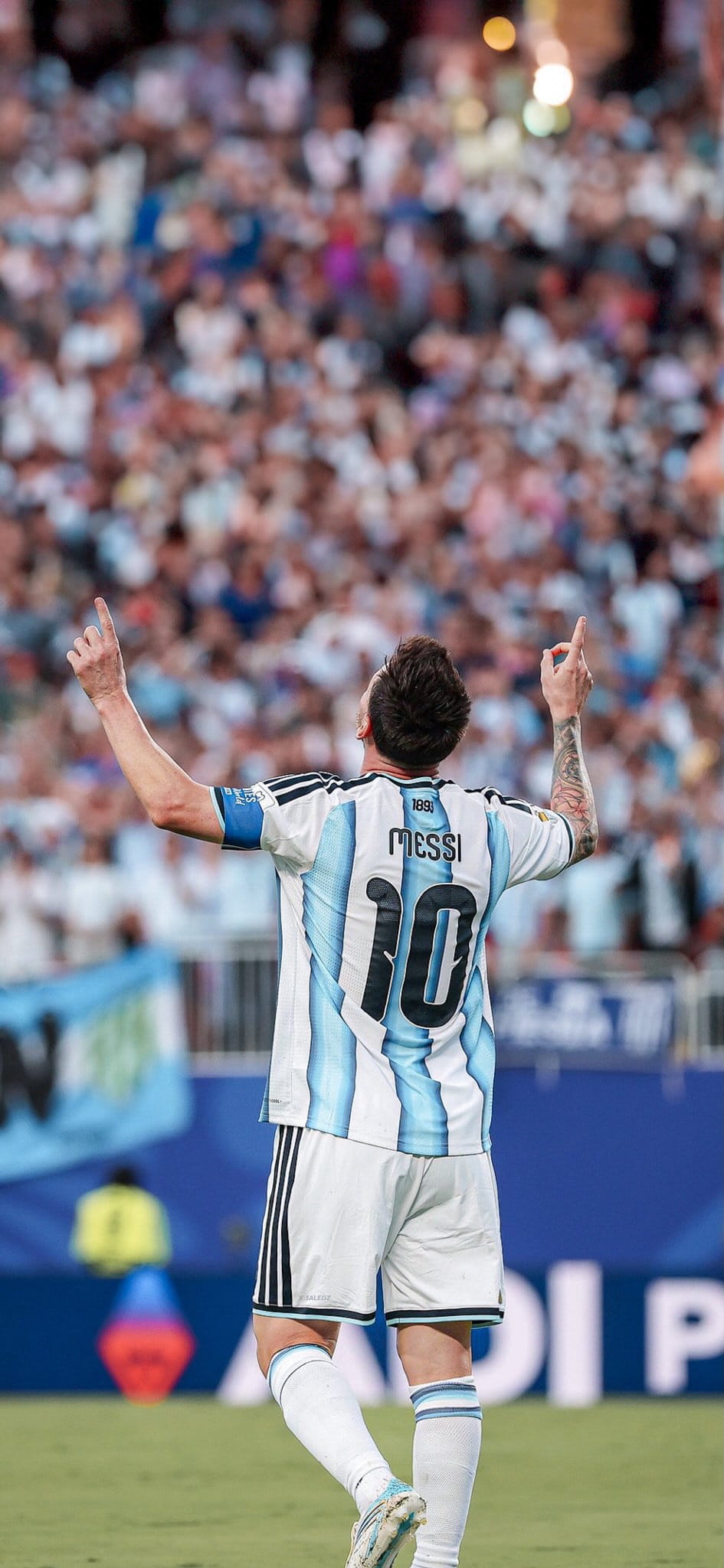
If you are a football fan, your smartphone screen isn’t just a display—it’s a digital shrine dedicated to the beautiful game. And there is no grander icon to showcase on your lock screen than the legendary number 10 himself. Following Argentina’s historic achievements on the international stage, the demand for Lionel Messi iPhone wallpapers has reached an all-time high.
Whether you want to capture his calm focus under the stadium floodlights or remember his defining World Cup victories, upgrading your mobile background is the ultimate way to show your allegiance. This guide brings you an elite curation of high-definition imagery and a step-by-step tutorial to cleanly set up your new lock screen.
Why Lionel Messi Wallpapers Dominate the Screen
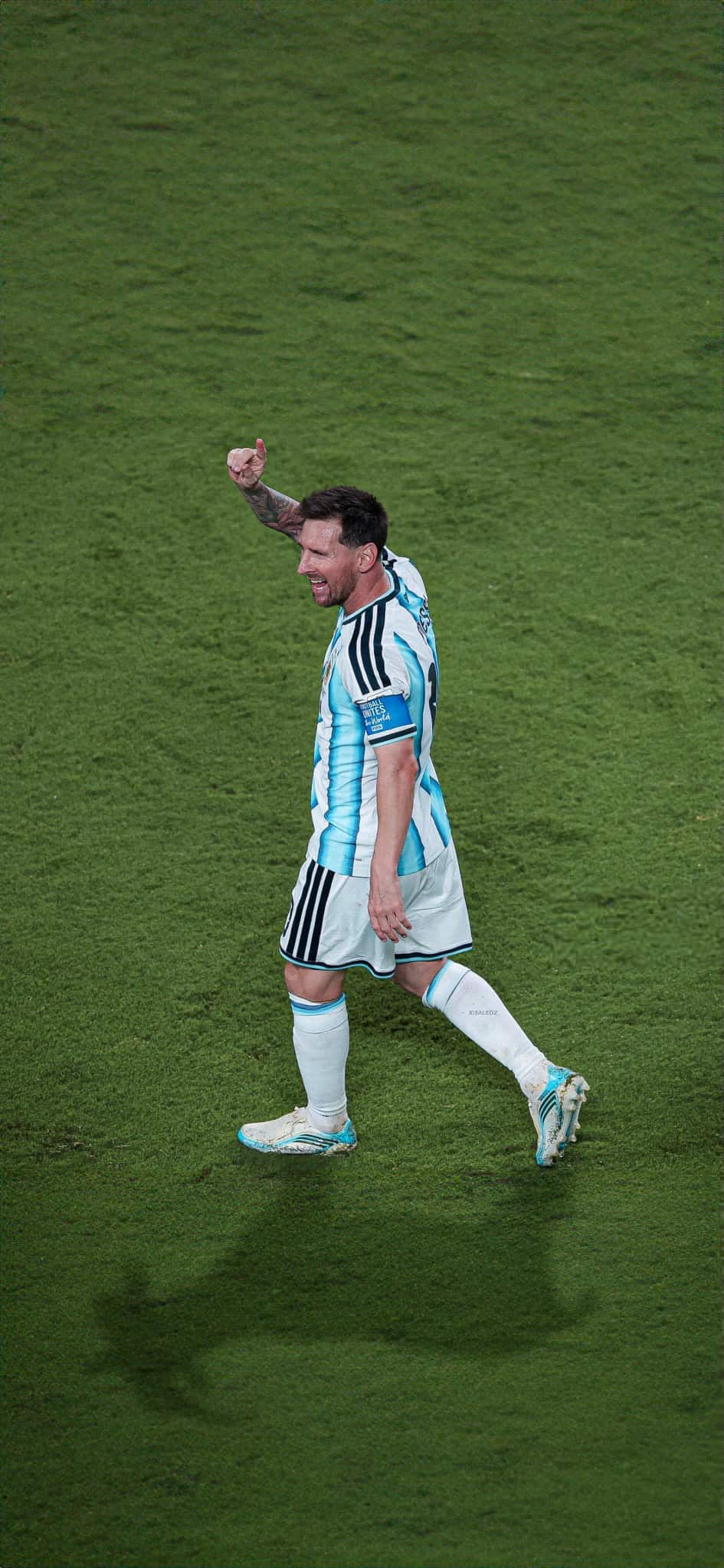
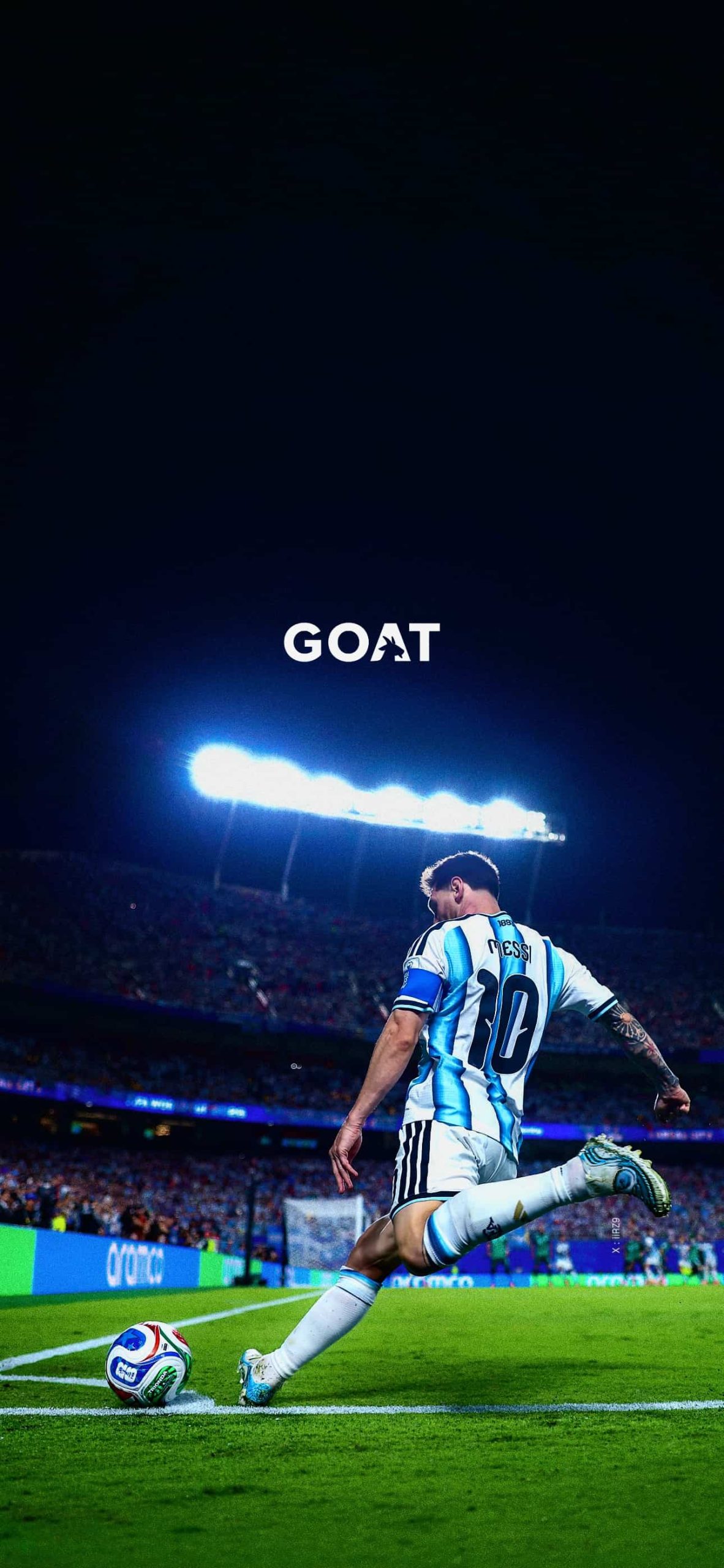
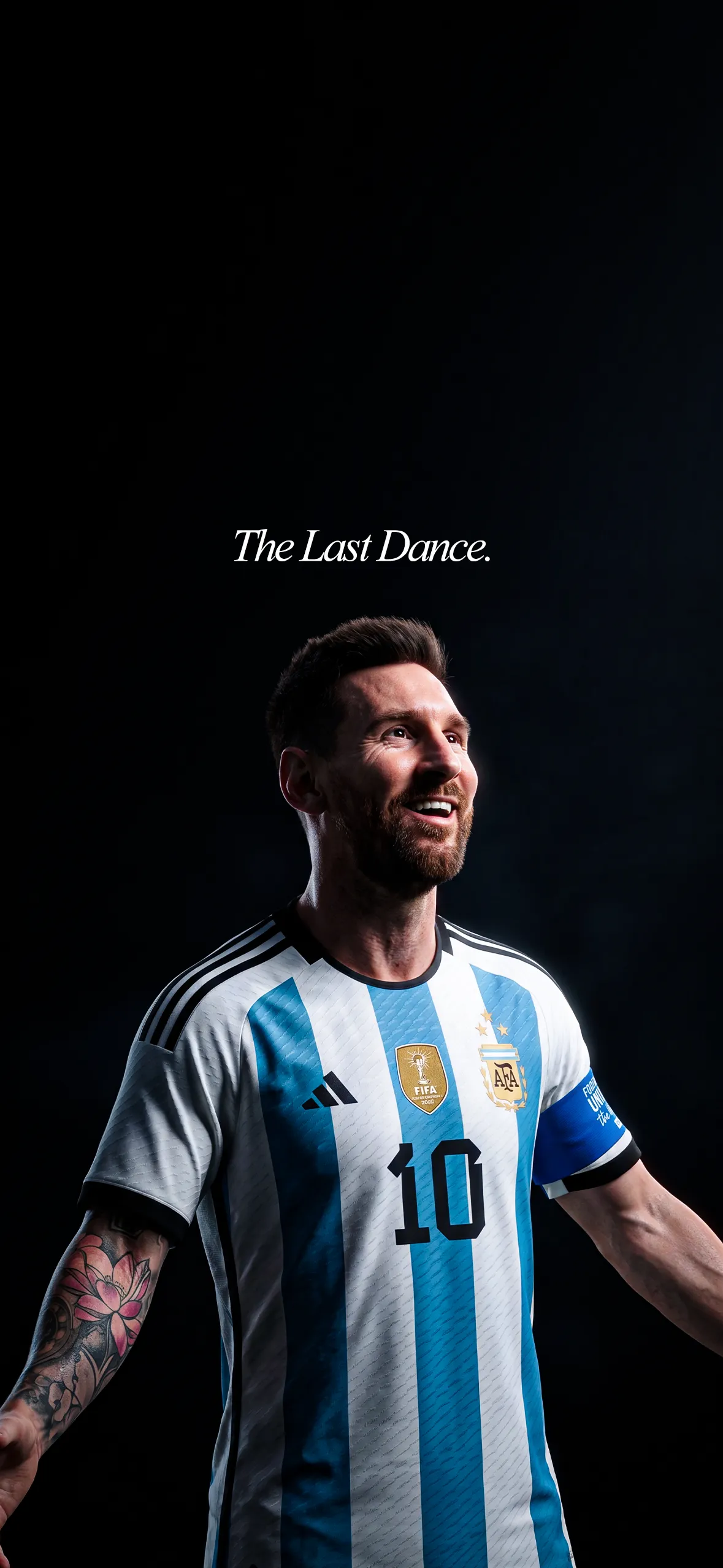
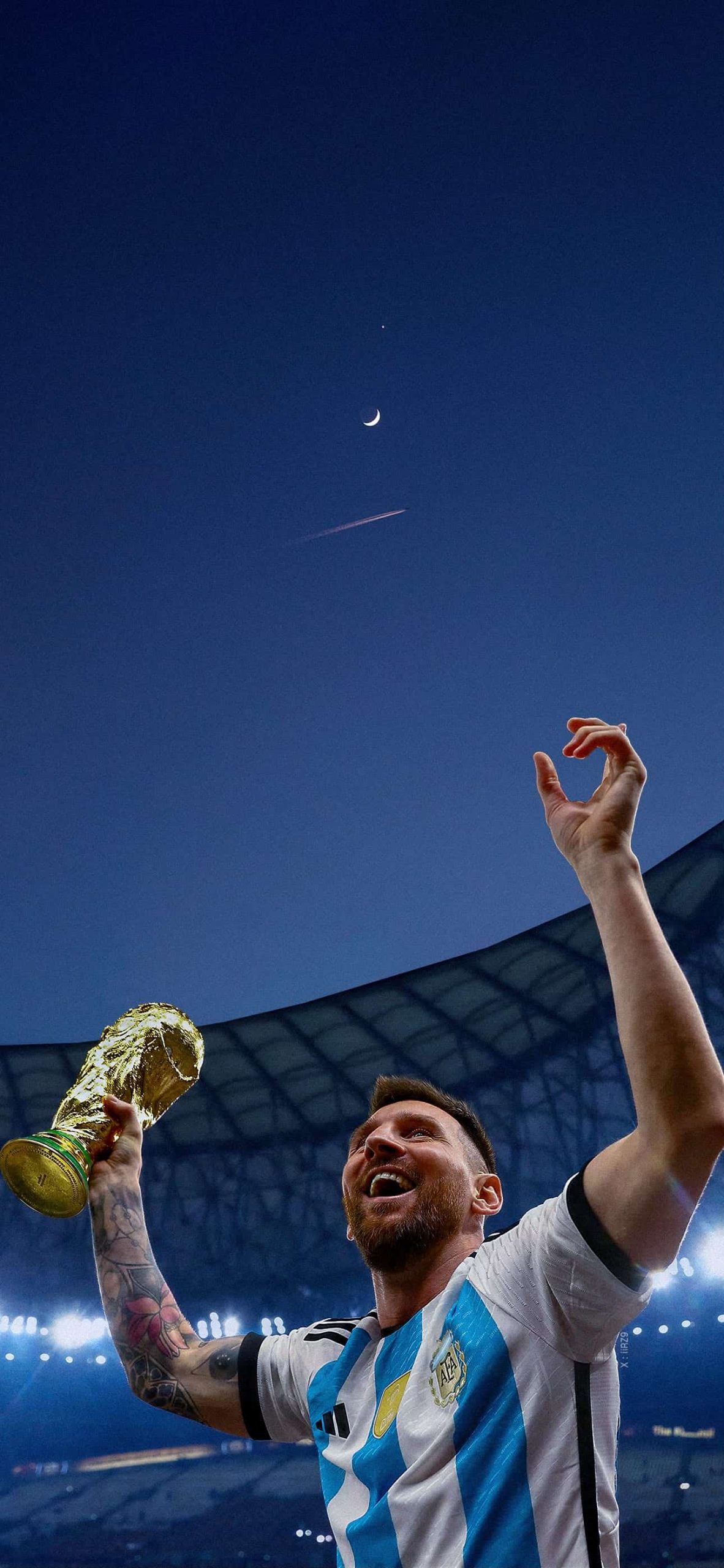
Every time you look at your phone, a great background should trigger an emotion. Lionel Messi’s career offers a deep gallery of visual storytelling, making his photos incredibly popular for iPhone customization. Fans typically hunt for three distinct visual styles:
The World Cup Triumph: High-contrast images capturing the emotional peak of his career—lifting the solid gold trophy under a stadium sky or kissing his hand to salute the roaring fans.
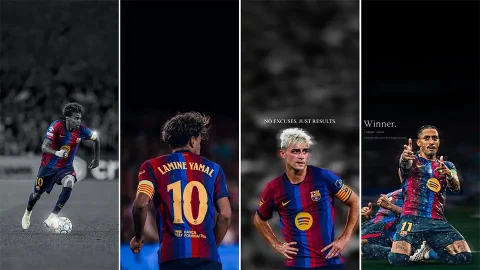
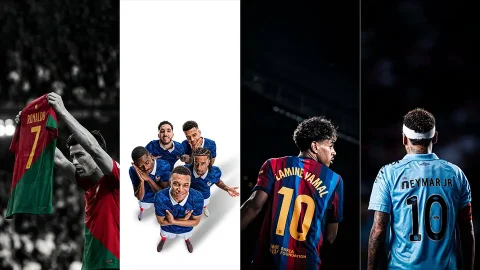
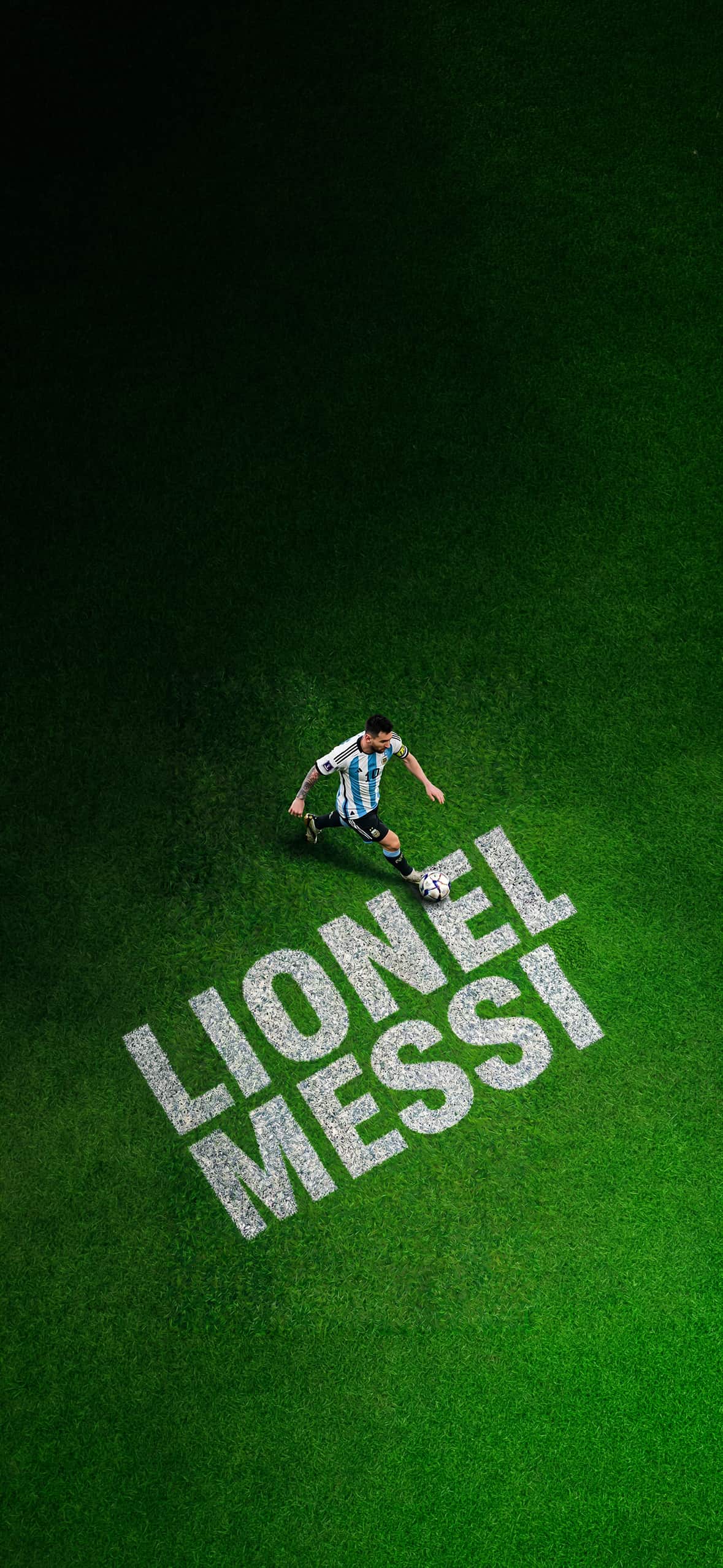
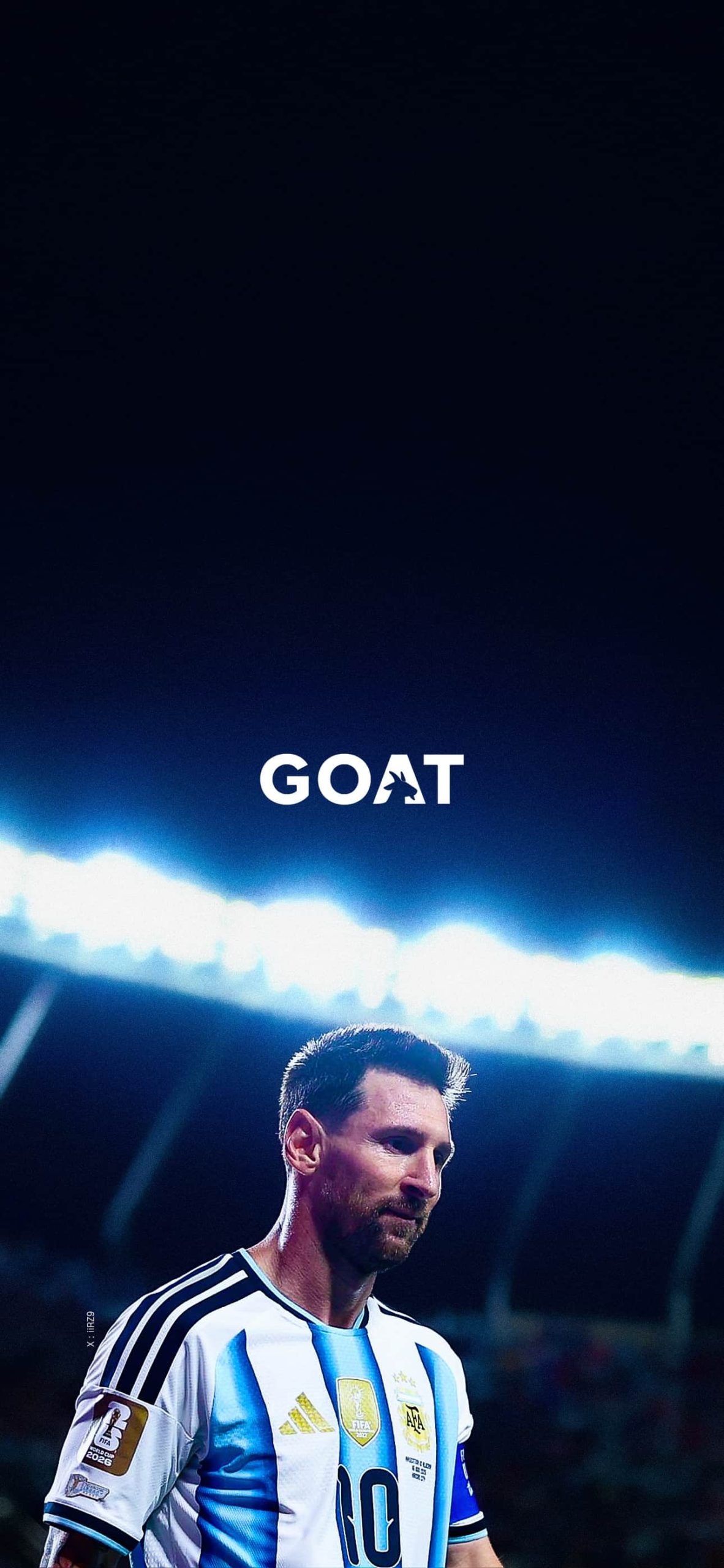
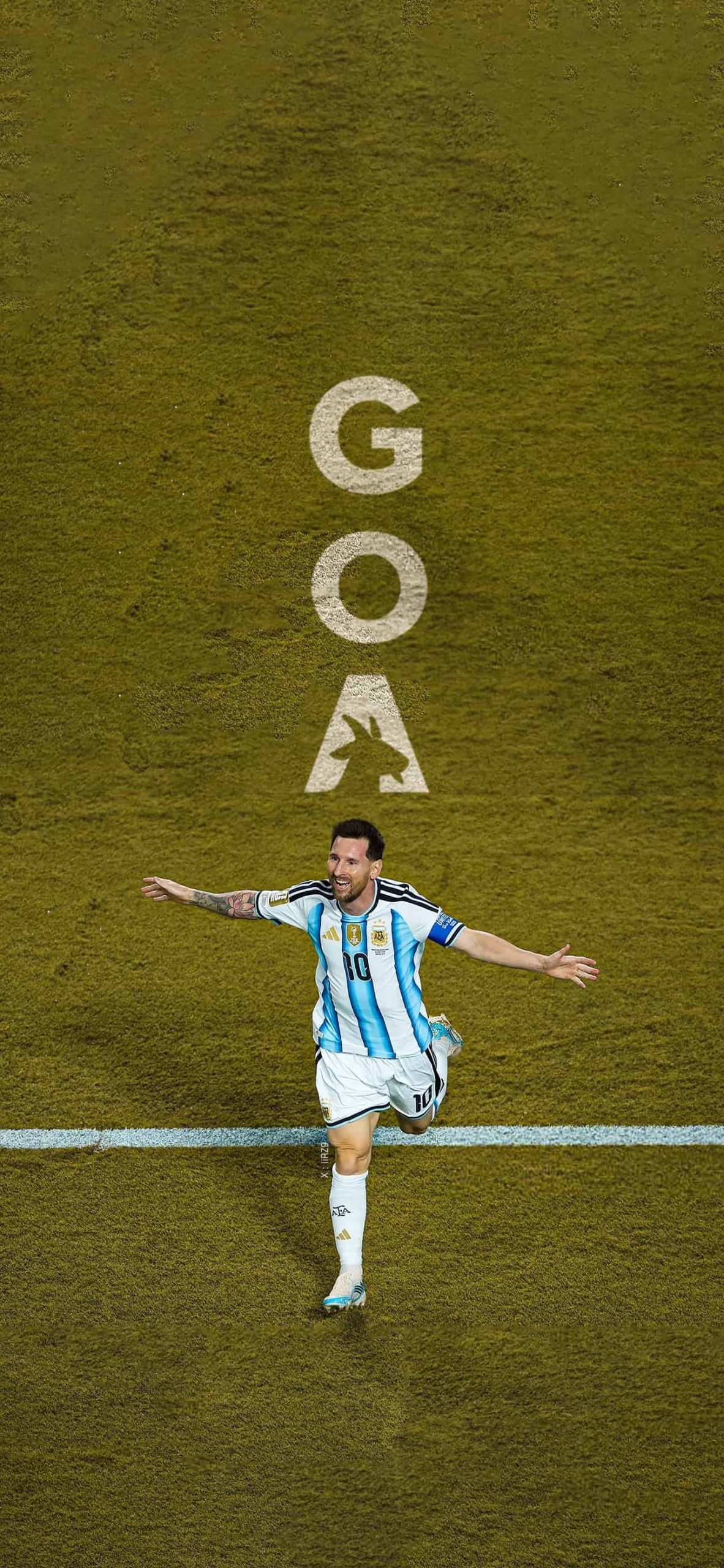
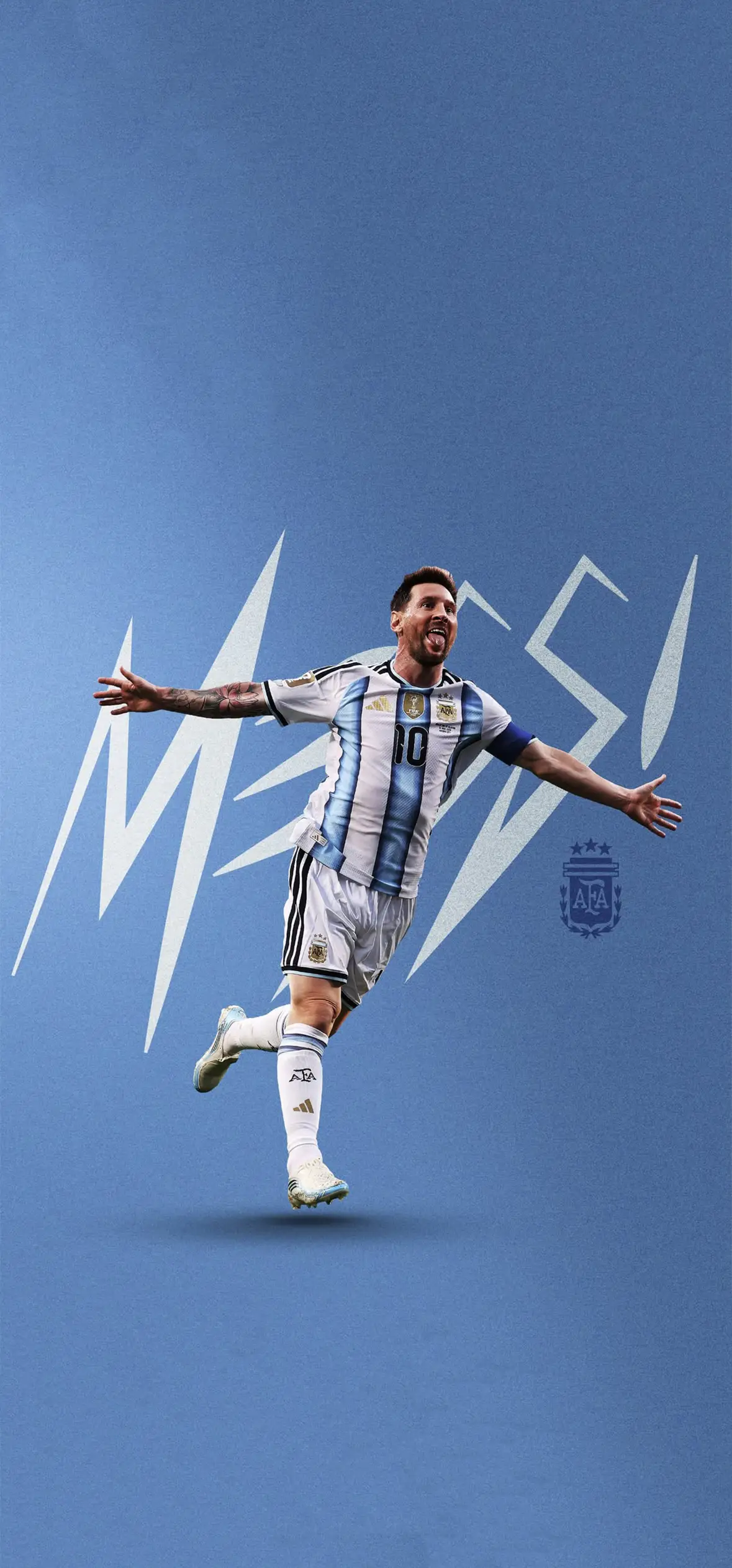
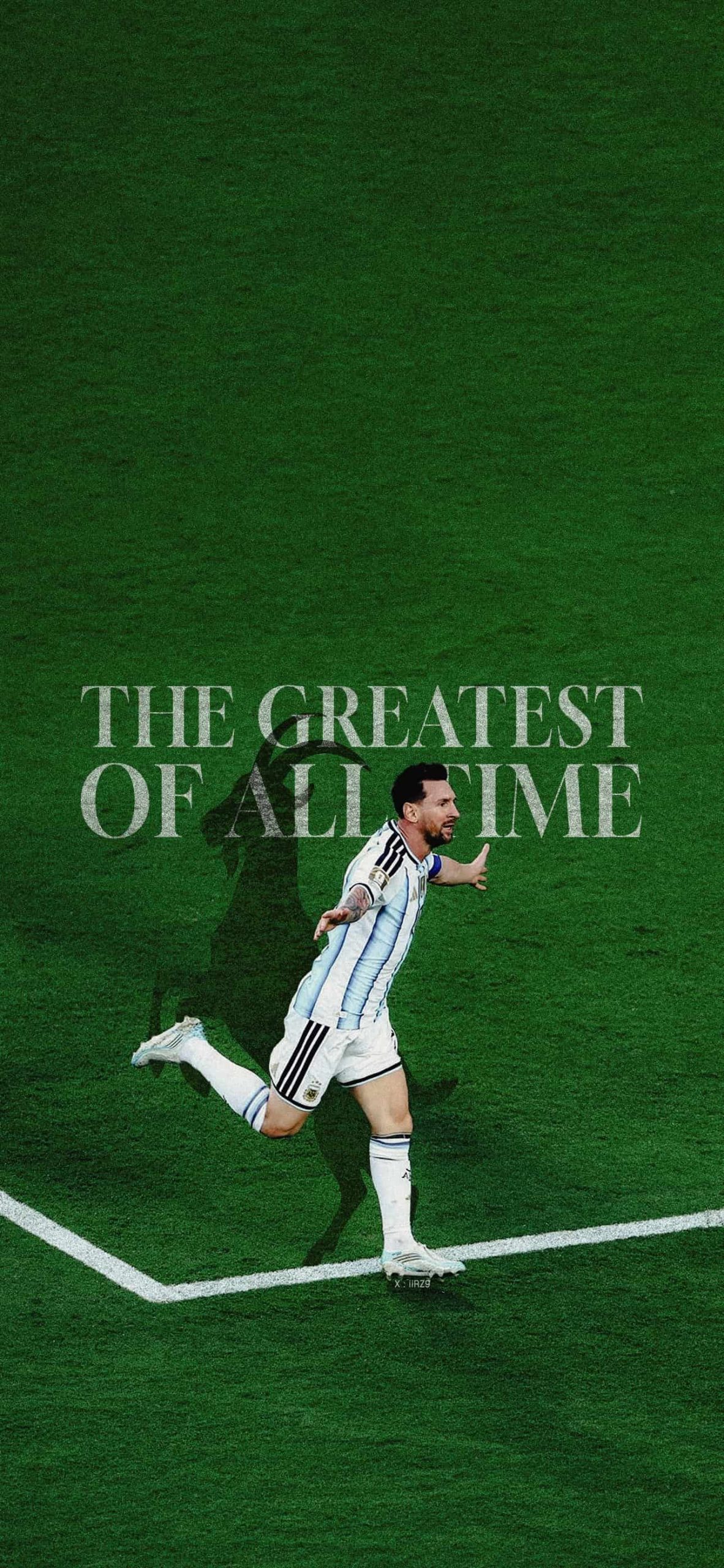
Minimalist & Aesthetic GOAT Graphics: Sleek, dark backgrounds utilizing crisp typography and deep colors. These are highly favored by users who prefer a clean, premium layout that doesn’t obscure their home screen application icons.
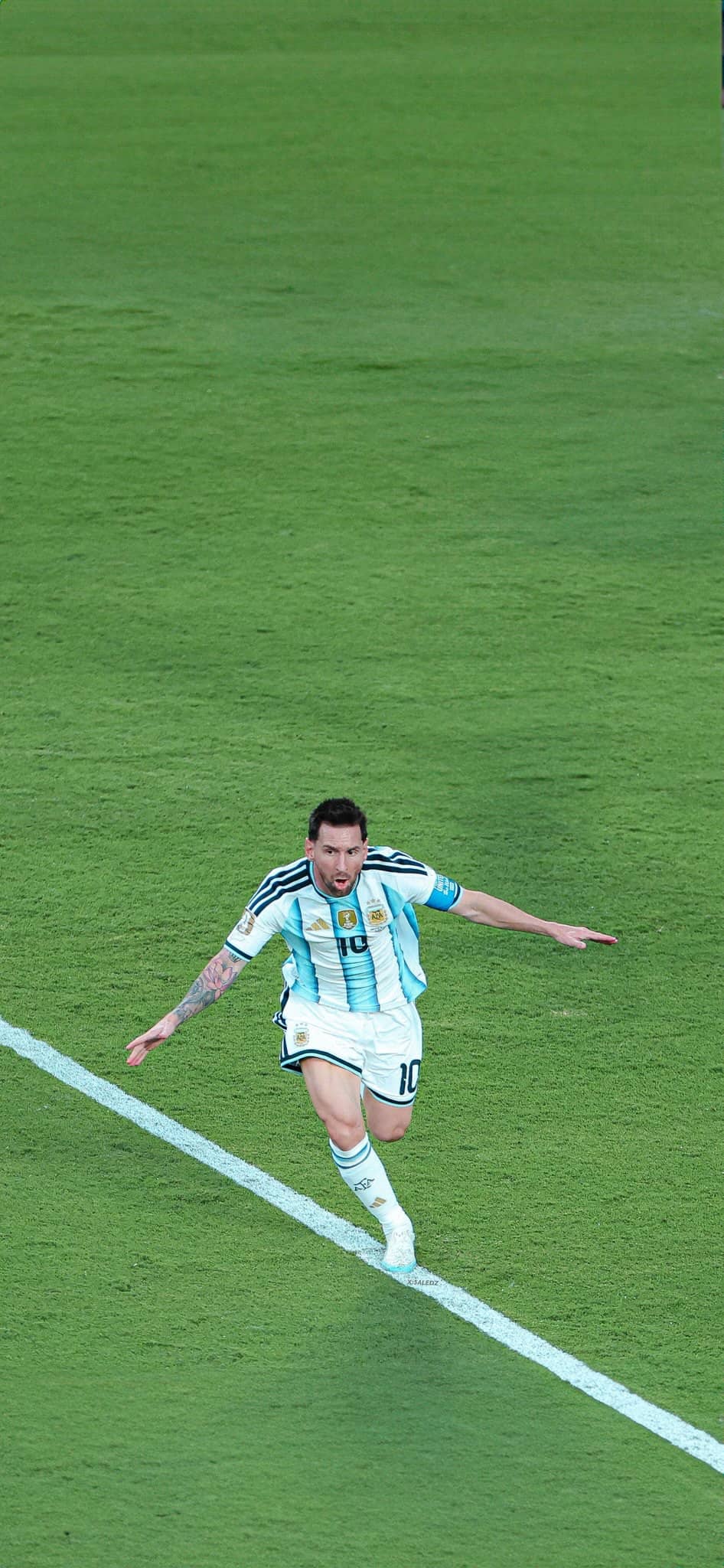
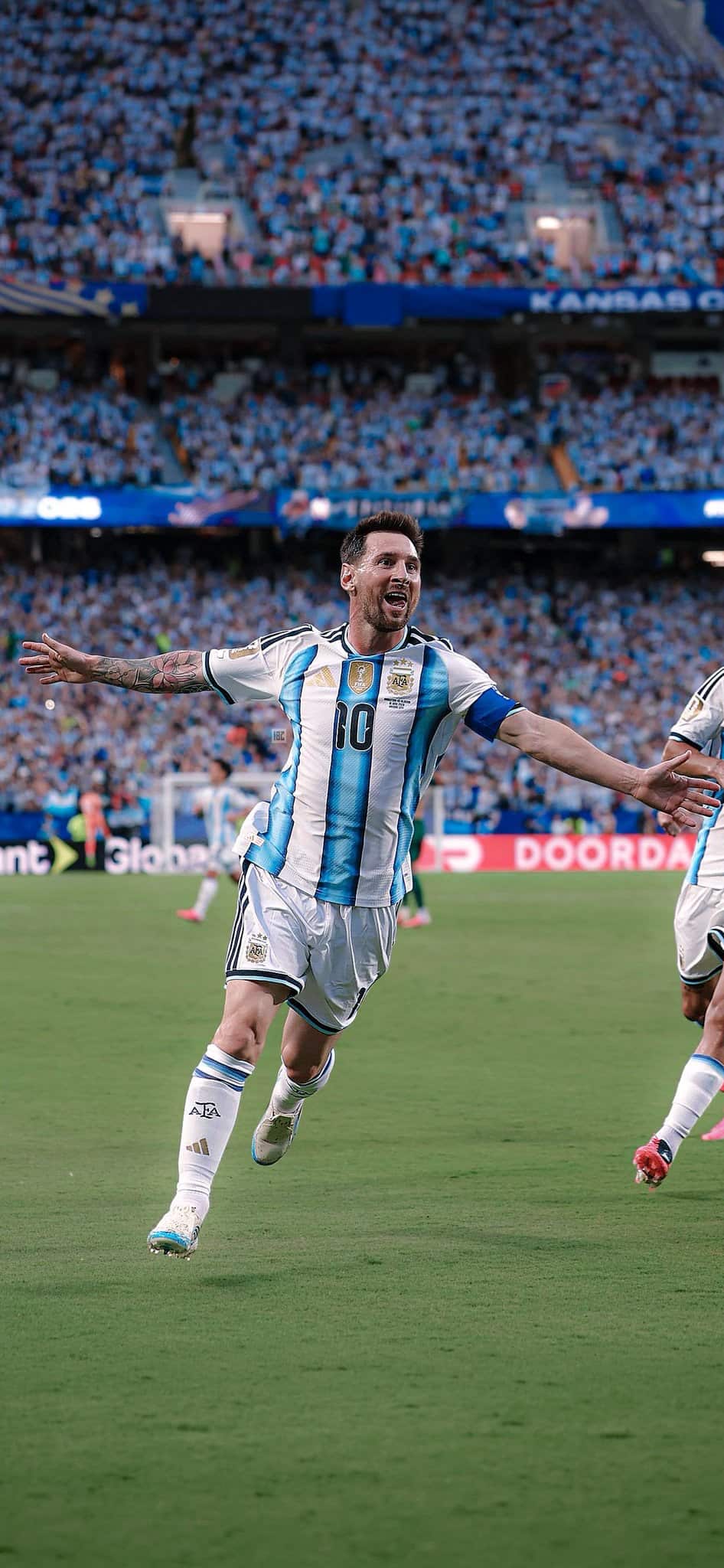
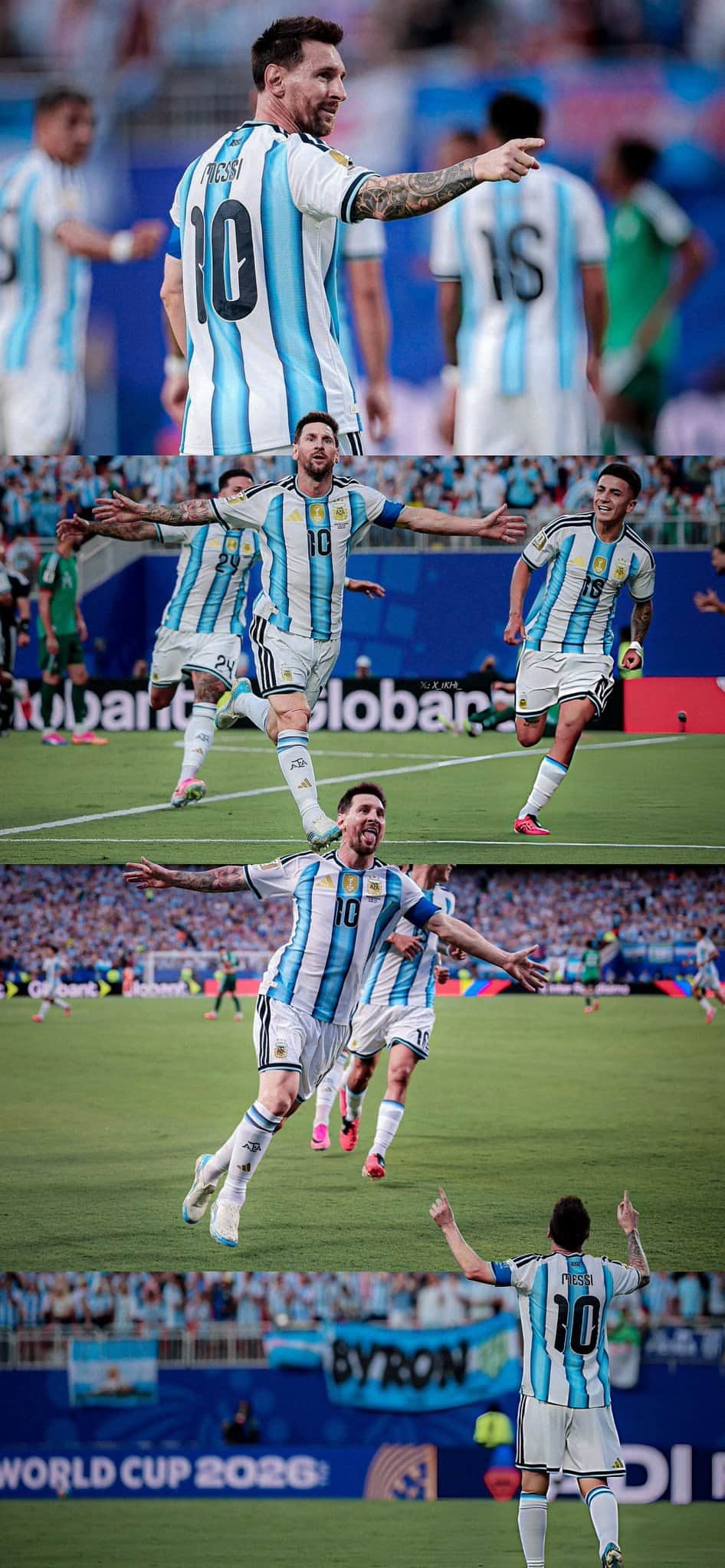
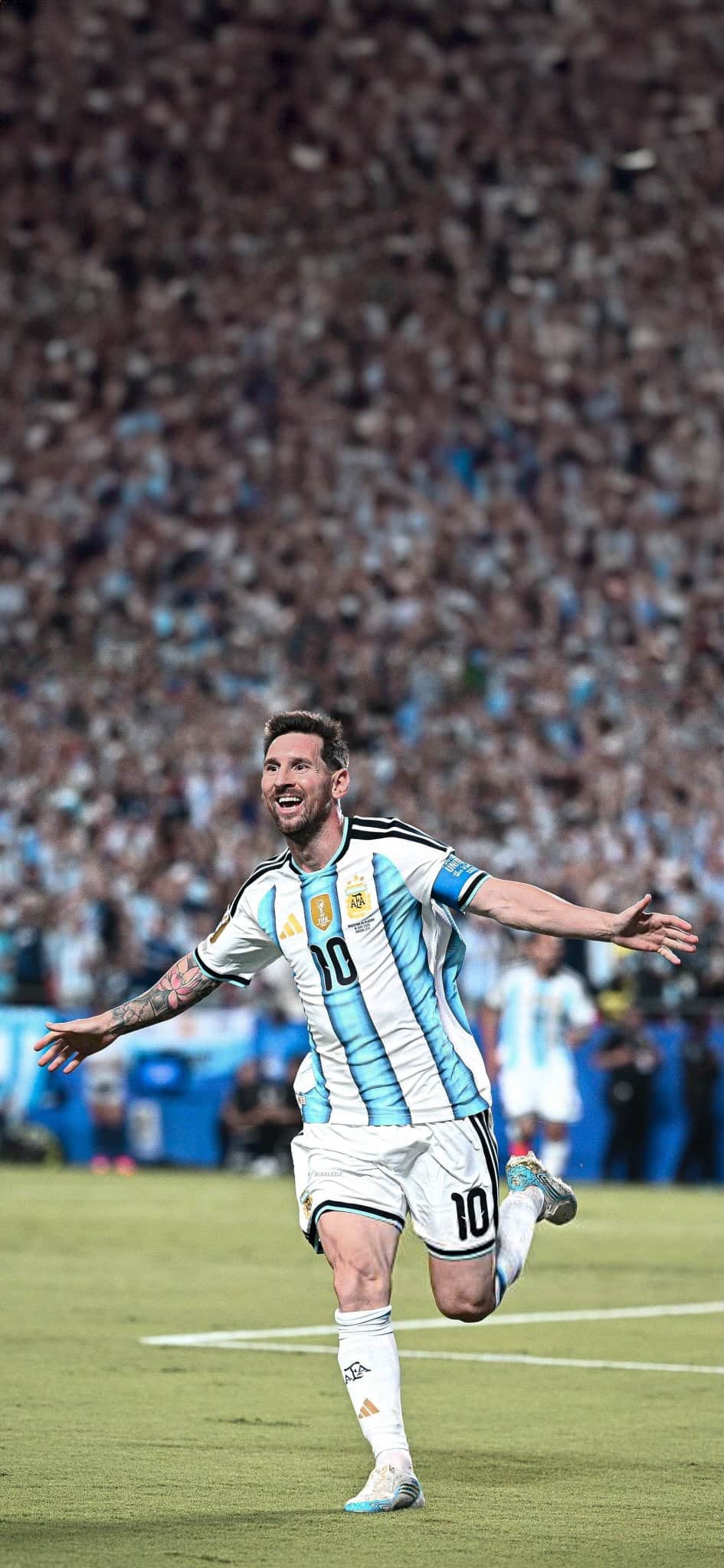
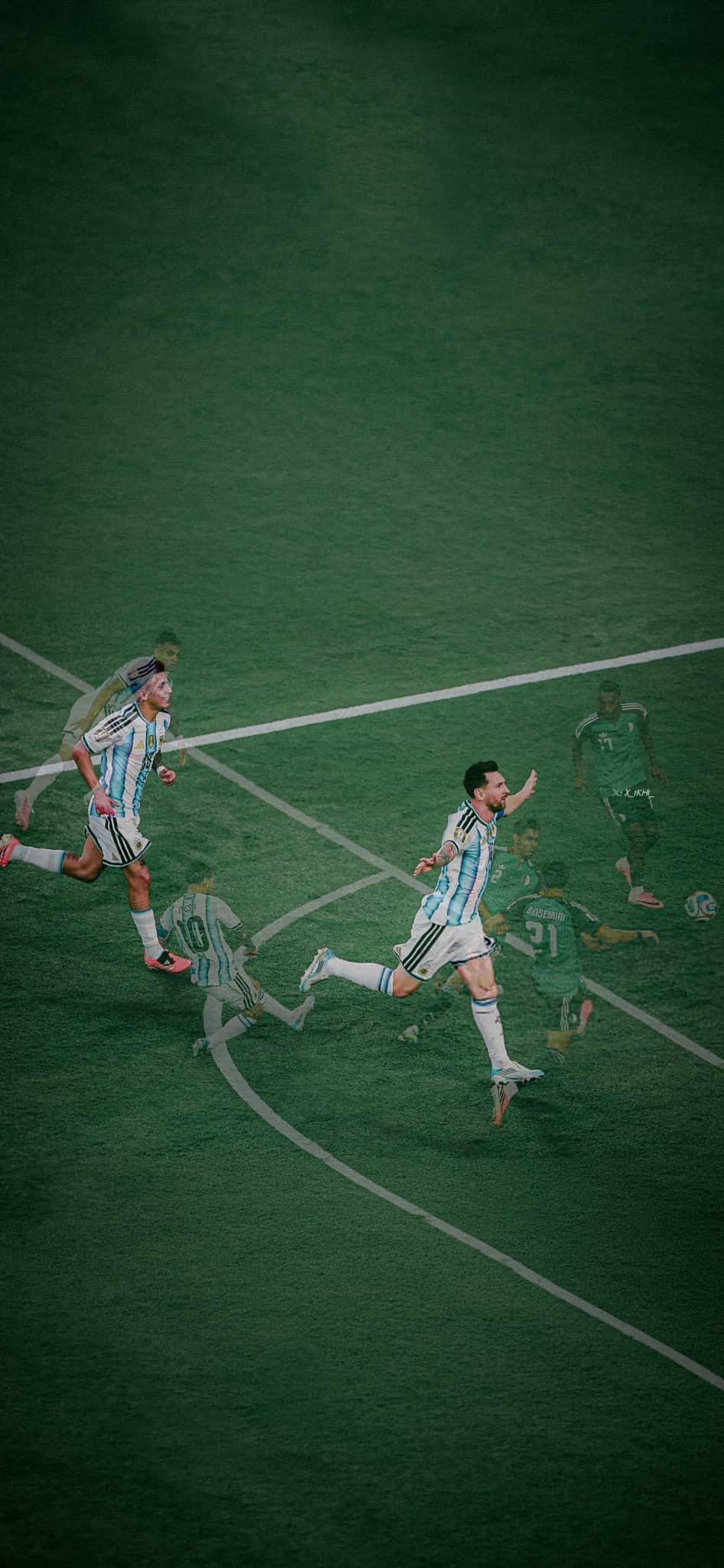
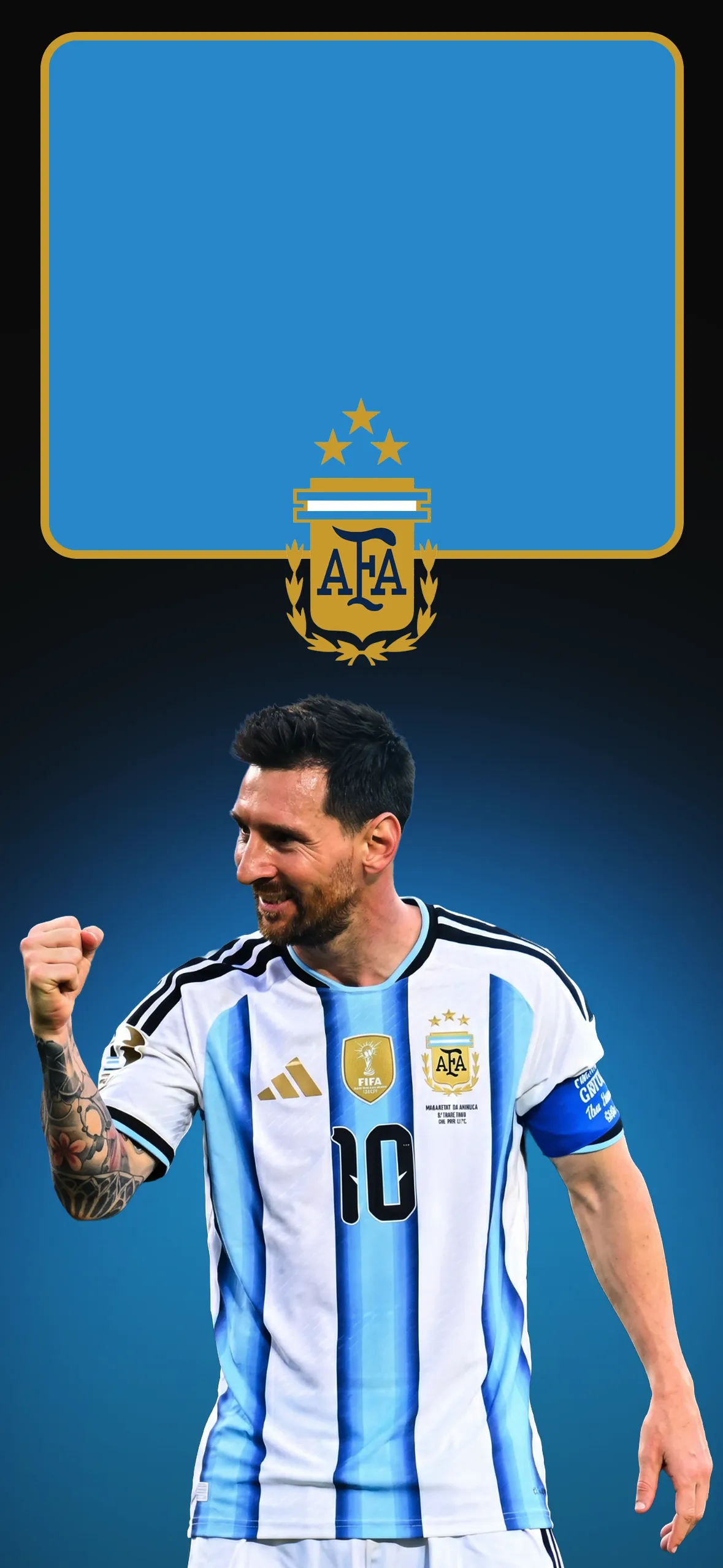
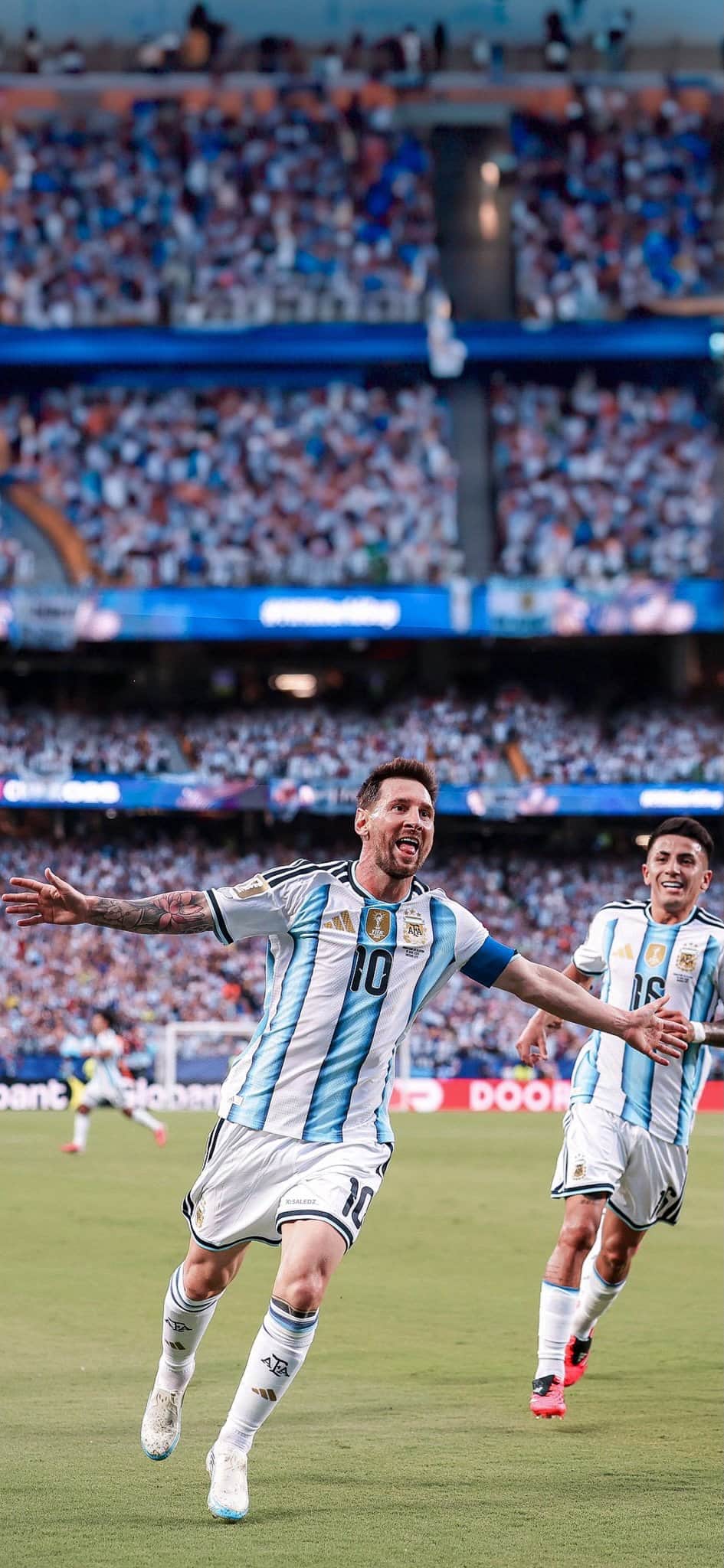
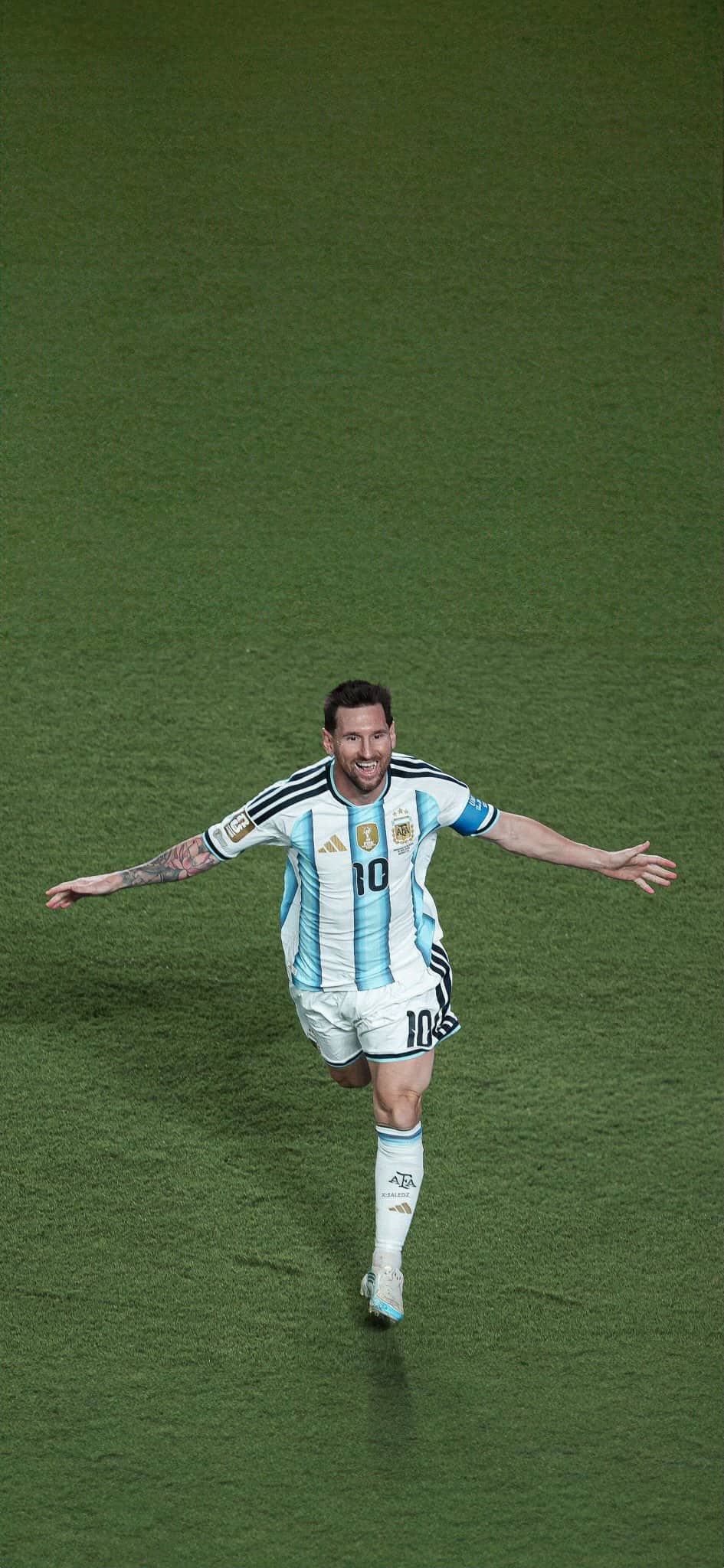
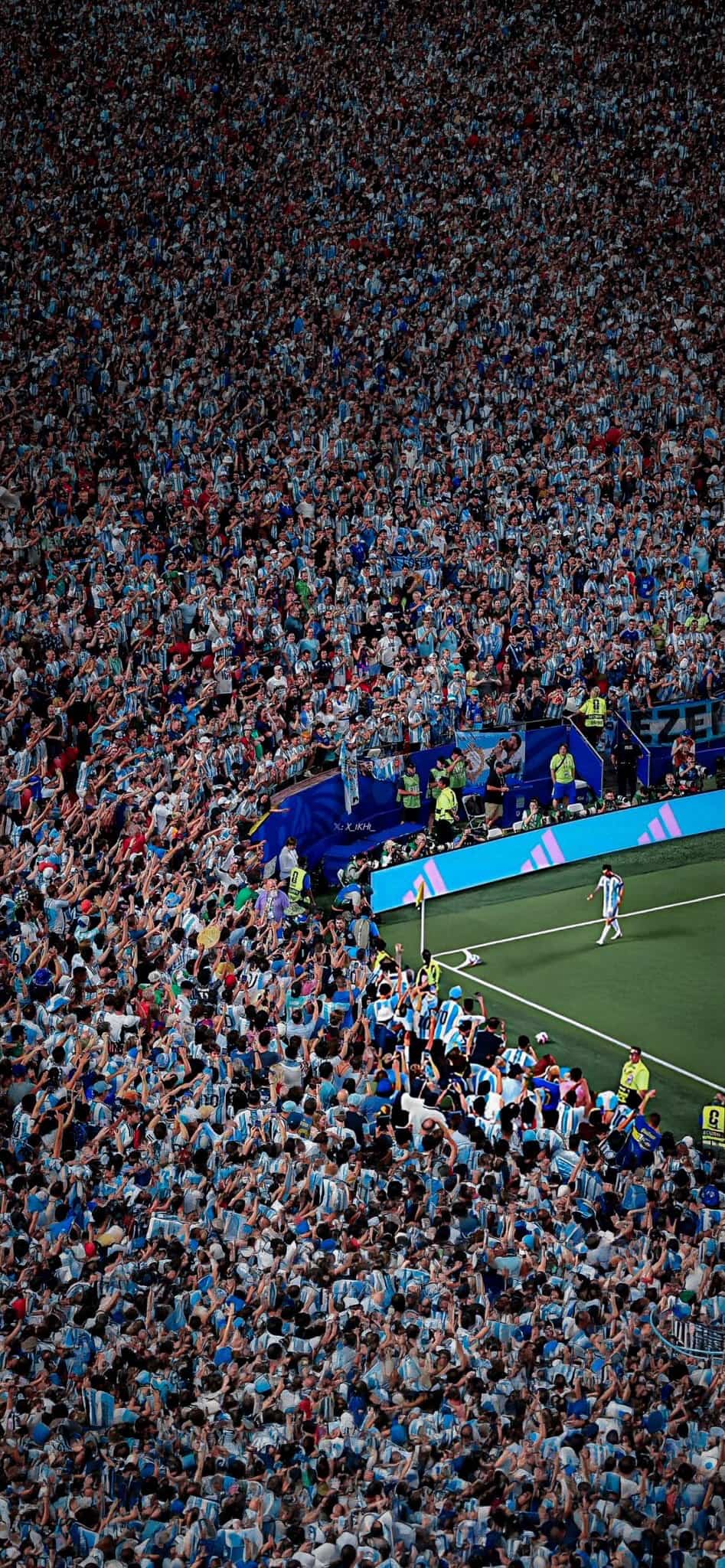
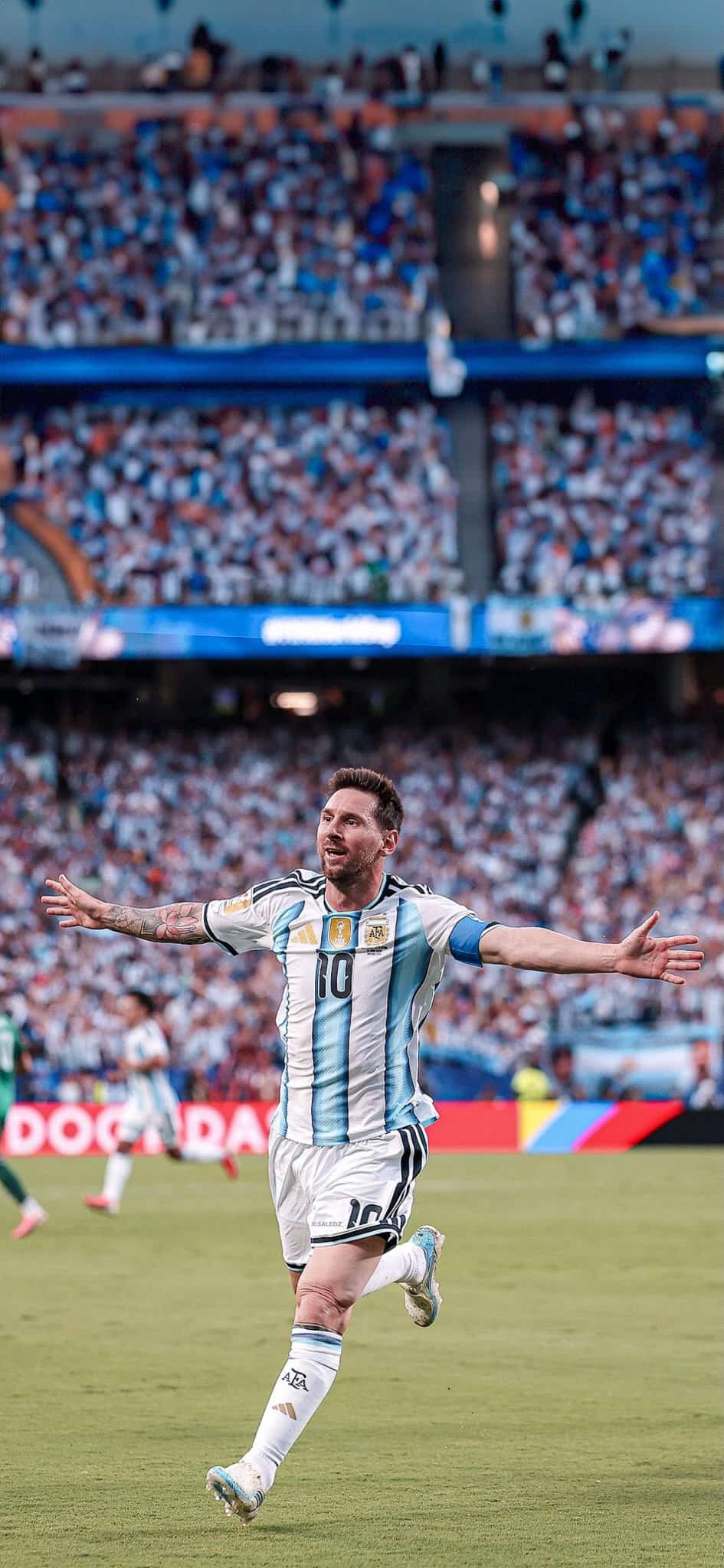
Iconic Celebrations: Vibrant, wide-angle match-day action shots showcasing his classic wide-armed sprints across the grass or his unforgettable “Topo Gigio” ear-cupping gesture aimed at the crowd.
How to Choose the Perfect Mobile Resolution
To prevent your lock screen from looking pixelated or poorly cropped, look for assets that perfectly match the vertical aspect ratios required by modern smartphones.
Vertical Aspect Ratios: Prioritize images with a 9:16 portrait ratio to ensure Messi stays perfectly framed in the center of your panel.
High-DPI Details: Choose resolutions that are at least 1080 x 1920 pixels (HD) or 1170 x 2532 pixels (4K/Retina) so details like jersey textures and stadium lights remain razor-sharp.
Contrast Formatting: Darker, high-contrast images or minimal vectors work beautifully for lock screens because they keep the white Apple iOS clock legible and clear.
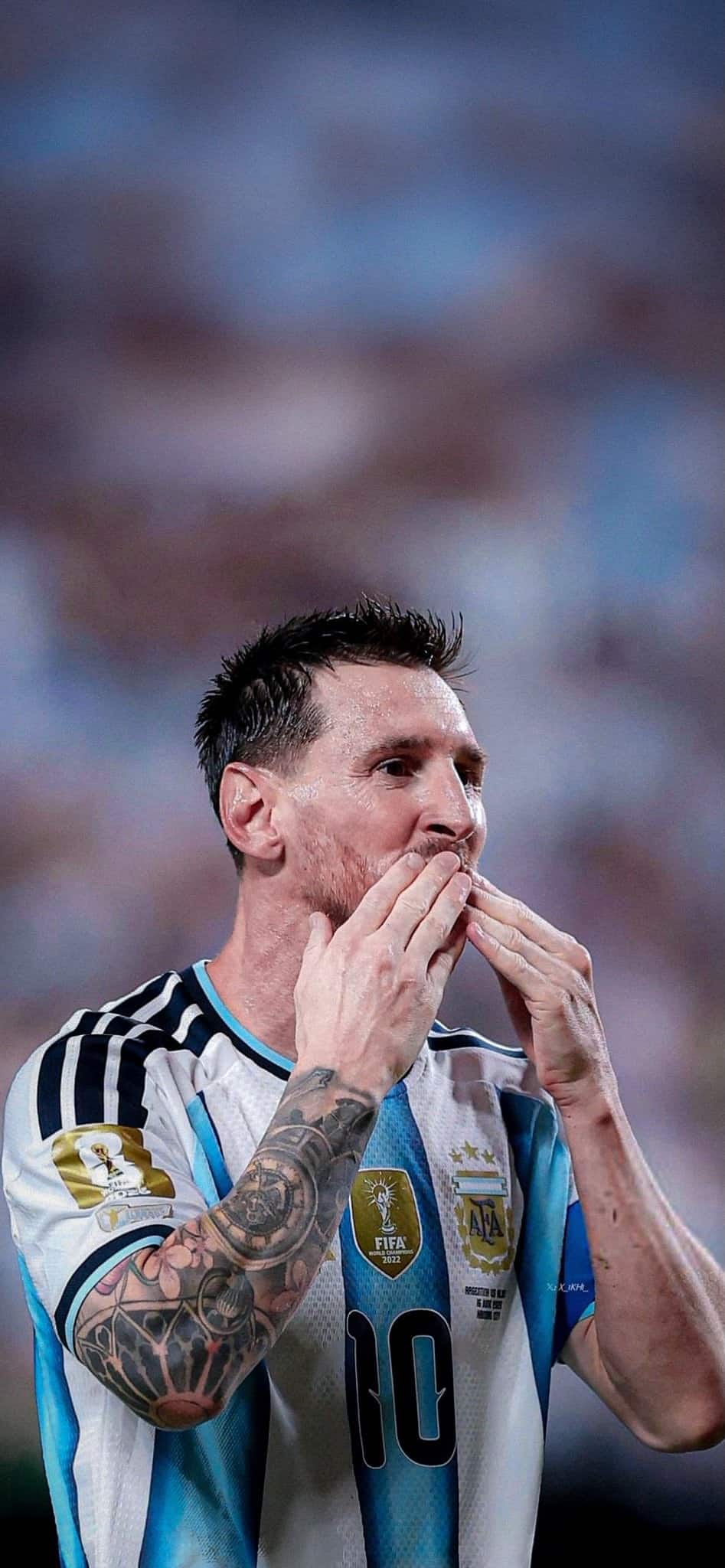
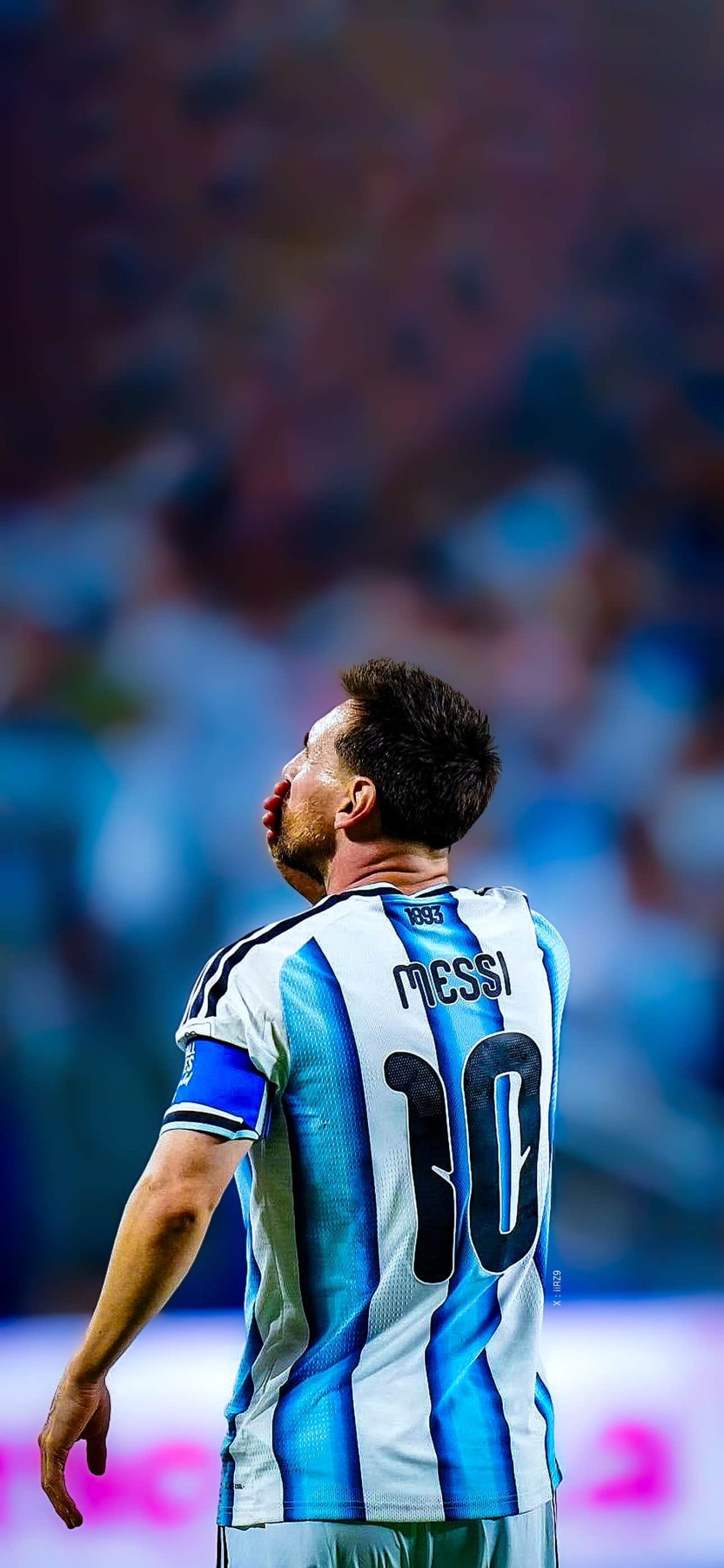
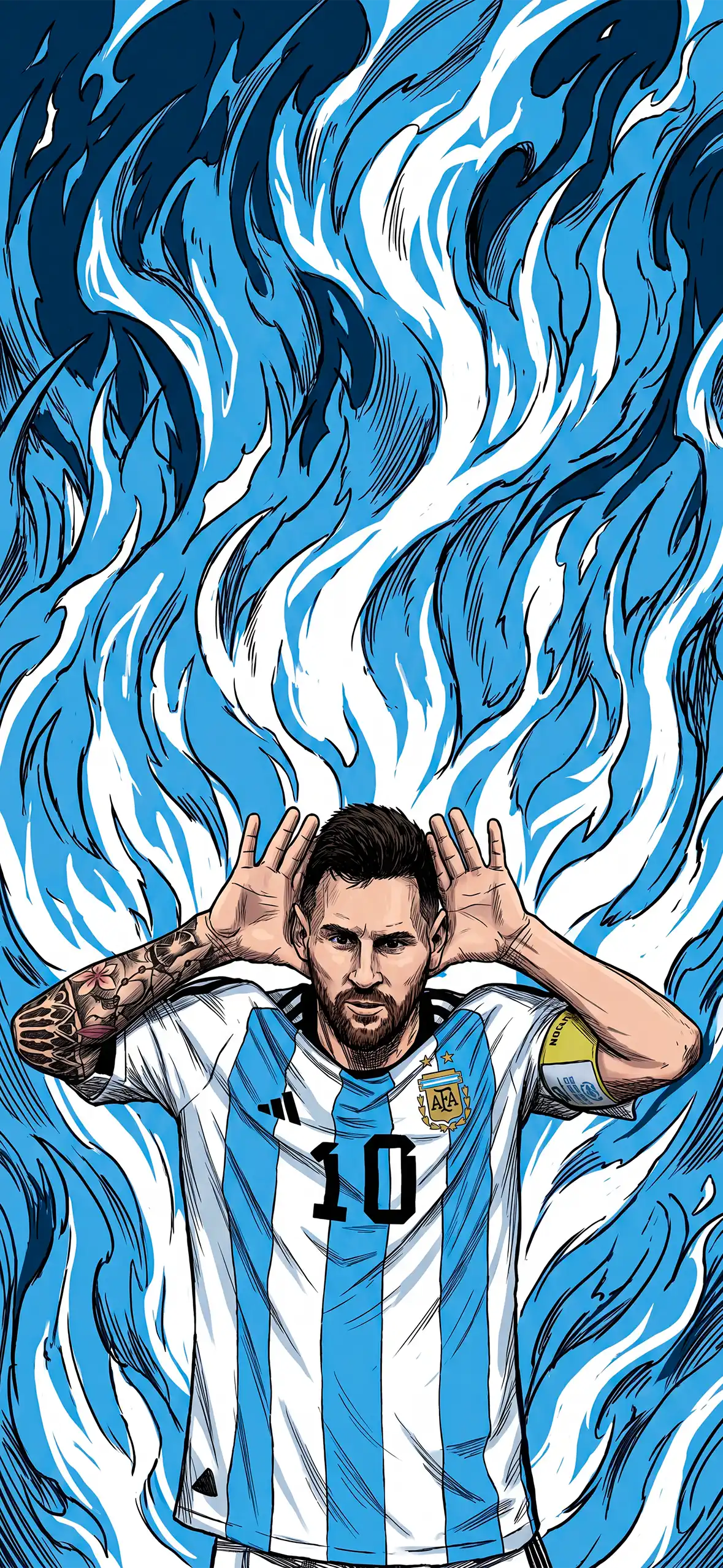
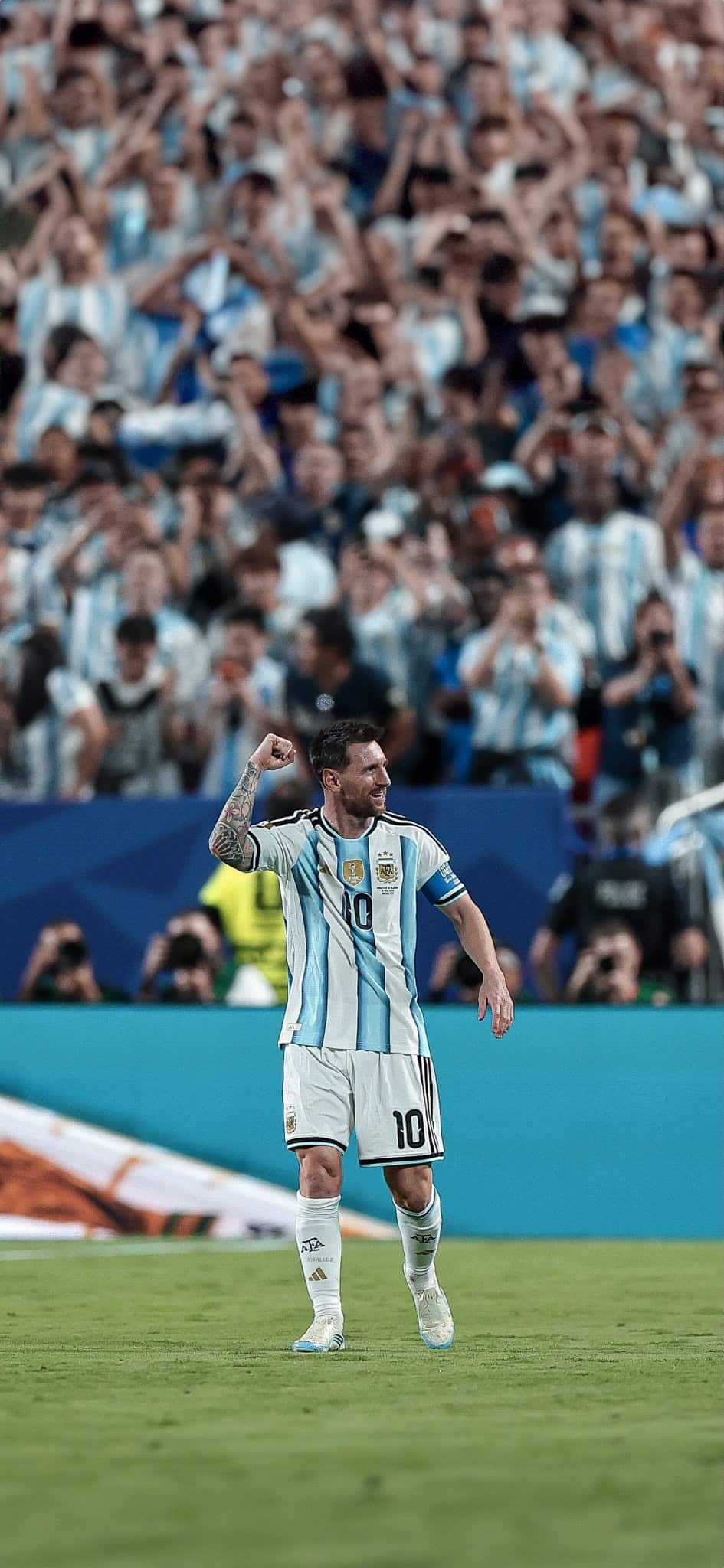
Tutorial: How to Set Up Your Messi Wallpaper on iPhone
Apple makes it seamless to rotate or apply customized mobile backdrops. You can personalize your device using two straightforward methods.
Method 1: Directly From the iOS Settings App
Unlock your iPhone and launch the Settings application.
Scroll down the menu list and tap on Wallpaper.
Tap Add New Wallpaper to open up the official iOS gallery panel.
Select the Photos or All tab at the top to open your camera roll, then choose your downloaded Messi background.
Crop or reposition the frame by using a two-finger pinch gesture to adjust the composition.
Tap Add in the upper right-hand corner.
Select Set as Wallpaper Pair to apply it universally, or tap Customize Home Screen if you prefer a blurred variant behind your applications.
Method 2: Quick Customization via the Lock Screen
Wake up your iPhone using the side power button and authenticate with Face ID (do not swipe up to the Home Screen).
Touch and hold a blank area on your Lock Screen until the layout shrinks into the wallpaper customization gallery.
Tap the blue Plus (+) icon in the bottom right corner to create a fresh layout.
Pick your chosen image from your photo album, customize your clock typography or apply system filters, and hit Done.
Maximize Visual Depth: Use the iOS Layering Feature
If you are using an iPhone 12 or a newer model, you can take advantage of the built-in system depth effects. When configuring a clean action shot where Messi is sharply separated from a blurred background, tap the three dots (…) in the bottom right corner during customization and ensure Depth Effect is turned on. This cleanly overlays a portion of the clock font right behind his silhouette, delivering a brilliant 3D magazine-cover aesthetic right to your palm!
This instructional overview breaks down the best practices for changing your background settings. Check out this guide on how to change your iPhone wallpaper for a complete visual walkthrough showing you exactly how to crop images, adjust the system clock font, and add custom lock screen widgets. For More Sports content, please visit our Sports Category.
Explore More:
- Messi FIFA World Cup Wallpapers: Best 4K Picks for Fans
- Messi 4K Wallpapers for iPhone – Free HD Download
- Cristiano Ronaldo 4K Wallpaper Collection: 50+ HD Photos for iPhone & Android
- Ronaldo Last Dance Wallpaper: 15 Emotional iPhone 4K Wallpapers
- Football Player Wallpaper HD – Best FIFA World Cup Stars Dark AMOLED iPhone Backgrounds
- Brazil Football Team Wallpaper HD – Neymar Jr #10 Brasil 4K iPhone Background
- Cristiano Ronaldo World Cup iPhone Wallpapers | 4K & HD
- Lionel Messi FIFA iPhone Wallpapers | HD & 4K Backgrounds
- Kylian Mbappé Wallpapers: Best 4K & OLED iPhone Backgrounds
- Lamine Yamal Football Wallpapers for iPhone (4K/HD)
- Best 4K 2026 FIFA World Cup Wallpapers for iPhone
Related posts:

Lionel Messi iPhone Wallpapers 4K | GOAT Football HD Backgrounds
Cristiano Ronaldo Portugal Gods Plan iPhone Wallpaper 4K (OLED)
Raphinha & Yamal Purple Kit Celebration iPhone Wallpaper – FC Barcelona

Best Football Wallpapers for iPhone | Messi, Ronaldo, Mbappe (4K)
FC Barcelona Kit Wallpapers for iPhone | Yamal, Pedri & Gavi [4K HD]