Fluid Glass iPhone Wallpapers 4K | Translucent & Liquid HD Backgrounds
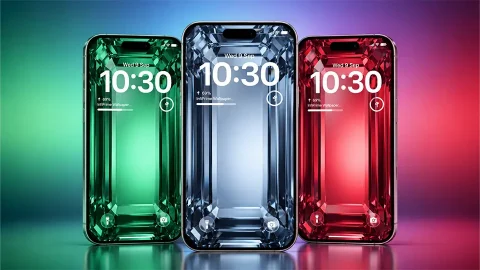
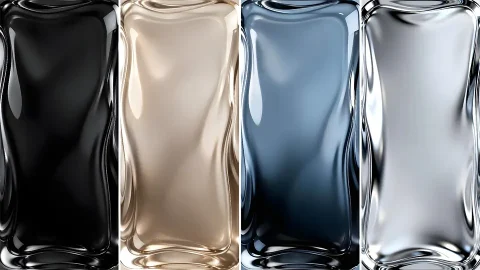
Picture a thick pane of molten glass bent into the shape of a phone, with light rippling through its edges. That’s the idea behind this set of fluid glass iPhone wallpapers. Every image uses the same tall, rounded-rectangle form, so the wallpaper reads like a second screen sitting inside your screen, and only the colour changes.
The six colourways
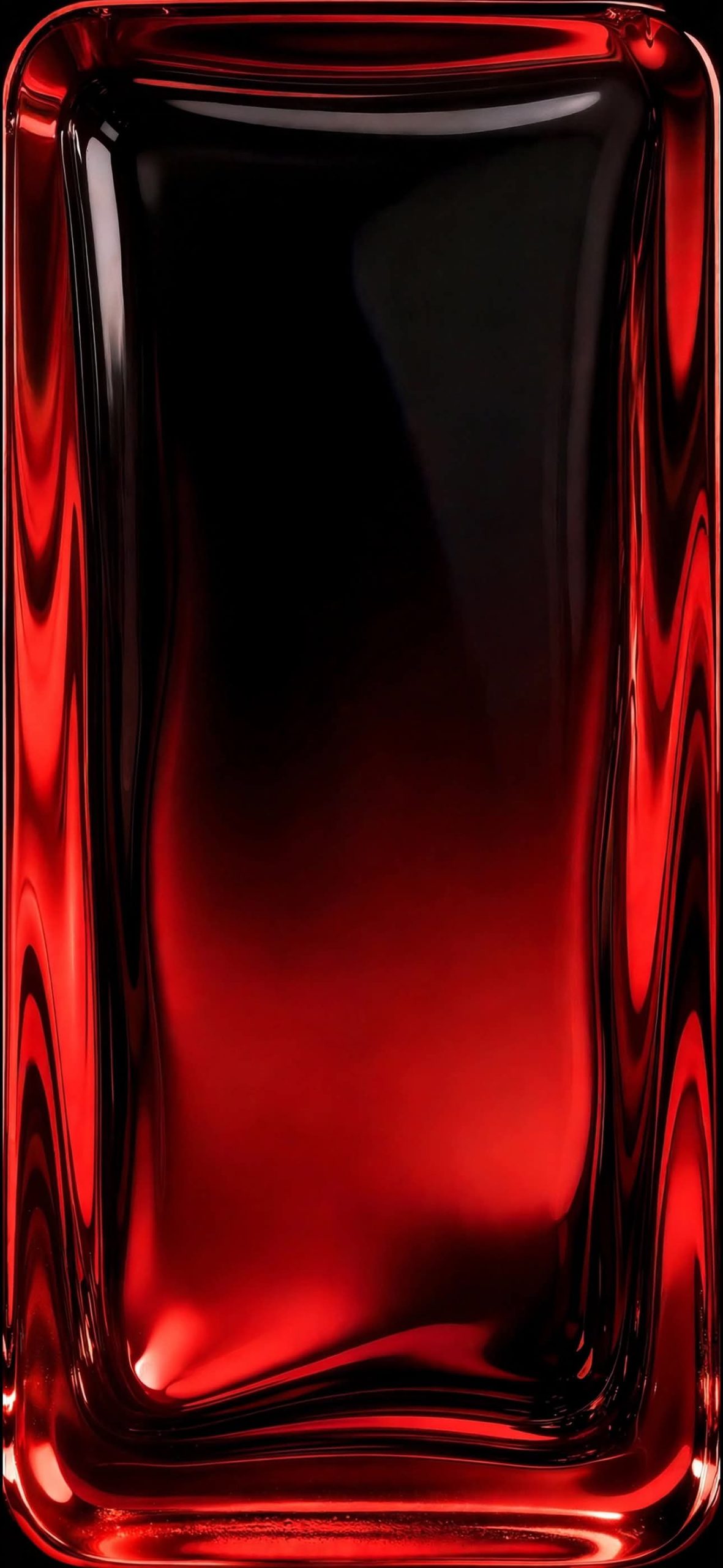
Crimson. Deep red ripples run down both sides, while the middle slowly fades from black into a warm red glow near the bottom. A small bright flare sits in the lower left corner, like light caught in a pool.
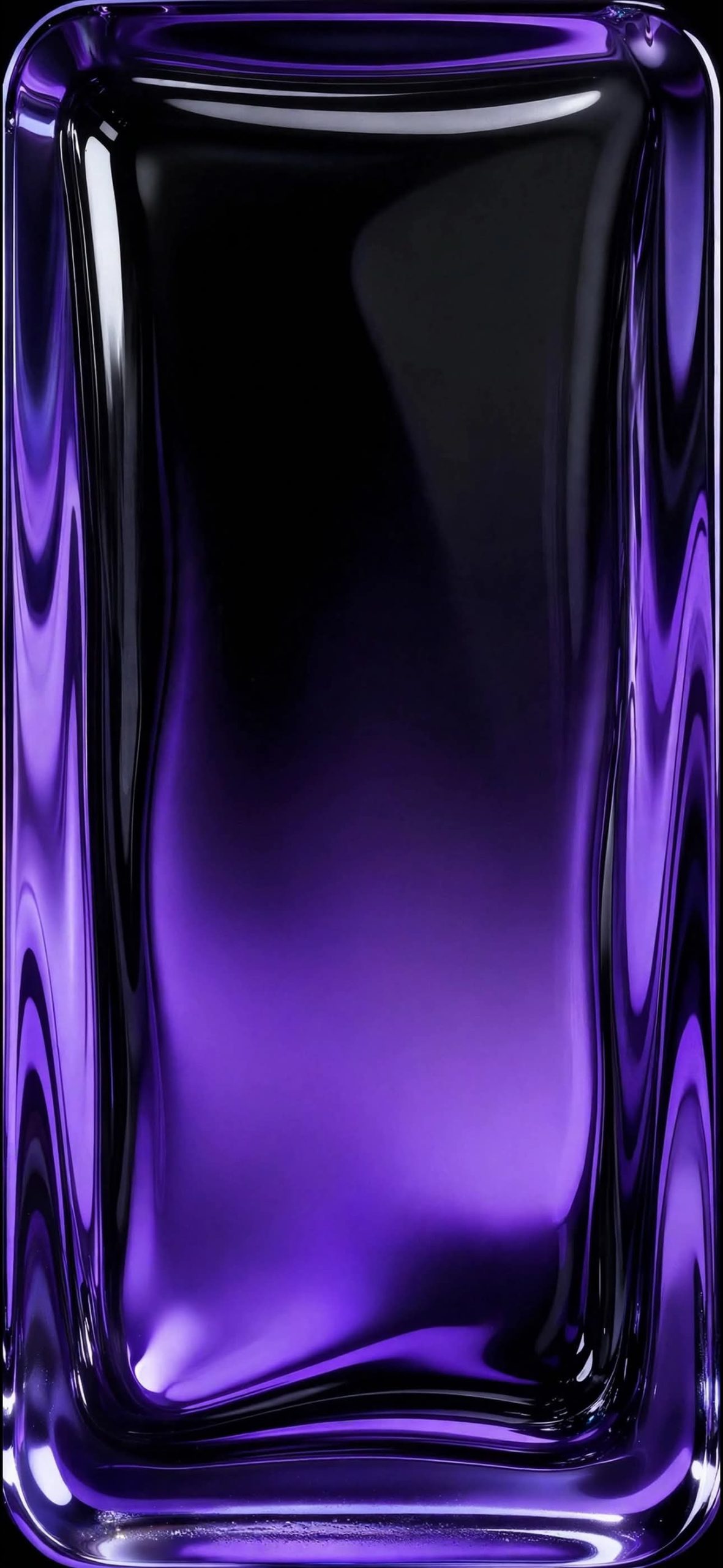
Violet. Purple waves along the frame with a soft lavender bloom rising from below. It’s the most dreamy of the six and looks good with a white clock.
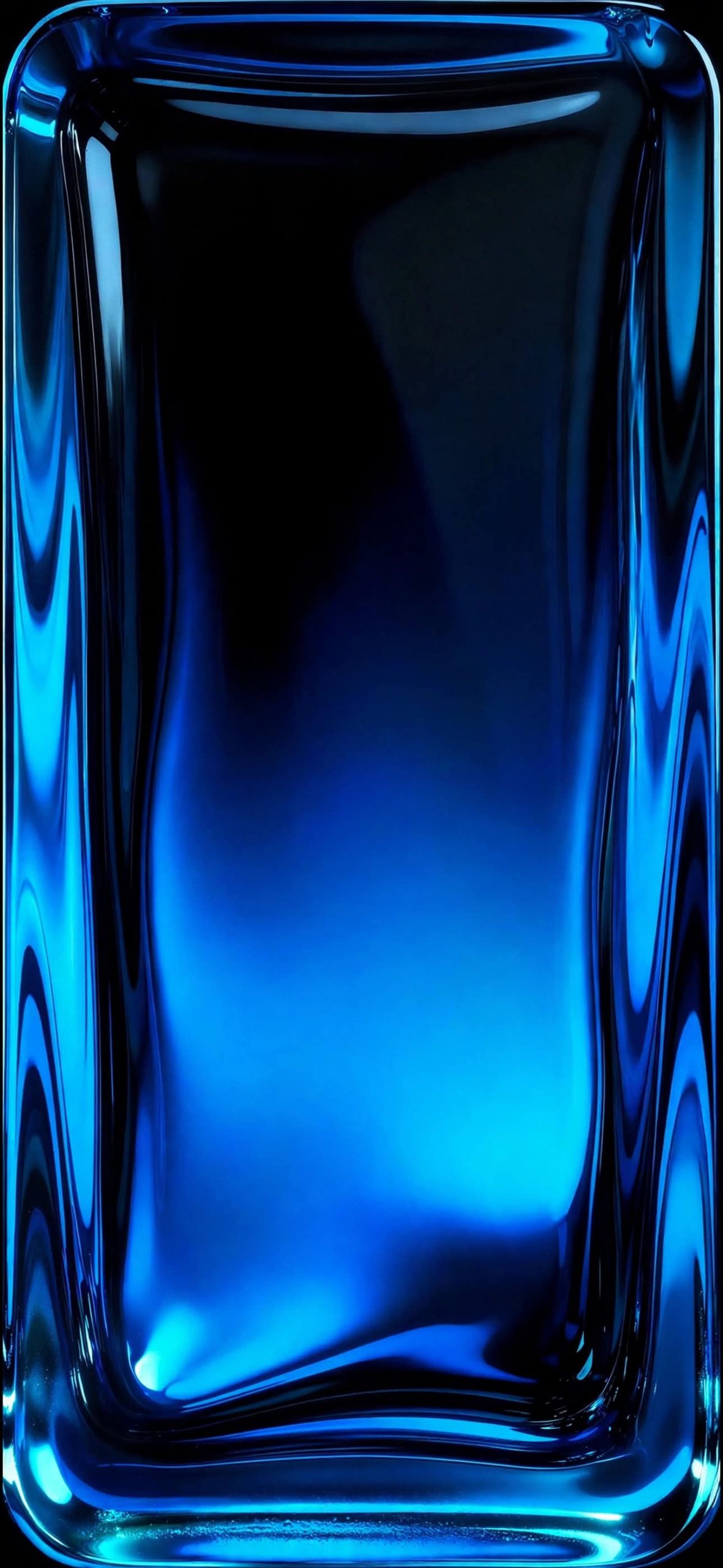
Cobalt. Electric blue edges that brighten to cyan at the bottom. Cool and crisp, it feels the most like a classic tech wallpaper.
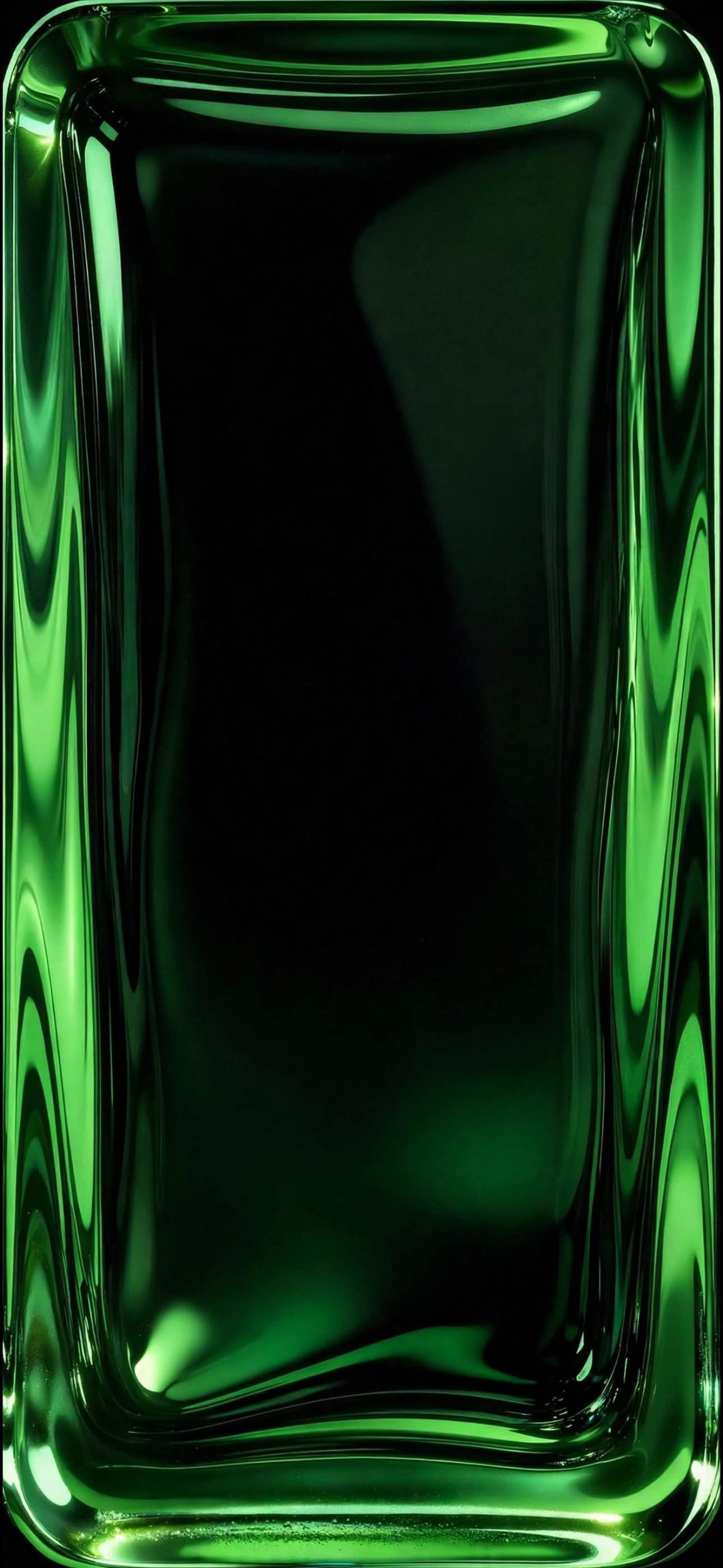
Emerald. The darkest of the colours. The centre stays almost completely black, and the green only shows up in the wavy rim, with a pale highlight in the lower corner.
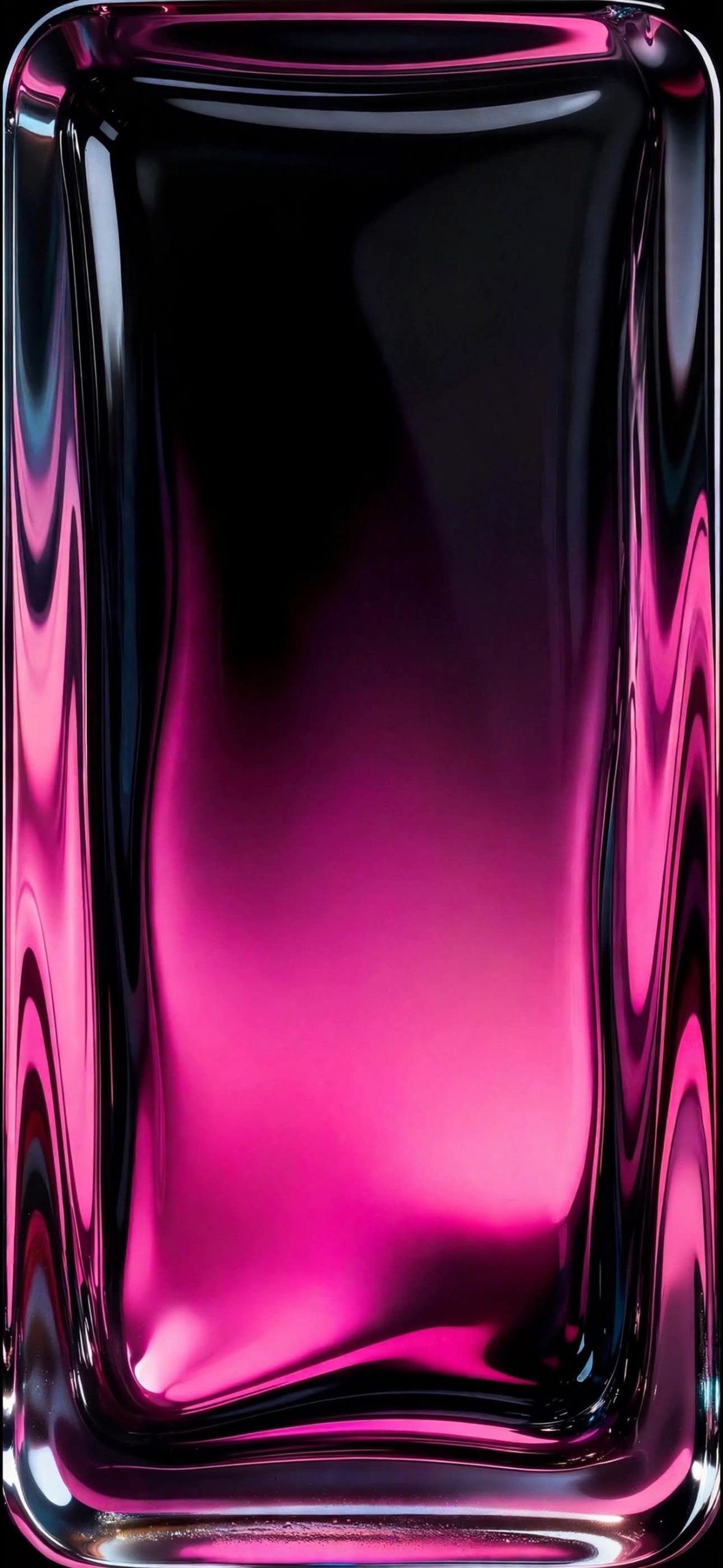
Magenta. Hot pink and fuchsia melt into black, with touches of silvery blue in the glass edges. It’s the loudest design here.
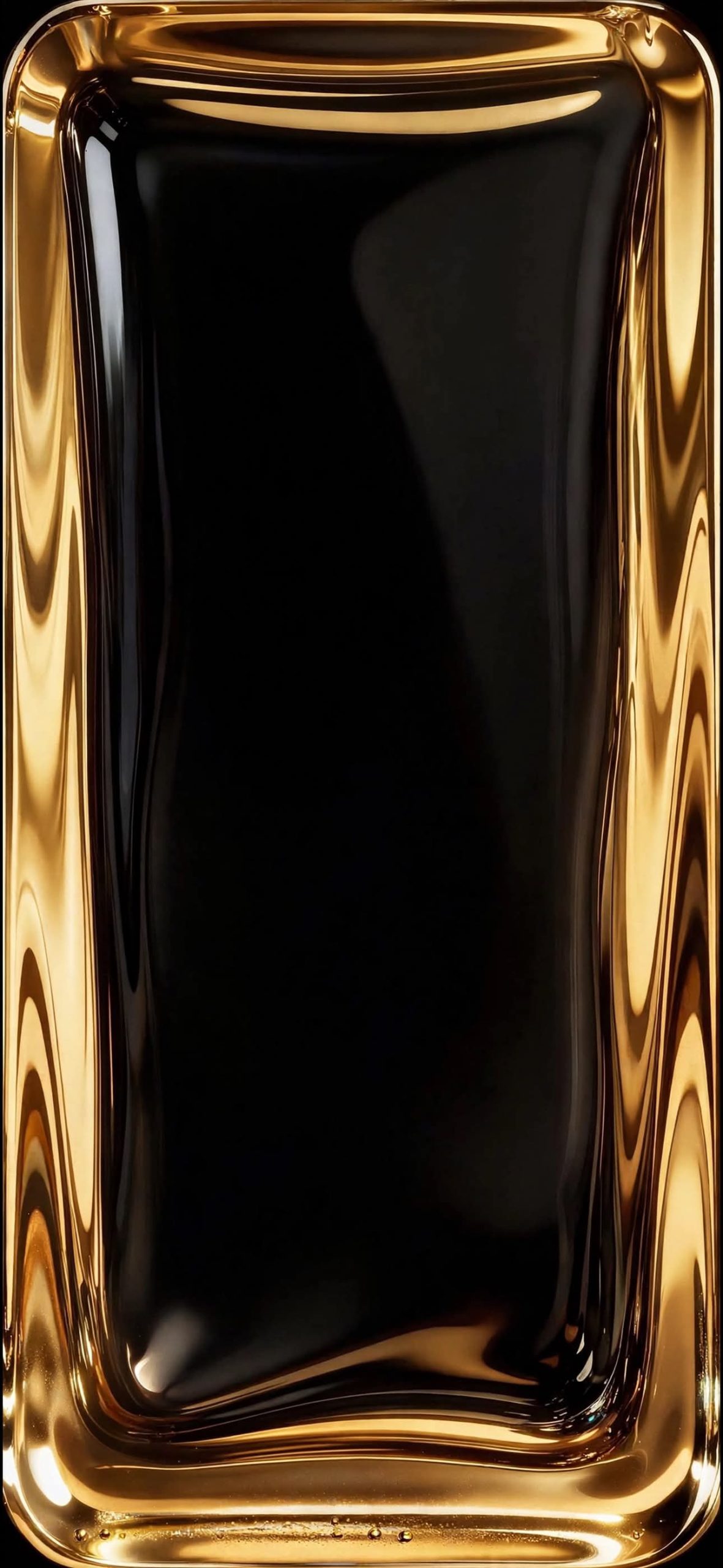
Gold. A pure black centre wrapped in a thick, honey-coloured rim that looks like liquid metal. It carries a few tiny droplets along the bottom edge, which gives it a surprisingly tactile finish.
What makes the design work
Look closely and you’ll see the same details in each file: a curved white reflection near the top, a faint shadowy shape on the upper right, and a thick ripple pattern that hugs the sides. Because the lighting is identical across the set, you can swap colours without the composition shifting. The top third of every image is mostly dark, which is exactly where your clock and date appear, so text stays easy to read.
Why OLED owners will like it
The centre of each frame sinks into true black, particularly in the gold, emerald and crimson versions. On an OLED iPhone those pixels turn off, so the colour seems to glow from the edges while the display itself nearly disappears. The result looks sharper than a flat gradient and uses a little less battery too.
Setting it up
Save the image to Photos, open Settings, tap Wallpaper, then Add New Wallpaper. Pick the file and zoom until the glass border meets your screen edges, so the frame looks like it’s part of the phone. Keep widgets minimal and choose a thin white clock font on the dark designs. For a matching look, pair the colour with a case or app-icon tint in the same shade.
Related posts:

Liquid Glass iPhone Wallpapers 4K | HD Glassmorphism Backgrounds
3D Glass Sphere Wallpapers for iPhone | 4K Crystal Orb Lock Screens
iOS 27 Liquid Glass Waves Wallpapers – 4K Collection Free Download
iOS 26 Liquid Glass iPhone Wallpapers – Download Apple’s Stunning 4K Backgrounds
iOS 27 Liquid Glass Wallpapers for iPhone (4K) – Free Download