10 Free HD Apple Pride iPhone Wallpapers & The Ultimate iOS Setup Guide
Customizing your iPhone is one of the easiest ways to express your identity, celebrate diversity, and keep your daily digital companion looking fresh. If you love Apple’s sleek, modern design aesthetic and want to proudly display your colors, you have come to the right place.
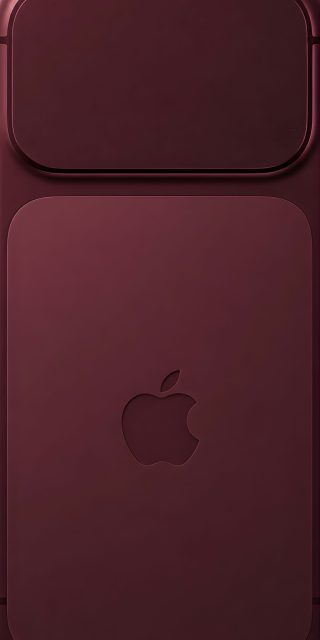
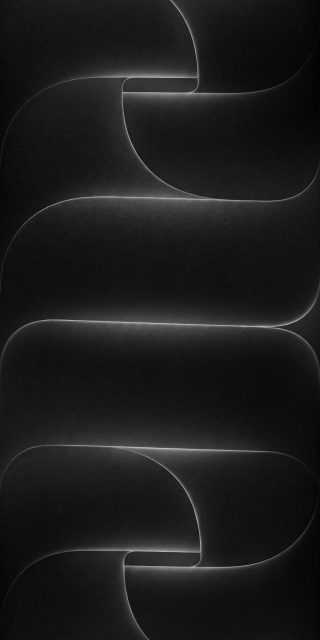
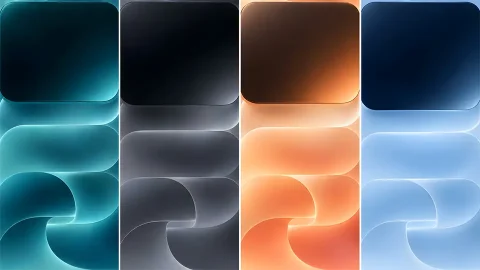
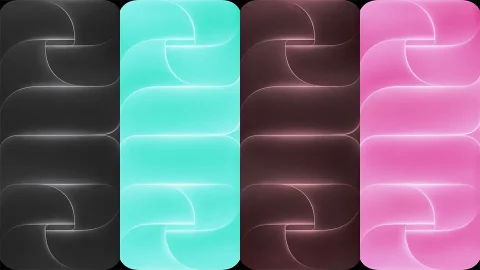
Below, we feature a curated collection of 10 spectacular, high-definition apple pride iphone wallpapers—ranging from smooth, blending gradients to sharp, striking pride flag stripes. After checking out the design styles, follow our step-by-step tutorial to seamlessly apply them to your iOS Lock Screen and Home Screen, complete with matching widget configurations.
The Apple Pride Wallpaper Styles
1. The Official Aesthetic & Vector Art
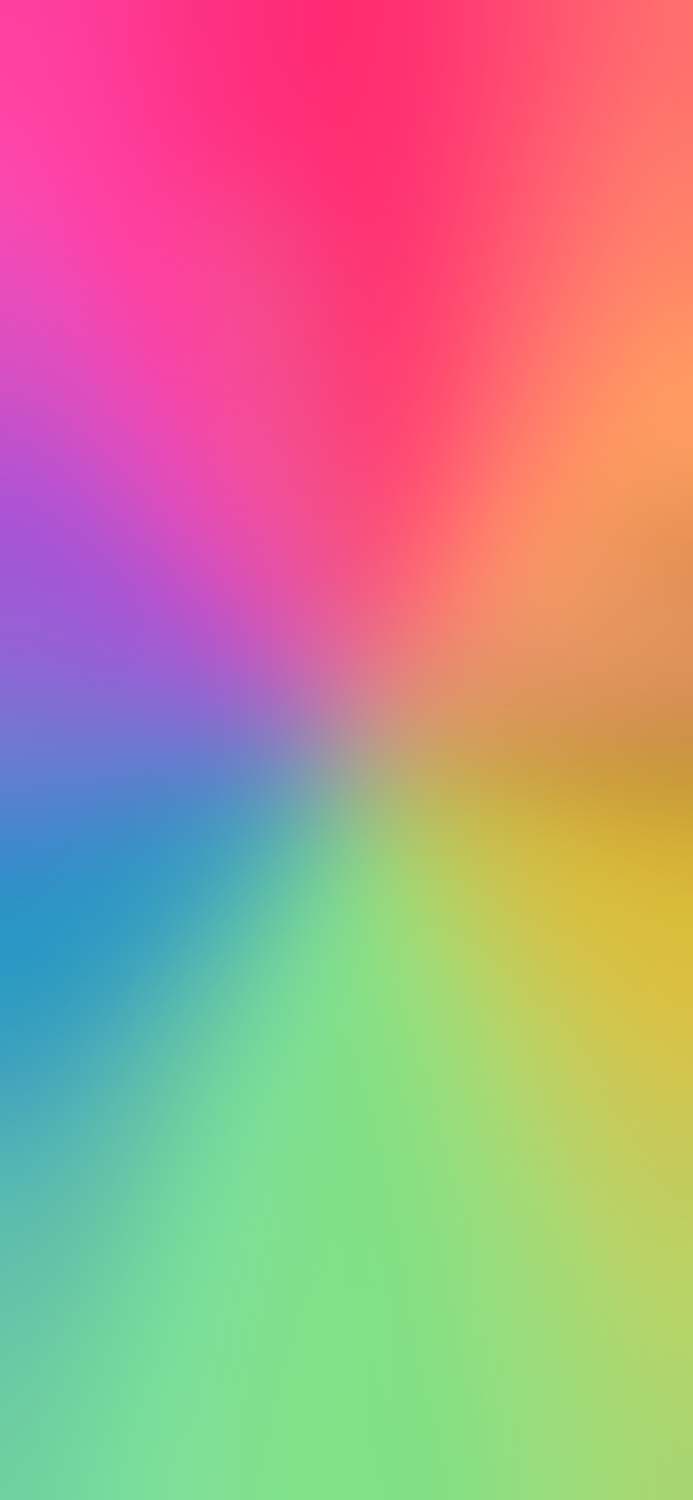
Inspired directly by celebrating unity, our first featured style is a minimalist cream background that showcases clean vector character illustrations framed beautifully inside the classic Apple silhouette. If you prefer something more abstract, we also have a beautifully diffused, soft-focused aura gradient that mimics the fluid motion of Apple’s iconic digital watch faces.
2. High-Luminance Rainbow Stripes
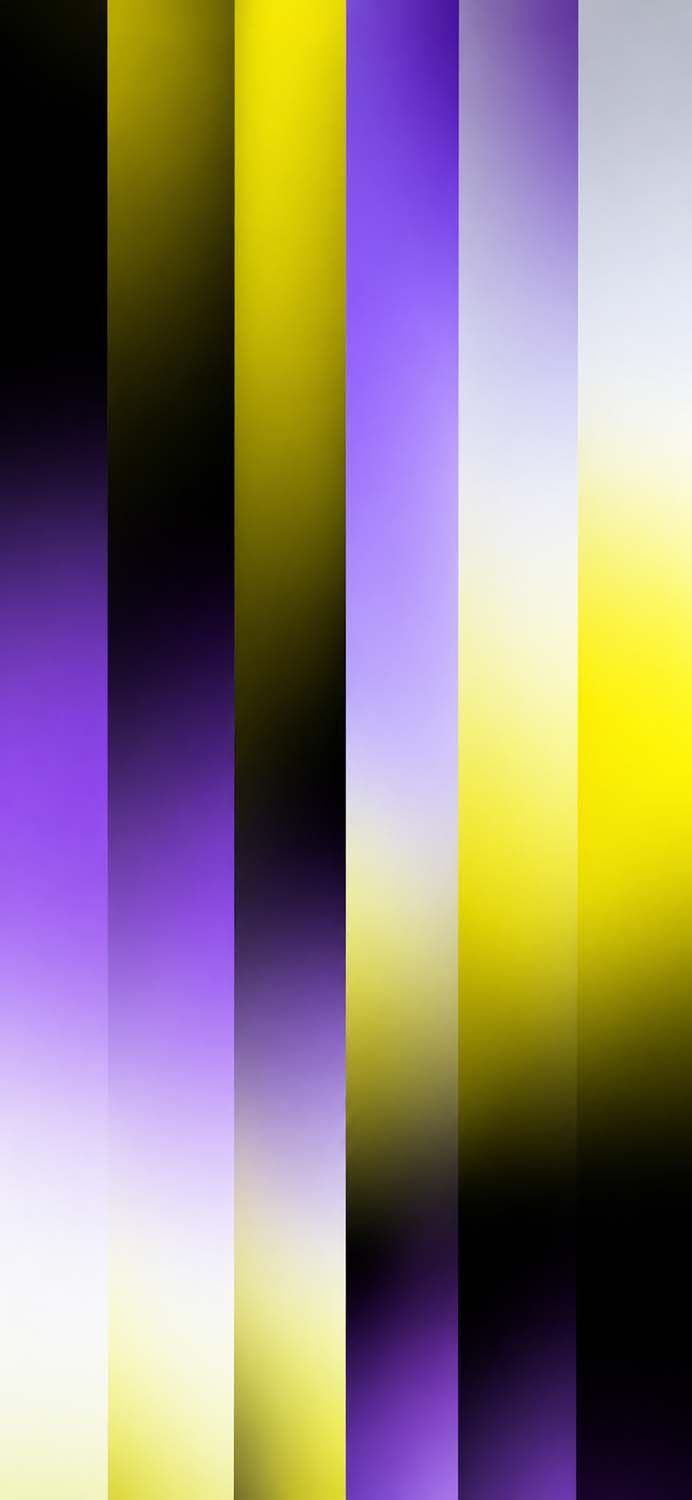
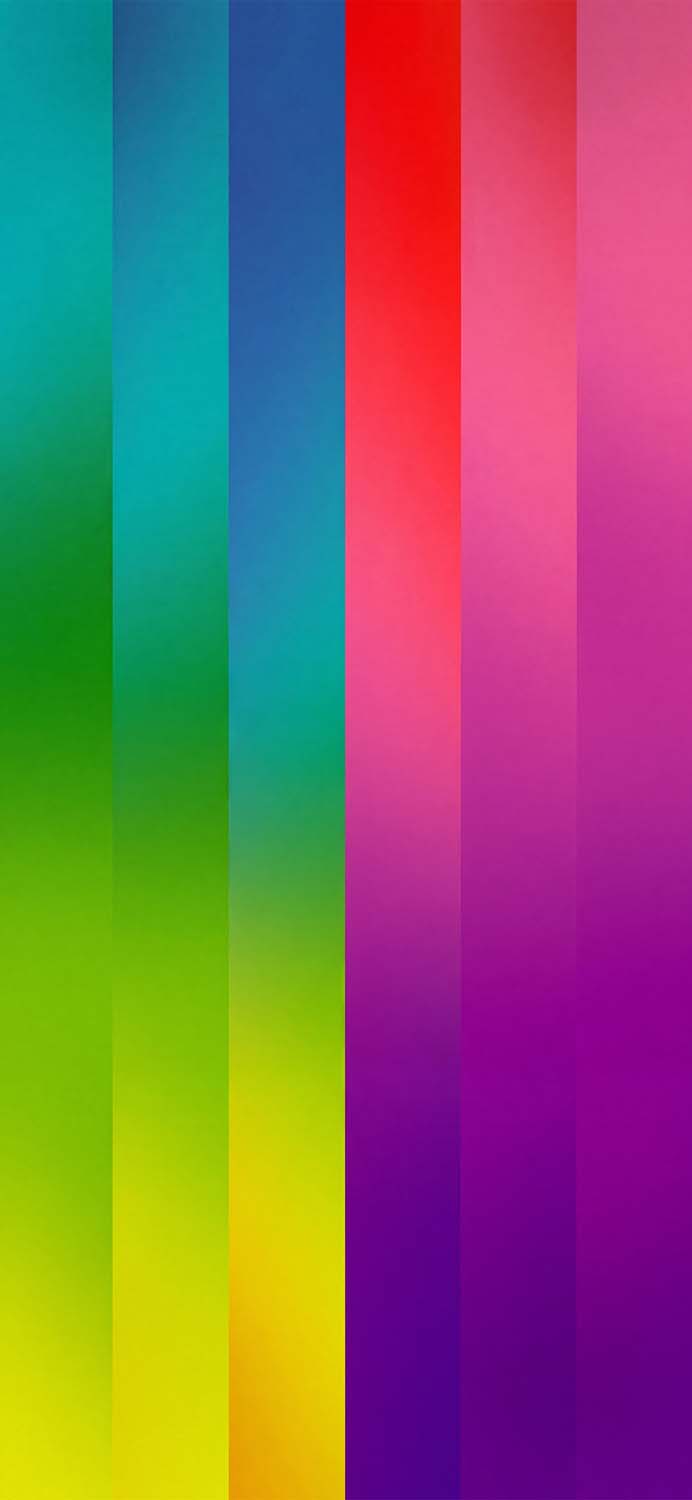
For those who love vibrant layouts, this category utilizes clean, high-contrast vertical rays of light designed to make dynamic iOS Lock Screen widgets stand out. You can choose between a bold, high-luminance traditional color beam, a softer neon pastel interpretation for a more relaxed look, or solid, classic vertical color bars that pay homage to the historic pride flag structure.
3. Smooth Minimalist Gradients
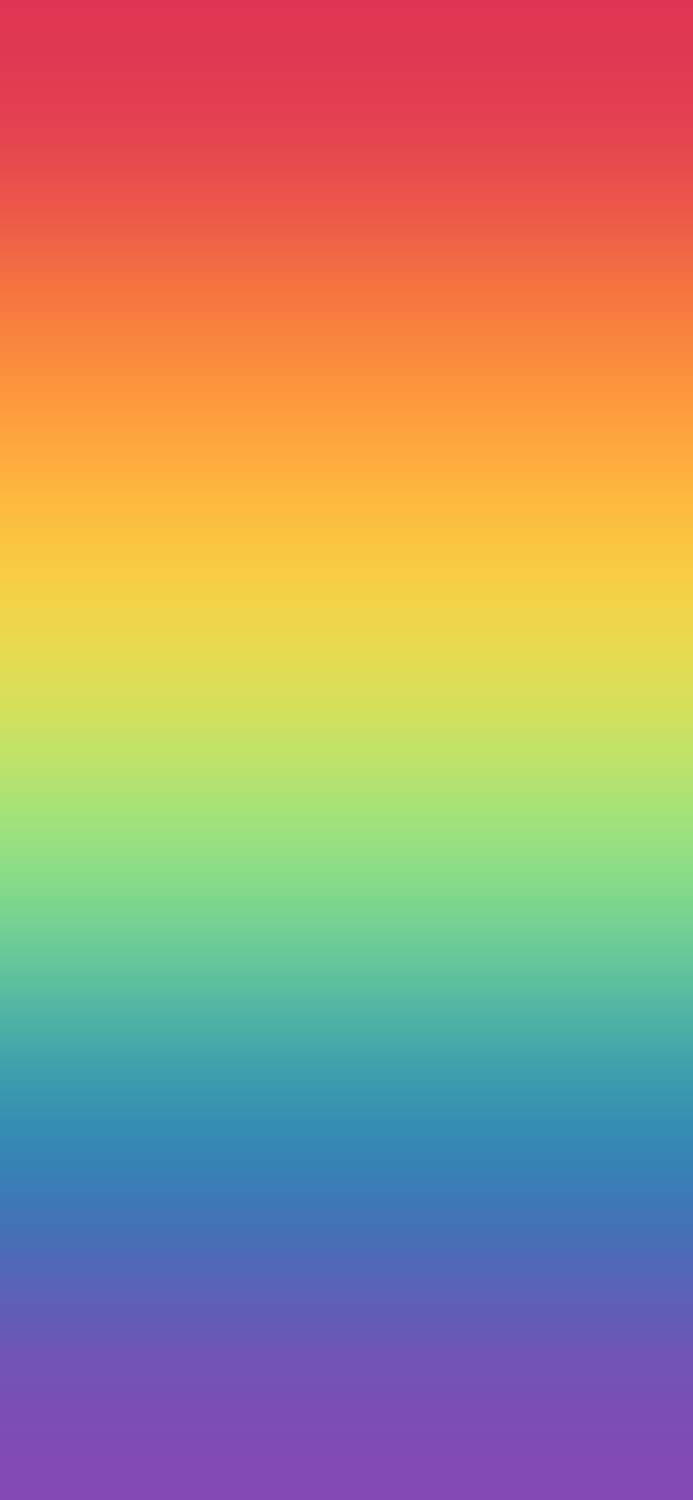
If you prefer a clean background that doesn’t compete with your app icons, a seamless spectral gradient is the perfect choice. Transitioning flawlessly from red to violet, these smooth color blends work brilliantly on the Home Screen because they keep your text and folders perfectly legible.
4. Identity-Specific Pride Variants
True inclusion means honoring specific identities within our beautifully diverse community. These custom designs bring geometric symmetry and premium texturing to individual pride flags, including:
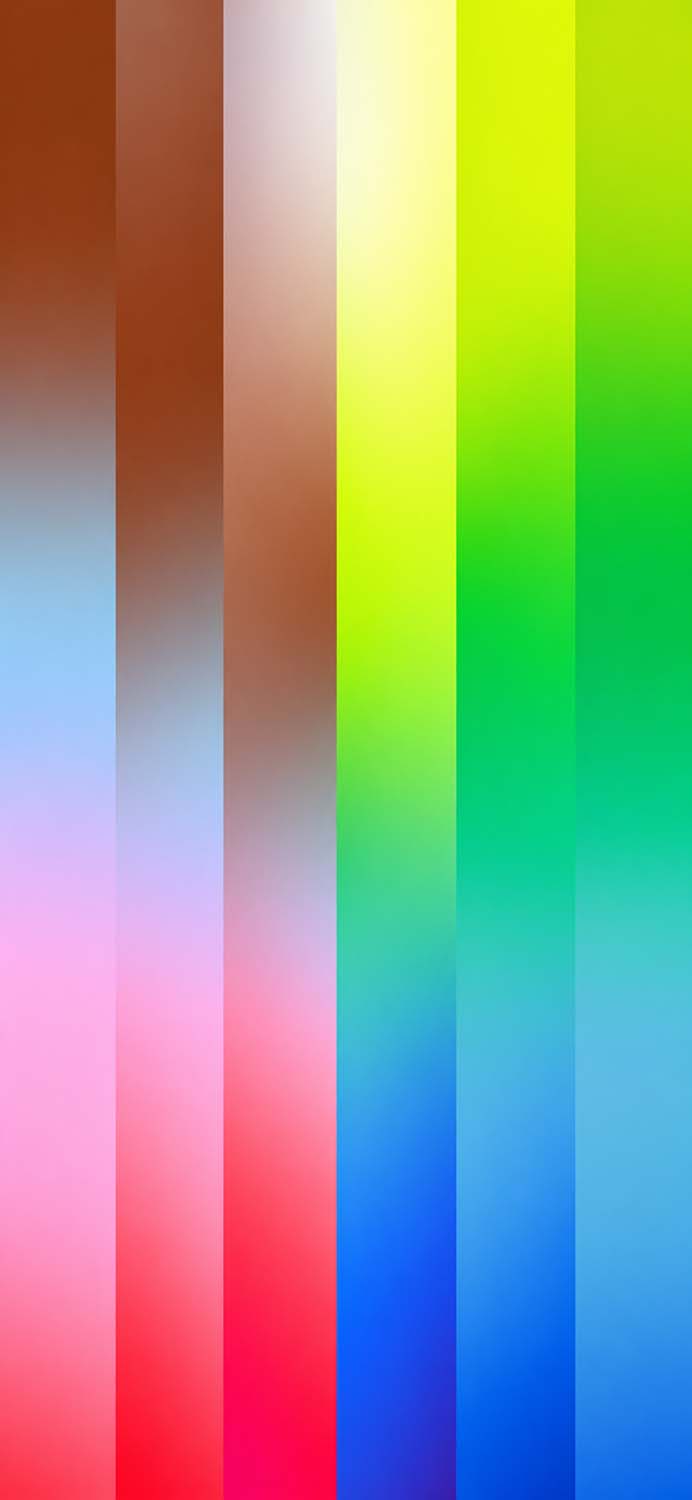
Lesbian Pride: A stunning vertical striping layout displaying rich oranges, whites, and pinks.
Pansexual Pride: Bold pink, yellow, and blue bands overlapping with a modern prism blur overlay.
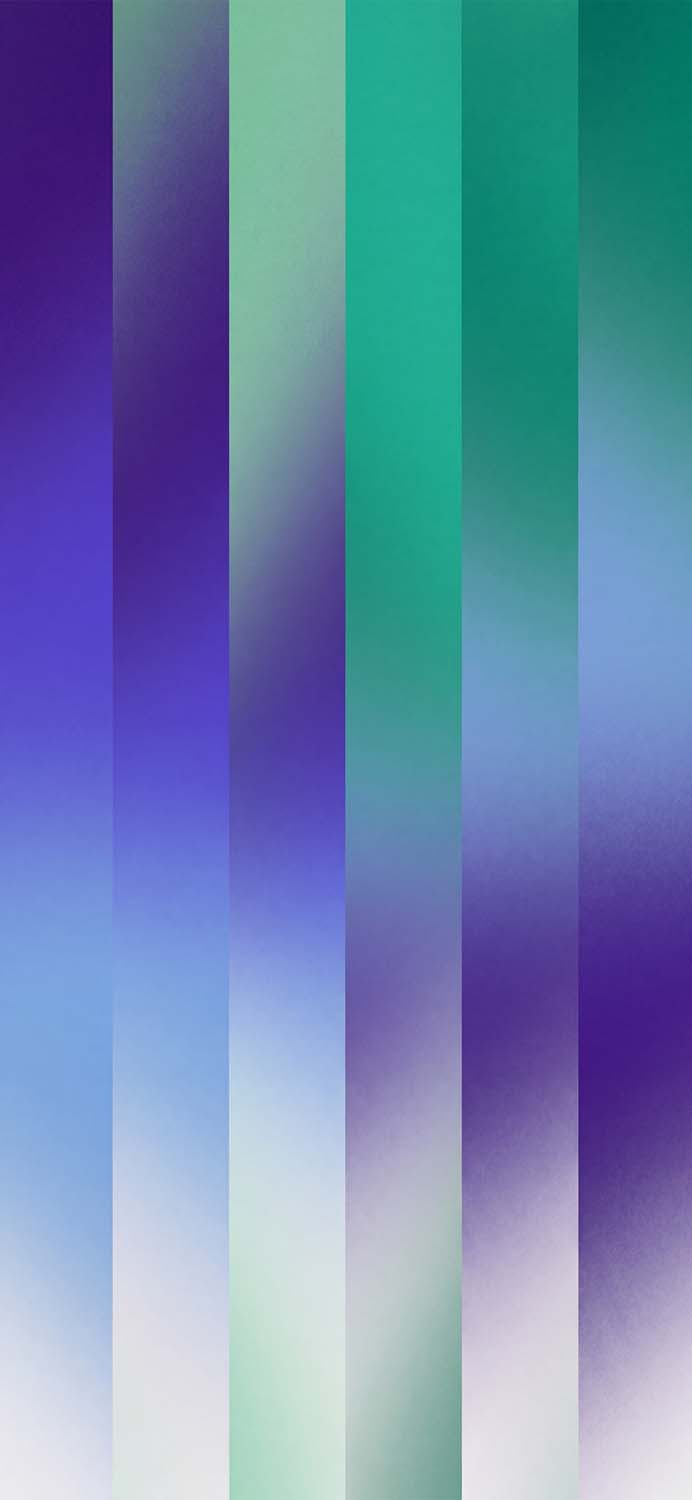
Achillean Pride: A calming, modern layout highlighting the blue, green, and white tones representing men who love men.
Progress Pride: A soft-toned, sophisticated tribute incorporating chevron-inspired color tracking.
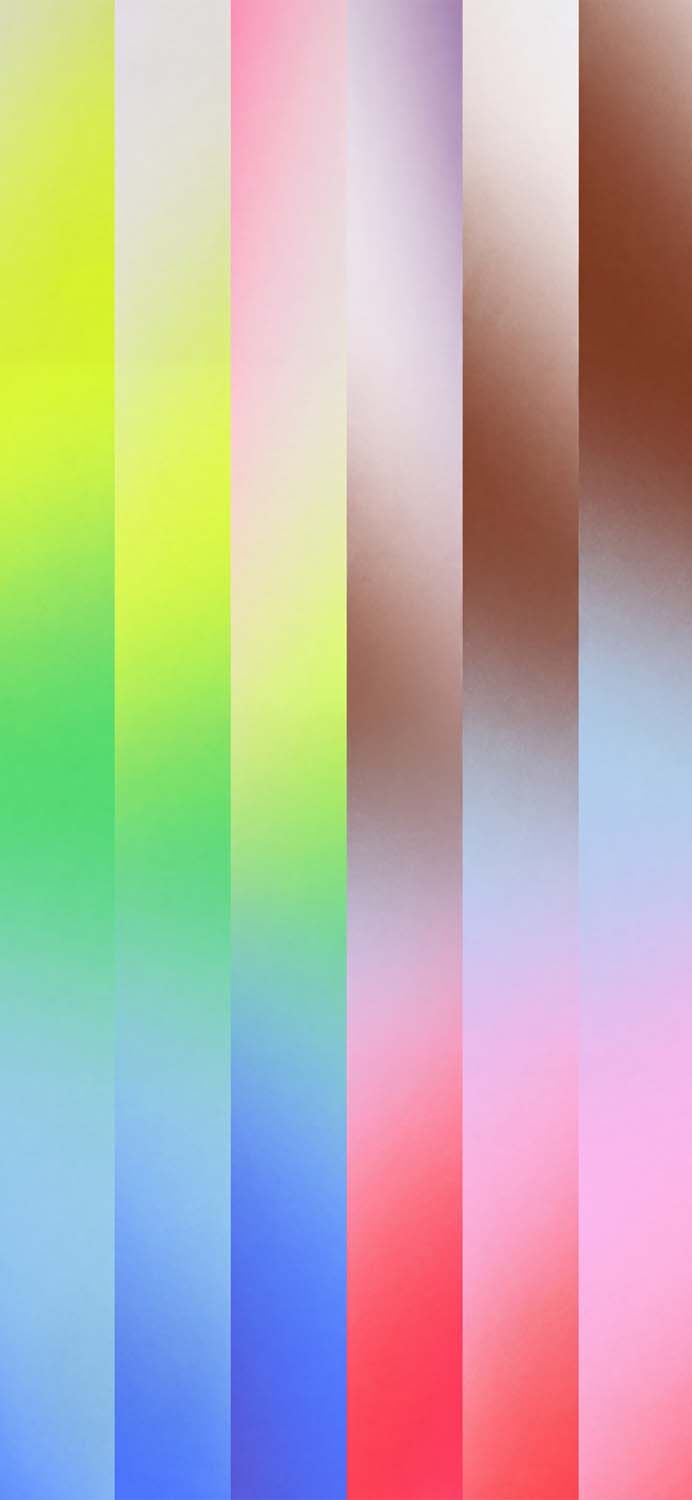
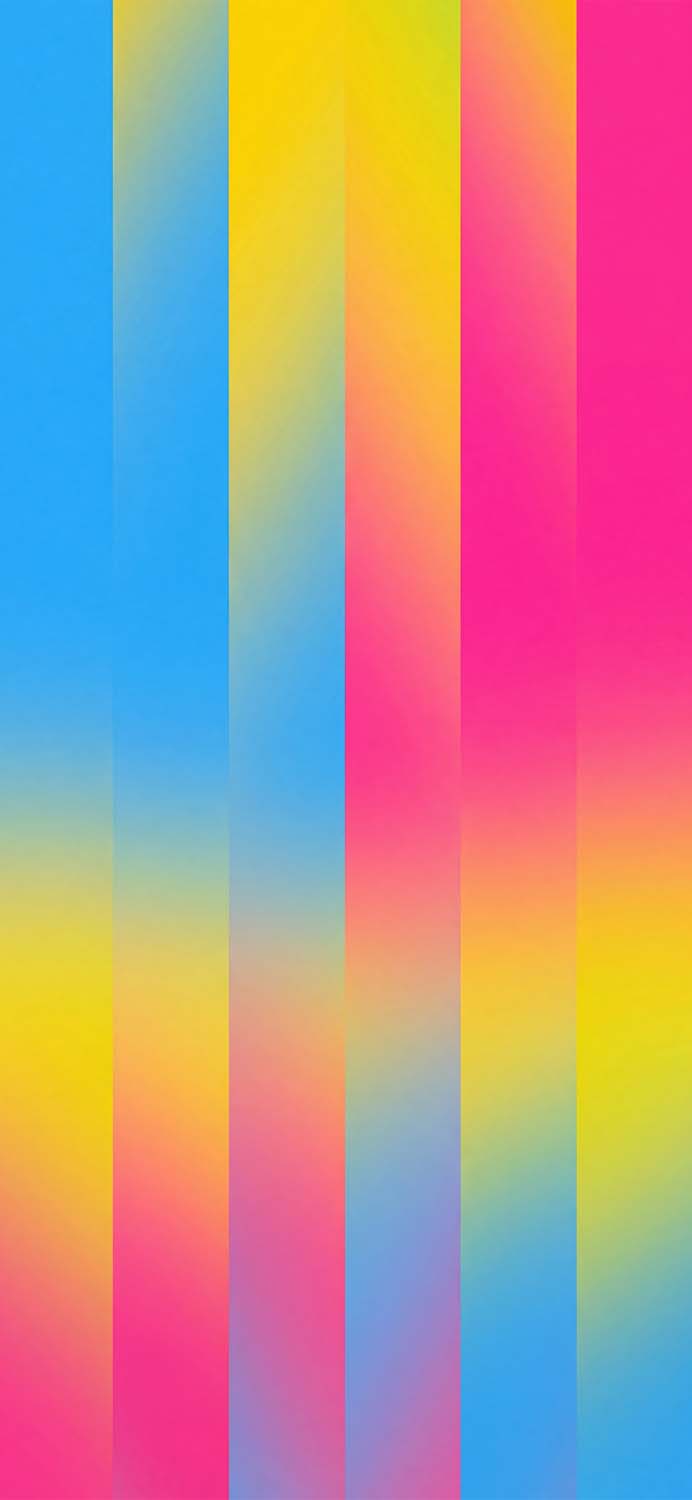
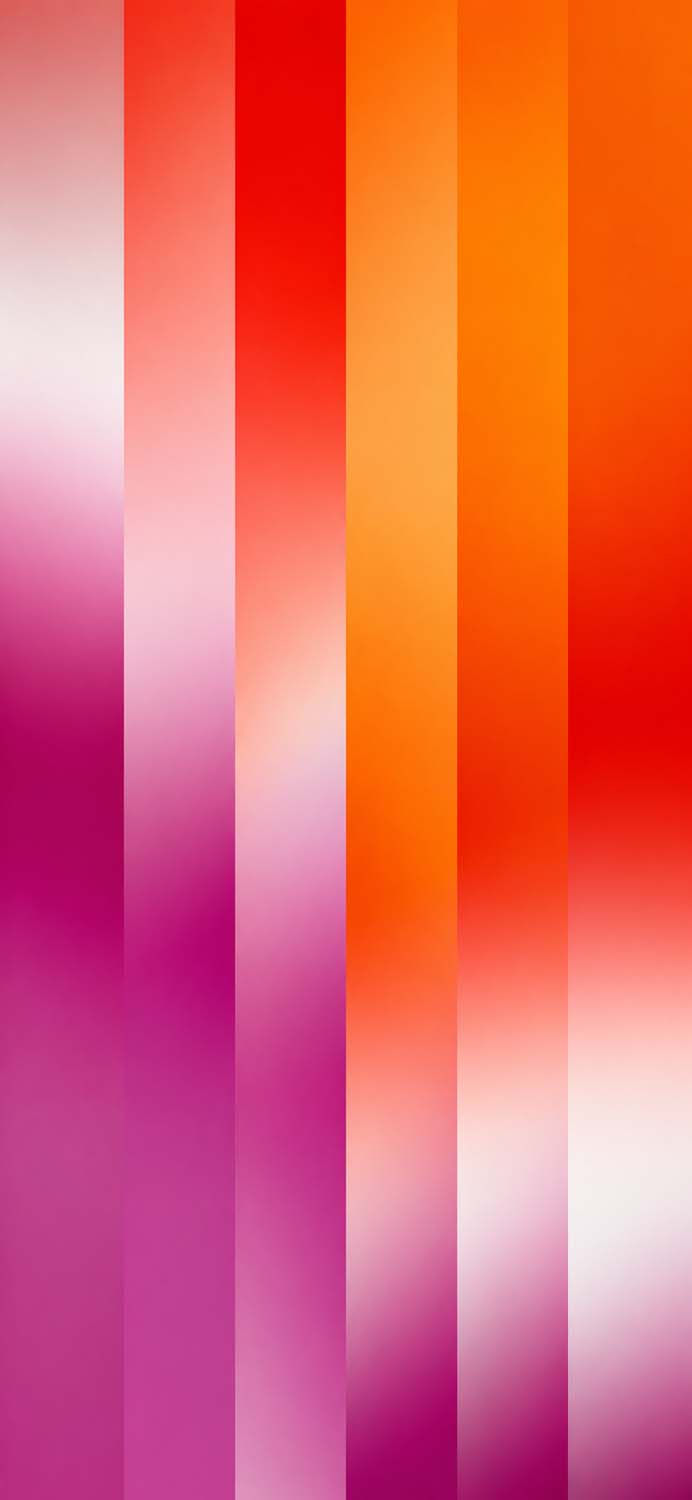
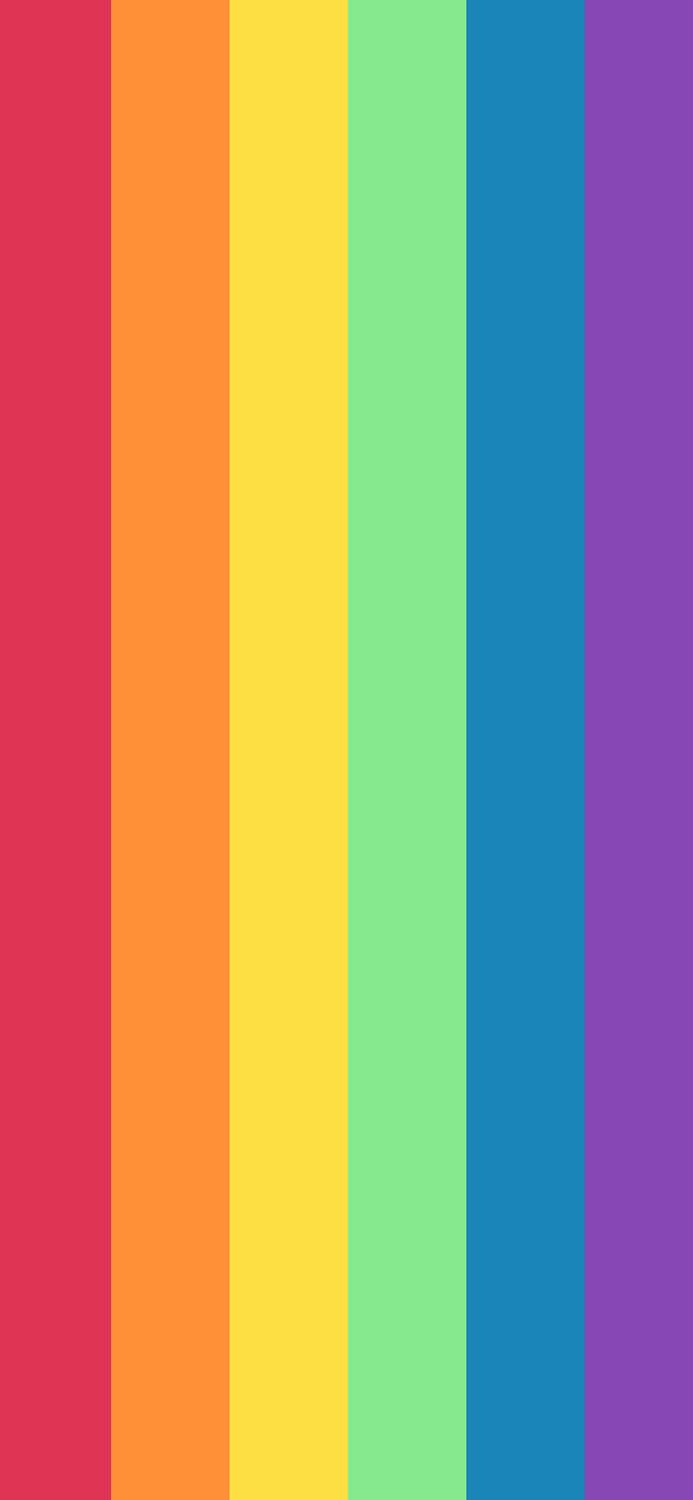
Step-by-Step Tutorial: How to Set Up Your Pride iOS Theme
Once you have downloaded your favorite high-resolution backgrounds, use this step-by-step guide to build a fully coordinated iOS experience.
Step 1: Save the Wallpapers to Your Photos App
Long-press on your chosen image and select Save to Photos or Download.
For organizational ease, create a new album in your Photos app titled “Pride Wallpapers.”
Step 2: Create a Custom Lock Screen Link
Wake up your iPhone and long-press (hold down) on your current Lock Screen until the wallpaper gallery opens.
Tap the blue (+) Plus icon in the bottom-right corner to add a new wallpaper set.
Tap Photos at the top of the menu and select your downloaded pride background.
Step 3: Utilize iOS Depth Effect and Custom Colors
Adjust Position: Pinch to zoom or drag the image to frame it perfectly beneath the time display.
Toggle Depth Effect: If using a wallpaper where elements cross over the clock area, tap the three dots in the bottom-right corner to toggle Depth Effect on or off.
Match the Font: Tap on the digital clock to change its font style. Swiping across the color wheel allows you to use the color sampler tool to match your clock text perfectly to one of the flag stripes!
Step 4: Configure the Home Screen Blur
To prevent your home app grid from looking cluttered against high-contrast stripes:
Tap Done in the top-right corner of the setup screen.
Select Customize Home Screen.
Tap the Blur icon on the bottom right if you are using a striped pattern. This keeps app names perfectly readable while maintaining your color theme.
Step 5: Add Matching Color Widgets
To complete your setup, add clean iOS widgets that harmonize with your new colors:
Go to your Home Screen, long-press the background until the apps jiggle, and tap the (+) Add button in the top left.
Select the Calendar or Battery widget.
If you use third-party tools like Widgetsmith, customize your widget background hex codes to match your specific flag colors for a perfect, intentional aesthetic.
Explore More
- Apple WWDC26 Wallpapers: Vibrant 4K Lock Screen Picks
- iOS 27 Liquid Glass Wallpapers for iPhone (4K) – Free Download
- Premium iPhone Air 4K Stock Wallpaper Collection in Green, Orange & Red
- Apple Logo Wallpapers: Best 4K, OLED & Aesthetic Backgrounds
- 18 Free “Hello” iPhone Wallpapers — Neon, Gradient & Glass Style
- Download Official iOS 27 Wallpapers | 4K & Ultra HD Mobile Pack