Ocean & Underwater iPhone Wallpapers
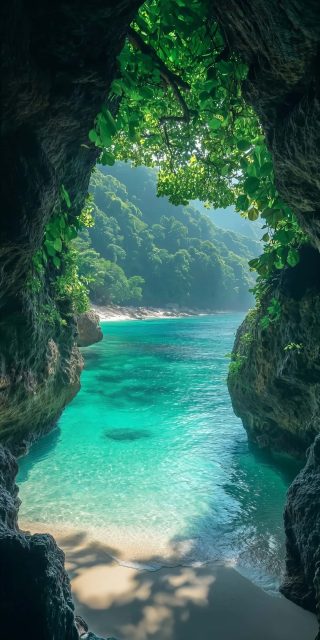
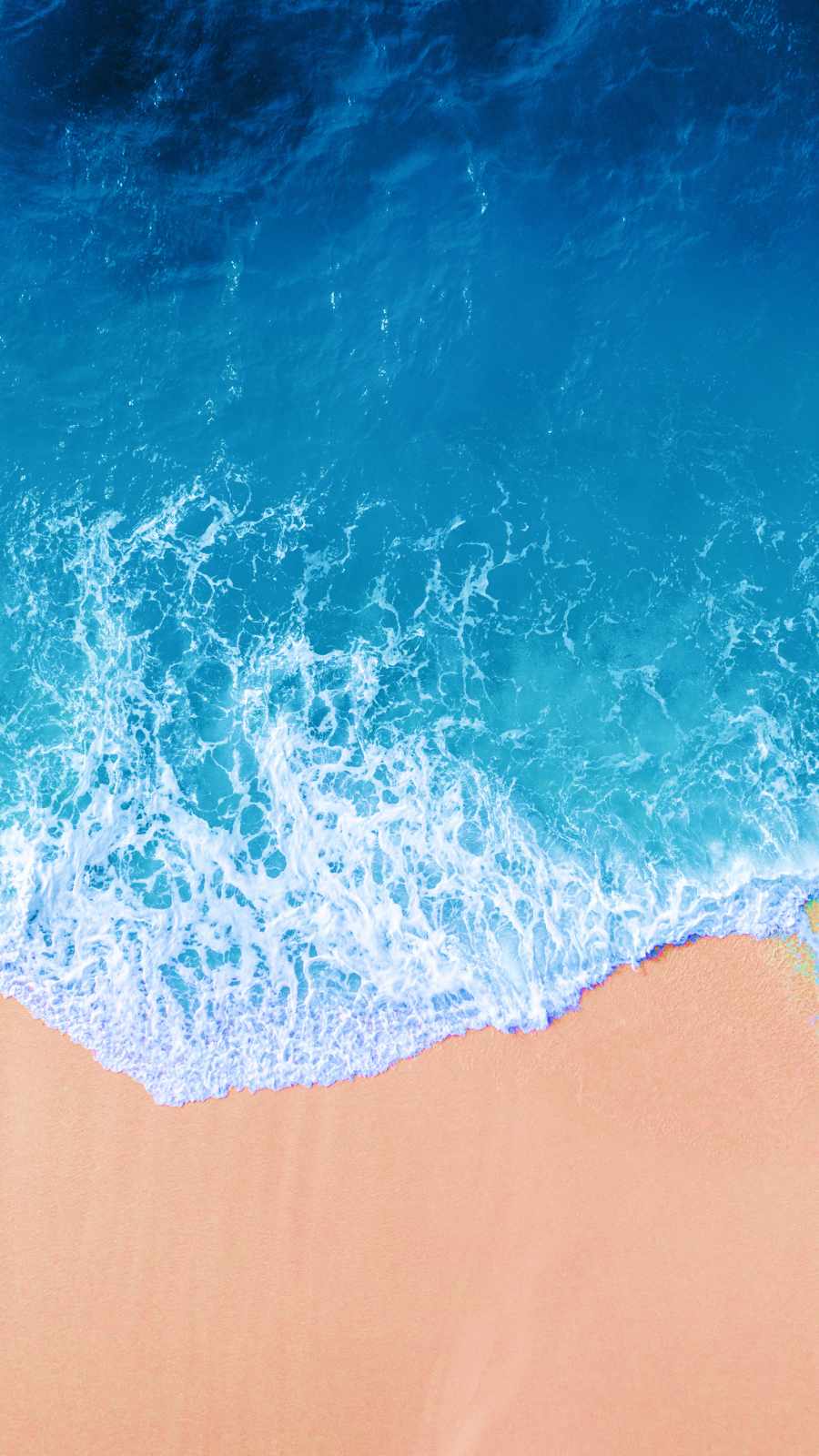
There’s a reason ocean photography dominates wallpaper searches every single year: water does something to a screen that almost nothing else can. It has depth without clutter, color without chaos, and enough natural movement in a still image to make a phone feel alive every time you tap it awake. This collection pulls together a set of underwater and ocean-inspired wallpapers built specifically for iPhone screens — full-length portrait crops, no stretching, no awkward crops around the Dynamic Island or home bar.
Why ocean wallpapers still outperform everything else
Search trends for phone backgrounds shift constantly — minimalist, dark mode, anime, abstract gradients — but ocean and underwater themes hold steady for a simple reason: they work with the phone’s UI instead of against it. Blues and teals sit quietly behind white app icons and text. A wallpaper with a bright, busy top half and a darker bottom half (or vice versa) actually helps icon labels stay legible, which is exactly the structure you’ll find in split-level shots where the surface of the water separates sky from seabed.
There’s also a psychological angle worth mentioning, even briefly: blue tones are consistently rated as calming in color-perception studies, and a phone screen is something most people look at hundreds of times a day. A five-second glance at a coral reef or a sunlit sandbar isn’t going to change your life, but it’s a small, free upgrade to a screen you’re staring at anyway.
What’s included in this pack
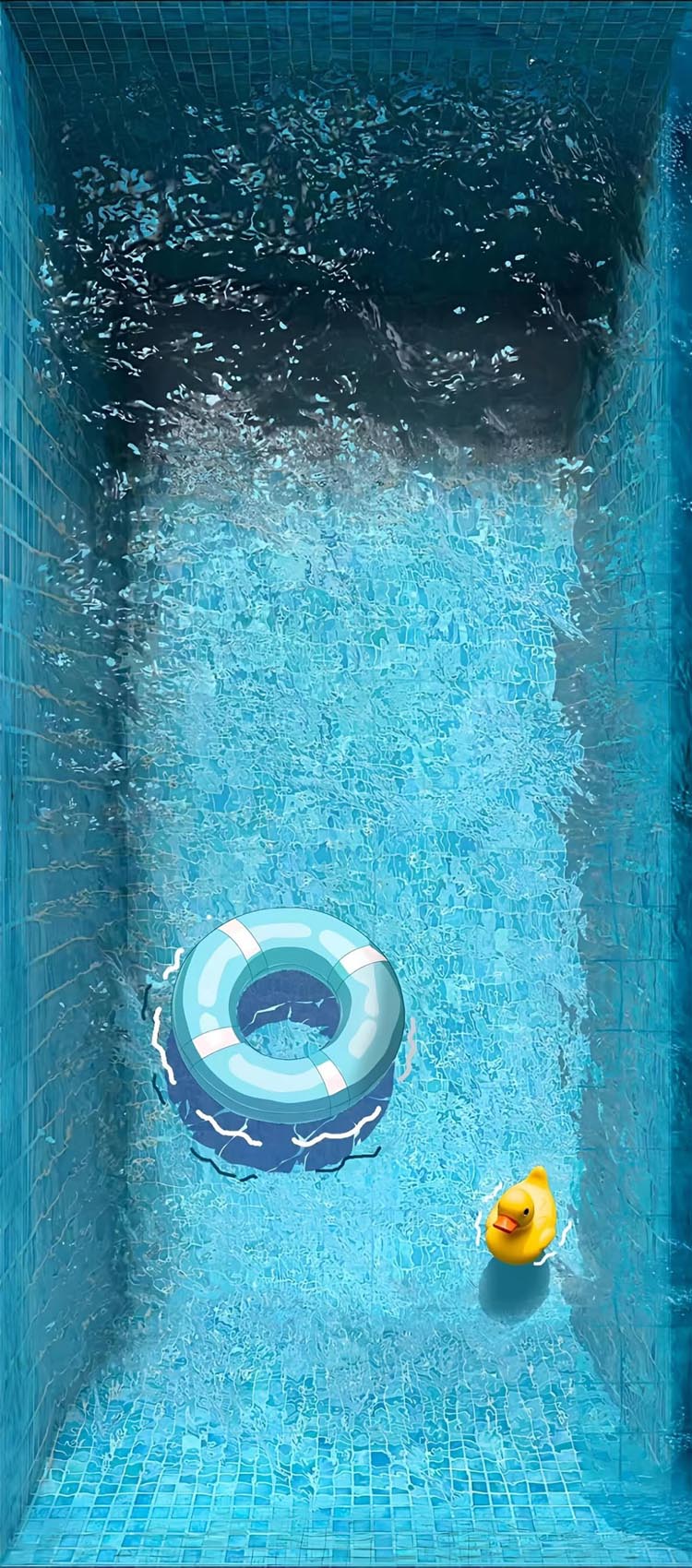
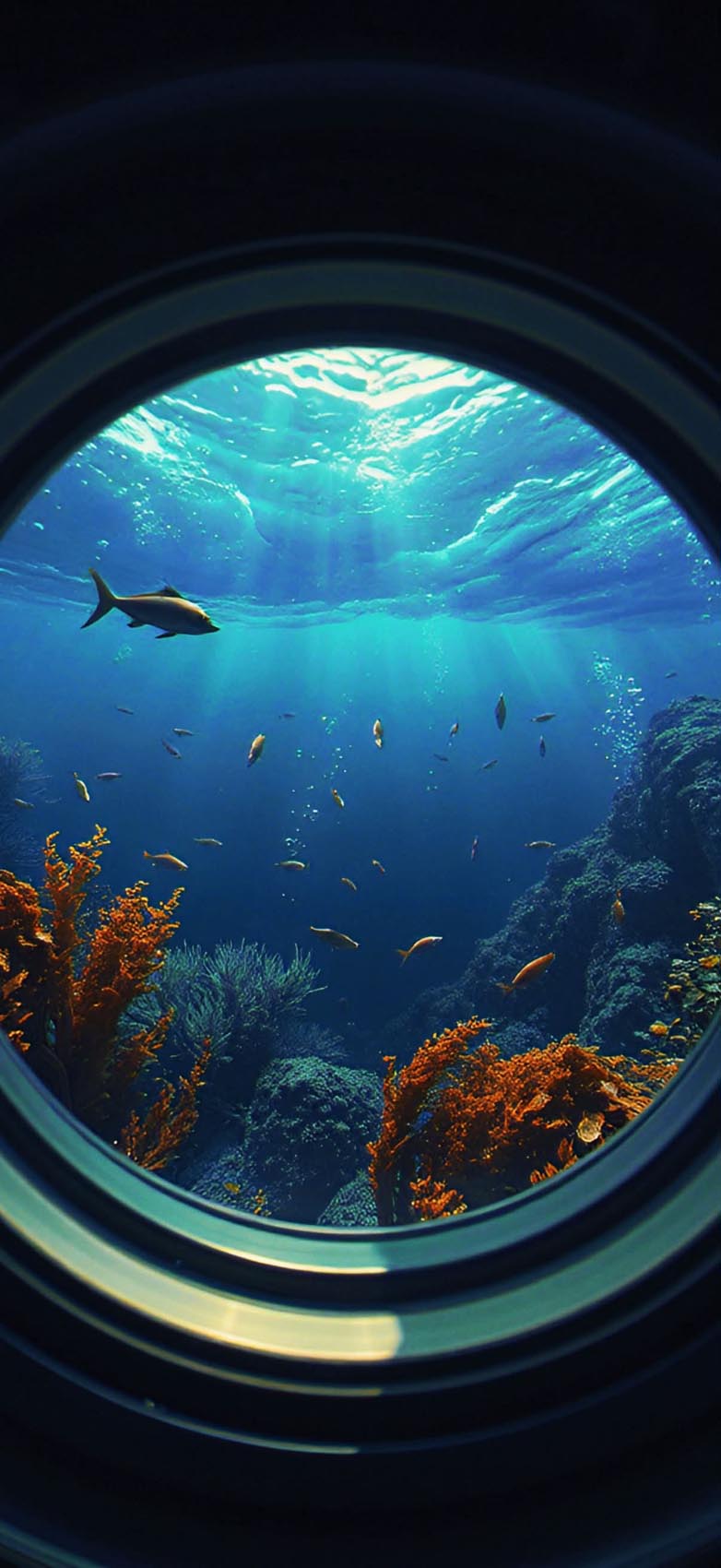
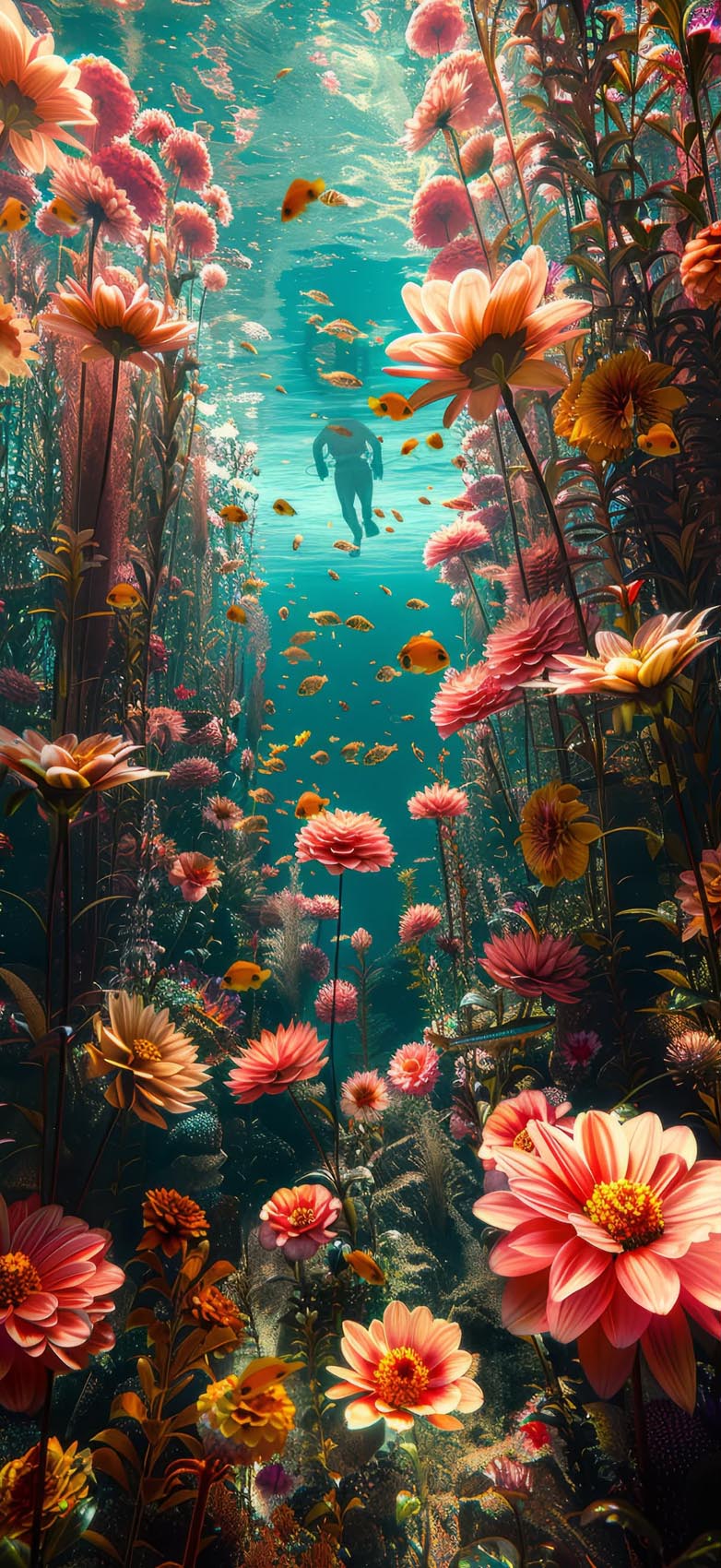
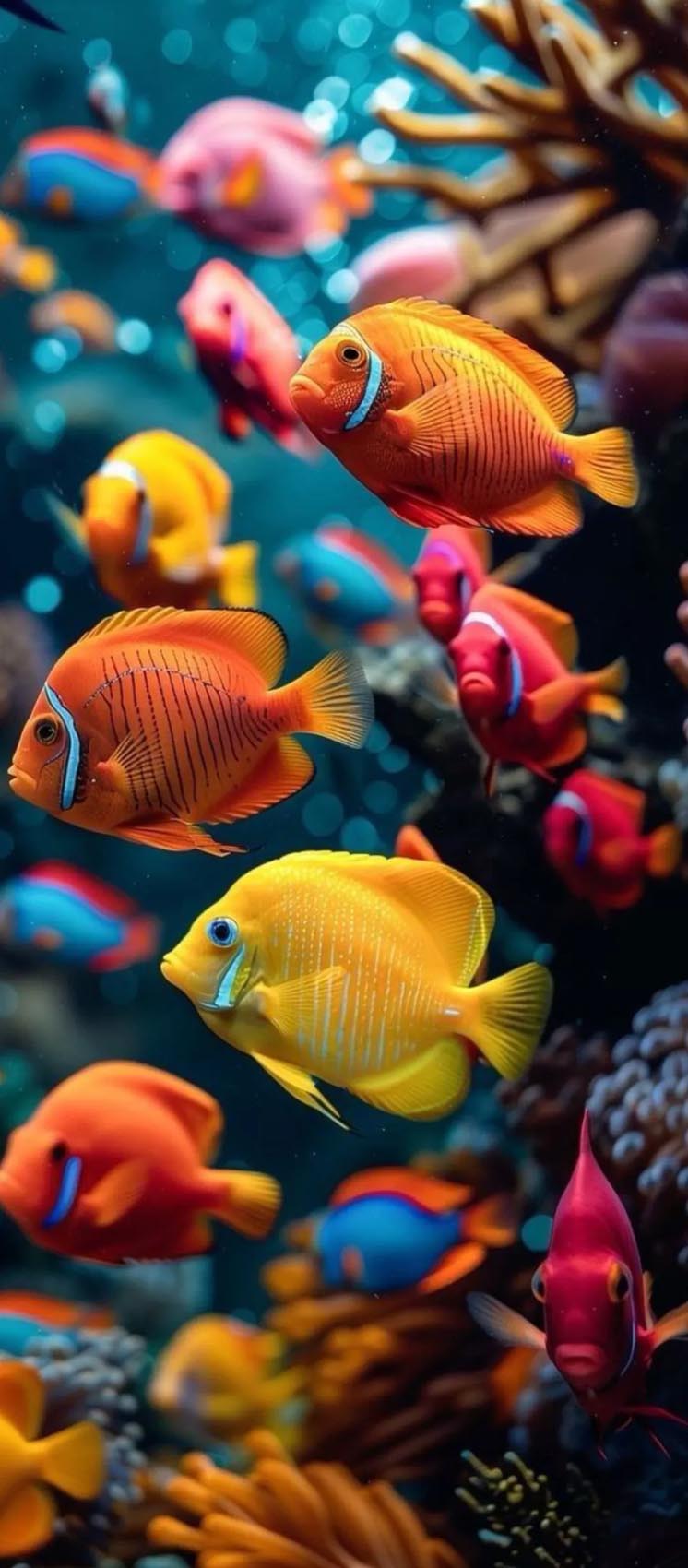
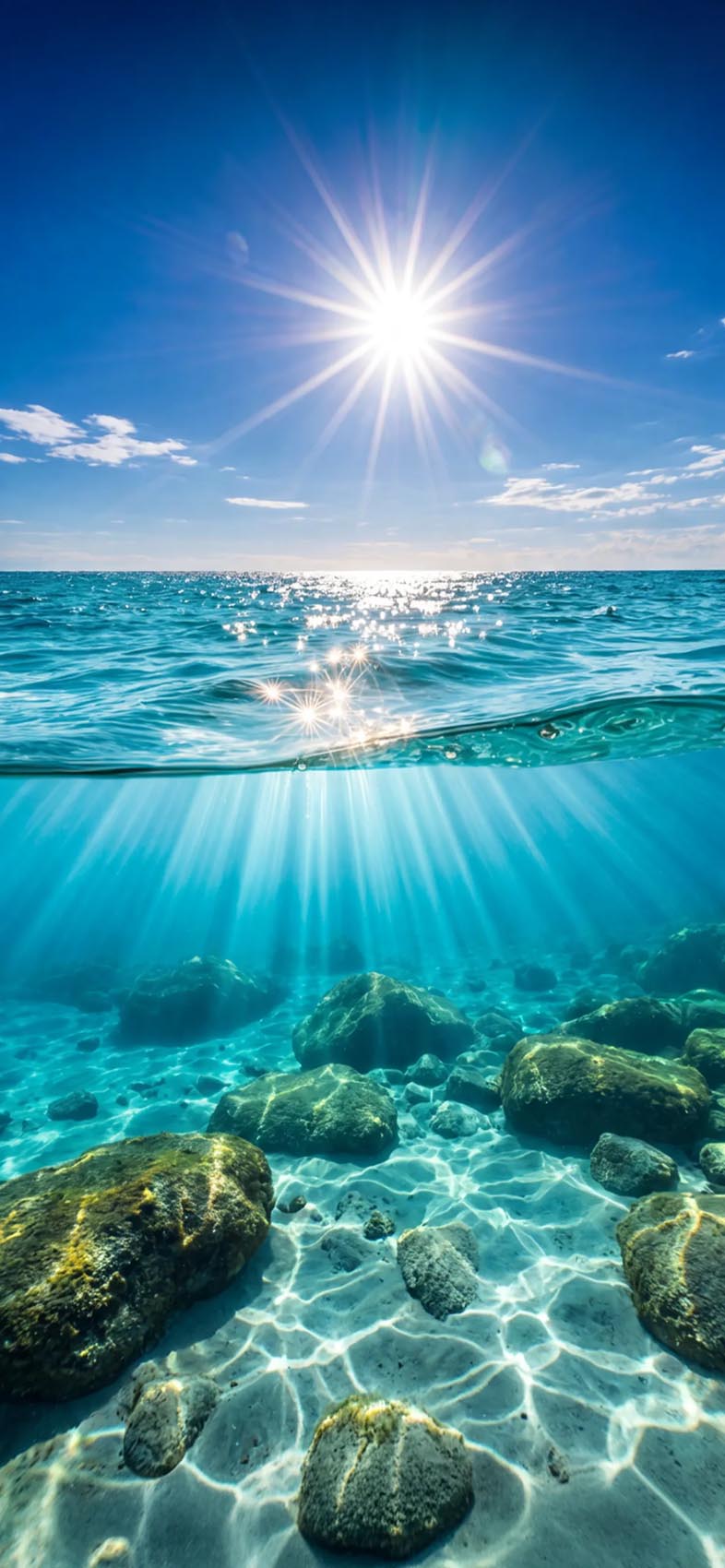
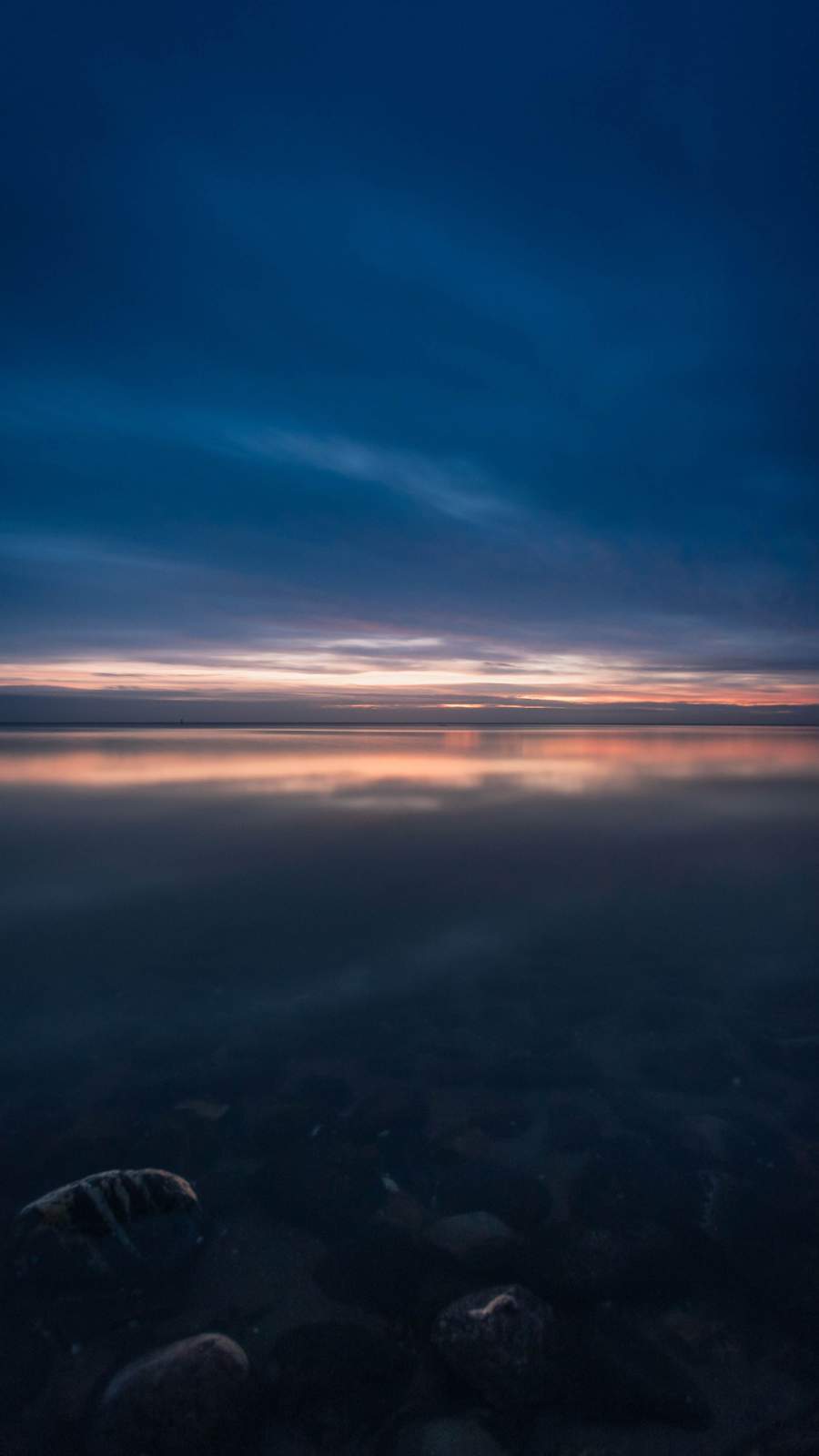

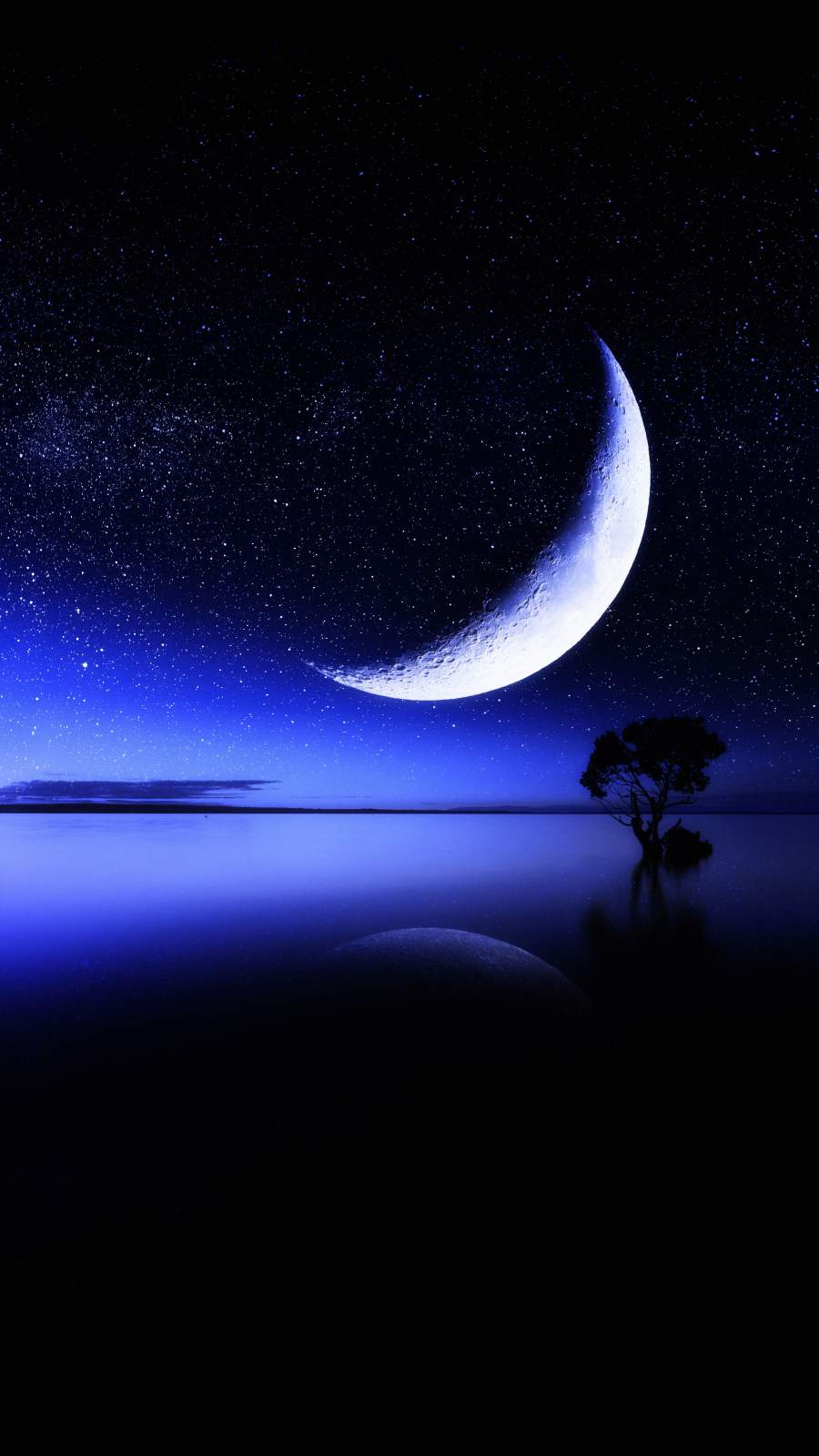
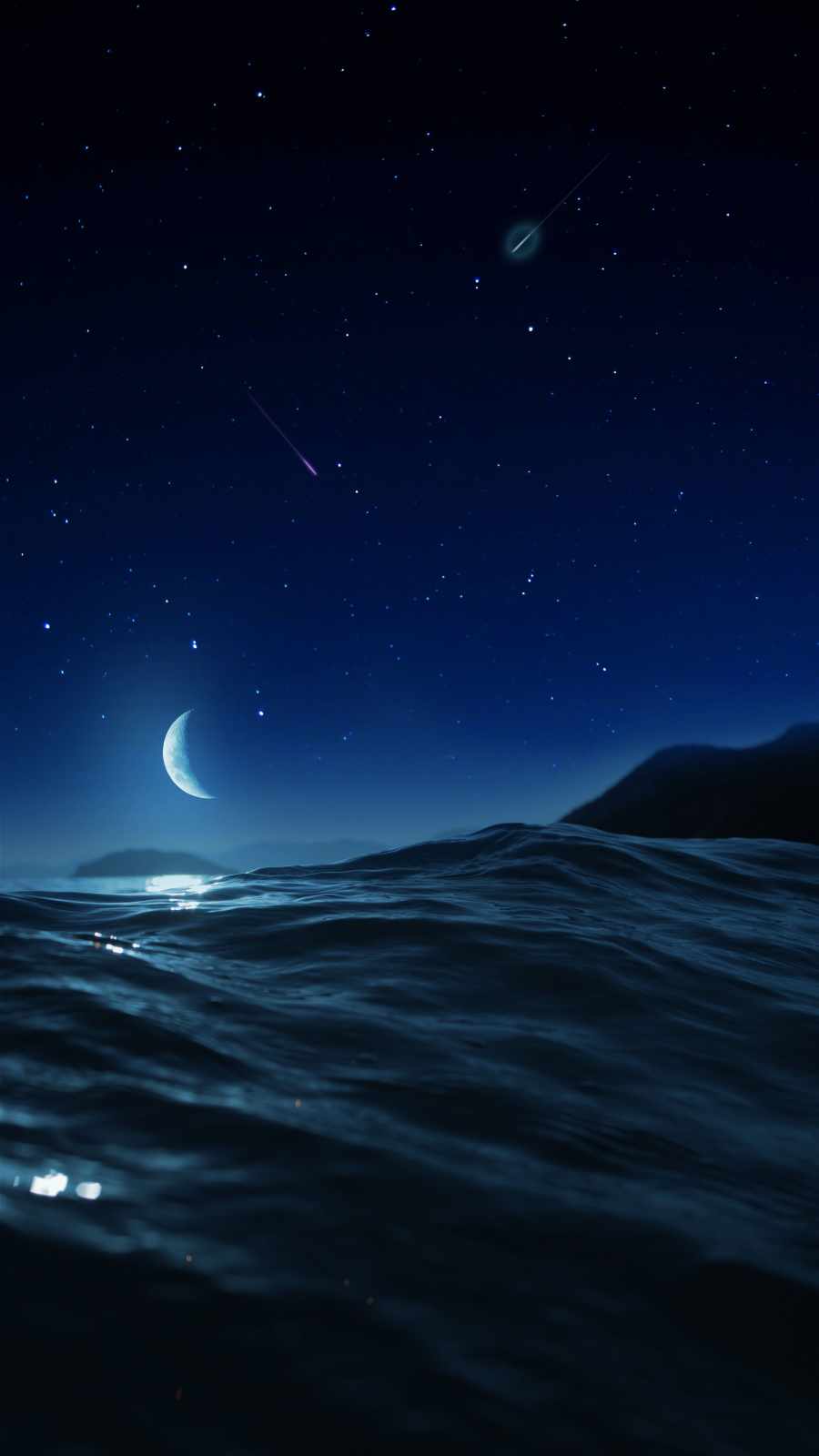

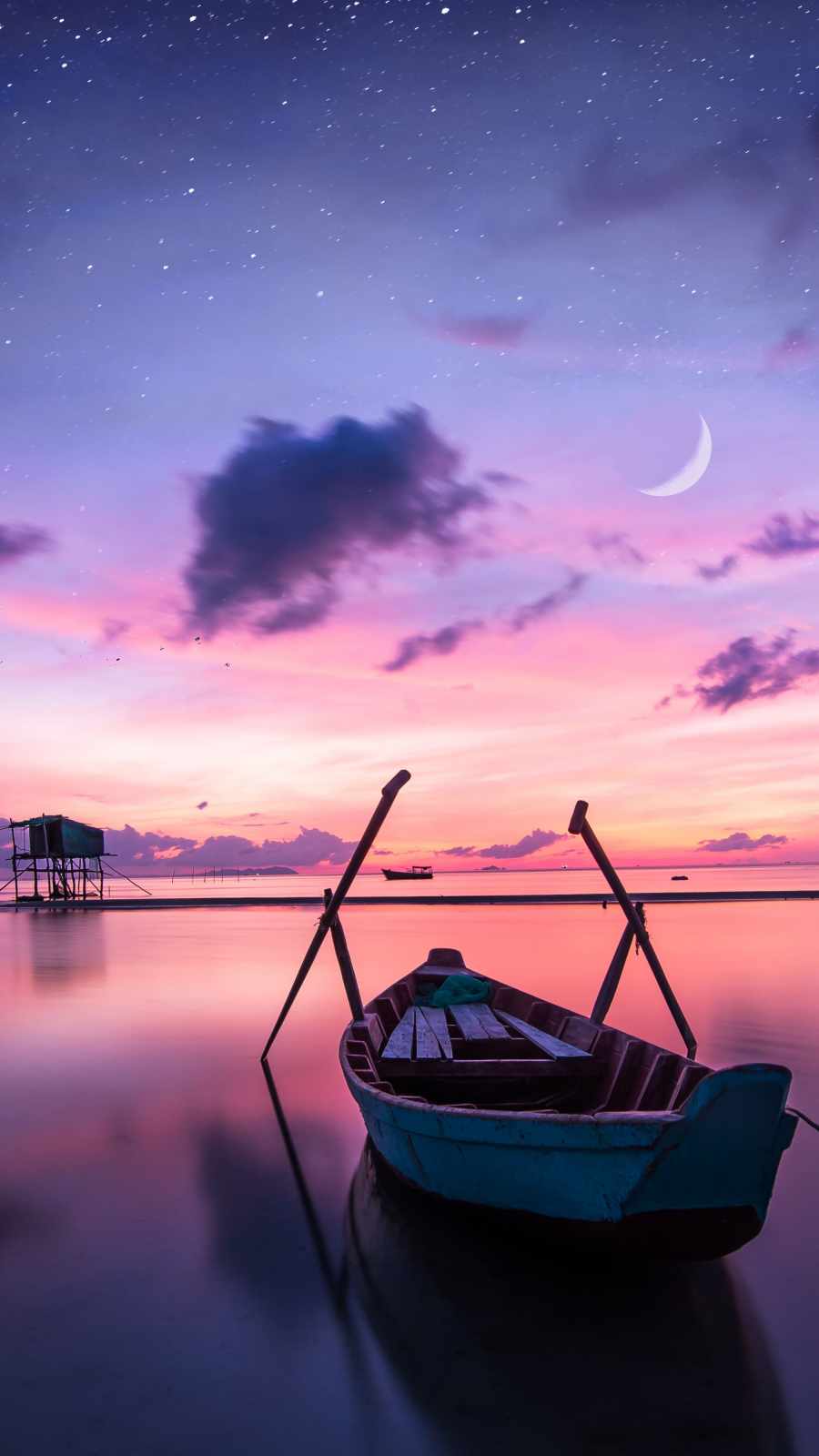
This set leans into variety rather than repeating the same shot with different filters:
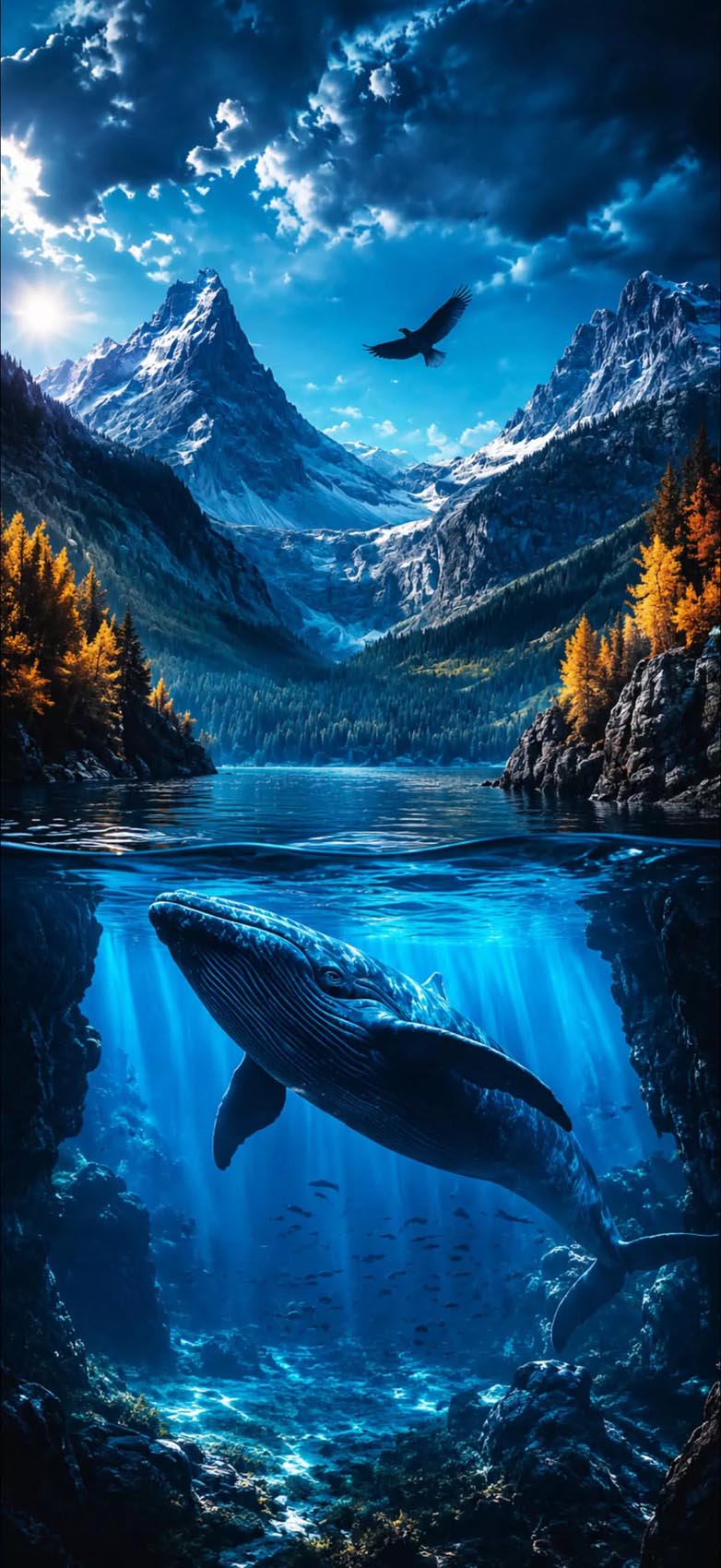
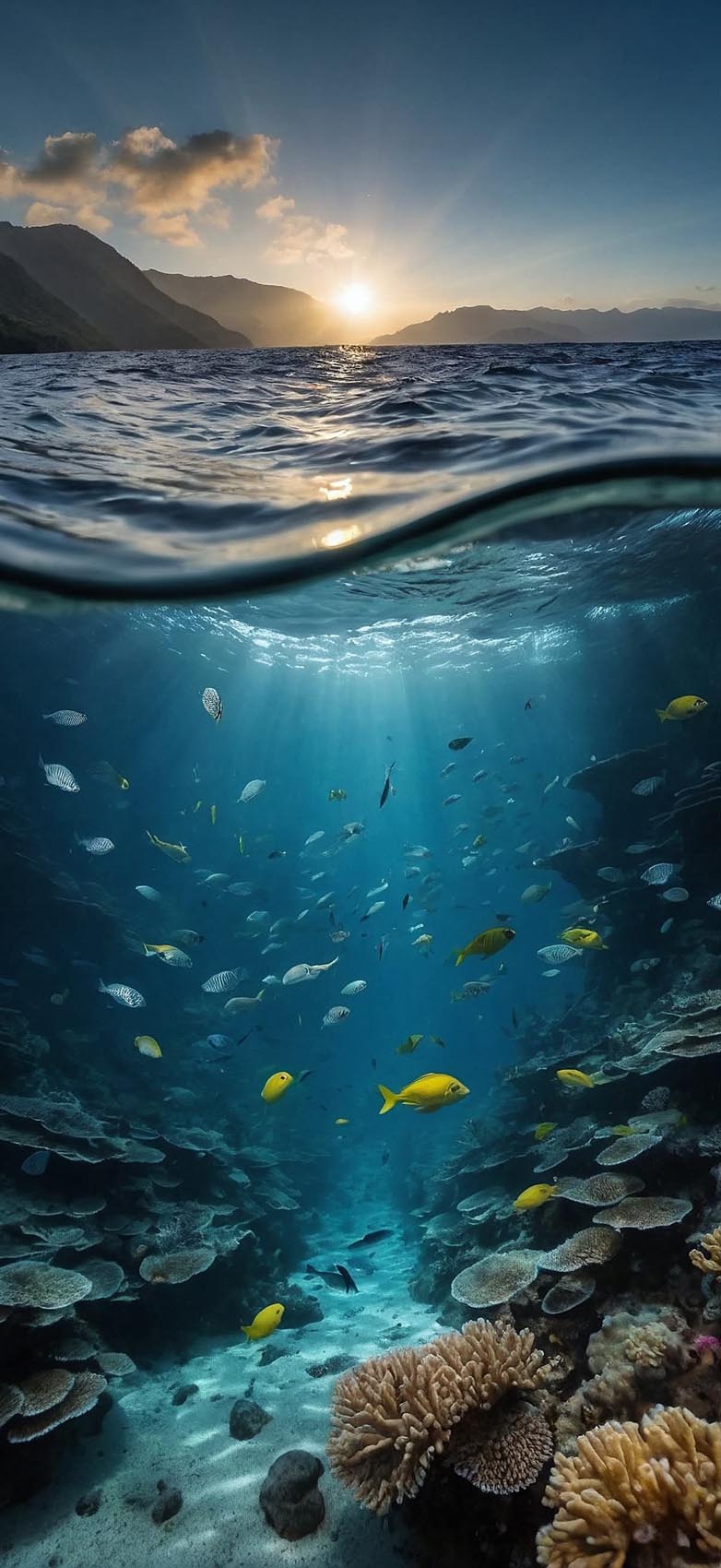
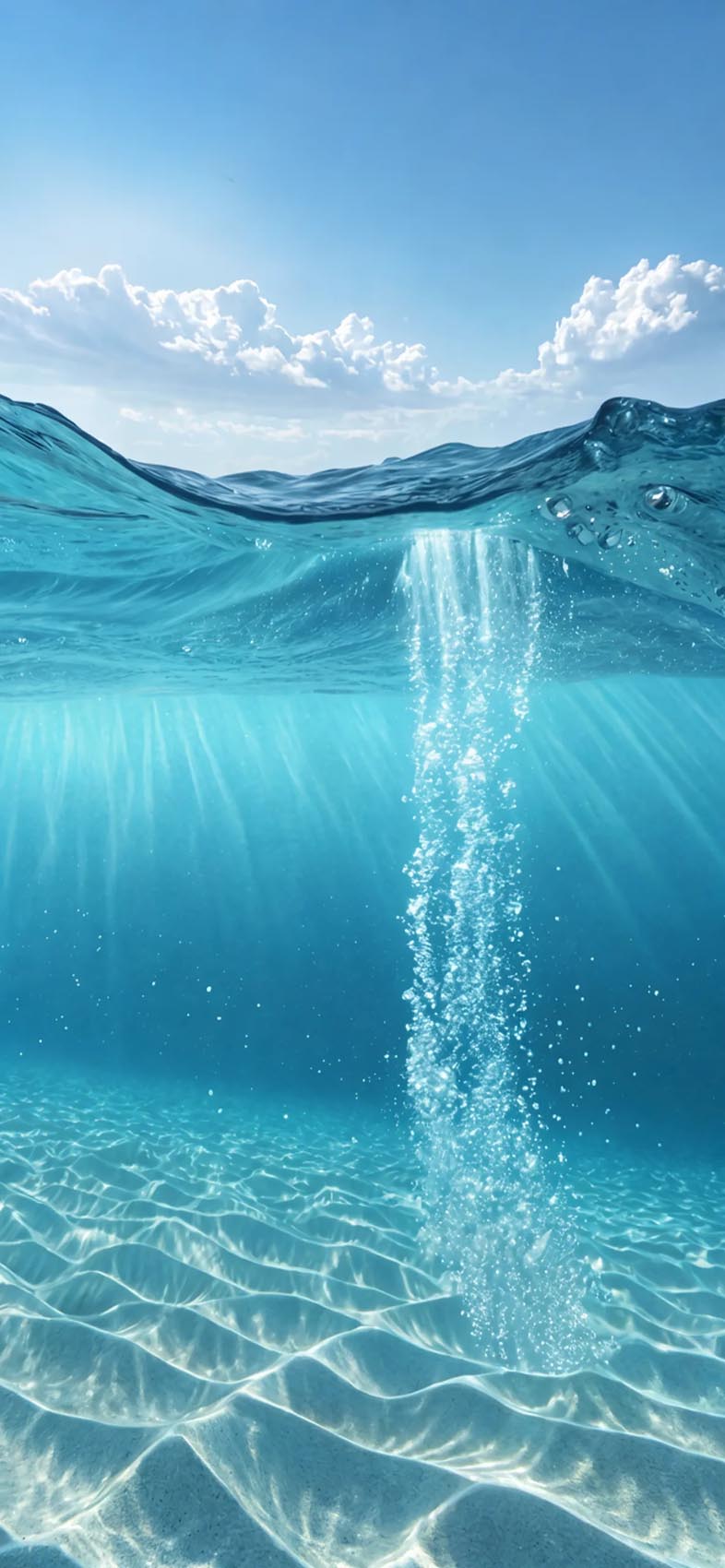
- Split-view seascapes — half sky, half underwater, with visible sunbeams piercing down through the surface. These work especially well as lock screen wallpapers since the horizon line naturally frames the clock widget.
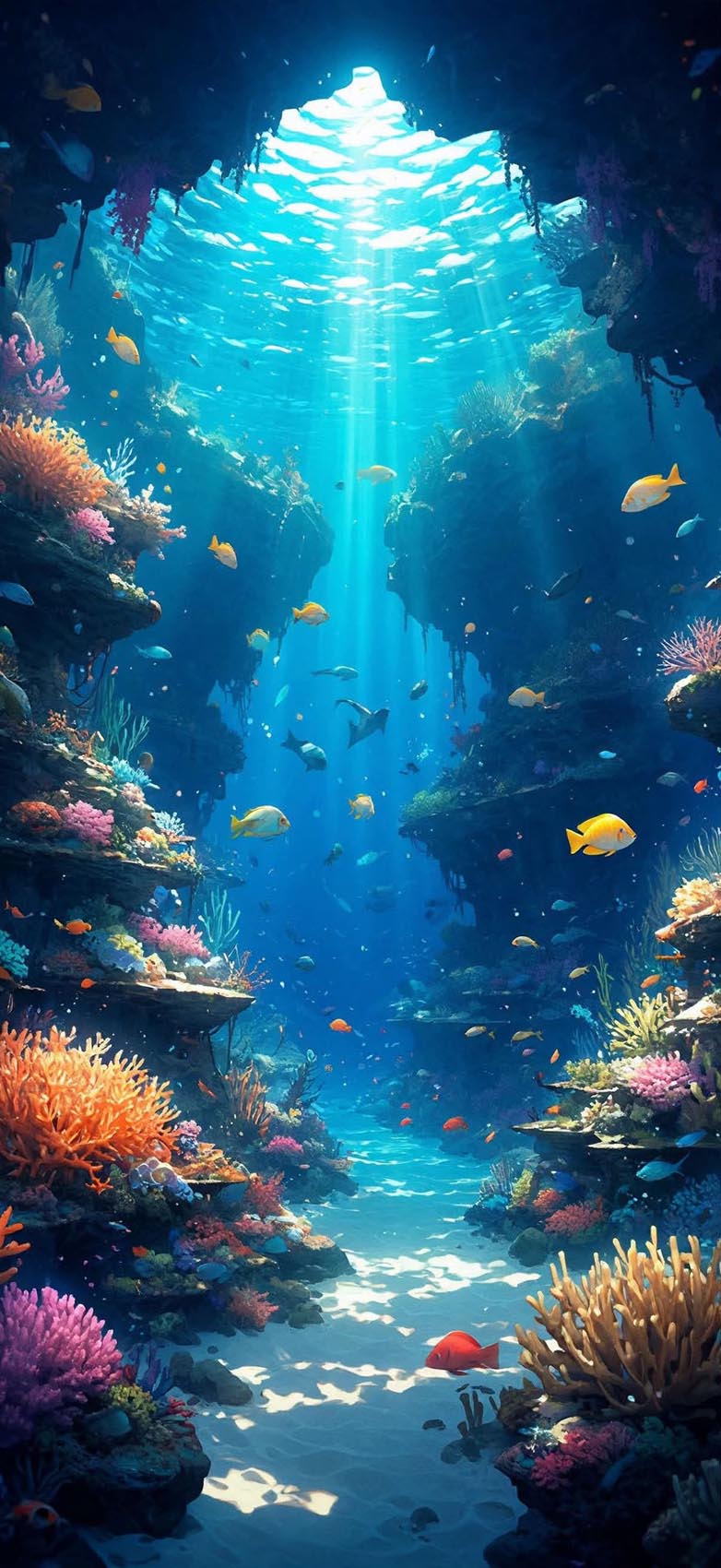
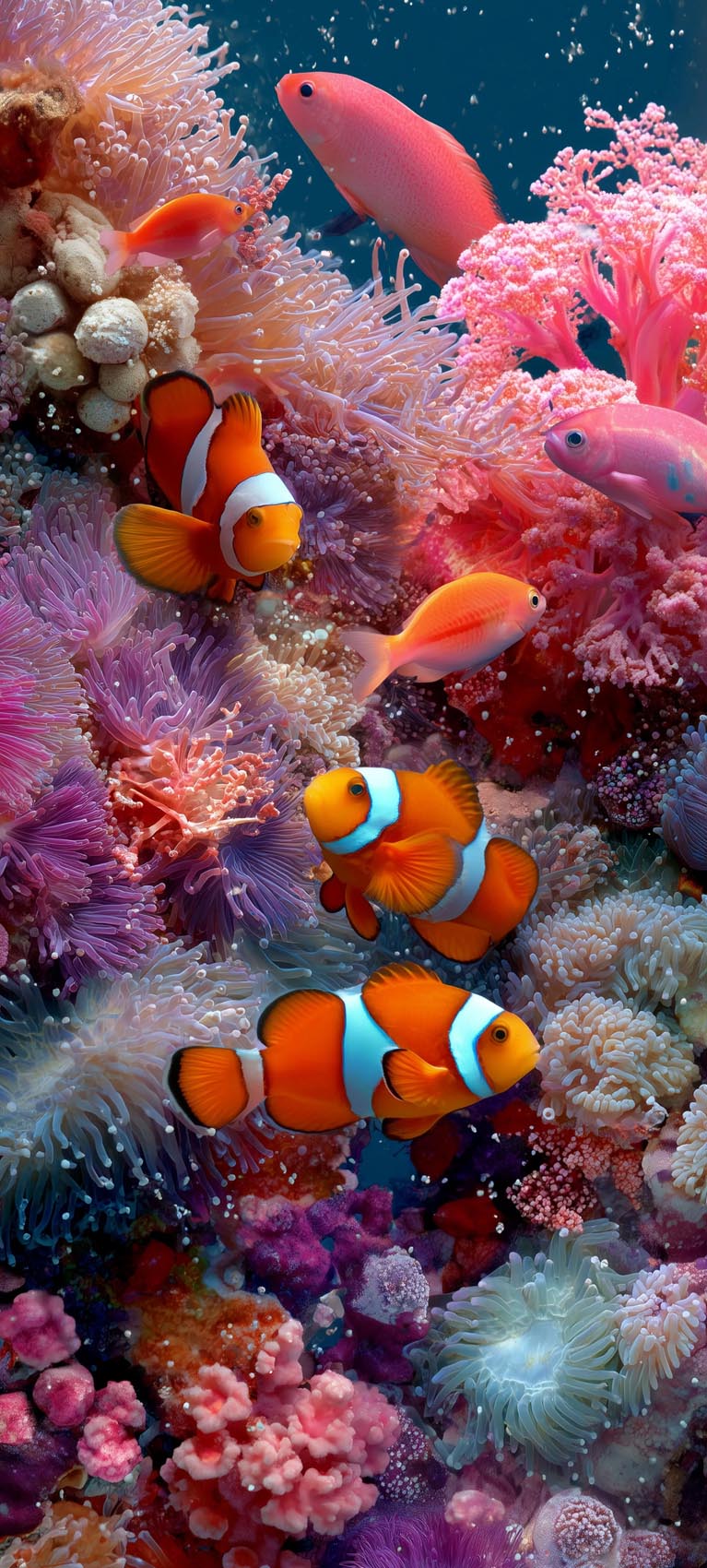
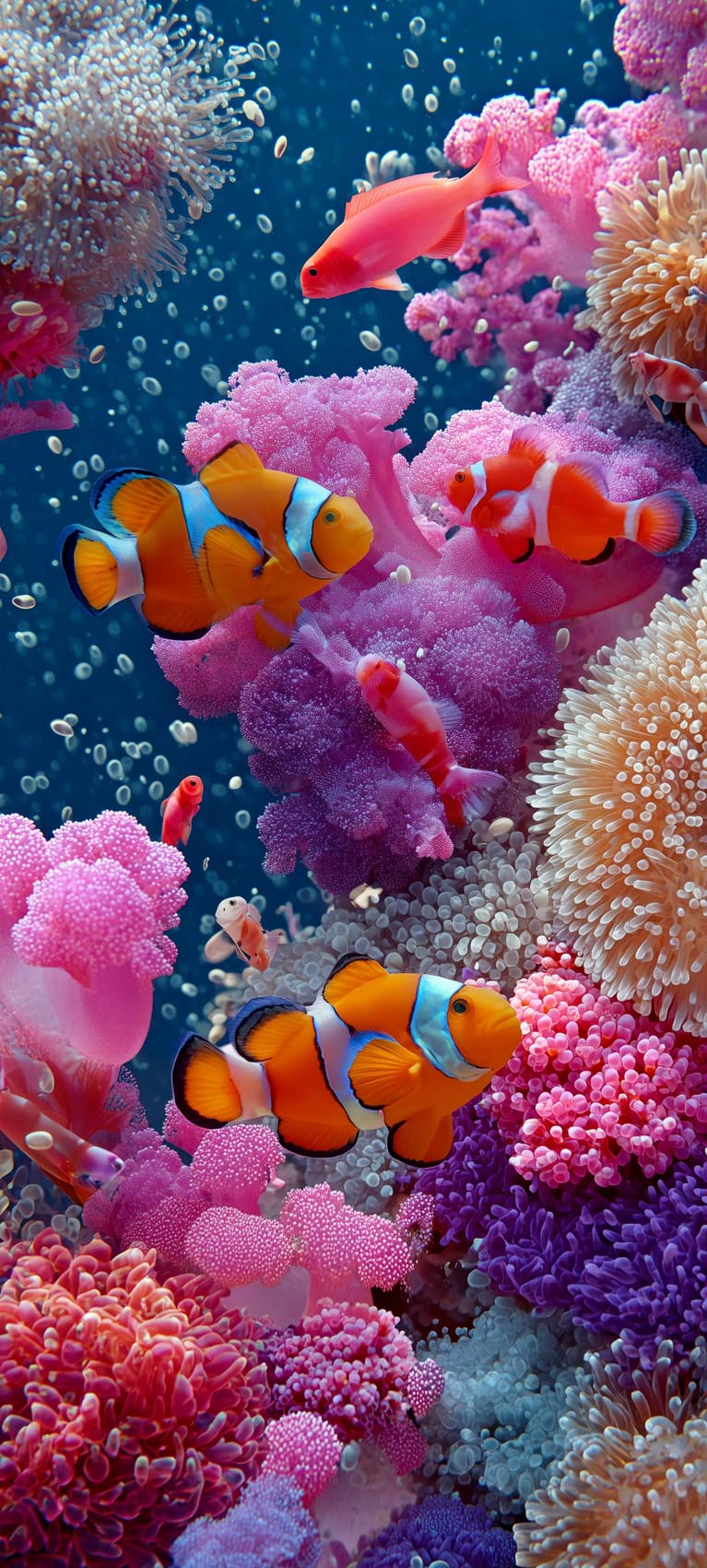
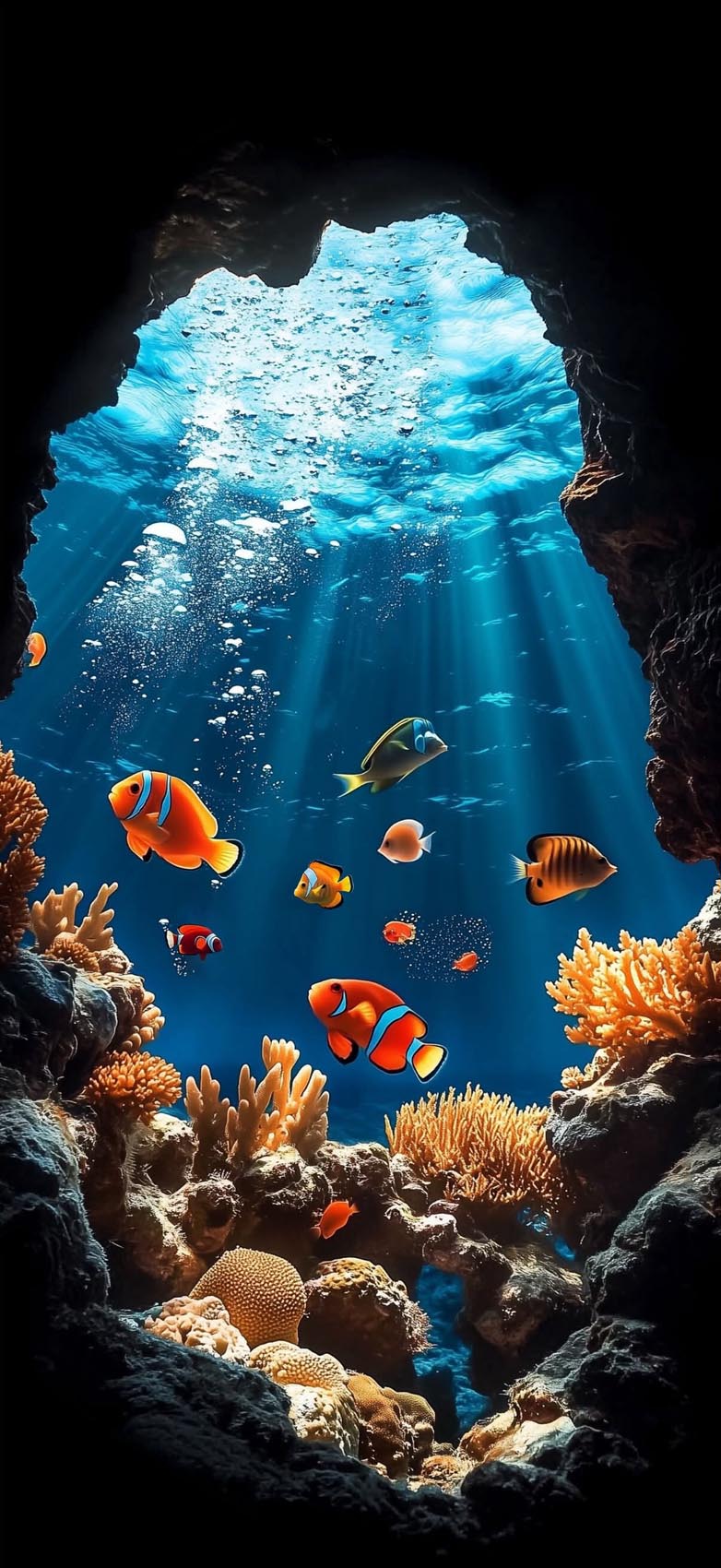
- Coral reef close-ups — clownfish, anemones, and tightly packed coral in saturated pinks, oranges, and blues. High detail, high color contrast, ideal if you want something that pops immediately when you unlock your phone.
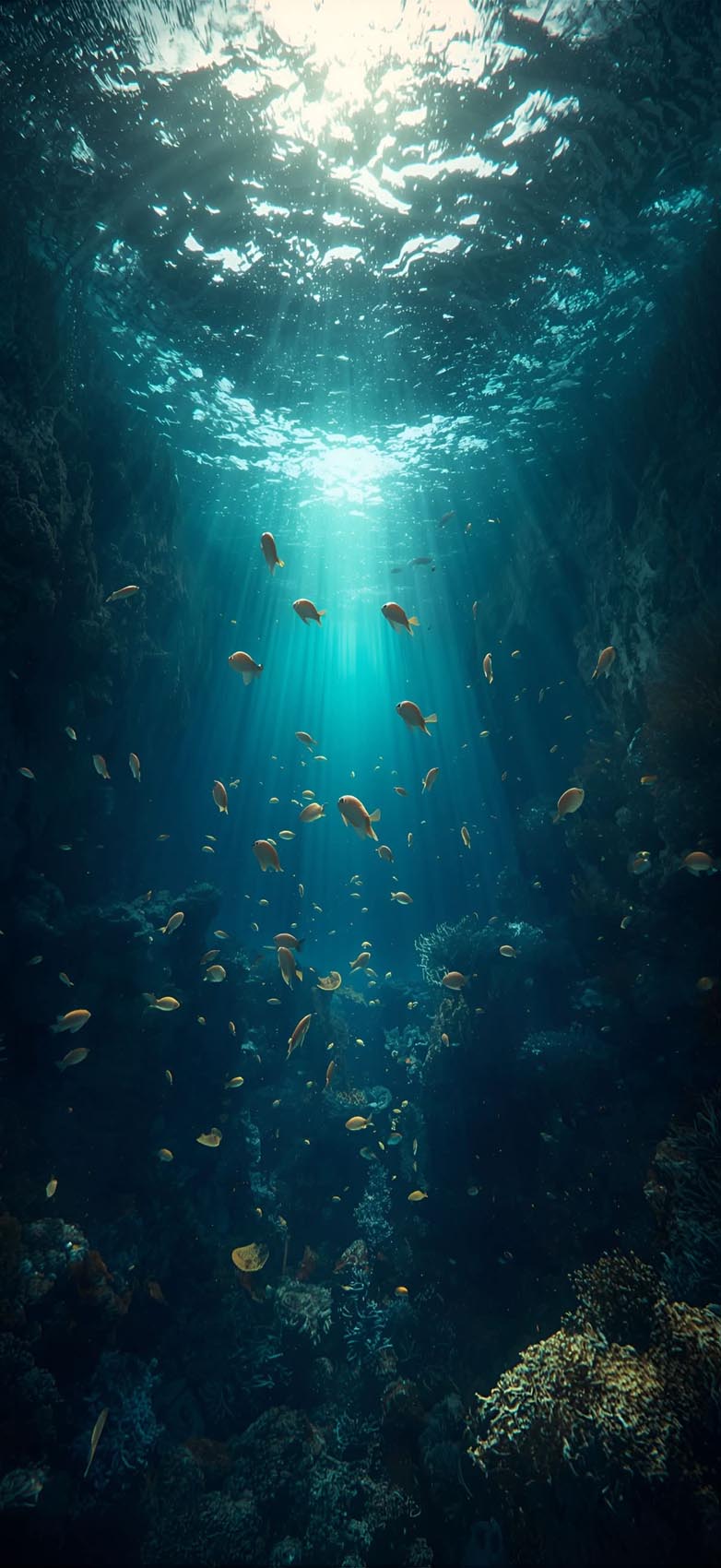
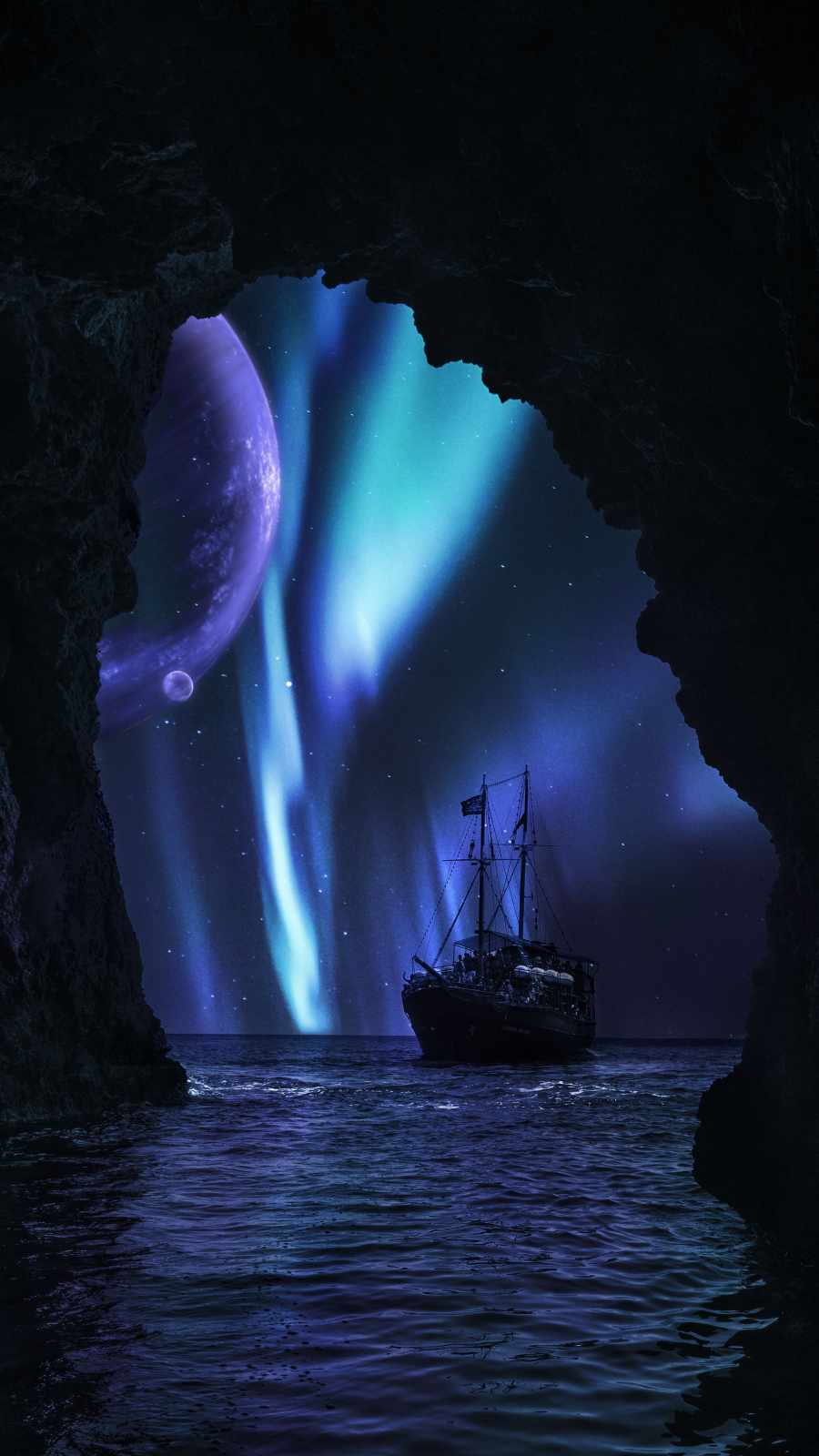
- Underwater cave and cavern shots — dark rock framing a bright column of light, fish silhouettes drifting through the beam. These give a more cinematic, moody feel compared to the brighter reef images.
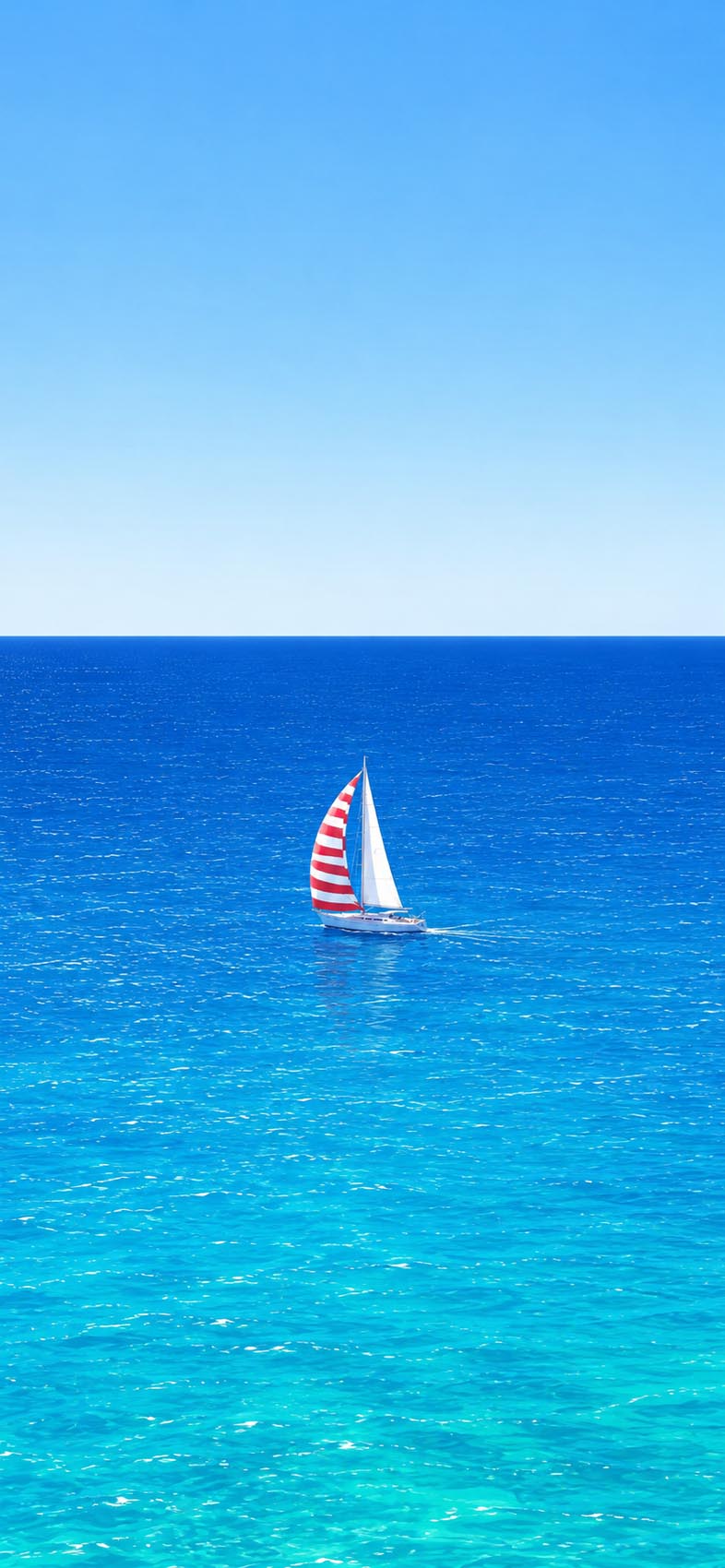
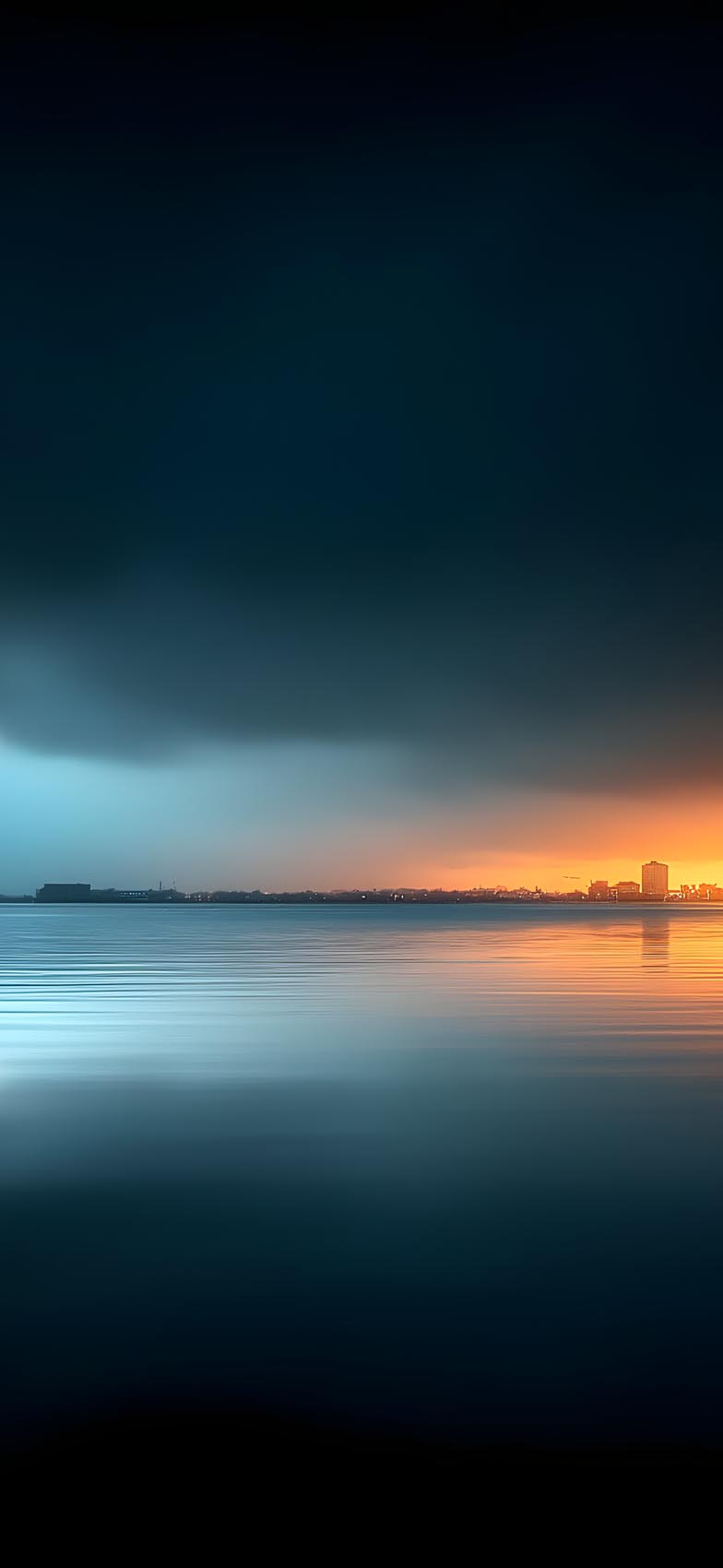
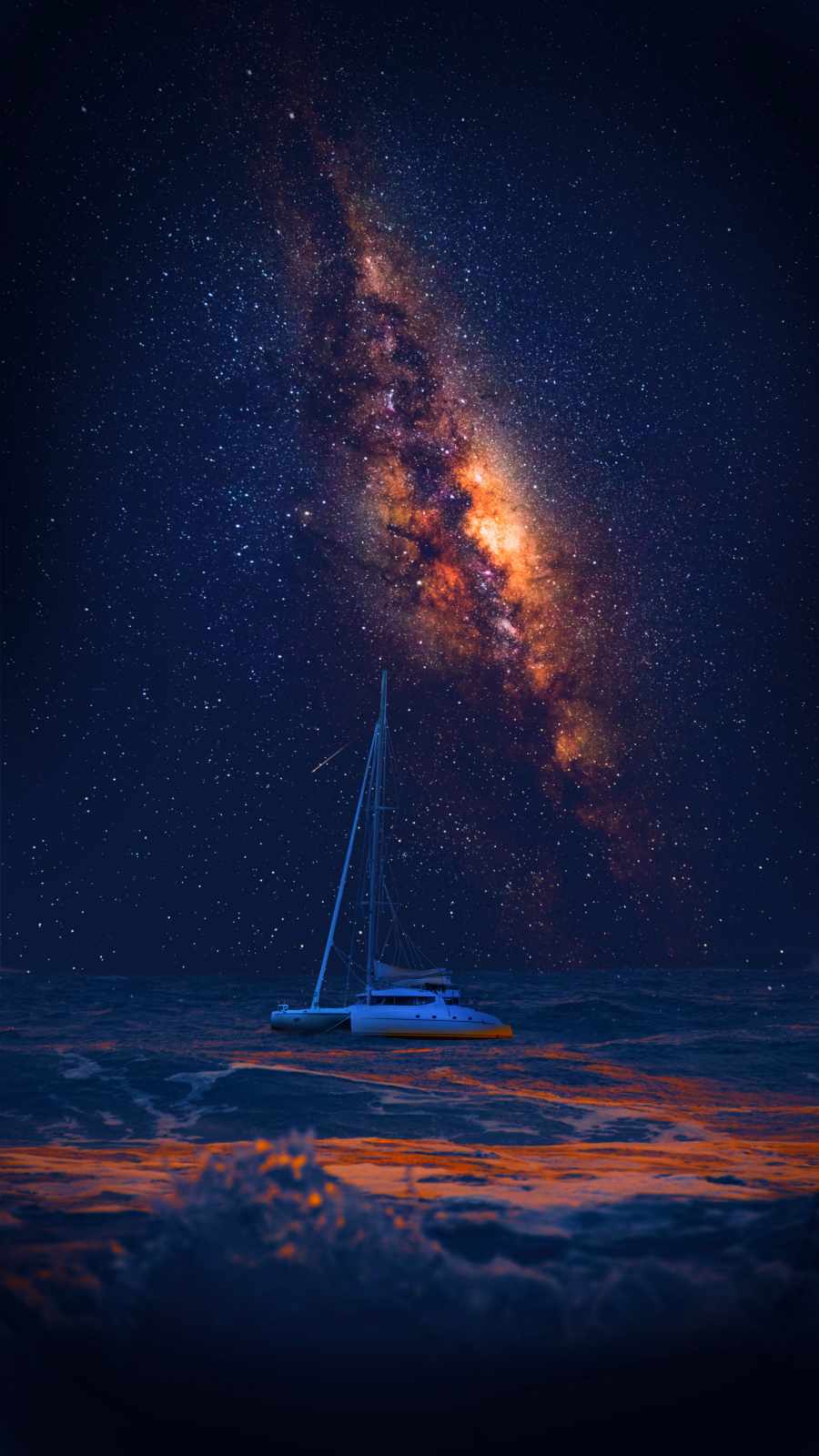
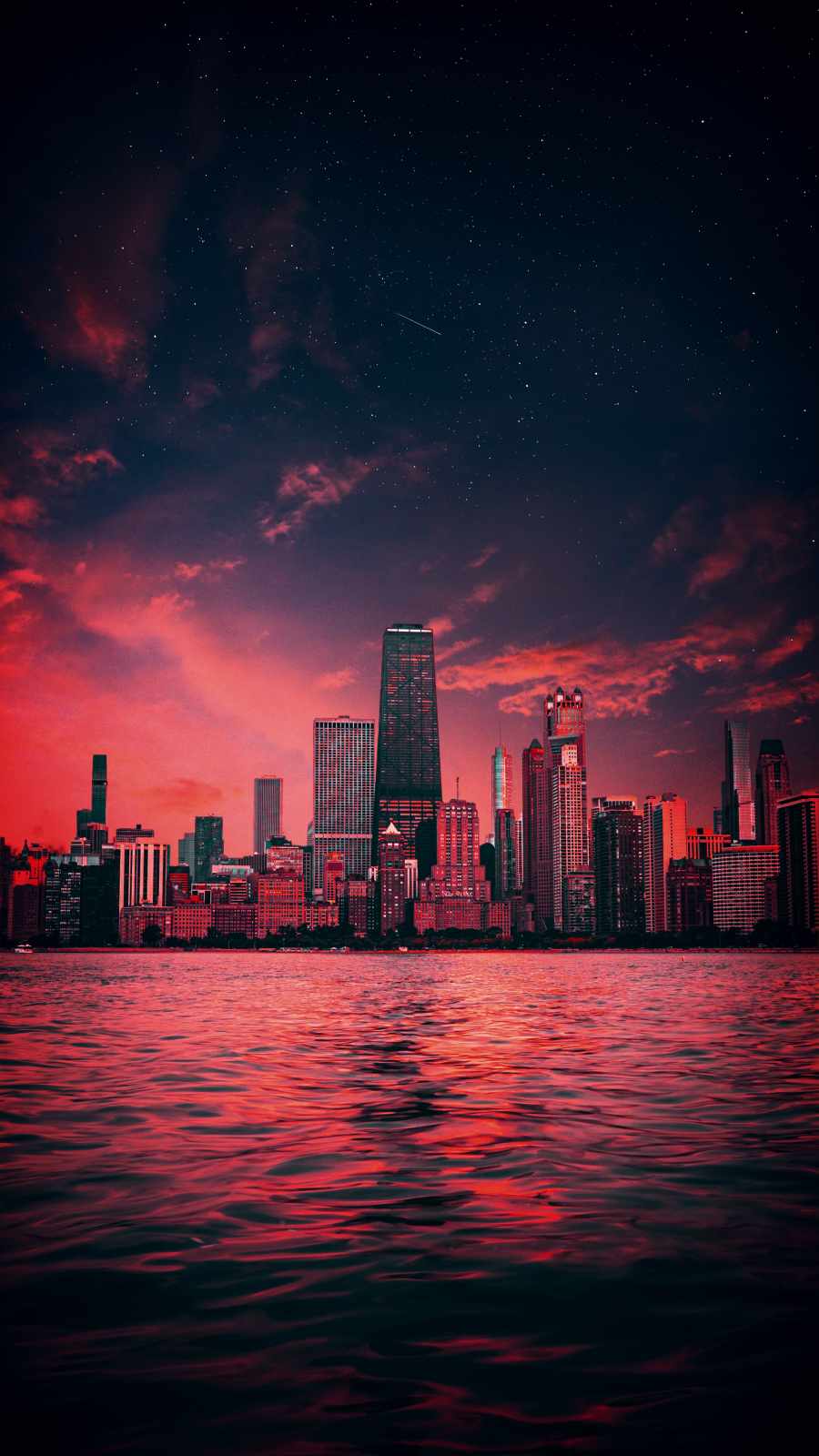
- Minimalist sea and sky scenes — a lone sailboat on flat blue water, a dusk skyline reflected across a still harbor. Good picks if you’d rather keep your home screen calm and let the app icons do the talking.
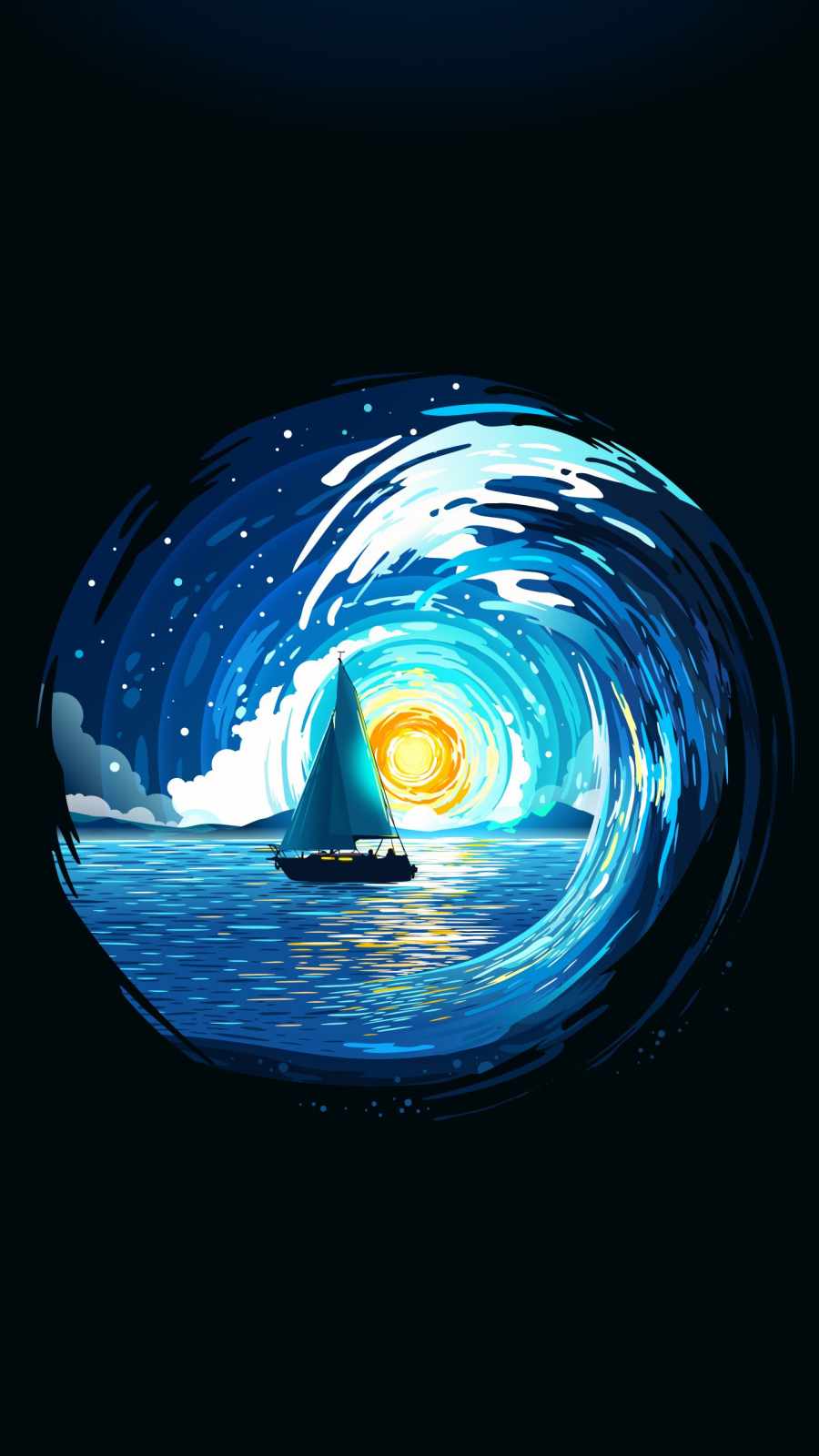
- Surreal and stylized pieces — an underwater flower garden, a whale suspended beneath a mountain lake. These sit slightly outside straight photography and work well if your whole phone setup leans more artistic than realistic.
Every image in the pack is sized for modern iPhone displays, so nothing gets awkwardly zoomed or letterboxed when you set it as a lock or home screen background.
How to actually set these without them looking cropped wrong
A mistake people make constantly: they save a wallpaper, set it, and don’t check how it sits behind the clock, widgets, or app icons before deciding they don’t like it. A few quick tips:
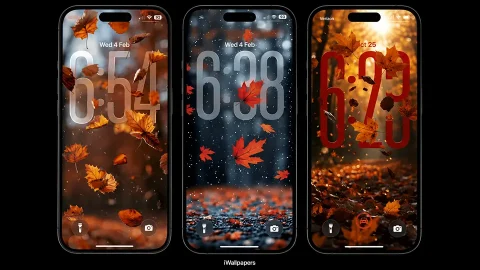
- Preview before committing. iOS lets you drag and reposition a wallpaper in the picker — use it. Subjects with a clear focal point (a fish, a boat, a sunbeam) should usually sit in the middle third of the screen, not right where the clock will overlap it.
- Match lock and home screens intentionally, not automatically. iOS defaults to using the same image for both. A busy reef shot can feel overwhelming as a home screen background once app icons are on top of it — consider pairing a busier lock screen with a calmer, darker home screen from the same set (the cave or minimalist shots work well here).
- Check dark mode compatibility. If you switch between light and dark mode throughout the day, darker underwater cave shots hold up better under both than the brighter surface-level images, which can look washed out against a dark-mode dock.
- Save the full-res version. Compressed downloads from social media or messaging apps often strip resolution. Grab the original file size where possible so the image doesn’t look soft when you’re staring at it up close.
A quick note on sourcing
If you’re pulling wallpapers together from multiple places — screenshots, downloads, saved posts — it’s worth keeping them organized with clear, descriptive file names rather than the auto-generated strings phones and social apps usually assign. Beyond making them easier to find later, it also makes syncing to cloud storage or sharing a folder with someone else far less confusing than hunting through a list of random numbers.
Final thought
Wallpapers are one of the lowest-effort, highest-frequency ways to change how a device feels to use. You don’t need a matching case, a new lock screen widget layout, or an hour of tweaking — just an image that actually looks like it belongs on your specific screen size. This ocean and underwater set is built around that idea: real depth, real color, and crops that were made for iPhone displays instead of adapted to fit them.