
18 Free “Hello” iPhone Wallpapers — Neon, Gradient & Glass Style (2026)
If you’ve been searching for a fresh lock screen look, the “hello” wallpaper trend is one of the most popular minimalist styles on iPhone right now. It pairs a simple cursive greeting with bold color and lighting effects, making it perfect for showing off the Dynamic Island and lock screen widgets on modern iPhones. Below, we’ve rounded up 18 free “hello” wallpapers in a range of styles, plus a quick tutorial on how to set them up correctly so they look sharp on your screen.
Why the “Hello” Wallpaper Trend Is So Popular
Apple’s own marketing material popularized the cursive “hello” script years ago, and the design has since been remixed into dozens of aesthetic variations. What makes it such a lasting favorite is its simplicity: a single word, rendered in light, sits against a colorful or moody backdrop, leaving plenty of negative space for the clock, notifications, and widgets on iOS lock screens.
This collection covers four major styles you’ll find people searching for:
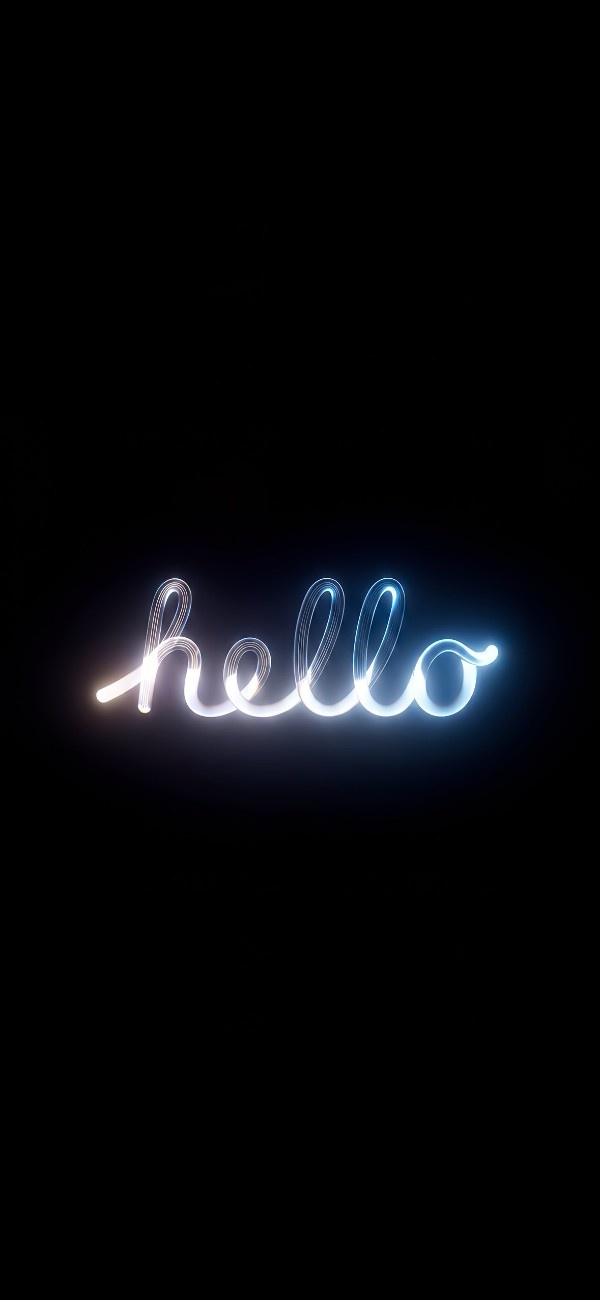
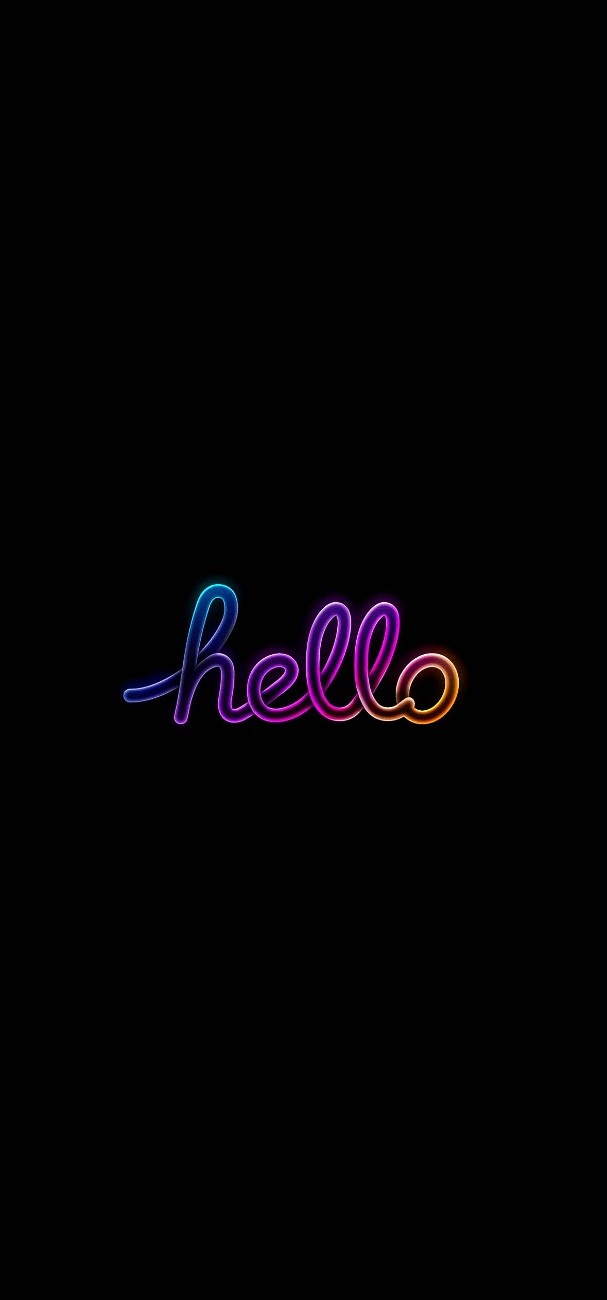
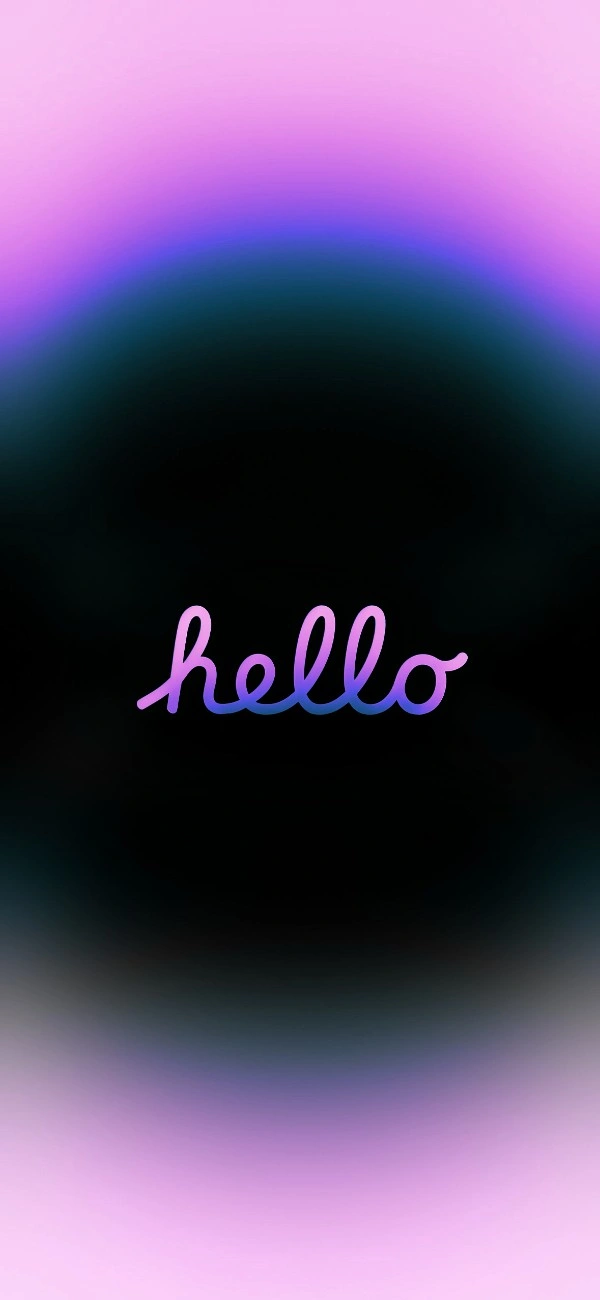
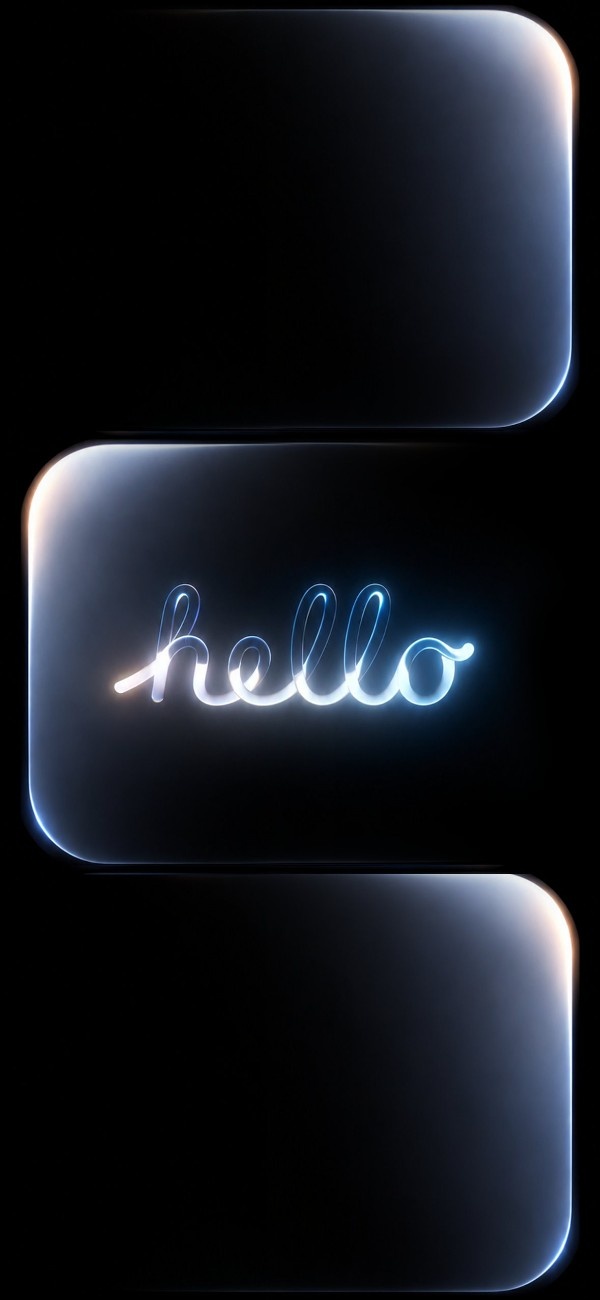
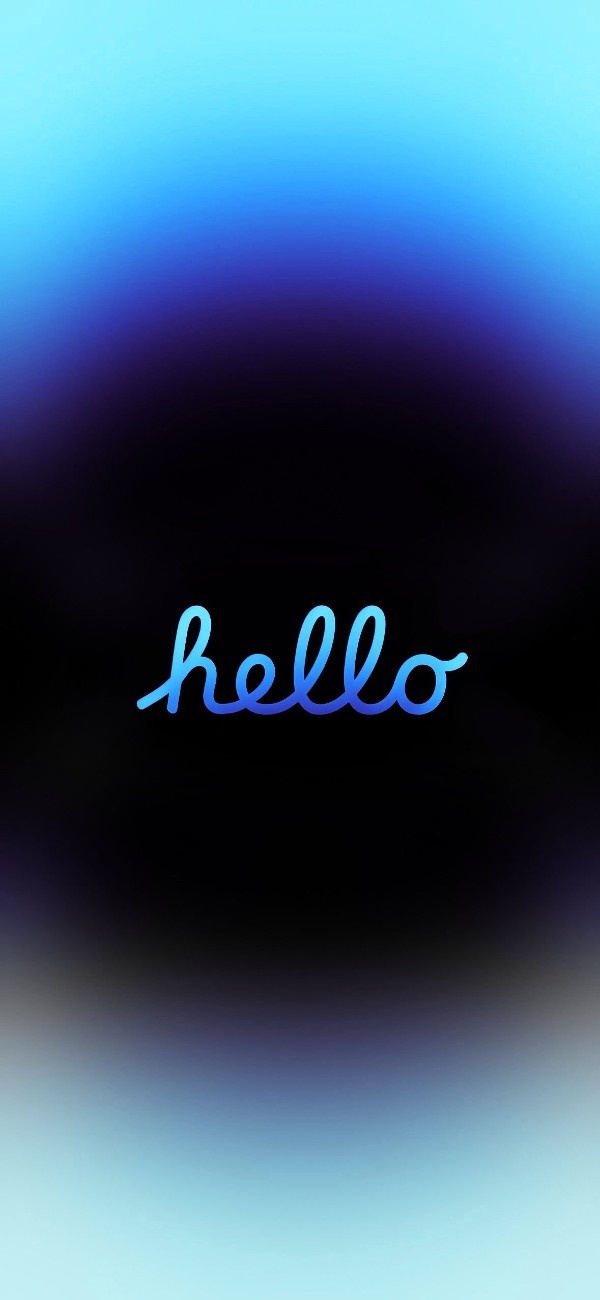
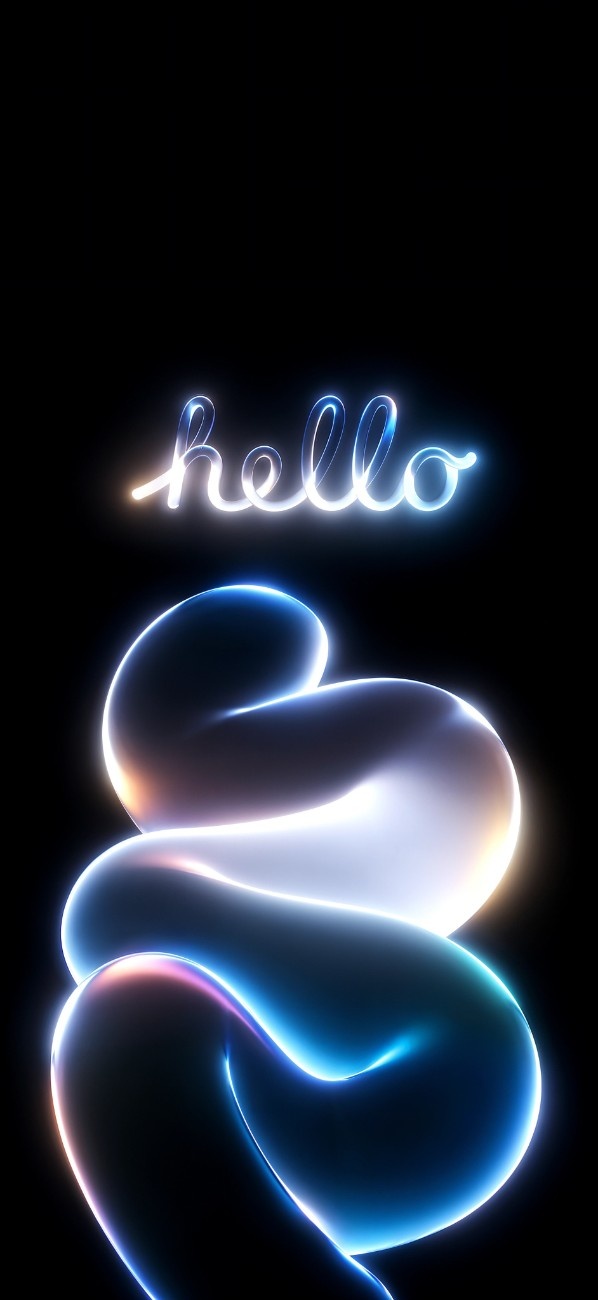
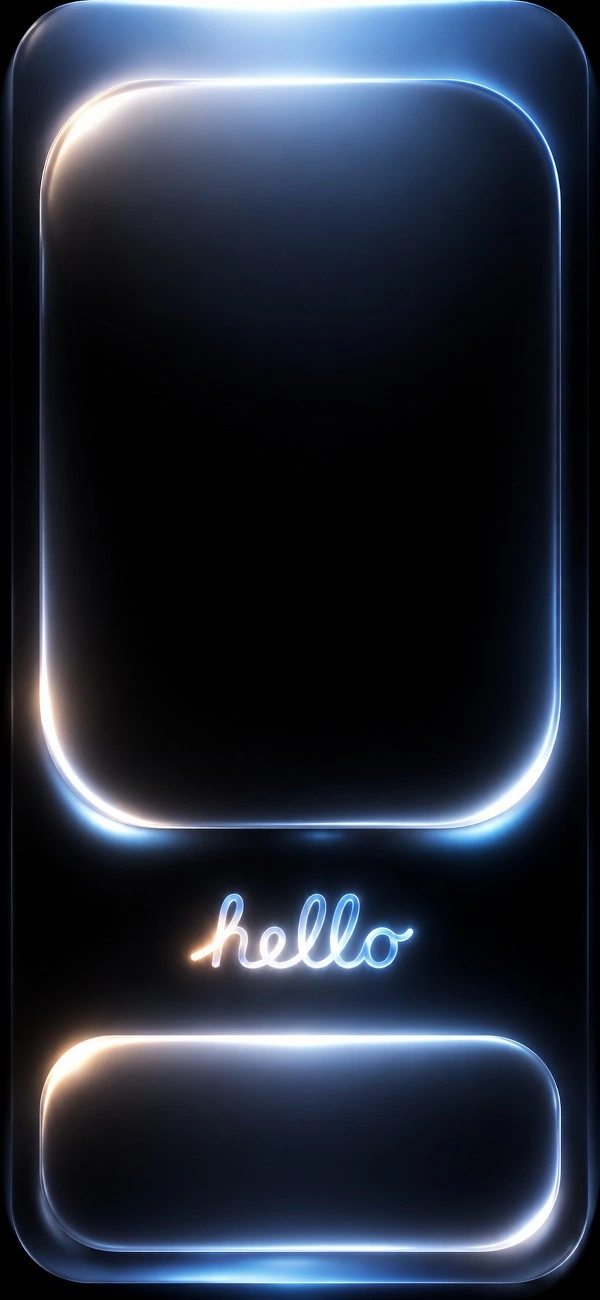
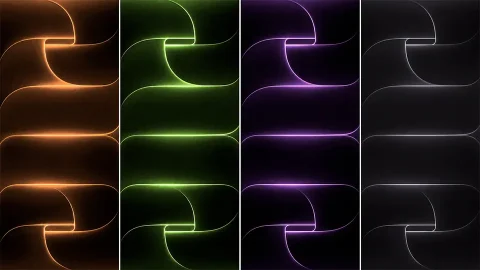
Neon glow wallpapers feature the “hello” script rendered like a glowing wire or light trail, often in white, blue, or rainbow gradients against pure black backgrounds. These look especially striking on OLED displays, where the black areas appear truly black.
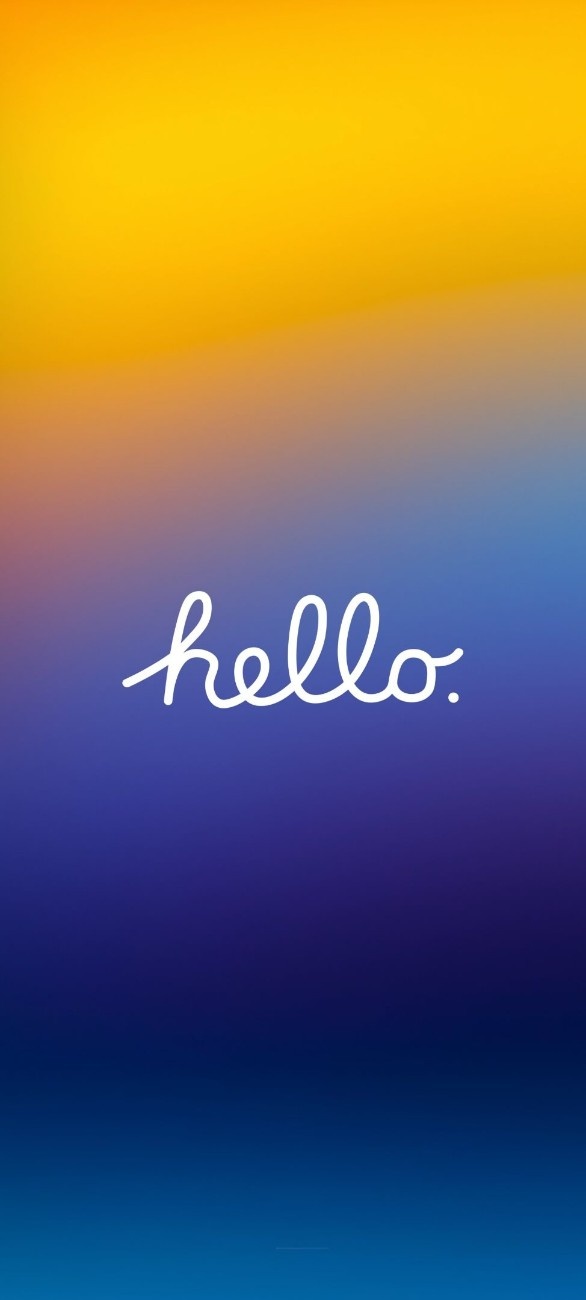
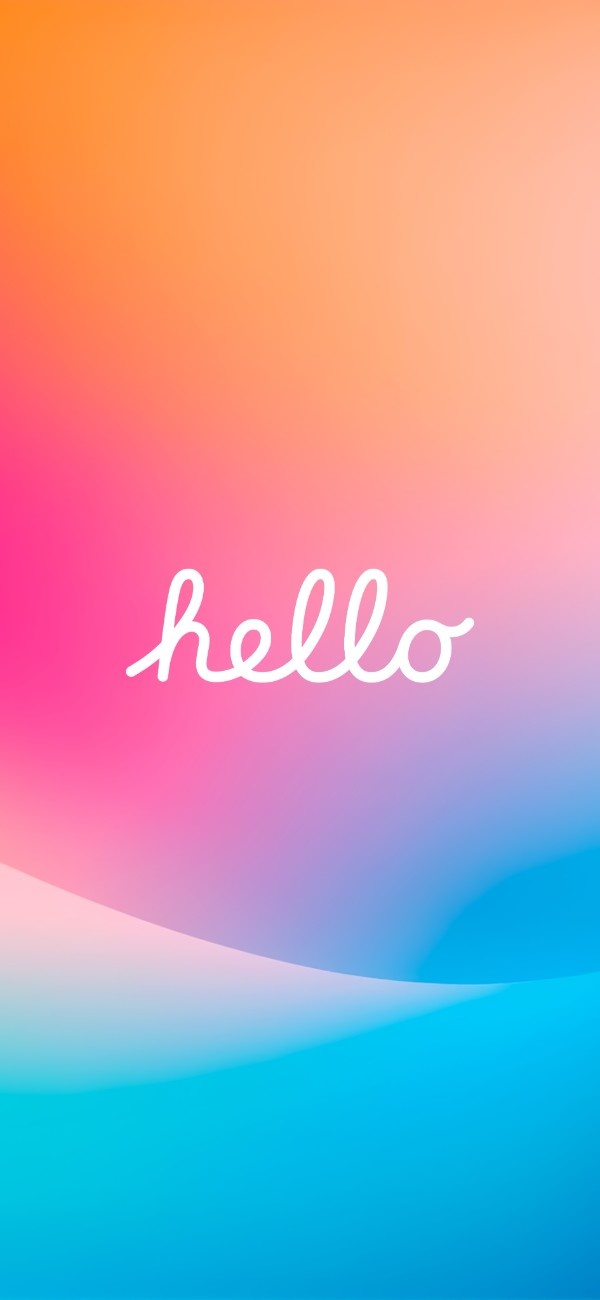
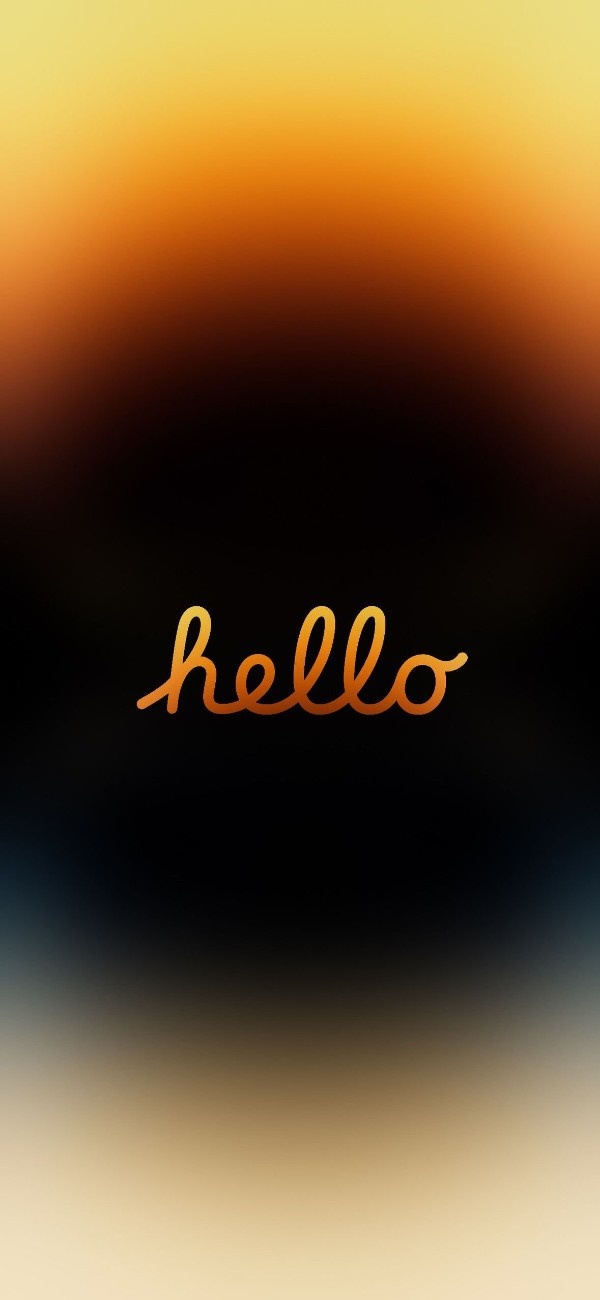
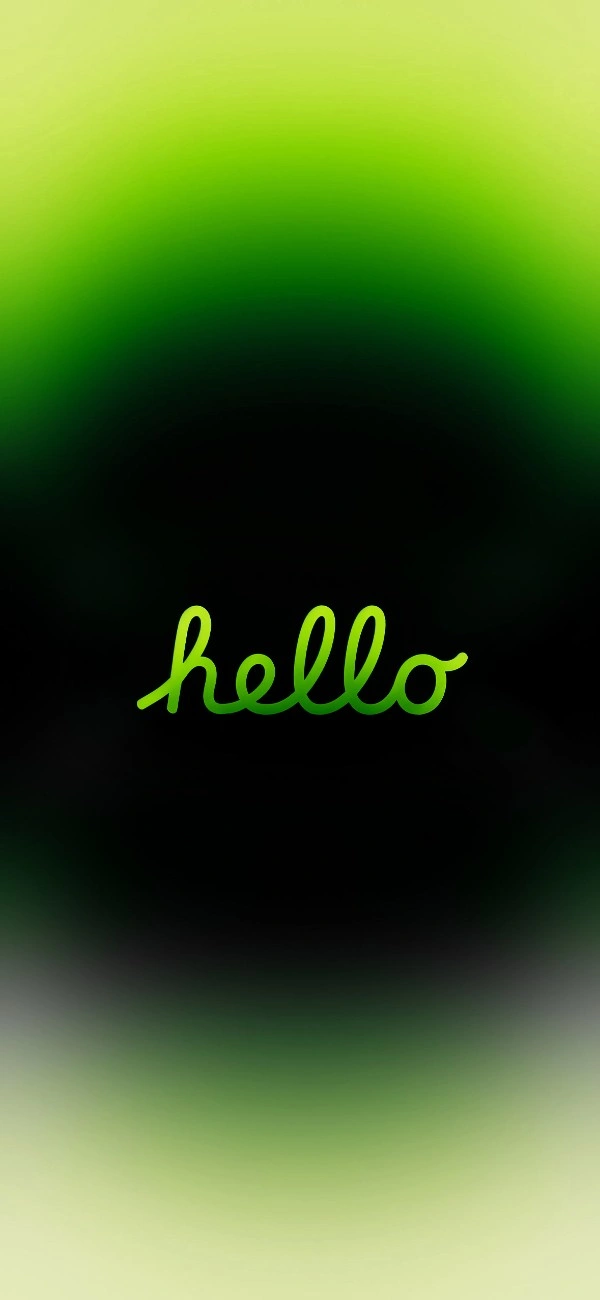
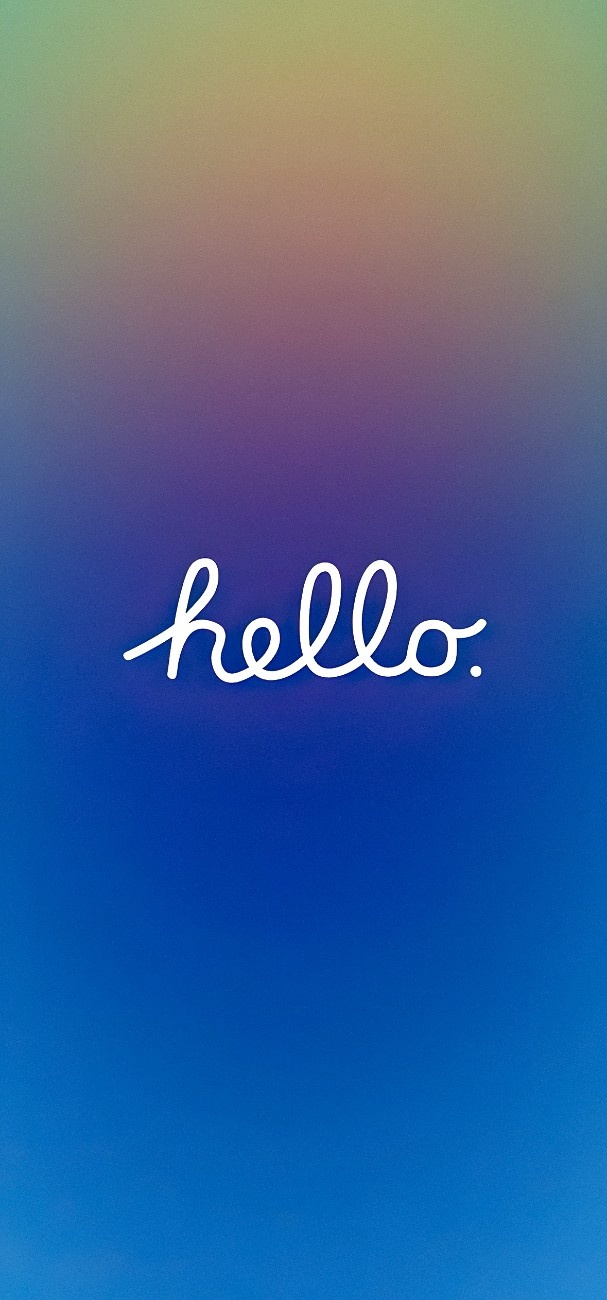
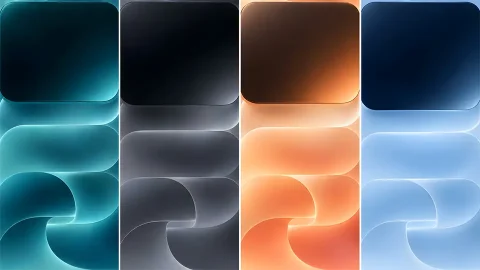
Mesh gradient wallpapers use Apple’s signature soft, blurred color blends, in tones ranging from green and cyan to orange and pink-purple sunset combinations, with the “hello” text sitting quietly in the lower third of the screen.
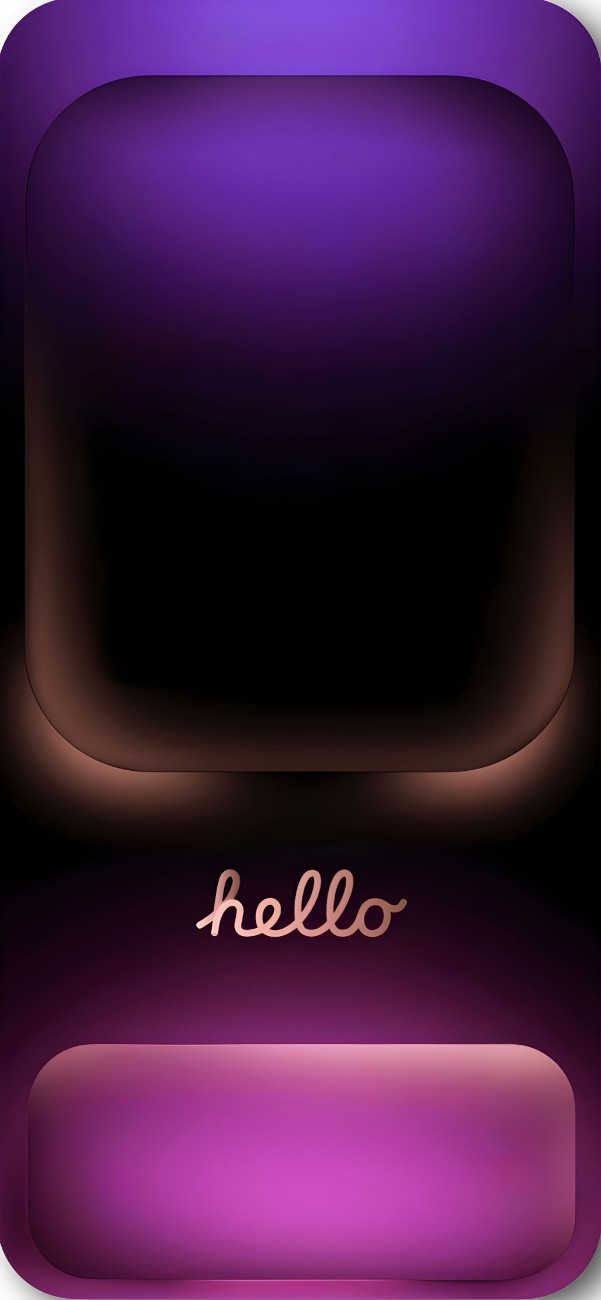
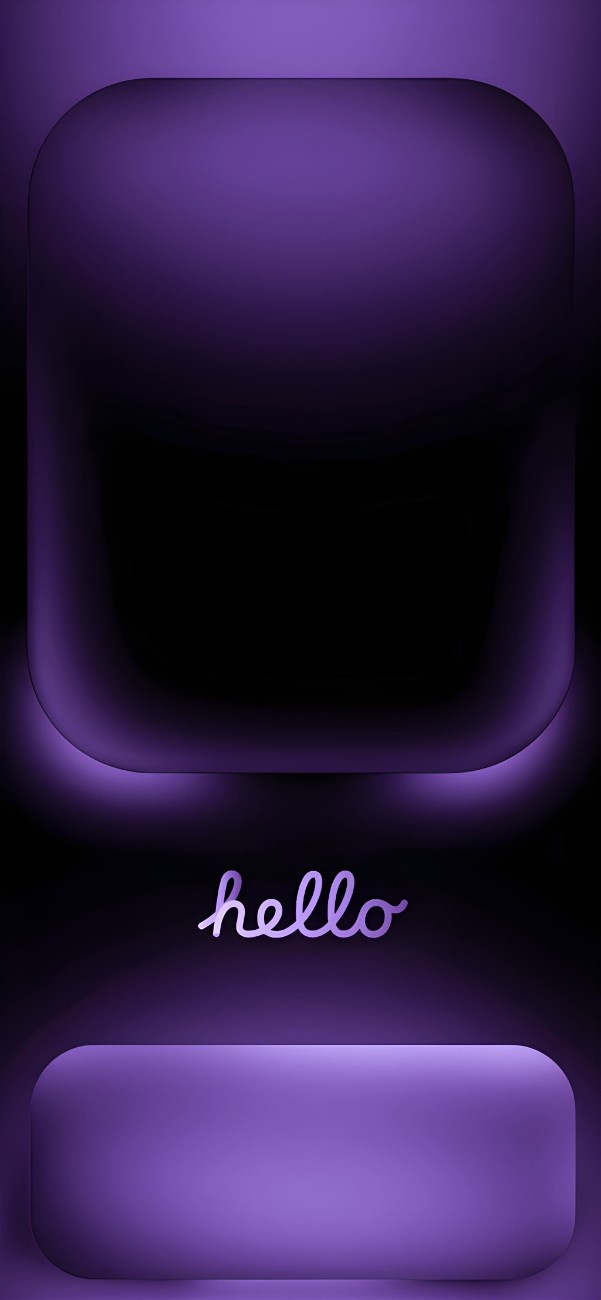
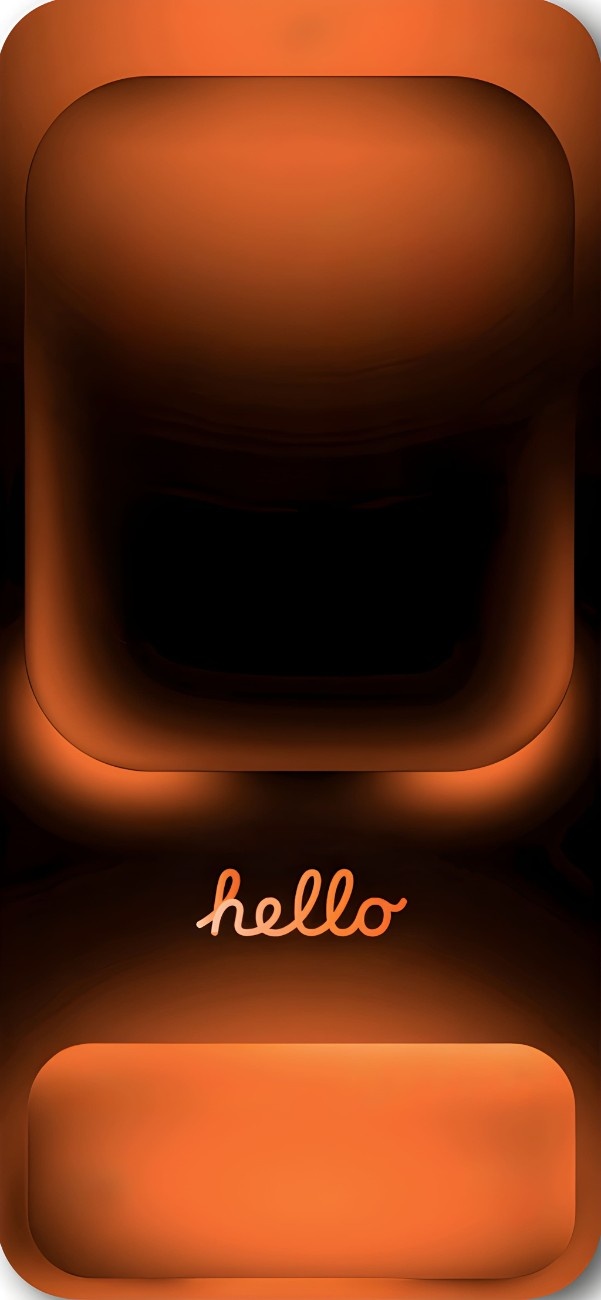
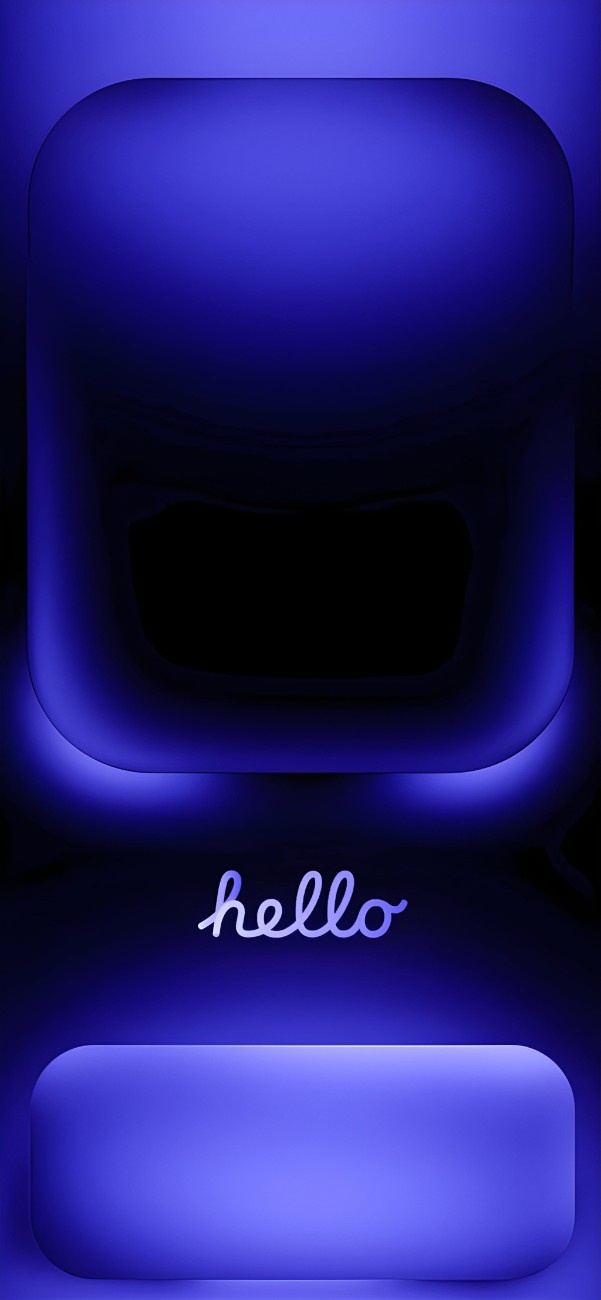
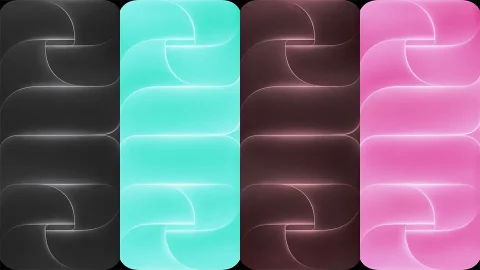
Glass and Dynamic Island wallpapers are designed specifically to frame the iPhone’s camera cutout, using a glowing rounded rectangle or glass-panel effect that makes the Dynamic Island look like part of the wallpaper itself.
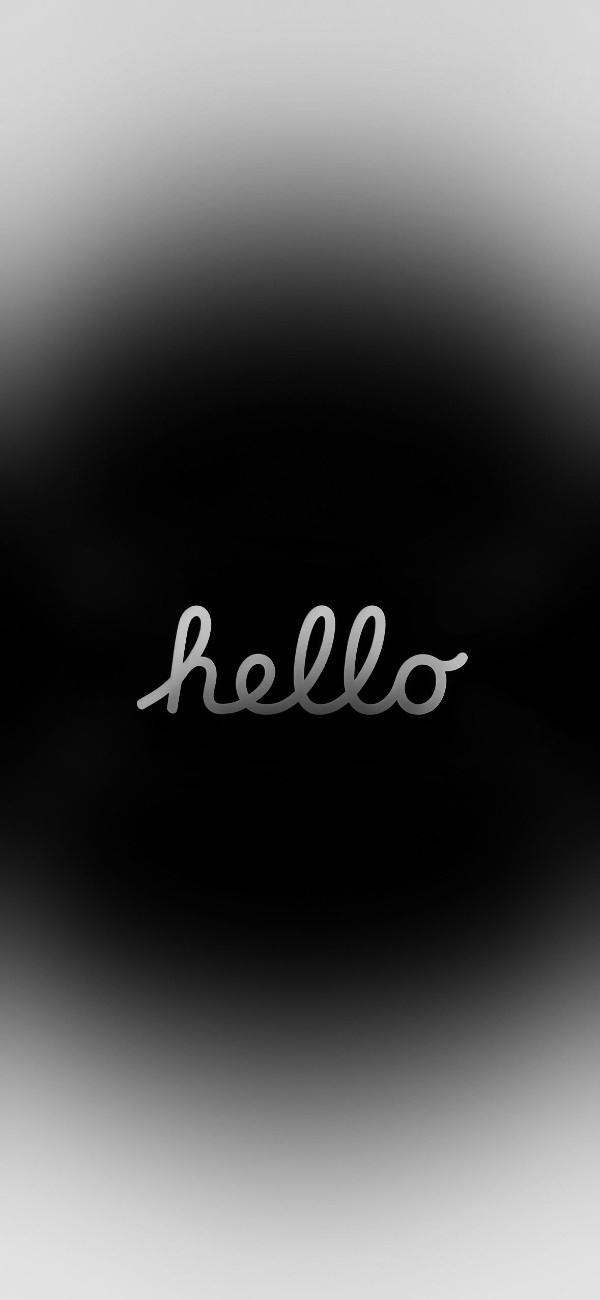
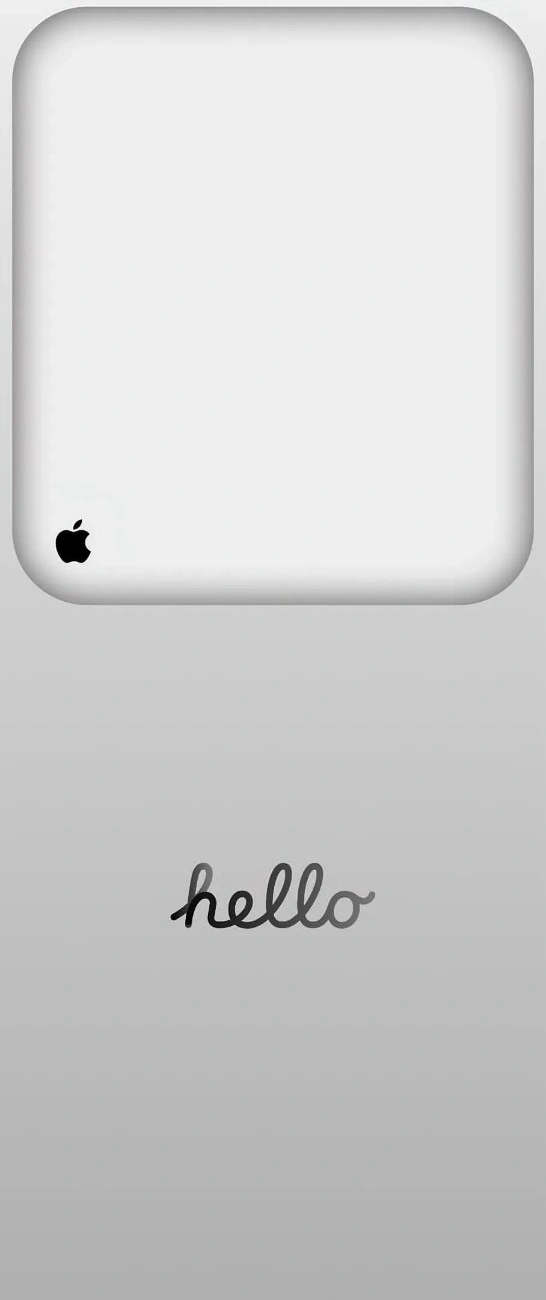
Minimal Apple-style wallpapers strip things back even further, using muted gray tones or a small Apple logo alongside the cursive text for a clean, almost vintage iPod aesthetic.
How to Set Up Your “Hello” Wallpaper on iPhone
Once you’ve picked your favorite design from the collection, setting it as your lock screen or home screen takes less than a minute. Here’s how:
- Save the image to your Photos app. Tap and hold the wallpaper image, then select “Save Image,” or download it directly from your browser and confirm it lands in your Camera Roll.
- Open the Settings app and tap Wallpaper, or alternatively long-press anywhere on your current lock screen and tap the plus (+) button to start a new wallpaper setup.
- Choose “Add New Wallpaper” and select Photos from the source menu, then find the “hello” wallpaper you just saved.
- Adjust the framing. Pinch to zoom or drag the image so the “hello” text sits in a clear area, away from where the time, notifications, or widgets will appear. For the glass-panel and Dynamic Island styles, line up the rounded rectangle in the image with your phone’s actual camera cutout for the best illusion.
- Add a depth effect (optional). If the wallpaper has a subject in the foreground, iOS may offer a “Photo Shuffle” or depth effect that lets the clock appear to sit behind it. Most of the gradient and neon designs in this set work better with depth turned off, since they’re flat compositions.
- Customize your widgets. Tap below the time to add a date, weather, or battery widget. Light-colored widgets pair best with the dark neon wallpapers, while dark text widgets stand out more on the brighter gradient designs.
- Set for Lock Screen, Home Screen, or both. Tap Add, then choose whether the wallpaper applies to your lock screen, your home screen, or both. Many people choose to use a darker neon “hello” design for the lock screen and a brighter gradient version for the home screen to keep app icons easy to read.
- Save and apply. Tap Done to lock in your new look.
Final Thoughts
Whether you prefer the moody glow of a neon “hello” on black, the softness of a mesh gradient, or the futuristic glass-panel framing around your Dynamic Island, this collection gives you 18 free options to refresh your iPhone’s lock screen in seconds. Download your favorite, follow the setup steps above, and enjoy a cleaner, more personal home screen.
Explore More
- Apple WWDC26 Wallpapers: Vibrant 4K Lock Screen Picks
- iOS 27 Liquid Glass Wallpapers for iPhone (4K) – Free Download
- Premium iPhone Air 4K Stock Wallpaper Collection in Green, Orange & Red
- Apple Logo Wallpapers: Best 4K, OLED & Aesthetic Backgrounds
- Download Official iOS 27 Wallpapers | 4K & Ultra HD Mobile Pack
- 10 Free HD Apple Pride iPhone Wallpapers & iOS Setup Guide

4 comments